

Account & Team Management
Learn how to create your account, set up your organization, and manage users and teams within the IoTFlows platform.
Creating Your Account & Organization
When you acquire an IoTFlows product, a new organization is automatically provisioned for you based on the information provided during the purchase process, provided you do not already have an existing organization.
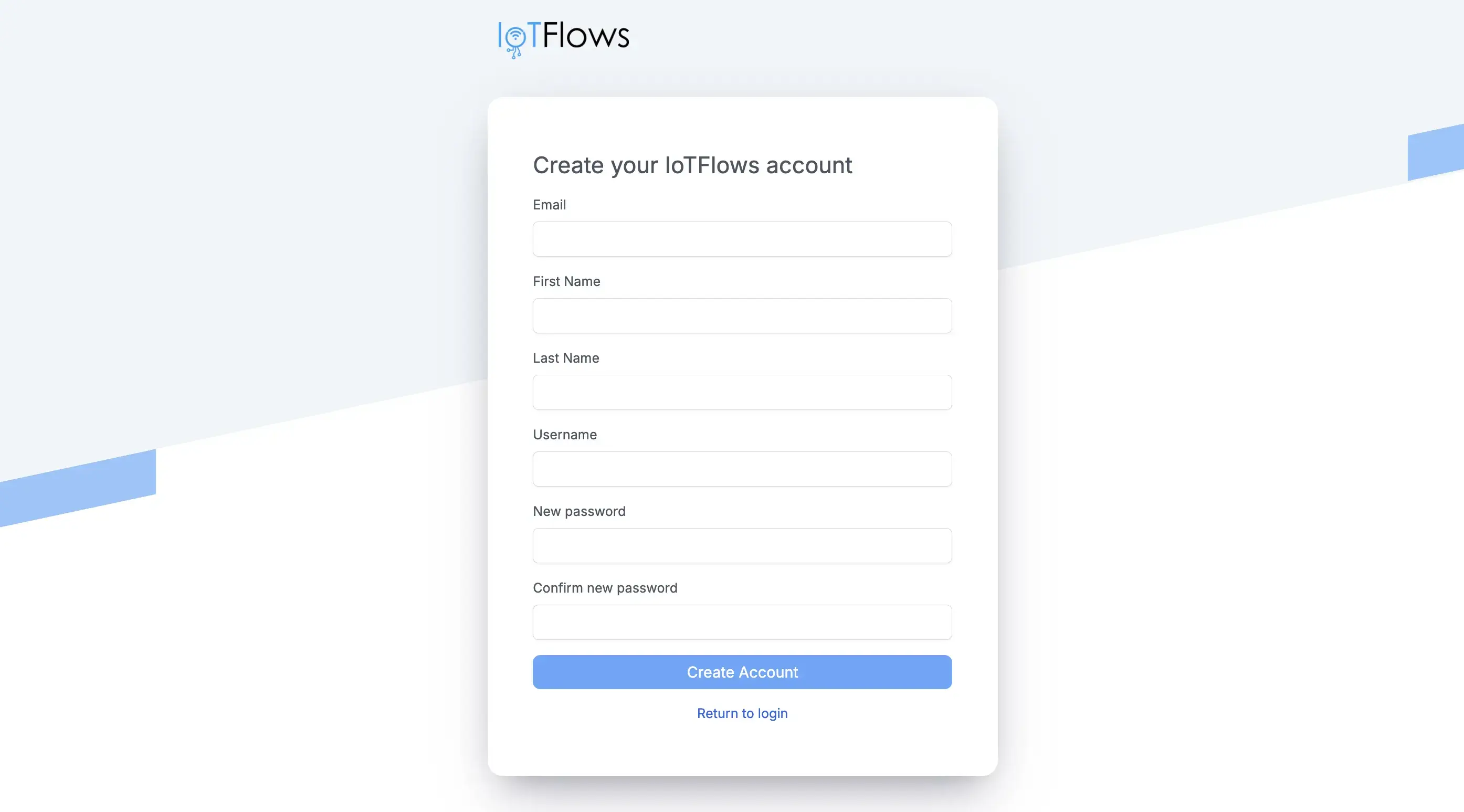
If you wish to join an existing organization, please request an invitation from your colleagues (refer to the "Inviting Users" section below). Upon receiving an invitation, you will get an email prompting you to create an IoTFlows account. Ensure you use the email address to which the invitation was sent. You can sign up by directly navigating to https://dashboard.iotflows.com/signup.
- Account: Your personal login credentials for the IoTFlows platform.
- Organization: The dedicated workspace where your devices, data, and team members are managed.
As the initial creator, you are automatically assigned the Organization Owner role, granting you comprehensive administrative access.
Accessing Your Account
For existing users, you can log in to your IoTFlows account and access your organization dashboard via the web portal or our mobile applications.
Web Portal
Navigate directly to the IoTFlows Dashboard to log in: https://dashboard.iotflows.com
Mobile Apps
Stay connected on the go with our dedicated mobile applications for iOS and Android.


Managing Users and Roles
As an Organization Owner or Administrator, you can invite new members to join your organization.
Inviting Users
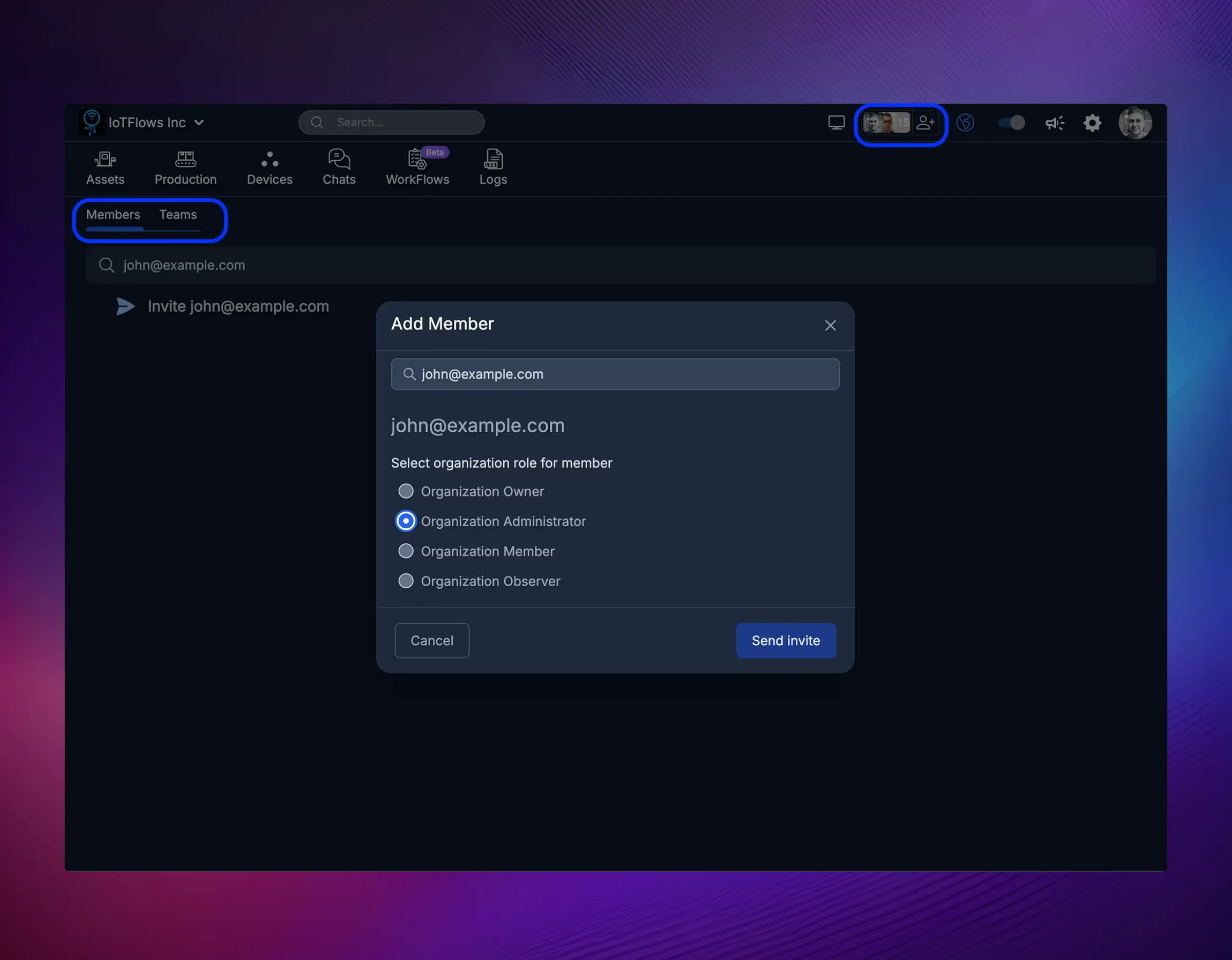
- Click the Users icon in the top-right corner of the platform.
- From the Members tab, click Add Member.
- Enter the email address of the person you want to invite.
- Choose the Role you want to assign them (see below for details).
- Click Invite. If the person doesn't have an IoTFlows account, they will receive an email invitation to sign up.
Roles and Permissions
Each member of your organization is assigned one of the following roles:
| Role | Description |
|---|---|
| Organization Owner | Has the highest level of permissions. Can delete the organization, manage billing, and access all resources. Each organization must have at least one Owner. |
| Organization Administrator | Can manage all organization resources but cannot delete the organization or manage billing. |
| Organization Member | Can only access the projects and resources they are explicitly assigned to. |
| Organization Observer | Has read-only access to resources they have been granted access to. |
Managing Teams
Teams allow you to group multiple users into functional or departmental units for easier management and assignment of tasks.

Creating a Team
- Open the Teams tab from the Users section.
- Click Create Team.
- Enter a Name and Handle for the team (e.g.,
maintenance-team). The handle can be used for tagging alerts and jobs. - Add members to the team and define their roles within the team.