Platform UI Features & Settings
Learn how to use key platform features including TV screen sharing, dark/light mode, OEE goal setting, status color configuration, and settings.
Overview
The IoTFlows platform includes powerful features accessible from the top navigation bar that enhance your experience, enable customization, and facilitate collaboration. This guide covers all the essential UI features you'll use daily to get the most out of the platform.
TV Screen Sharing to Chromecast
Share your current view to TV displays throughout your facility using IoTFlows-assigned Chromecast devices.
Click the TV icon
Located in the top-right corner of the platform navigation bar.
Select your Chromecast device
Choose from the list of Chromecast devices assigned to your organization.
View appears on TV
Your current page (with all filters and settings) will appear on the TV screen and updates in real-time as data changes.
Best Use Cases
Shop Floor Displays
- Real-time machine status visible to all operators
- Shift production progress boards
- Department-specific performance metrics
Management Offices
- Facility-wide overview dashboards
- Executive KPI summaries
- Cross-department comparisons
Quality & Continuous Improvement
- Downtime Pareto charts for daily review meetings
- Historical production trends for monthly reviews
- Operator performance tracking
What You Can Share
All major platform views are shareable:
- Assets Tab (Overview, Canvas, Downtimes, Advanced Report, Operator Performance)
- Production Tab (Shift Production, Historical, Parts List)
- Any customized or filtered view
Dark Mode / Light Mode
Switch between light and dark themes based on your preference or viewing environment.
How to switch: Click the theme toggle icon (sun/moon symbol) in the top-right corner.
The platform instantly switches between:
- Light Mode: Bright, high-contrast for well-lit environments
- Dark Mode: Reduced eye strain for dimly lit areas or extended viewing
Benefits of Dark Mode
Reduced Eye Fatigue
Lower brightness reduces strain during long monitoring sessions
Better Low-Light Visibility
Ideal for manufacturing environments with variable lighting
Night Shift Friendly
Lower screen brightness for operators working overnight
Professional Appearance
Modern, sleek interface preferred by many users
Setting OEE / Utilization Goals
IoTFlows allows you to set utilization/OEE goals at two levels: organization-wide and machine-specific. These goals determine the color coding (green/orange/red) for machine status.
Organization-Wide OEE Goal
Set a default OEE goal that applies to all machines in your organization.
Navigate to Assets Tab
Go to Assets Tab → Overview
Click on Utilization percentage
In the top summary section, click on the Utilization percentage (e.g., "68.2%")
Enter your target
A modal titled "Set Organization Utilization / OEE Goal" will appear. Enter your target percentage (e.g., "70%") and click Set.

Impact:
- Machines meeting or exceeding this goal show green utilization badges
- Machines below the goal but above the warning threshold show orange
- Machines significantly below the goal show red
Machine-Specific OEE Goal
Override the organization goal for specific machines that have different expectations.
Select a machine
Click on the Utilization percentage for a specific machine in the Assets Tab
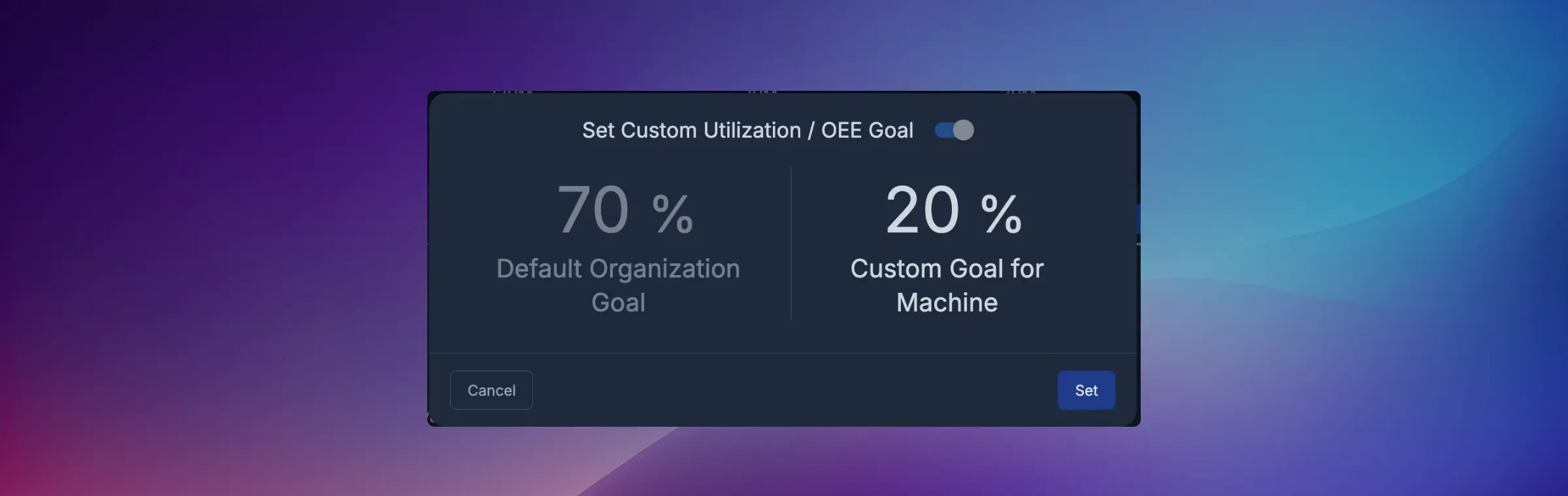
Enable custom goal
Toggle Custom Goal for Machine to ON in the modal
Set custom percentage
Enter the custom goal for this machine and click Set
Best Practices for Goal Setting
Adjusting Machine Status Colors
Customize the time thresholds that determine when a machine's status changes from green → orange → red based on inactivity.
Access color settings
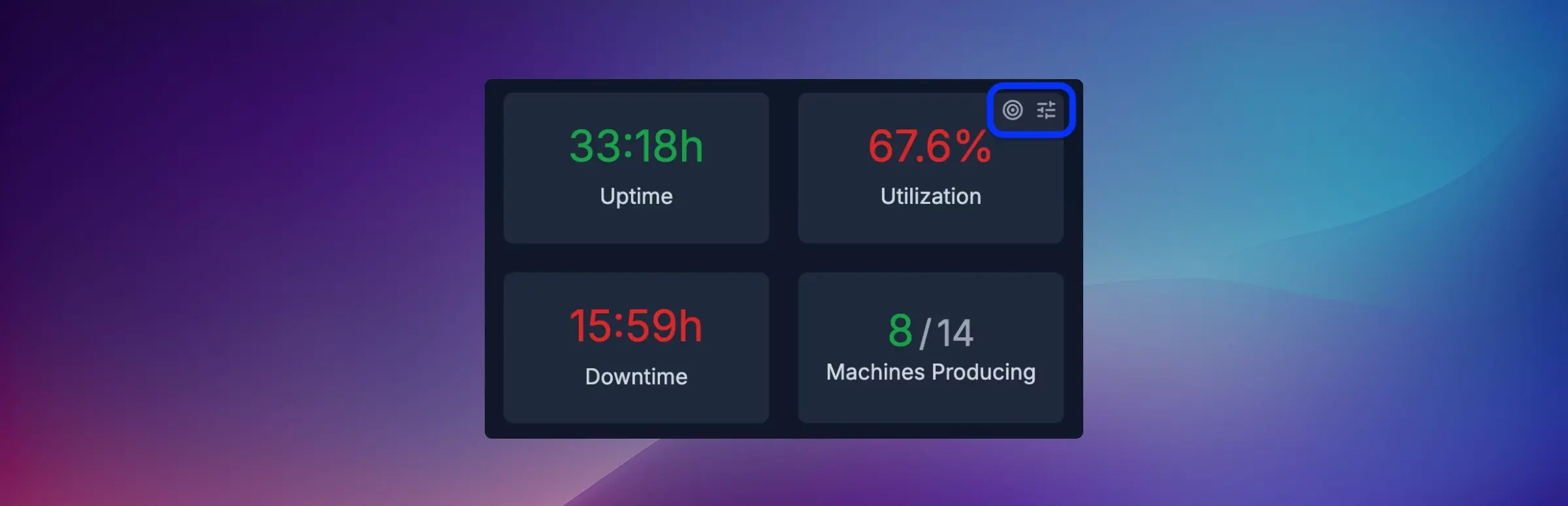
Navigate to Assets Tab → Overview. Look at the summary metrics card showing Uptime, Utilization, Downtime, Machines Producing.
Click settings icon
In the top-right corner of this card, click the icon with two sliders
Adjust thresholds
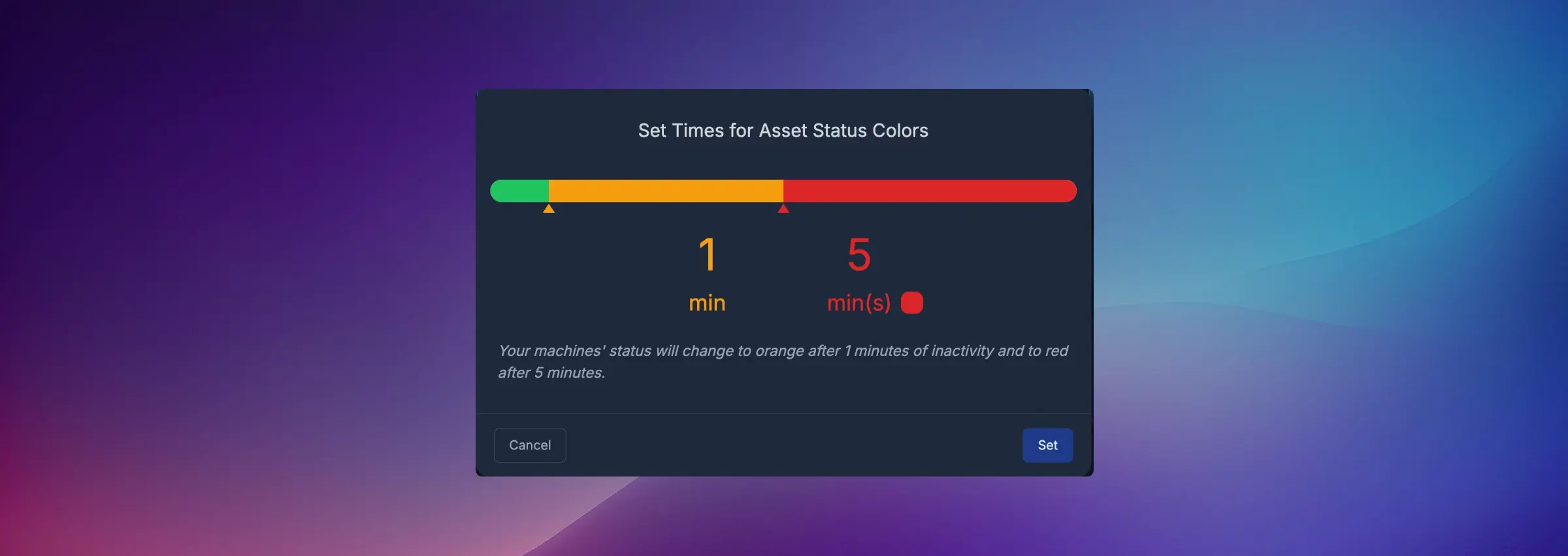
A modal titled "Set Times for Asset Status Colors" will appear with a color gradient slider.
Set time values
Adjust the two threshold markers:
- First threshold (orange): Time after which a stopped machine shows orange
- Second threshold (red): Time after which a stopped machine shows red
Save changes
Click Set to apply the new thresholds
Recommended Threshold Settings
| Machine Type | Orange Threshold | Red Threshold |
|---|---|---|
| High-speed automated (< 30 sec cycle) | 30 seconds | 2 minutes |
| Standard CNC machining (2-5 min cycle) | 1 minute | 5 minutes |
| Long cycle operations (> 10 min) | 5 minutes | 15 minutes |
| Support equipment (intermittent use) | 5 minutes | 30 minutes |
Organization Settings
Access organization-wide configuration options by clicking the settings icon (gear symbol) in the top-right corner.
Available Settings
General Settings
- Organization name and display preferences
- Timezone configuration
- Basic platform options
Shift Management
- Define operational shifts (day, night, weekend)
- Set shift start/end times
- Configure timezone for each shift
Auto Downtime Classification
- Create rules to automatically categorize common downtimes
- Define severity levels
- Set up pattern-based classification
Assign Asset (Operator Mode)
- Configure dedicated operator workstations
- Pair iPads/tablets with specific machines
- Enable operator-specific features
Shift Management
Configure your operational shifts for accurate reporting
Auto Downtime Rules
Automate downtime classification to save operator time
Assign Asset
Set up operator workstations for real-time data entry
General Settings
Manage basic organization configuration
Profile Menu & Billing
Click your profile picture in the top-right corner to access:
Profile Settings
- Update your name, email, and password
- Configure personal preferences
- Manage notification settings
Billing
- View current subscription plan
- Update payment methods
- Access invoices and billing history
- Manage subscription
Logout
- Sign out of the platform securely
Feedback & Support
Share suggestions, report issues, or ask questions directly to the IoTFlows team.
How to submit feedback:
- Click the feedback icon in the top navigation
- Describe your feedback, question, or issue
- Submit the form
Our team reviews all submissions and may follow up with you for clarification or to notify you when features are implemented.
Types of feedback we welcome:
- Feature requests and enhancement ideas
- Bug reports with steps to reproduce
- Questions about platform functionality
- Suggestions for improving documentation
- User experience improvements
Search Functionality
Use the search bar at the top of the platform to quickly find:
- Machines by name or ID
- Operators and team members
- Parts or operations
- Specific documentation pages
Simply type your query and relevant results will appear instantly.
Mobile Responsiveness
The IoTFlows platform is fully mobile-responsive, allowing you to:
- Monitor production from smartphones or tablets
- Access real-time data from anywhere
- Use touch-friendly controls for on-the-go management
- Receive notifications on mobile devices
Mobile Apps
Download the native mobile app for the best experience:
Best Practices
Configure Goals Early
Set your OEE goals and status color thresholds during initial setup so your team has clear targets from day one.
Use TV Displays Strategically
Place TVs in high-traffic, high-visibility areas:
- Shop floor (real-time machine status)
- Department entrances (department-specific performance)
- Management offices (facility-wide overview)
- Break rooms (shift production progress)
Leverage Dark Mode for Operators
Enable dark mode on shop floor displays to reduce eye strain for operators working in variable lighting conditions.
Adjust Settings as You Improve
As your processes mature and performance improves, raise your OEE goals and tighten status color thresholds to maintain continuous improvement momentum.
Encourage Team Feedback
Train your team to use the feedback feature to report issues, request features, or share insights. This helps us continuously improve the platform.
Have questions about configuring platform features or optimizing your setup? Contact our support team at support@iotflows.com