

Monitor low stock and reorder points
What is below its reorder point right now, and what this view leaves out.
A reorder point is the available quantity at or below which IoTFlows flags an item for ordering. It is a field on the item, counted in the item's own unit, and it defaults to 0, so an item appears here only once you set one. See Create and edit items.
Every member can open this tab. Changing a reorder point takes an Owner or Administrator role.
Open Low Stock
- Open Inventory from the top navigation.
- Select the Low Stock tab. The address bar reads
/inventory?select=low_stock.
The heading carries the number of items on the list. When nothing is low, the tab reads Everything is above its reorder point.
Each row shows the item's picture, name and SKU, a Low stock or Shortage pill, and three numbers:
- Available is on hand minus what open work orders have reserved, explained in Adjust stock and track locations.
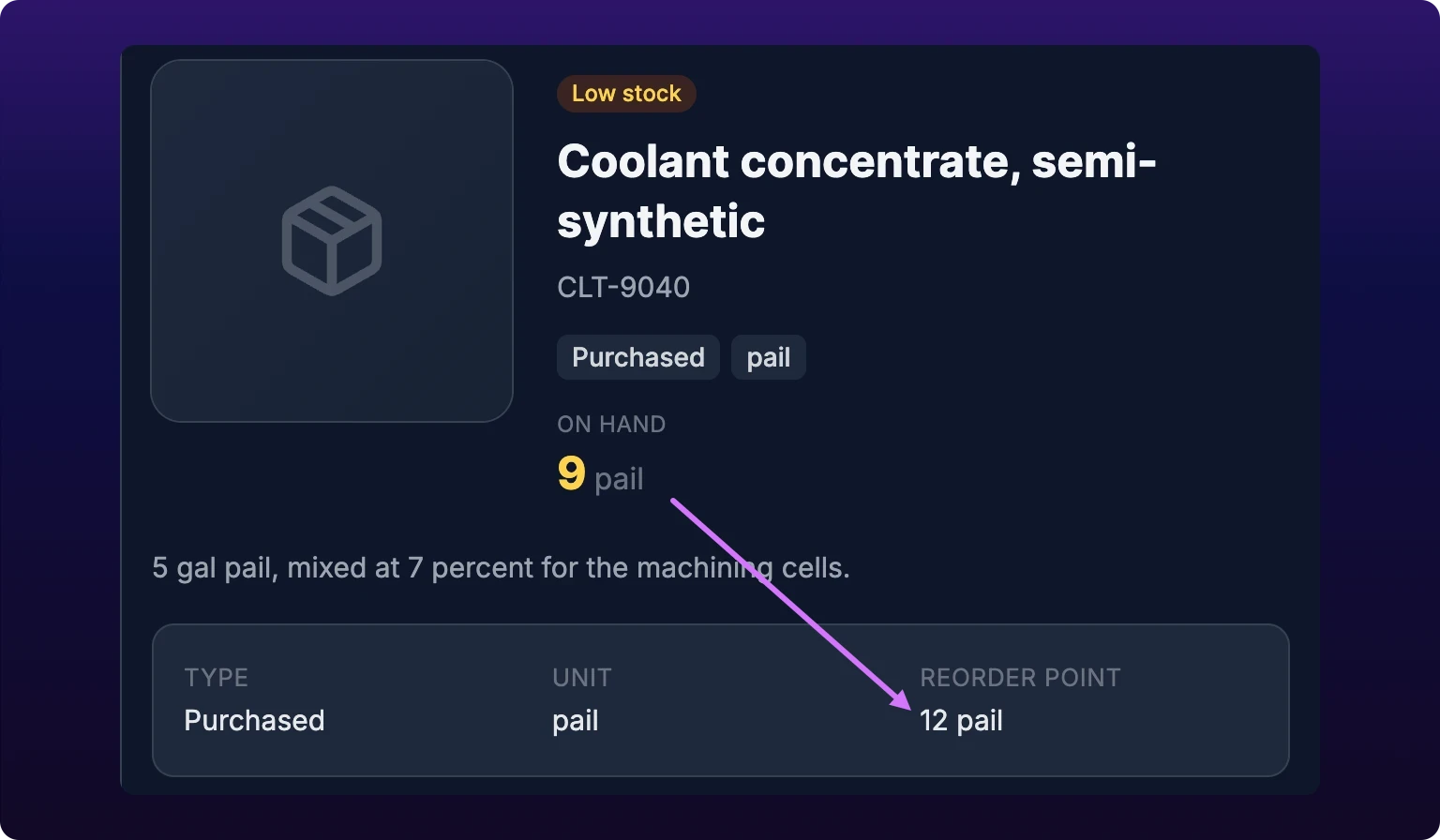
- Reorder point is the level set on the item.
- Suggested order is the reorder point minus available. Ordering that much puts the item back at its reorder point exactly, with nothing spare.
View item opens the item in the right-hand drawer, where you adjust stock or change the reorder point without leaving the list. The tab itself carries no search, no sort and no filters.
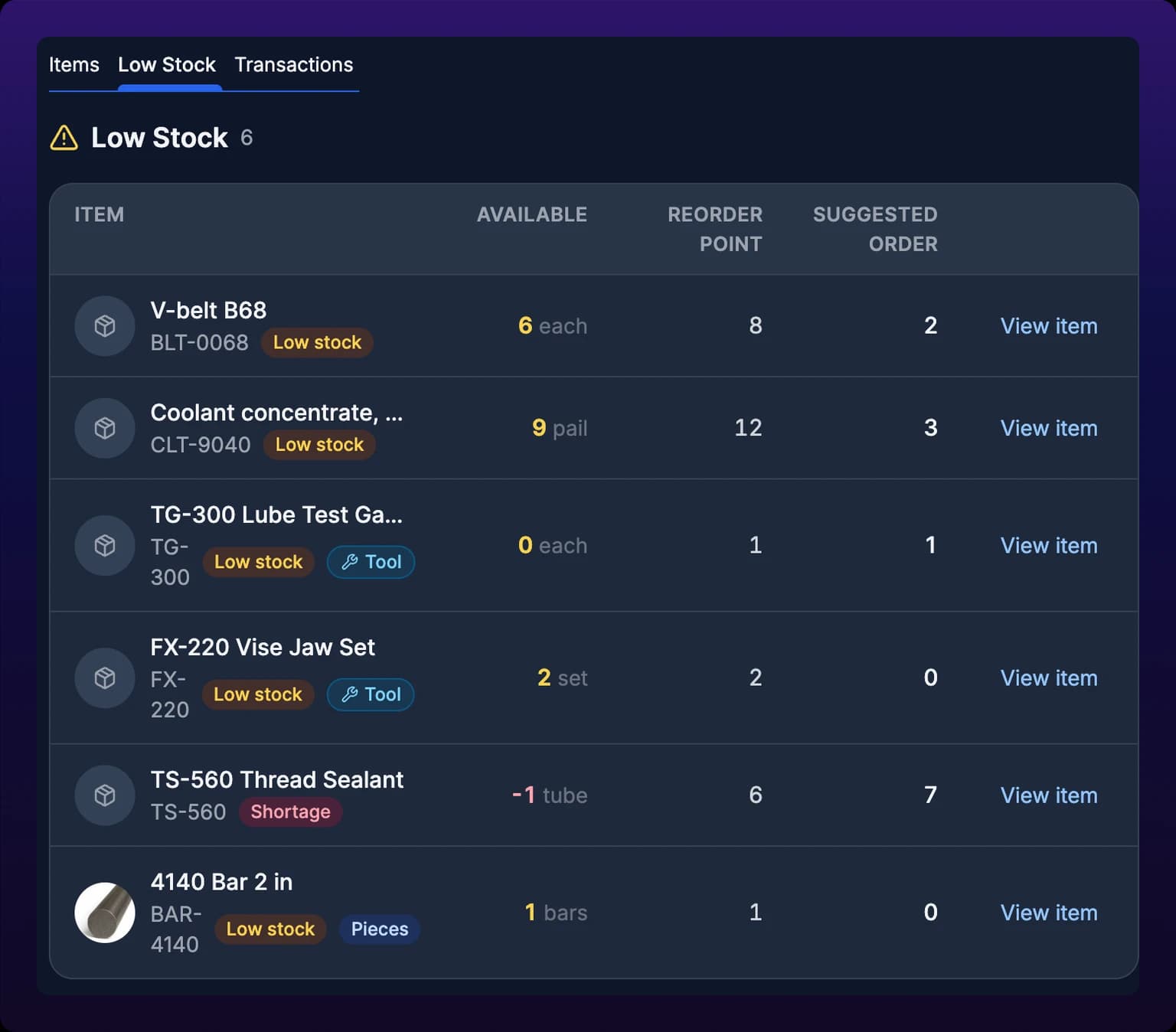
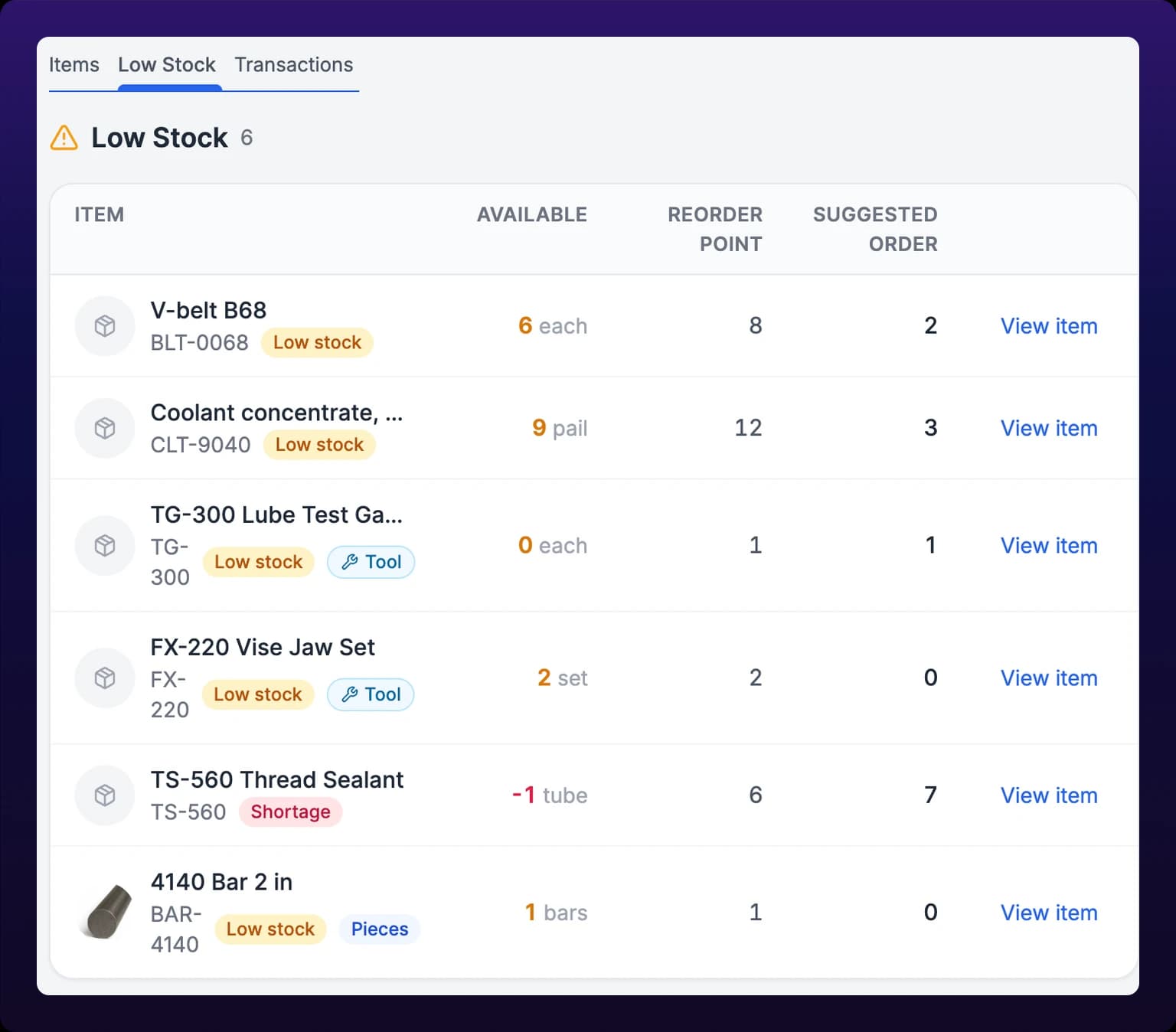 The Low Stock view. Only purchased items are fetched, so a manufactured item never appears here however low it runs.
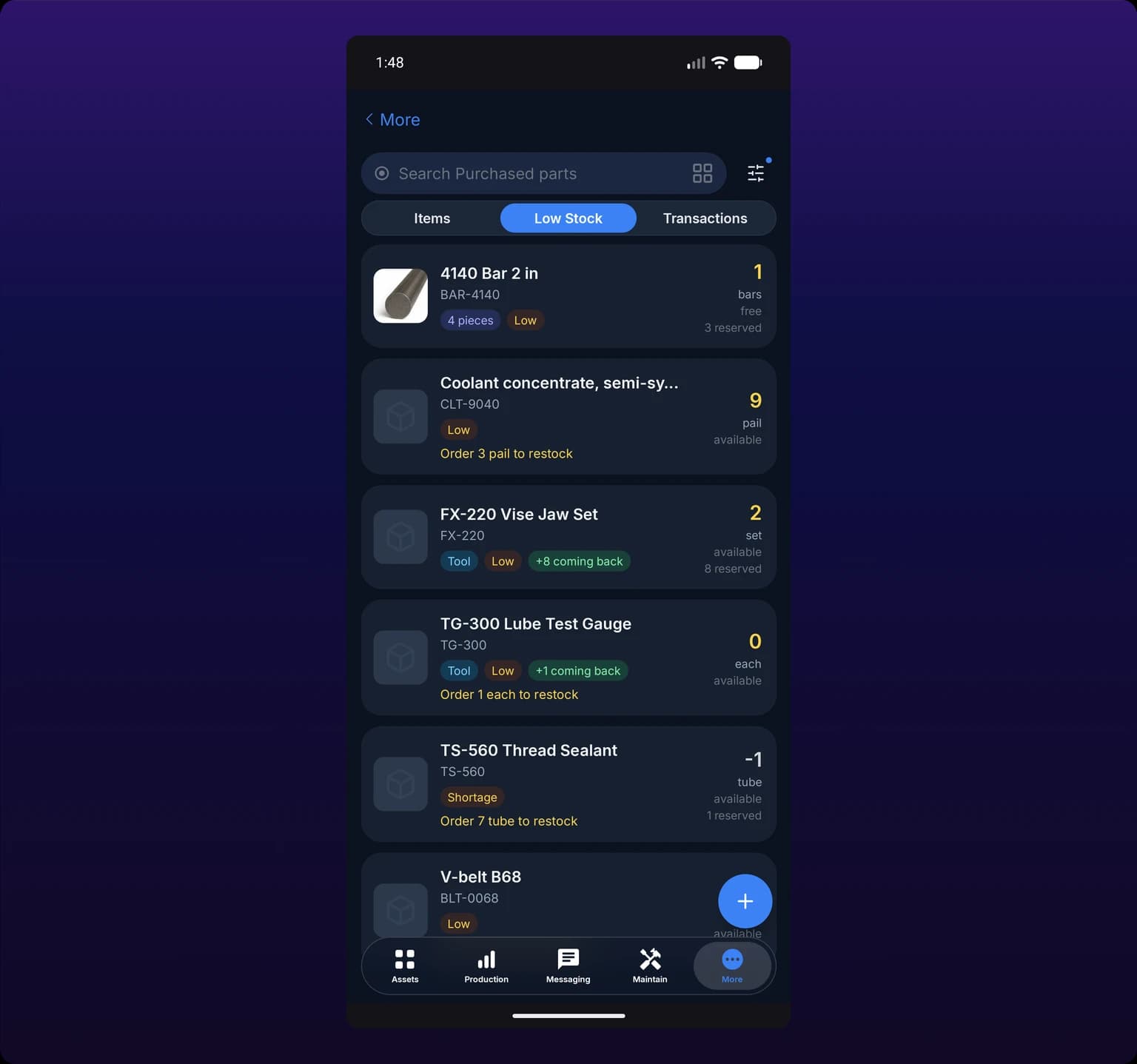
On mobile. The same list is the Low segment of the Inventory screen, beside Items and Transactions. It reads the rows the catalog already loaded, so the two cannot disagree.
 The Low segment on Android. It is derived from the same rows as the catalog, so the two cannot disagree.
How the list is built
The tab asks for the purchased items in your organization, then keeps the ones that are short. Three rules decide it:
- Available is at or below the reorder point, and the reorder point is above 0. The row reads Low stock.
- Available is negative, whatever the reorder point says. More is reserved than is on the shelf, and the row reads Shortage.
- A reorder point of 0 never flags an item. An item with no reorder point reaches this list only by going negative.
At or below, not below: an item with 20 available and a reorder point of 20 is on the list.
What appears here
| Segment | Appears | Why |
|---|---|---|
| Purchased | Yes | The tab fetches purchased items only |
| Manufactured | No | Not fetched. You make these rather than order them, so change the item's Type to Purchased if it belongs here |
| Tools | Yes, with a Tool chip | Tools is a filter over the types, not a type of its own, and every item created in IoTFlows is purchased. Running out of racks stops a job the same way running out of bolts does |
| An item stocked as pieces | Yes, as one row | Judged on how many of its pieces, the physical units it is held as, are still free, not on a quantity |
| A single piece | No | Pieces are counted under the item they belong to, never listed on their own |
An item stocked as pieces holds no stock itself, so its own available is permanently 0 and no restocking could clear it. It is judged on how many of its pieces no open work order is holding, its reorder point counts pieces, and the row carries a Pieces chip to say so. See Track serialized pieces and tools.
Set a reorder point that works
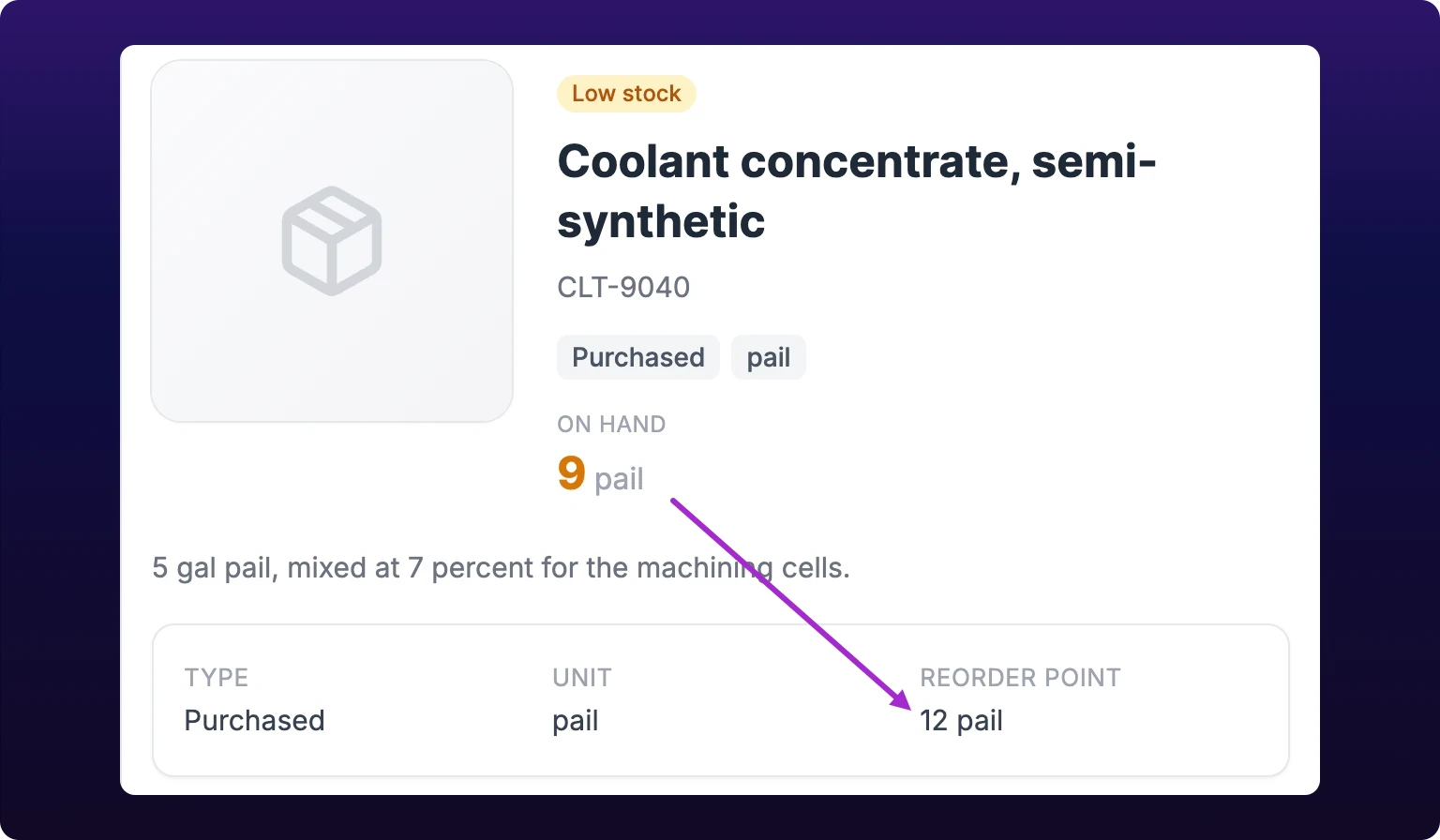
- Select View item on the row, or open the item from the Items tab.
- Select the Reorder point field in the item's meta card.
- Enter the number and save. The field saves on its own, and a failed save reverts it and raises Could not update item.
Set the reorder point to cover your supplier's lead time at your normal consumption rate, not to a round number. For a nitrile gasket you draw 40 of a week from a supplier who ships in three weeks, that is 120, plus whatever cushion your receiving takes.
A round number set without that arithmetic is worse than none. A reorder point of 10 on a part you use twice a year is a permanent alert, and a list nobody finishes reading.
 How an item lands in Low Stock.
What Low Stock does not show
Manufactured items. You do not get a low-stock view for anything you make. Track those from the Items tab filtered to Manufactured, where list mode carries the same quantity columns.
Stock that is already on order. Incoming quantities are not netted into available, so an item stays on this list until a receipt lands its stock. A job cannot pull from stock that is not on a shelf yet.
Where the shortage is. Each row is one organization-wide number. An item can be low overall while one location is full, so open the item and read Stock by location before you order.
What the item's own pill says. The pill on an item's detail is judged against On hand, this list against Available. A full shelf spoken for by open work orders therefore reads In stock on the detail and still appears here.
The list is empty, but I know something is low. Check the item's Type first: a part switched to Manufactured is not fetched here, however low it runs. Then check its reorder point, since 0 or blank never flags. Both fields are on the item's detail, covered in Create and edit items.
See also
An item stocked as pieces holds no stock of its own: each physical bar, roll, sheet, tube or container is tracked as its own record, with its own id, its own unit, its own amount and the one location it sits at. This page covers deciding when to serialize an item, adding a piece with its opening receipt, reading and adjusting per-piece stock, the capacity-1 conflict a piece raises on the scheduler when two work orders hold it at once, deleting a piece, and why a reusable tool cannot be stocked as pieces. Pieces take an Owner or Administrator role, and they exist on the web, iOS and Android.
A work order carries two parts lists, Parts Required and Create/Release Parts, and neither one moves anything until the work order closes. Raising it reserves the required lines, which drops what is available to other jobs without changing what is on the shelf. Setting it to Done is what moves the stock: IoTFlows shows a read-only summary of both directions, and the backend then consumes the required lines, produces the created ones, writes the inventory transactions and clears the reservation. This page maps each action to the transaction it creates, explains reserved, incoming and available, and shows where the result lands in the ledger.