

Network Setup
Connect your SenseAi to the internet via WiFi or 4G/LTE router.
Overview
SenseAi requires an internet connection to send data to the IoTFlows cloud. You have two connectivity options:
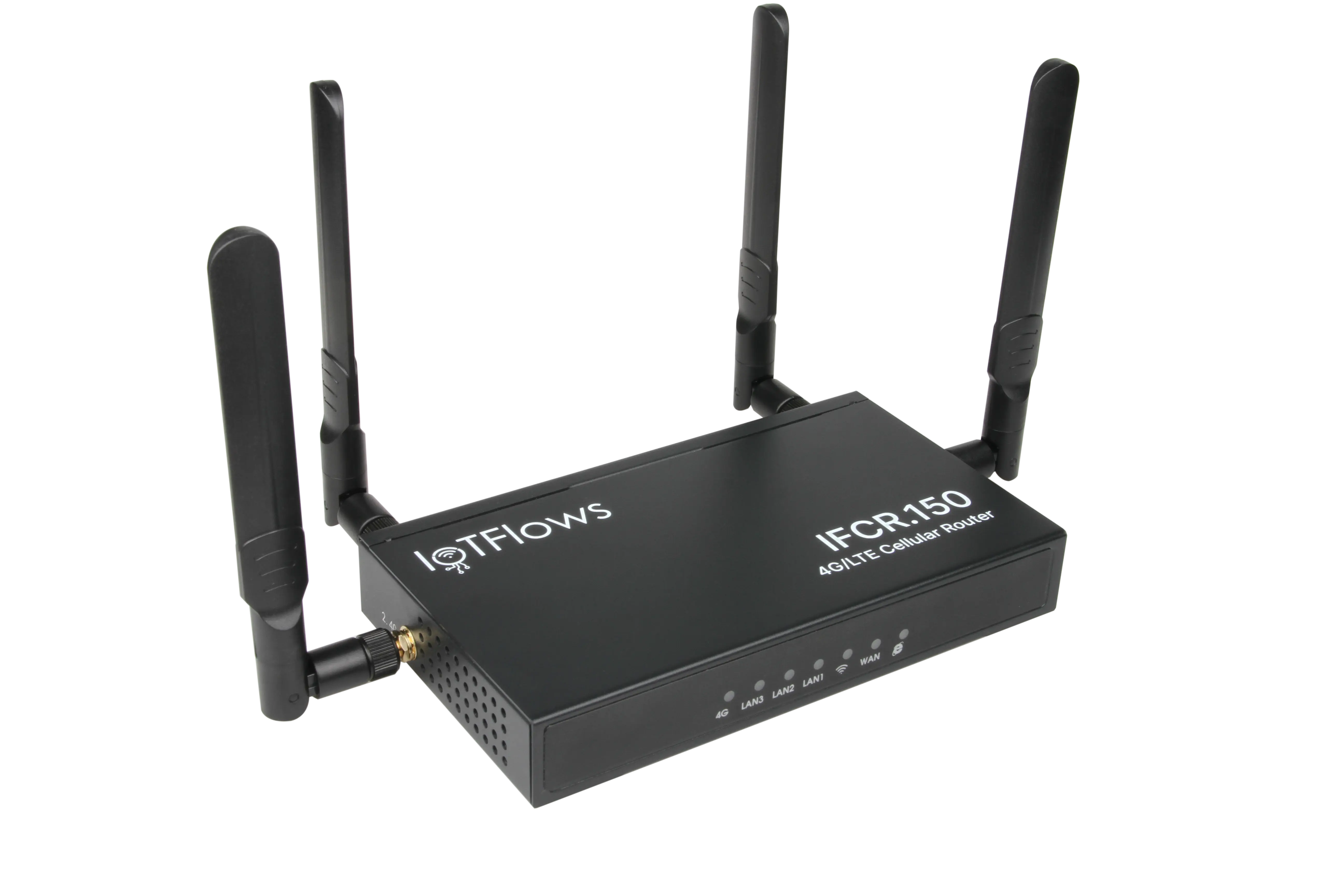
- Option 1: IoTFlows 4G/LTE Router (plug & play, no configuration)
- Option 2: Facility WiFi (2.4 GHz only)
Option 1: Using IoTFlows 4G/LTE Router
If your SenseAi ships with an IoTFlows 4G/LTE router:
- Connect the router's power adapter
- Place it near a window or spot with good cellular reception
- Keep it within 100 ft (30 m) of your SenseAi devices
- Power up your SenseAi unit
The router automatically connects to the cellular network within a few minutes. Once active, SenseAi connects to the router's WiFi and appears online in your IoTFlows dashboard.
Option 2: Connecting to Facility WiFi
If you prefer to use your facility's WiFi network:
Requirements
- WiFi network must be 2.4 GHz (5 GHz not supported)
- IoTFlows Mobile App installed on your phone
- Bluetooth enabled on your phone
Setup Steps
-
Download the IoTFlows Mobile App:
-
Log in with your IoTFlows account
-
Enable Bluetooth on your phone
-
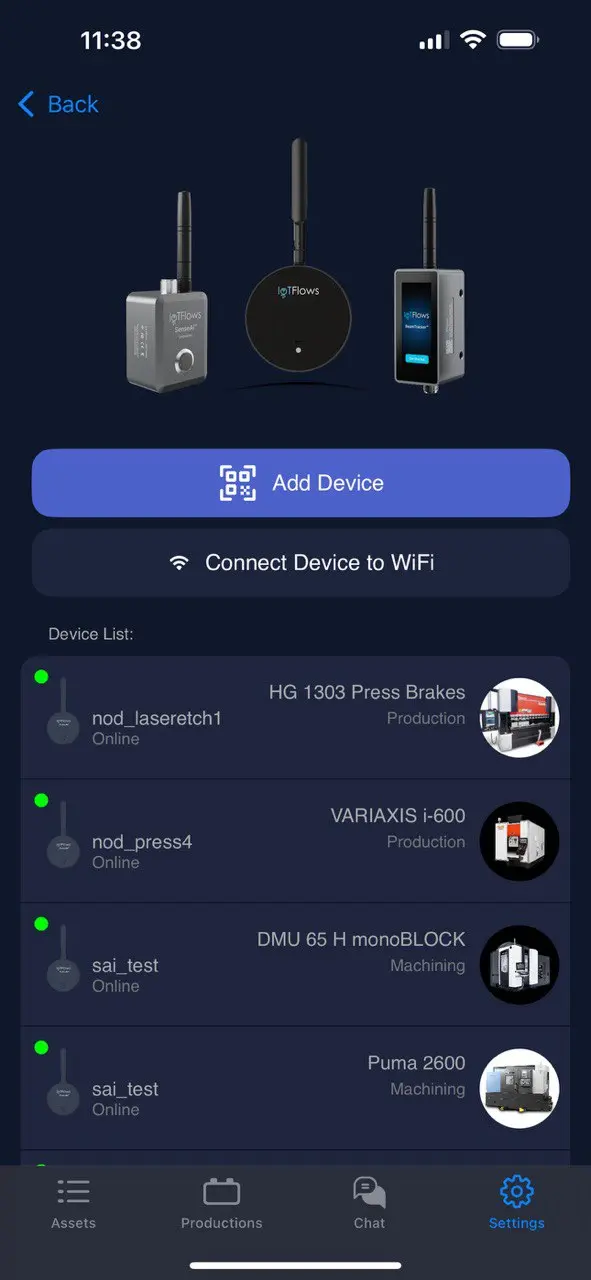
In the app, navigate to: Settings → Devices → Connect Device to WiFi
-
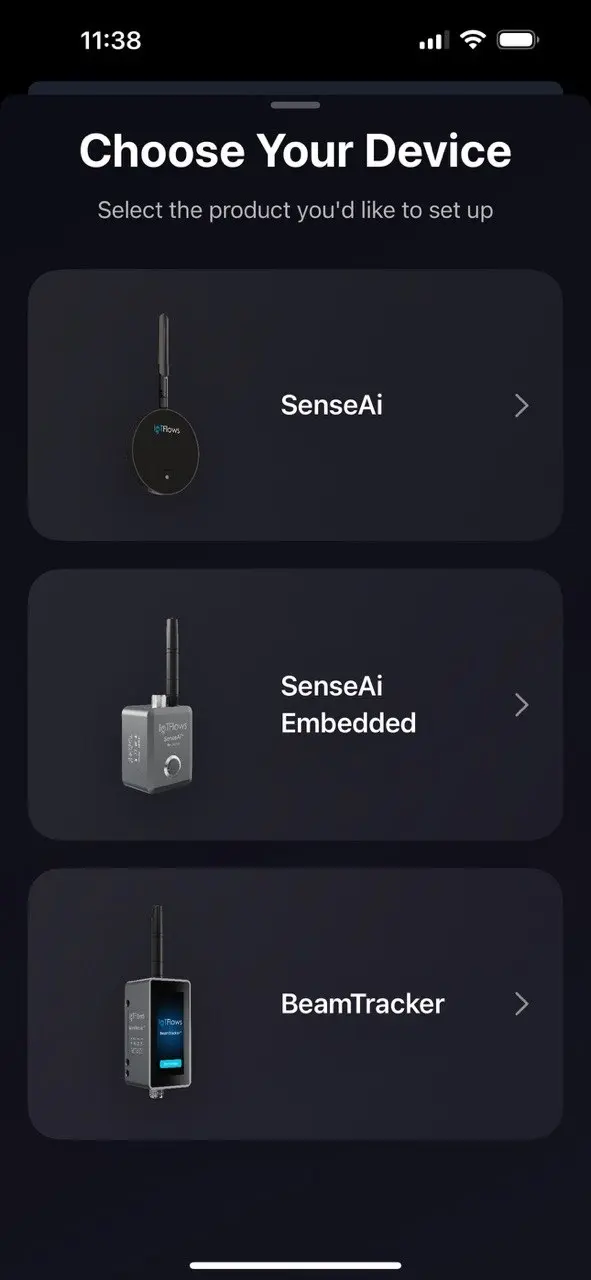
Select SenseAi from the device list
-
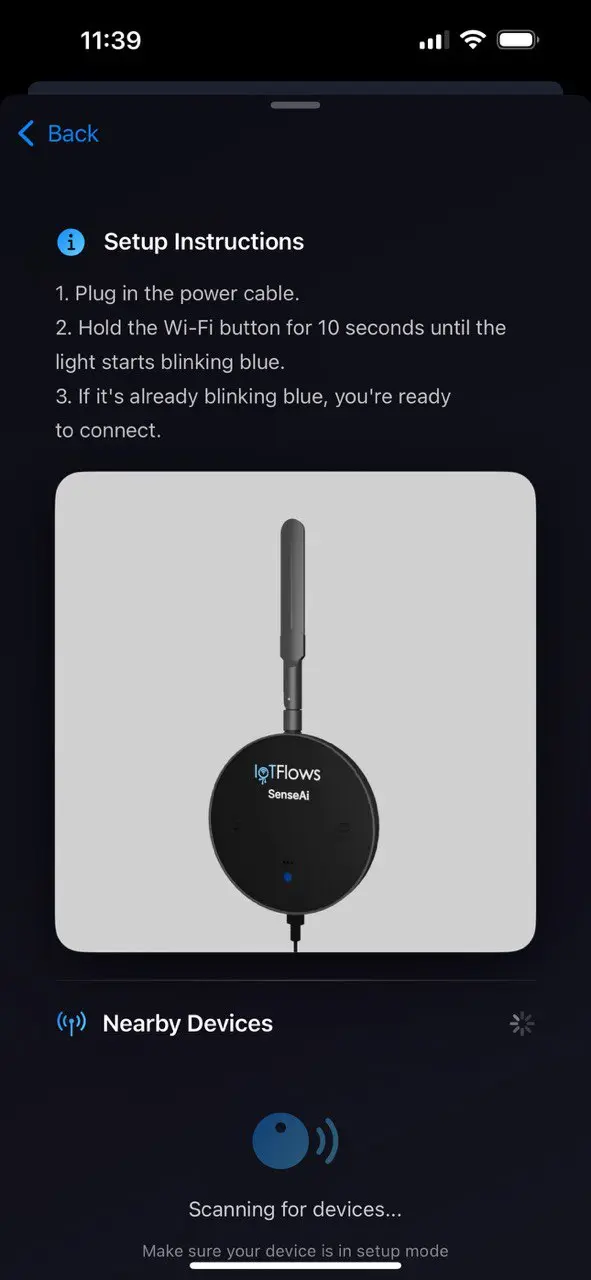
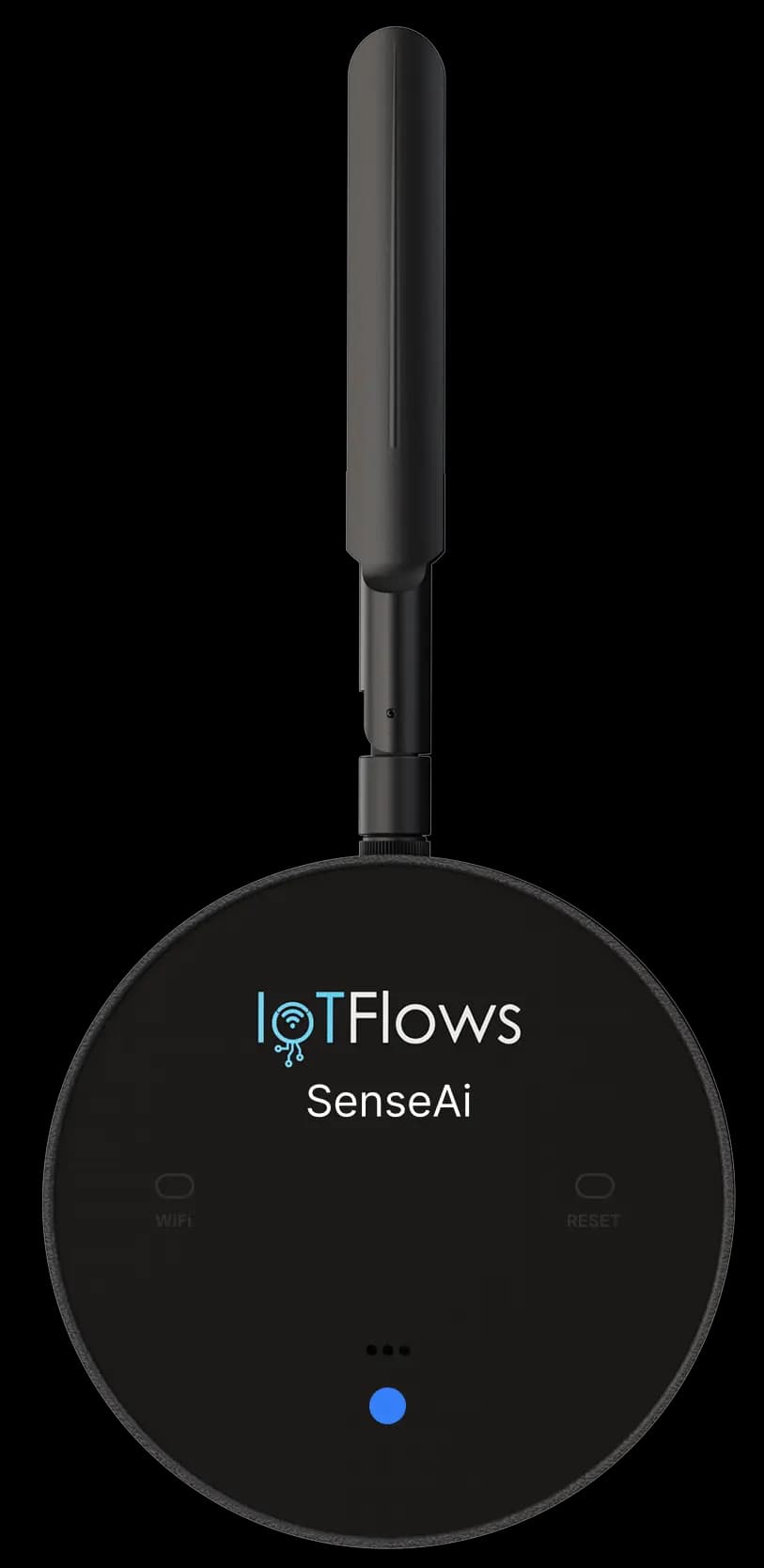
Ensure your SenseAi is blinking blue (WiFi setup mode)
- If not blinking blue, see "Resetting WiFi Configuration" below
-
Follow the in-app prompts:
- Select your WiFi network from the list
- Enter your WiFi credentials
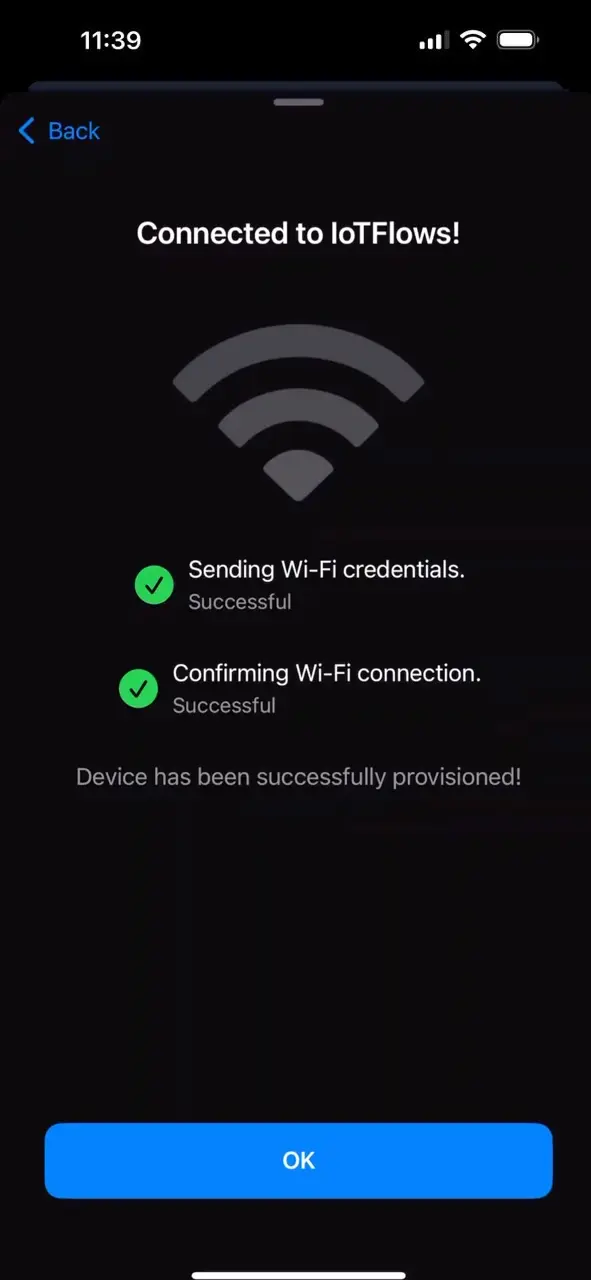
- Wait for confirmation
-
Connection established! The LED will go through the connection sequence
 |  |  |  |
|---|
LED Status Reference
Understanding LED indicators helps you track connection status:
| LED Status | Meaning | What to Do |
|---|---|---|
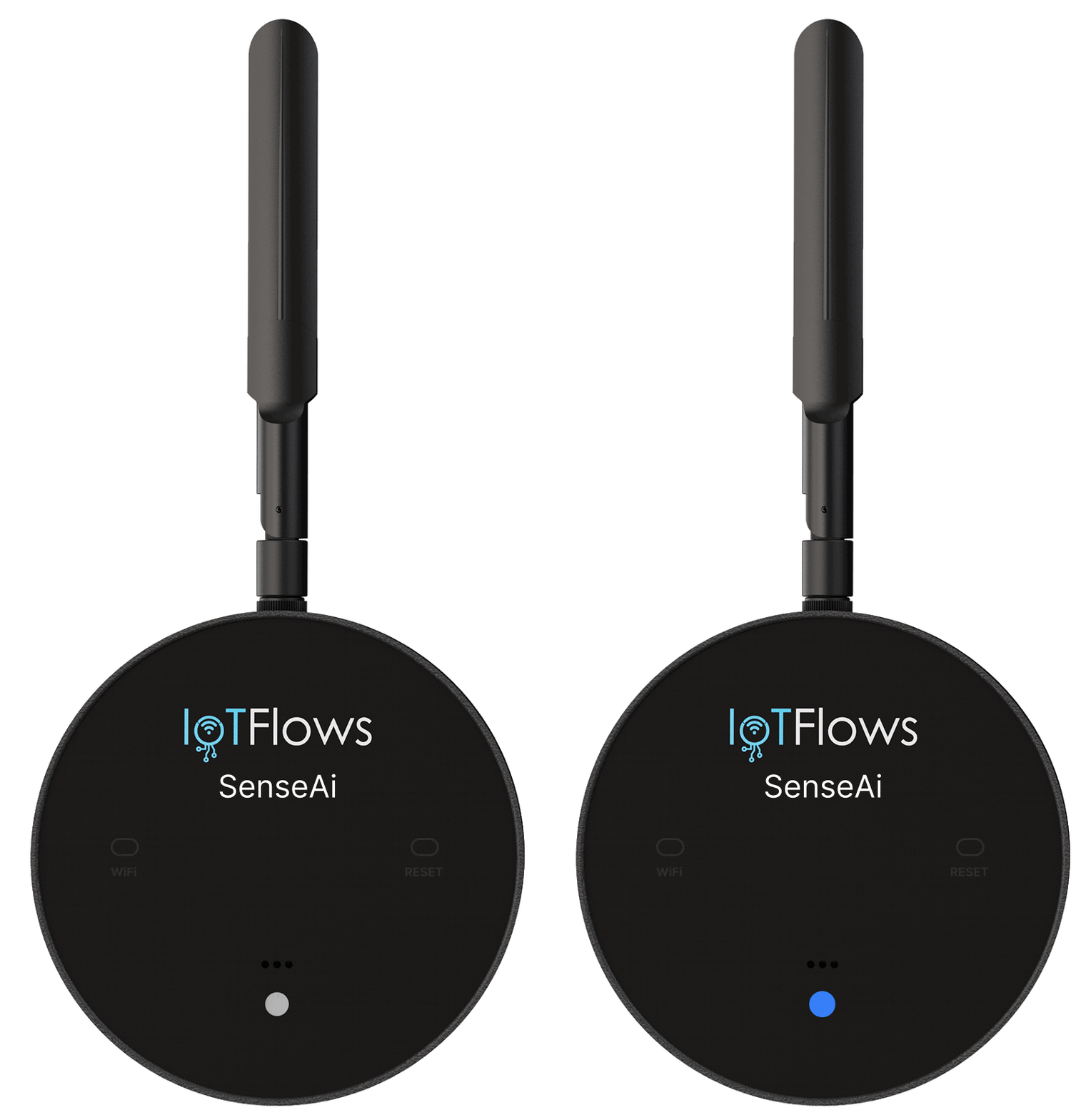
| Blinking Blue | WiFi setup mode — ready to receive credentials | Use mobile app to configure WiFi |
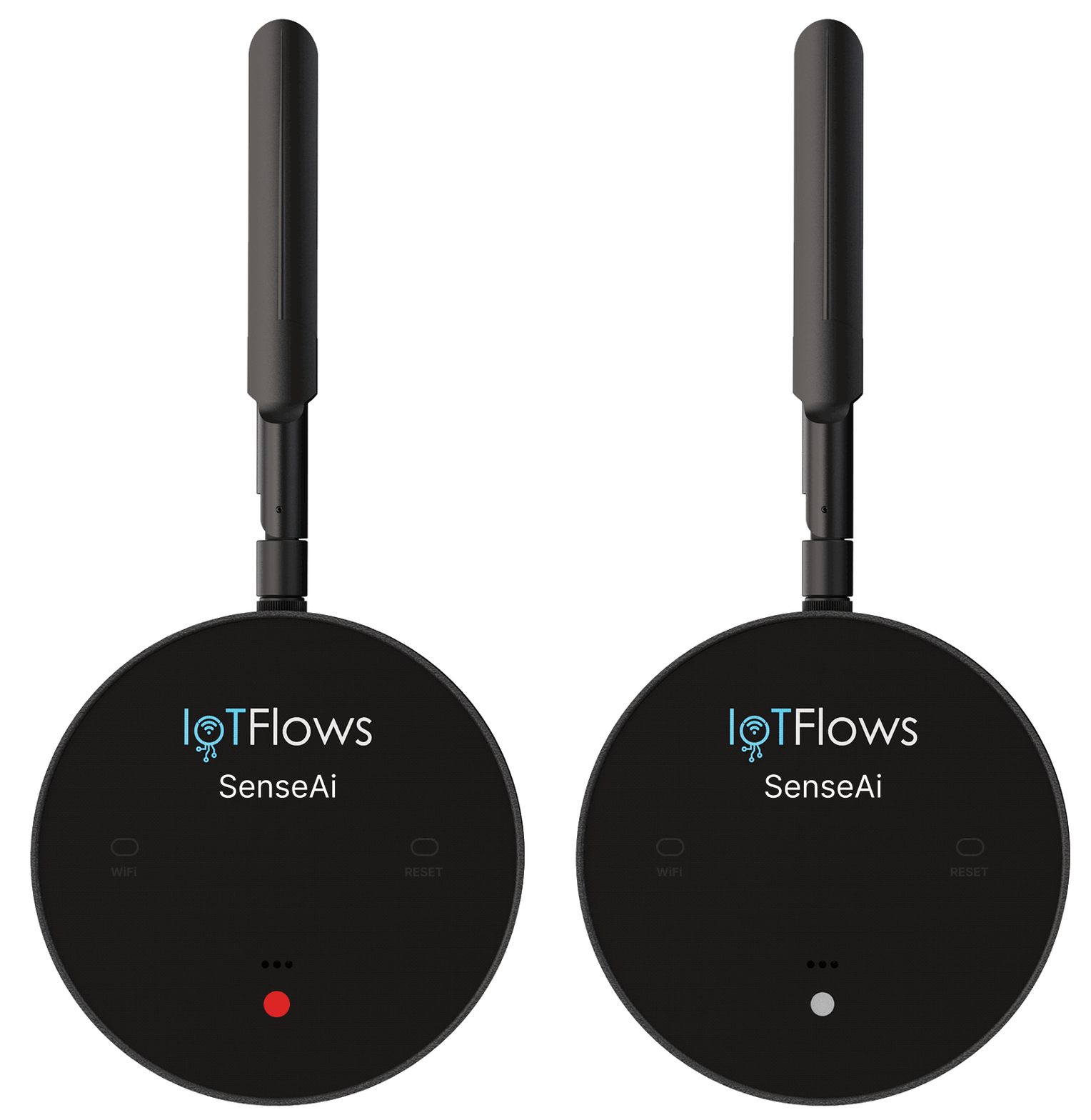
| Flashing Red (every few seconds) | Attempting to connect to configured WiFi | Wait for connection (up to 2 minutes) |
| Orange → Green → White → Cyan (blinking sequence) | Successfully connected to WiFi, establishing cloud connection | Wait for stable light |
| Stable Cyan | Connected and online — machine is idle | Normal operation |
| Stable Orange | Connected and online — machine is running | Normal operation |
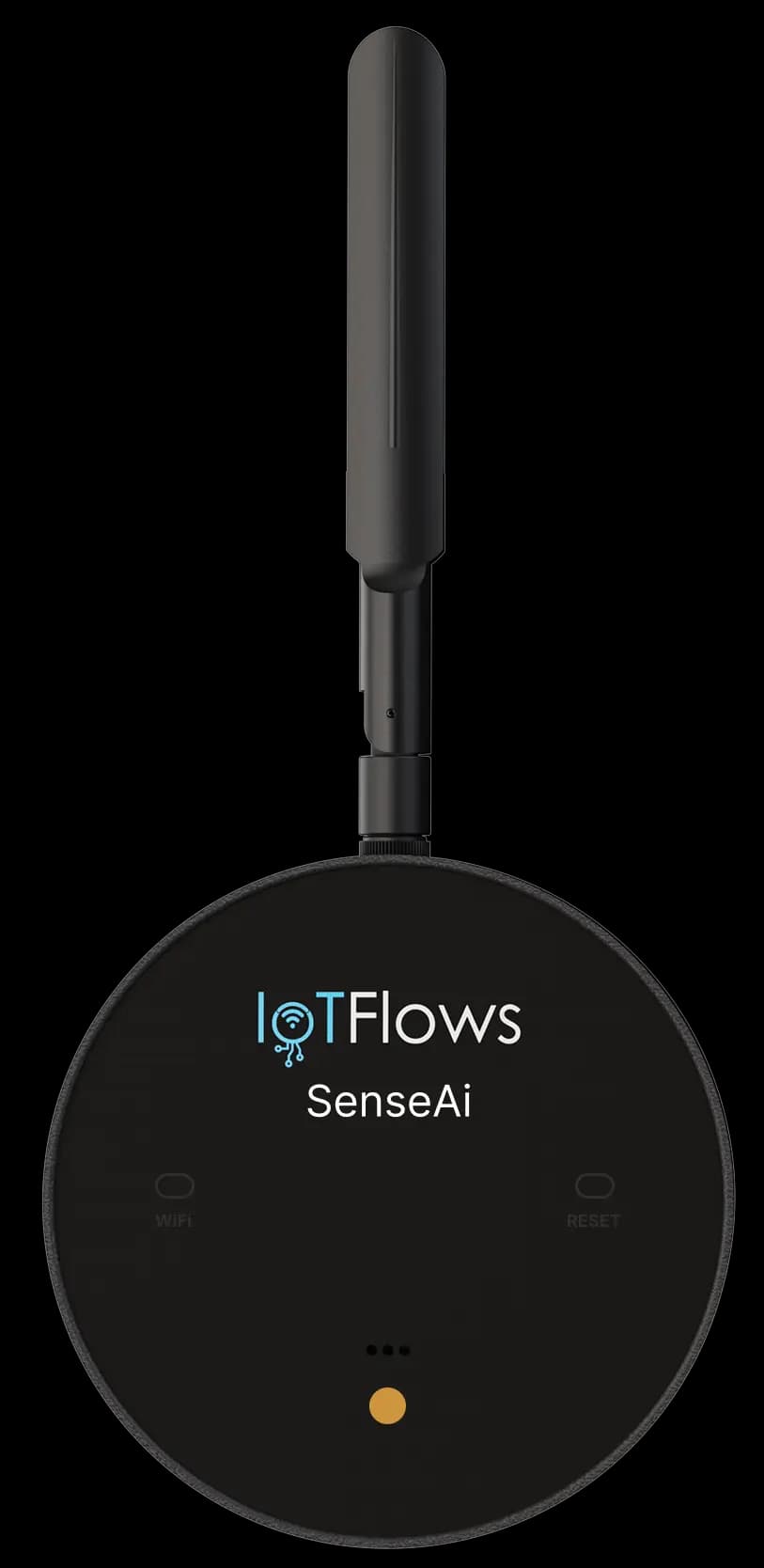
Resetting WiFi Configuration
To switch from WiFi to 4G/LTE router (or reset to factory defaults):
- Press and hold the WiFi button for 10 seconds
- LED will blink purple, then turn red after 10 seconds
- Release the button
- Device will reboot and restore default credentials (connects to IoTFlows 4G/LTE router)
To switch from 4G/LTE router to WiFi (or change WiFi networks):
- Press and hold the WiFi button for 10 seconds
- LED will blink purple, then turn red after 10 seconds
- Release the button
- Device will reboot into WiFi Setup Mode (blinking blue)
- Use mobile app to configure new WiFi credentials
Troubleshooting
Device won't enter WiFi setup mode
→ Hold the WiFi button for full 10 seconds until you see red LED, then release
Can't connect to WiFi network
→ Verify your network is 2.4 GHz (not 5 GHz) → Check WiFi password is correct → Ensure router is within range
Connection drops frequently
→ Move router closer or improve WiFi signal strength → Check for interference from other devices → Consider using the IoTFlows 4G/LTE router instead
Next Steps
✅ Device is now connected!
Continue to Calibration to fine-tune the parameters of your device for optimal accuracy