

Send alerts to Slack, Teams, or Discord
Post IoTFlows alerts into the channel your team already watches.
An integration is a named destination your organization creates once and reuses on any machine. Each one holds a webhook URL, an address the chat platform gives you that posts a message into one channel when something sends to it. IoTFlows does not sign in to Slack, Teams or Discord: you generate the URL there, paste it here, and IoTFlows posts to it.
Prerequisites. Owner or Administrator, see Roles and permissions. Every other role sees Integrations in the navigation dimmed and unclickable, with the tooltip You must be an Organization Owner or Administrator to access Integrations. You also need permission to create a webhook in the chat platform itself, which is a separate permission held by that platform.
How chat integrations work
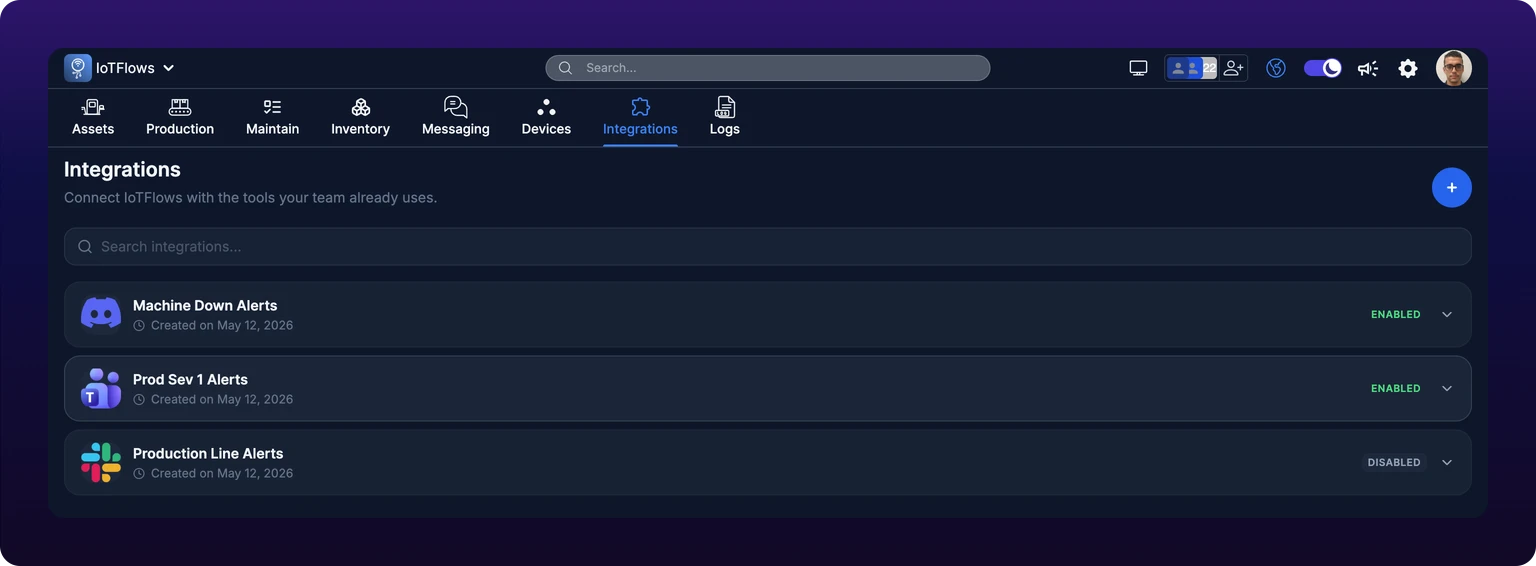
Open Integrations in the navigation, at /integrations. The page lists every integration the organization has, sorted by name, each card carrying the platform's icon, the name, who created it and when, and an Enabled or Disabled chip.
One integration is one destination channel, not one machine. Create Production line alerts once, then attach it to the Machine Down rule on all twelve presses. Attaching is per event type and per machine, and it is done in the machine's own notification settings rather than here, see Attach the integration to an event rule.
Send alerts to the channel the shift already reads, not to a new #alerts channel. A dedicated alerts channel is muted within a week. You do not need one integration per machine, and you do not need an integration at all if email and push already reach the right people, see Overview: alerts and integrations.
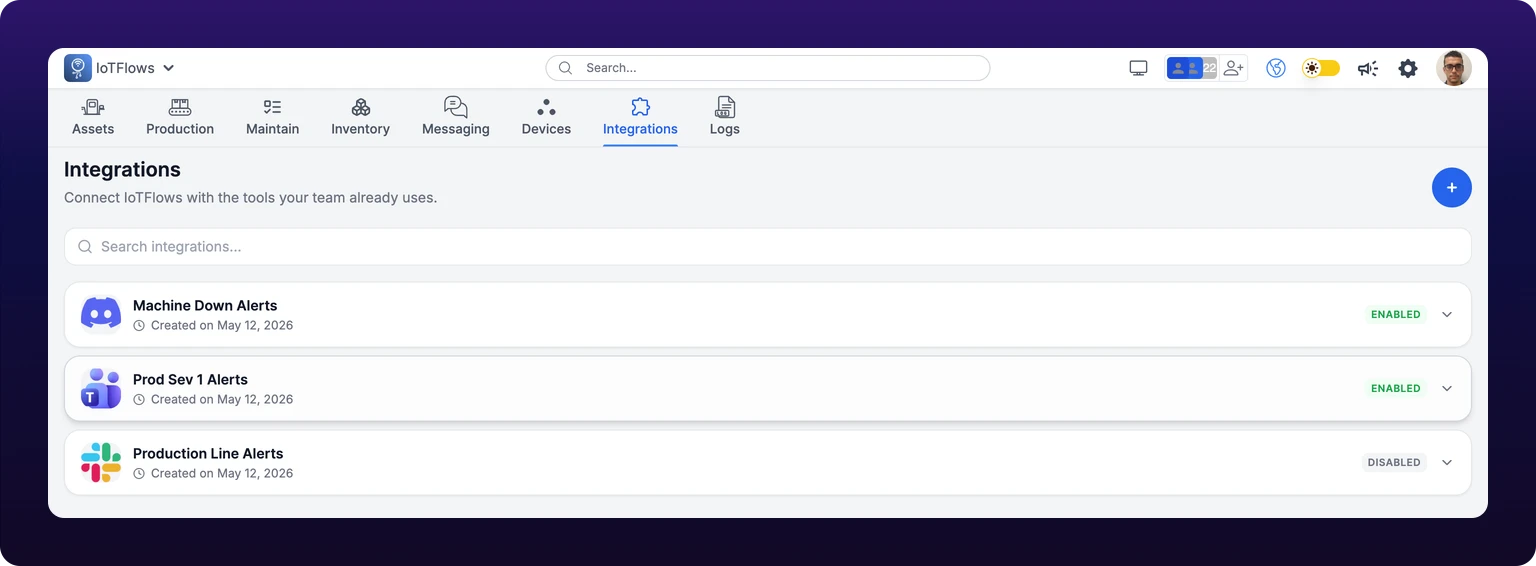 The Integrations page. Non-admins see the nav item dimmed and unclickable.
Click the blue + button at the top right to open New Integration. The first step is Choose a platform, one tile per platform under an Alerts heading. Choosing a tile opens the setup step, which carries that platform's instructions inline. The three sections below mirror them so you can read them before you start.
Create a Microsoft Teams integration
Teams has no plain incoming webhook any more. The URL comes from a Power Automate workflow attached to the channel.
- In Teams, open the channel where you want messages posted.
- Click the channel's ⋯ menu, then choose Workflows.
- Select Send webhook alerts to a channel. Use Send webhook alerts to a chat instead if you want messages in a 1:1 or group chat.
- Sign in to both Teams and Power Automate when prompted, then click Next.
- Confirm the team and channel, then click Add workflow.
- Copy the generated workflow URL and paste it into Webhook URL in IoTFlows.
You need to be a team member with permission to create Workflows in the channel. If Workflows is missing from the ⋯ menu, ask a team owner to grant access or to create the workflow and send you the URL.
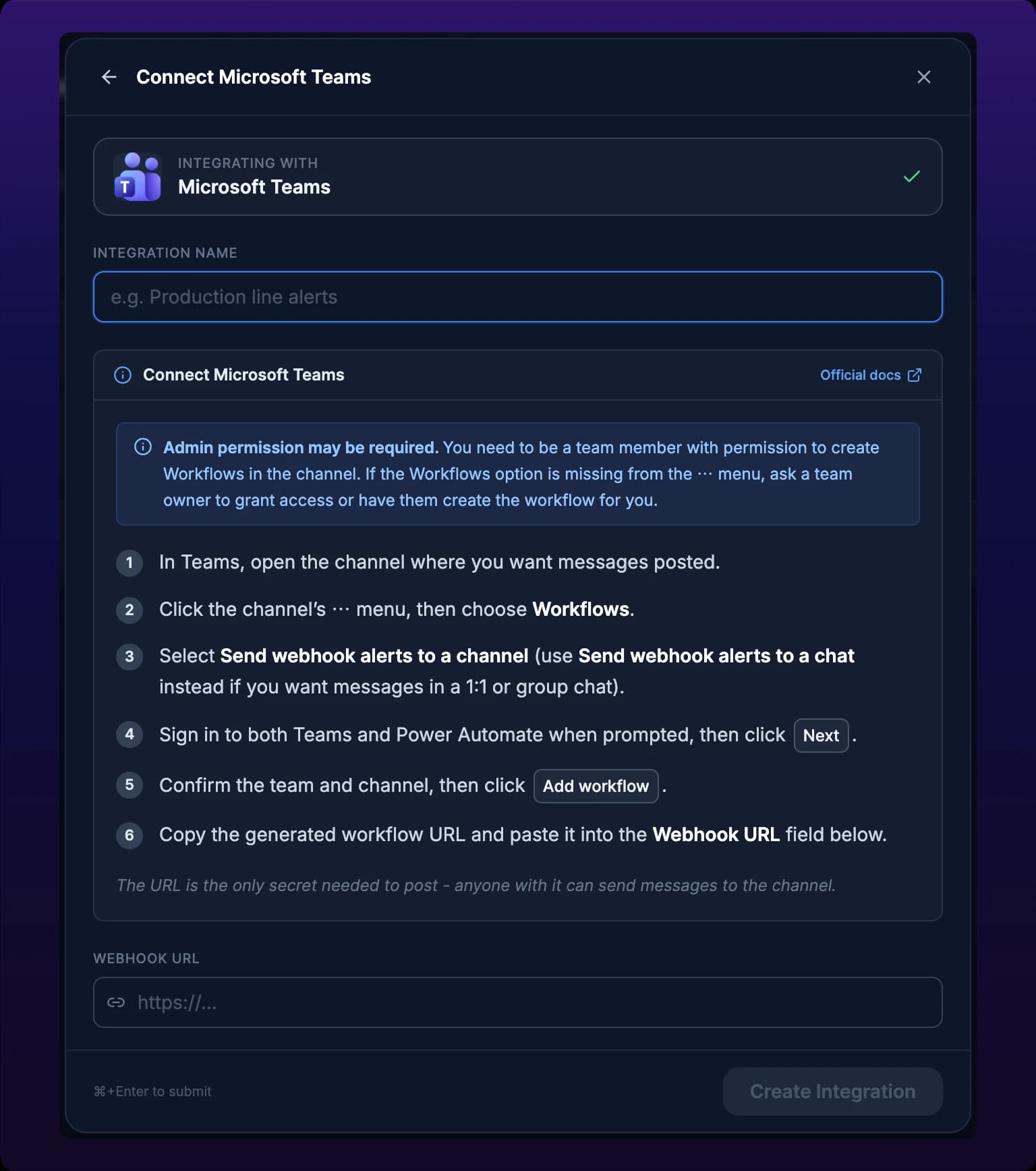
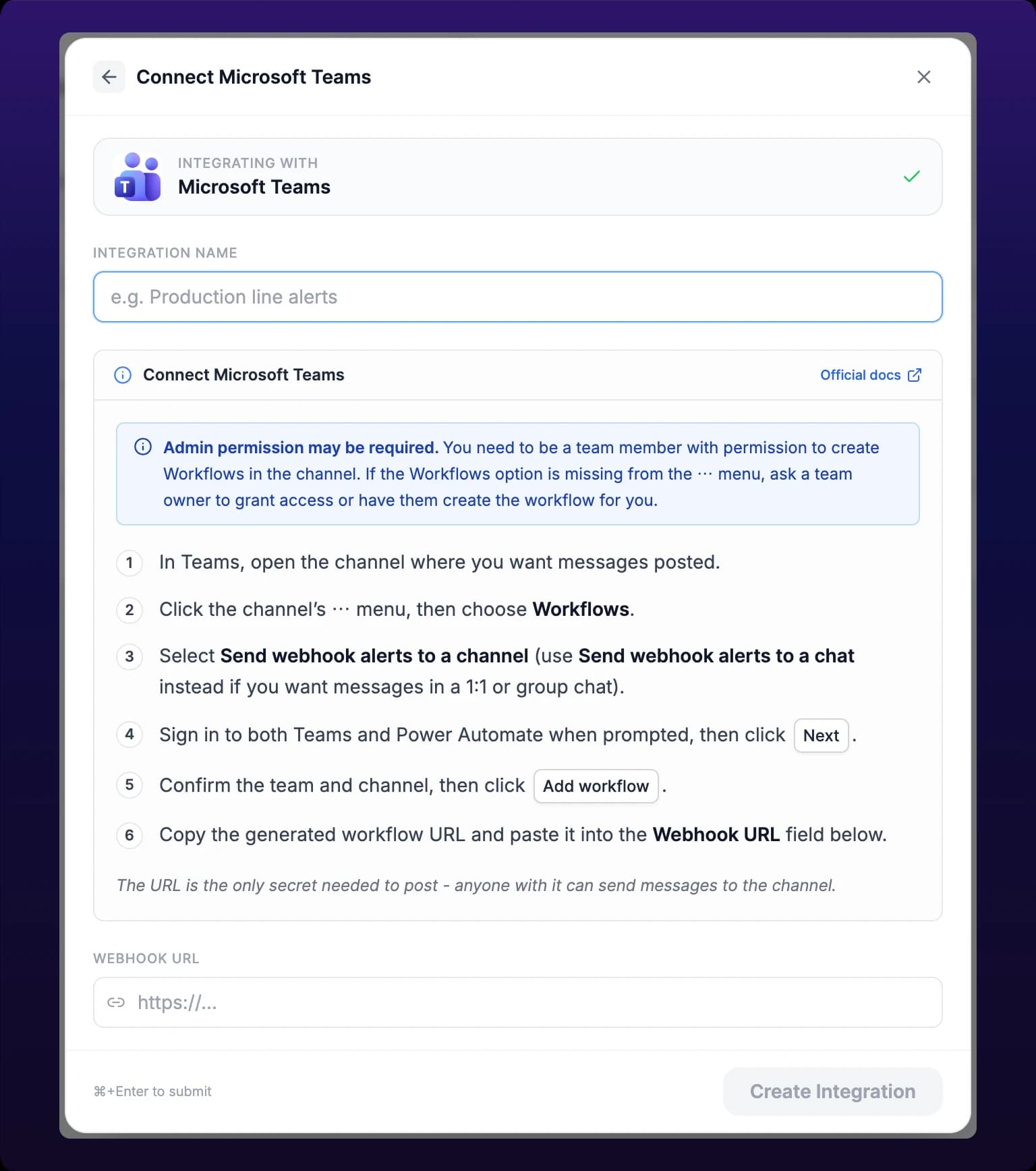 The in-product Microsoft Teams setup instructions.
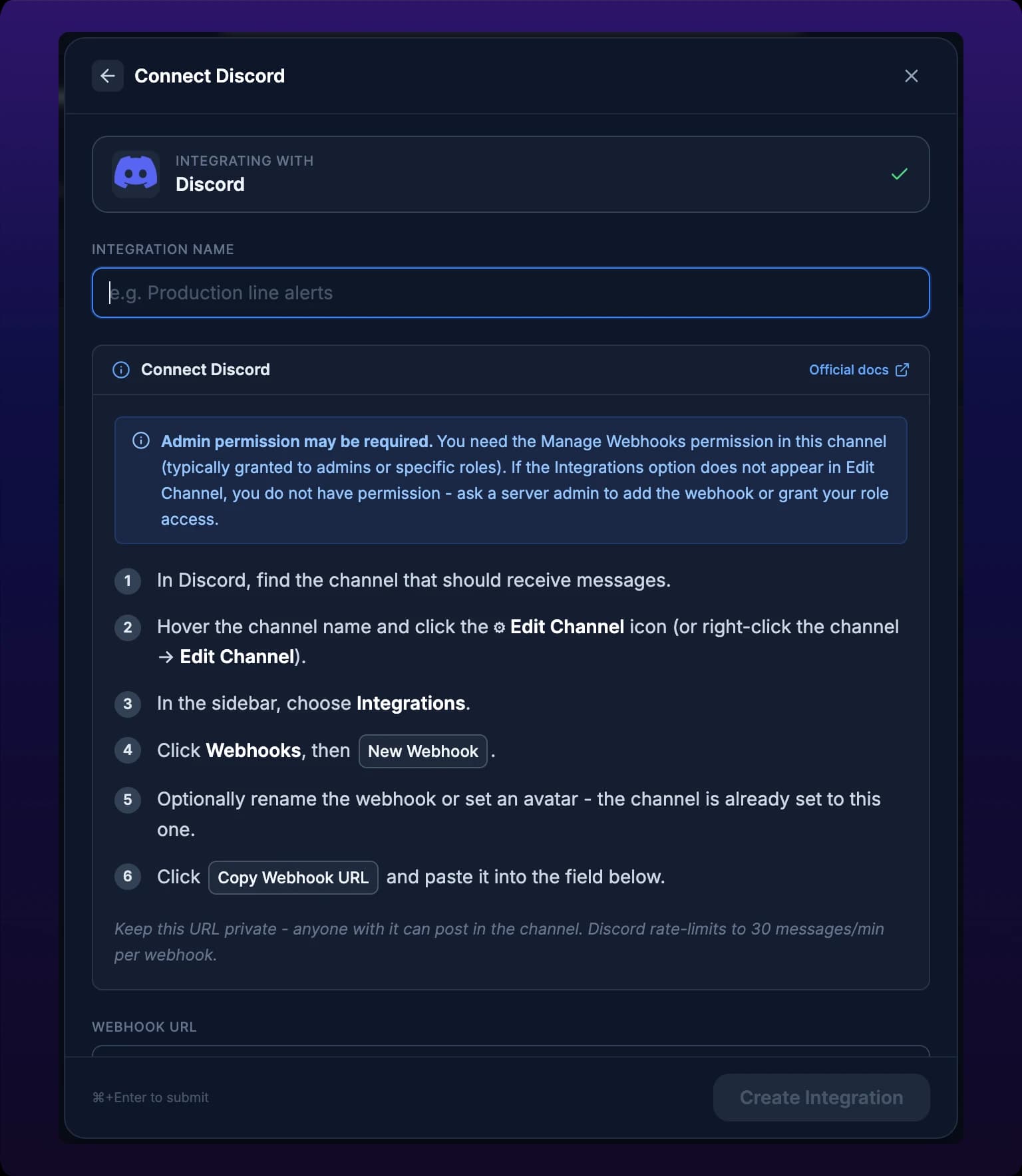
Create a Discord integration
- In Discord, find the channel that should receive messages.
- Hover the channel name and click the Edit Channel gear icon, or right-click the channel and choose Edit Channel.
- In the sidebar, choose Integrations.
- Click Webhooks, then New Webhook.
- Rename the webhook or set an avatar if you want. The channel is already set to this one.
- Click Copy Webhook URL and paste it into Webhook URL in IoTFlows.
You need the Manage Webhooks permission in that channel, which is usually granted to admins or to specific roles. If Integrations does not appear in Edit Channel, you do not have it: ask a server admin to add the webhook or to grant your role access.
Discord rate-limits each webhook to 30 messages per minute. A single integration attached to a hundred machines can pass that during a plant-wide outage, and the messages over the limit are dropped by Discord rather than queued.
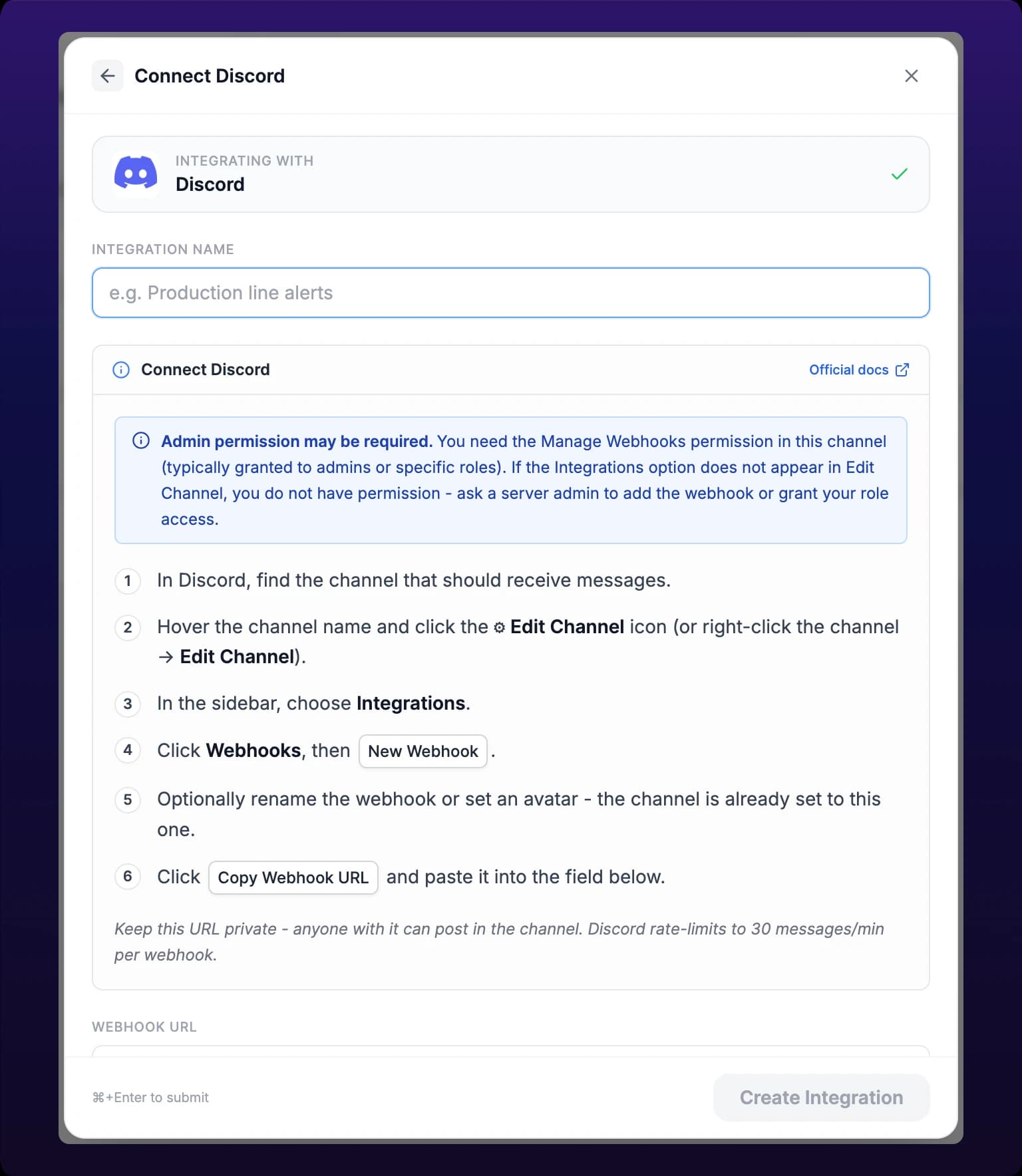 The Discord setup instructions, including its 30-messages-per-minute webhook limit.
Create a Slack integration
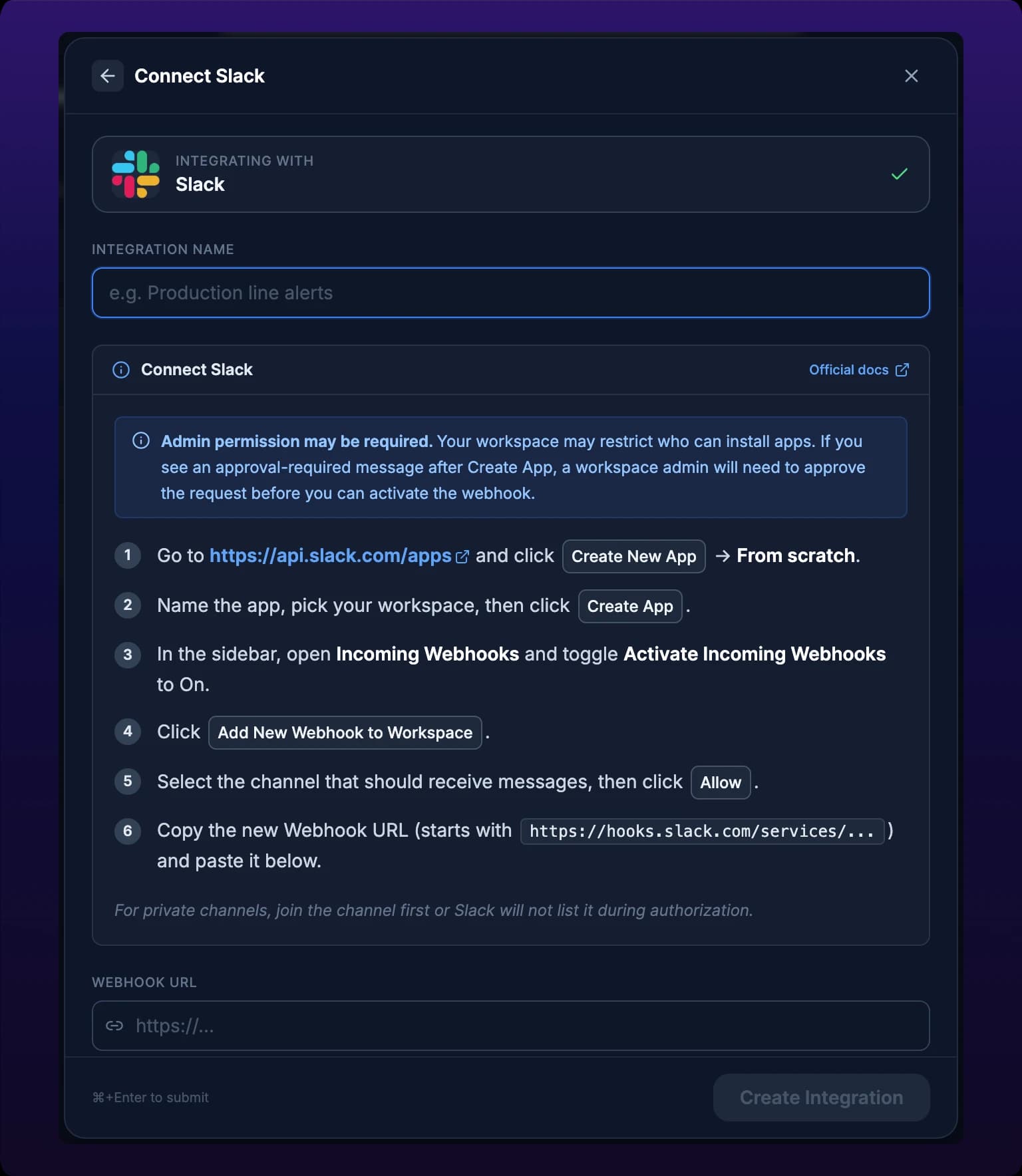
Slack issues incoming webhooks from an app, so you create a small app in your workspace first.
- Go to
https://api.slack.com/appsand click Create New App, then From scratch. - Name the app, pick your workspace, then click Create App.
- In the sidebar, open Incoming Webhooks and toggle Activate Incoming Webhooks to On.
- Click Add New Webhook to Workspace.
- Select the channel that should receive messages, then click Allow.
- Copy the new webhook URL, which starts with
https://hooks.slack.com/services/, and paste it into Webhook URL in IoTFlows.
For a private channel, join the channel before step 5. Slack does not list a channel you are not in, so the authorization screen looks as though the channel does not exist.
Your workspace may restrict who can install apps. An approval-required message after Create App means a workspace admin has to approve the request before you can activate the webhook.
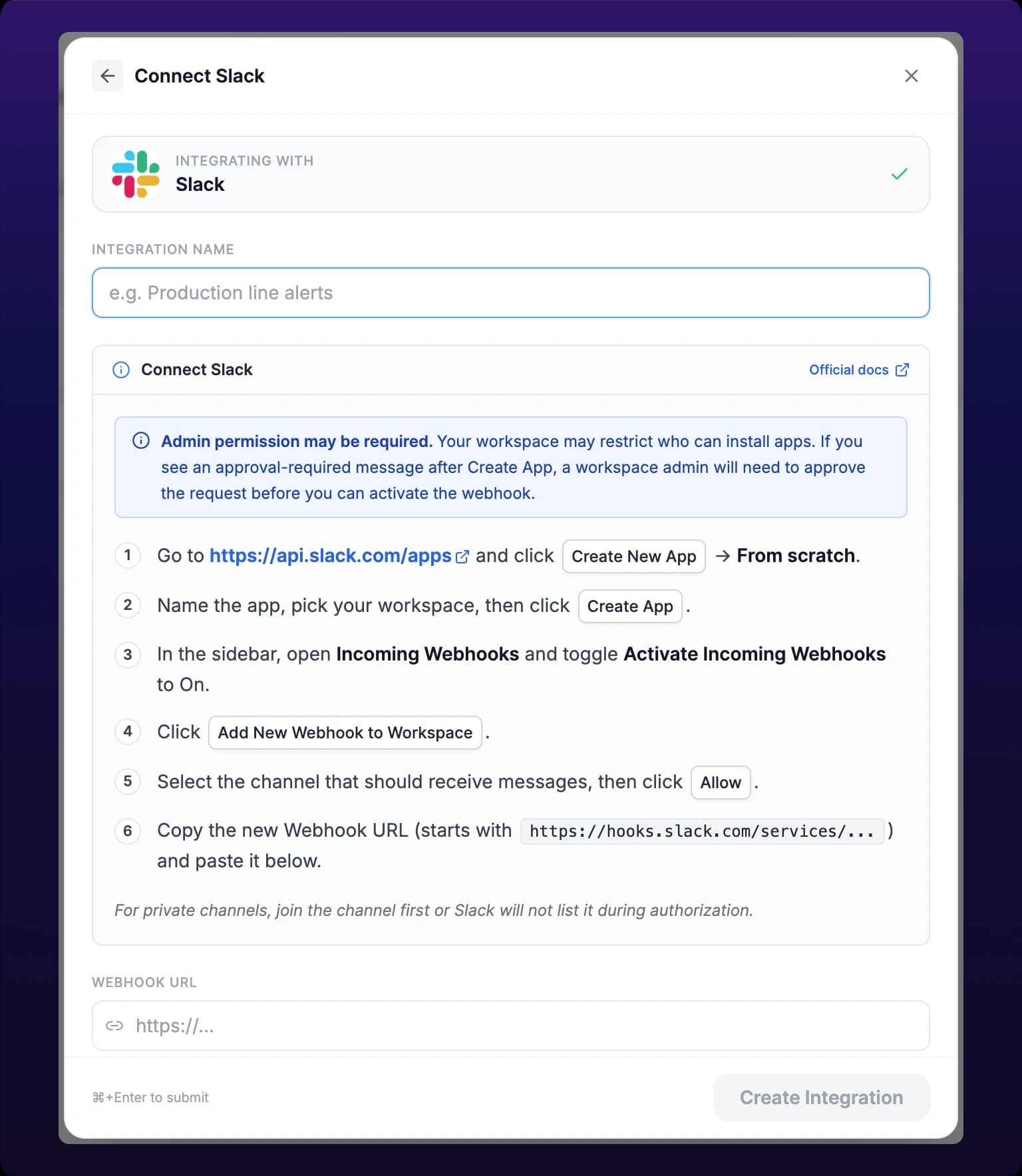 The Slack setup instructions. For a private channel, join it before authorizing.
Platforms
| Platform | Webhook created in | You need | Rate limit | Gotcha |
|---|---|---|---|---|
| Microsoft Teams | The channel's ⋯ menu, under Workflows, which runs on Power Automate | Permission to create Workflows in that channel | None stated in IoTFlows | Pick Send webhook alerts to a channel, not the chat variant, unless you want a 1:1 |
| Discord | Edit Channel → Integrations → Webhooks | The Manage Webhooks permission in that channel | 30 messages per minute, per webhook | A missing Integrations item in Edit Channel means you lack the permission |
| Slack | An app at api.slack.com/apps, under Incoming Webhooks | Permission to install apps in the workspace, which many workspaces gate behind admin approval | None stated in IoTFlows | Slack will not list a private channel unless you joined it first |
Every row shares one gotcha: the webhook URL is the only secret involved. Anyone holding it can post into that channel as your integration, so treat it the way you treat a password, and do not paste it into a ticket or a chat message.
Name the integration
The name field sits above the setup instructions, so you can fill it before or after you fetch the URL. Neither field has a default and Create Integration stays disabled until both carry a value.
- Type a name in Integration name. The placeholder reads
e.g. Production line alerts. - Paste the URL into Webhook URL, whose placeholder reads
https://.... - Click Create Integration, or press Cmd+Enter on a Mac or Ctrl+Enter elsewhere.
Name the integration after the channel it posts to, not after the machines that use it: #line-2-floor survives a machine being sold, Press 4 alerts does not. The new integration appears at the top of the list and a toast reads Integration created.
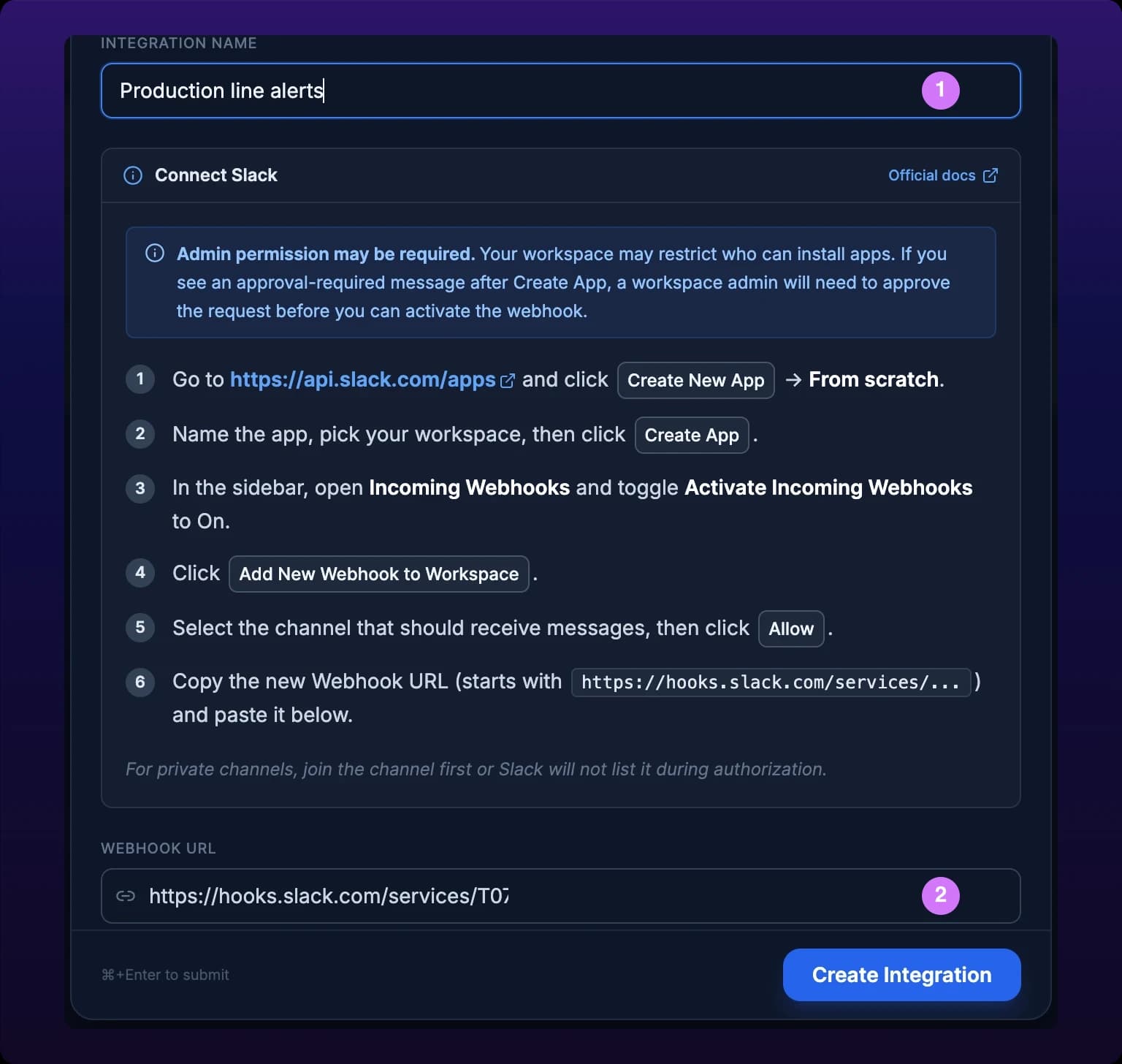
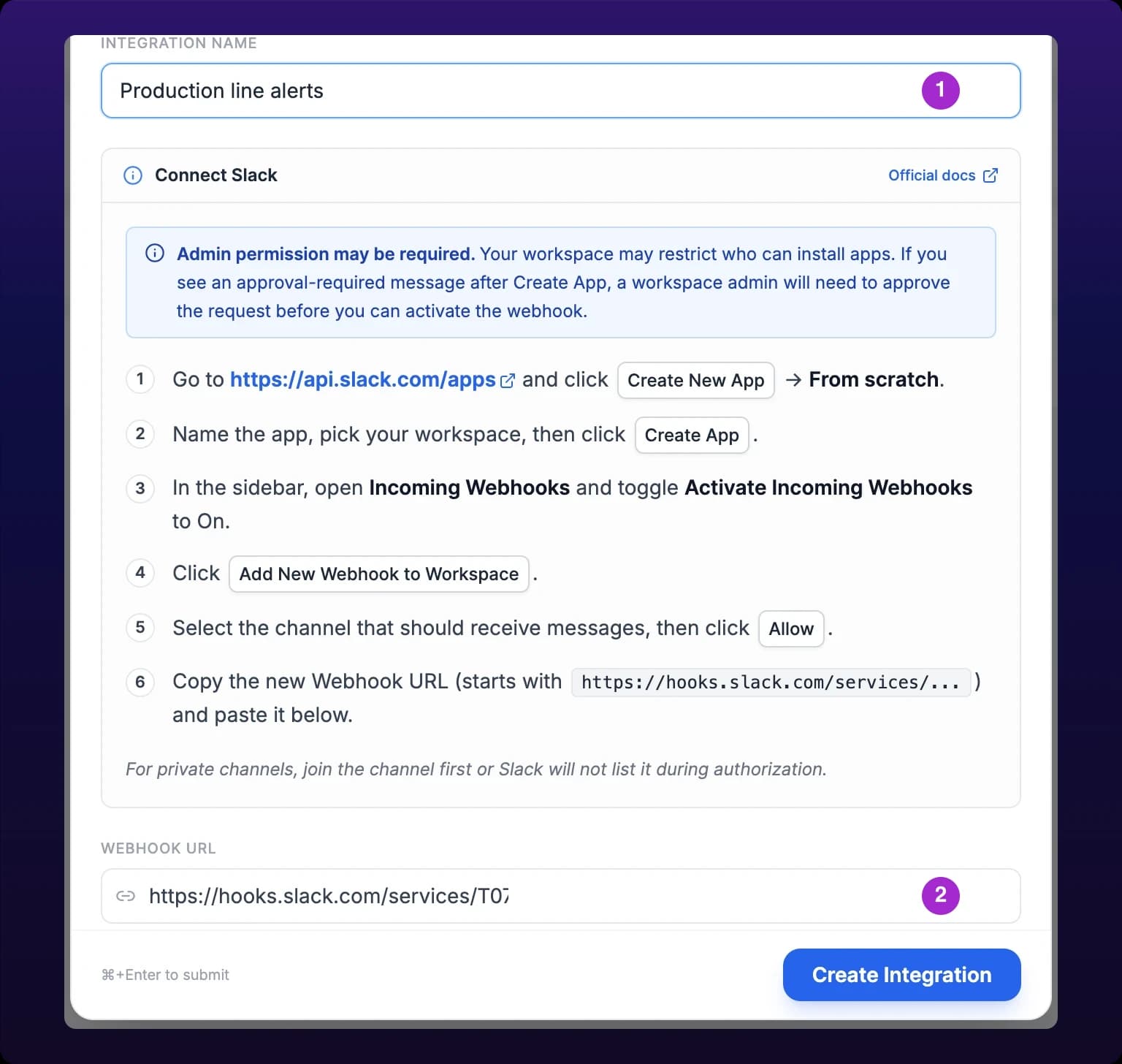 The integration name and its webhook URL. Treat the URL as a secret.
Send a test event
Test before you attach the integration to anything. A wrong URL fails silently at alert time, and nobody notices for a week.
- Click the integration's card to expand it.
- Click Test integration. The button reads Sending... while it runs.
- A toast reads Test event sent. Now check the channel.
Test event sent means IoTFlows reached the URL, not that the message arrived. If the toast succeeds and nothing appears in the channel, the webhook was revoked at the platform end: the Teams workflow was turned off, the Discord webhook was deleted, or the Slack app was uninstalled. Create a new webhook there and paste the new URL in, see Rename or change the URL.
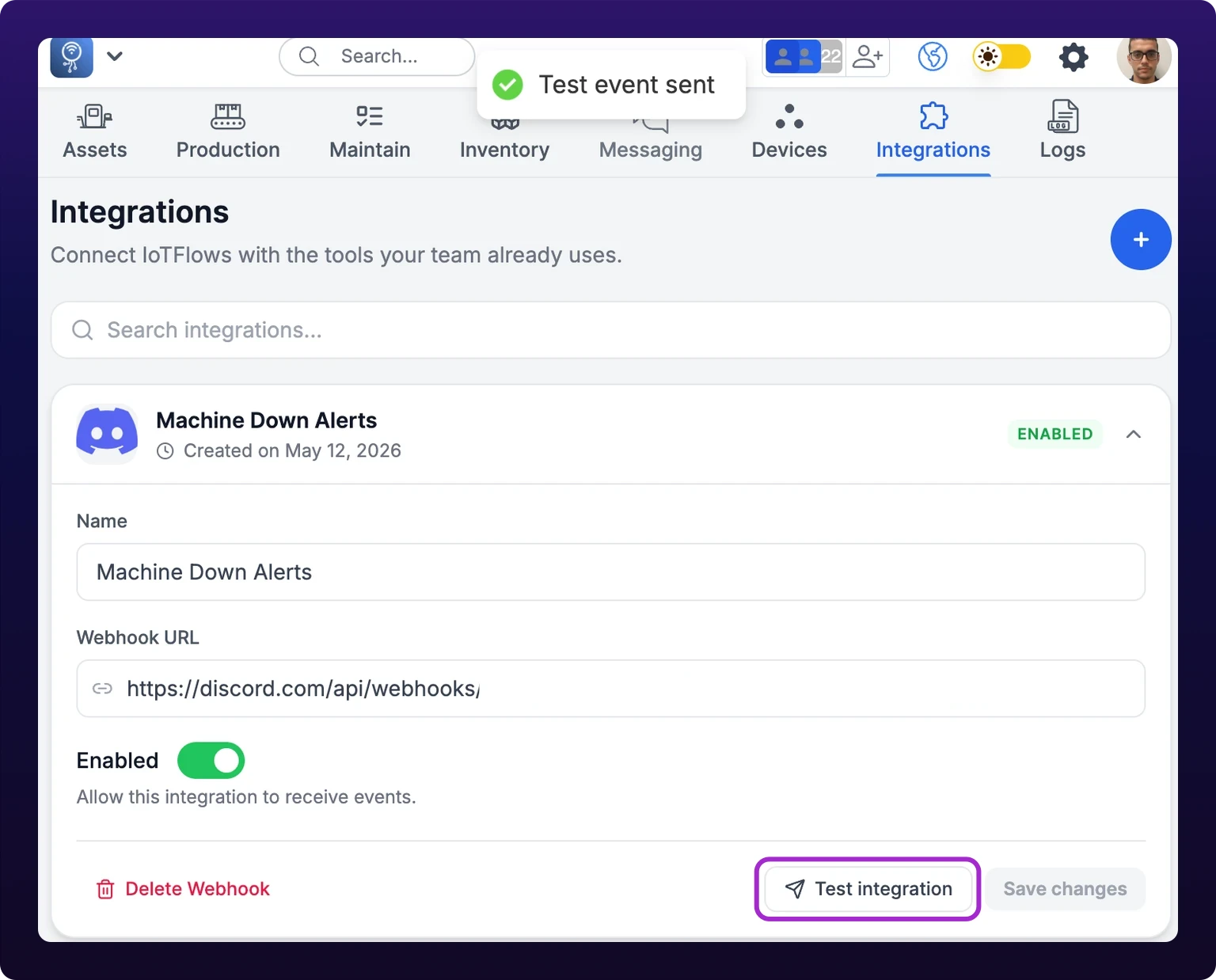 Sending a test event before you rely on it.
Attach the integration to an event rule
Creating an integration sends nothing on its own. Every message comes from an event rule on a machine that has this integration attached to it.
- Open the machine and click the bell in its header, labeled Event Notifications.
- Find the row for the event type, such as Machine Down.
- Click the cell in the Integrations column, on the right, under the Webhooks sub-label.
- Click the integration in the list. Search by name in Search integrations... if the list is long.
The cell writes immediately and confirms with Production line alerts connected, using the integration's name. Click it again to detach, which confirms with Production line alerts disconnected. An attached integration shows as an icon in the cell, up to three, then a +2 chip. Full rule detail is on Set alert rules for a machine.
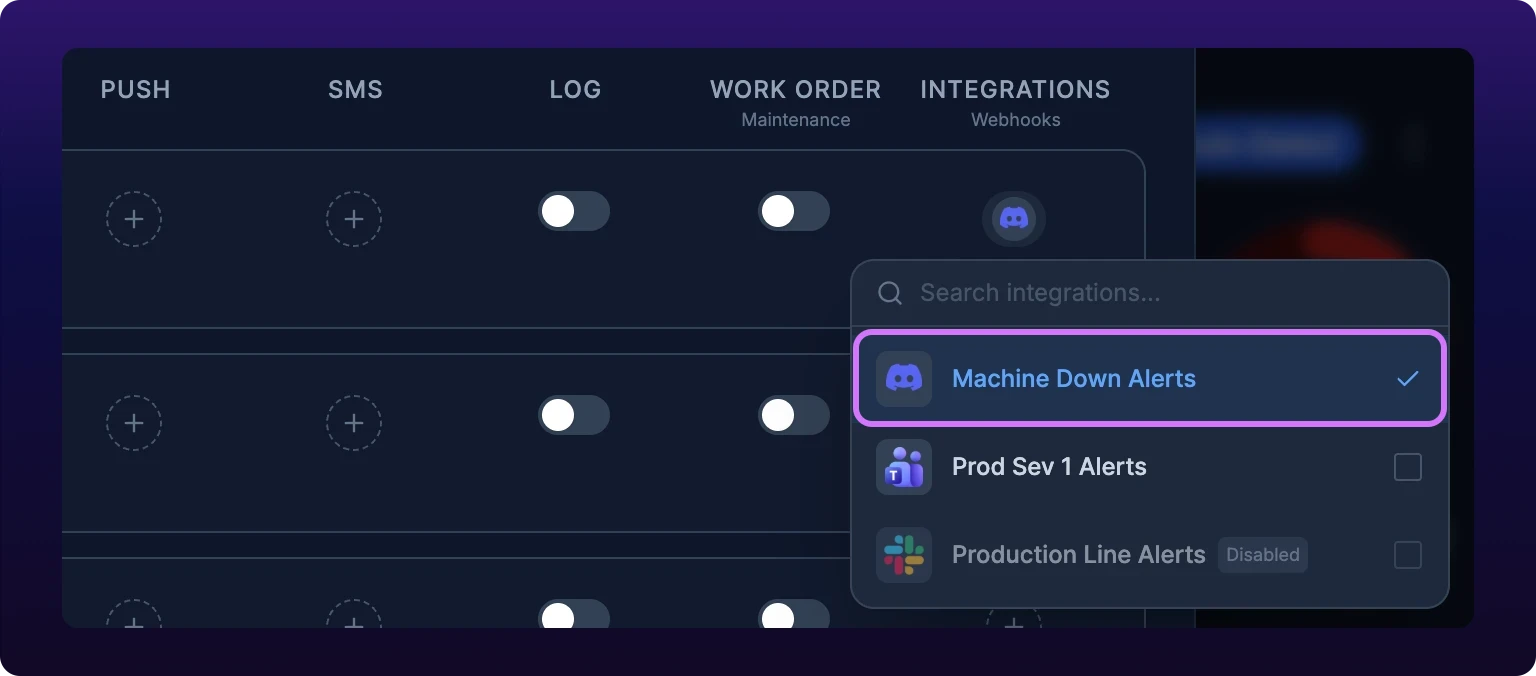
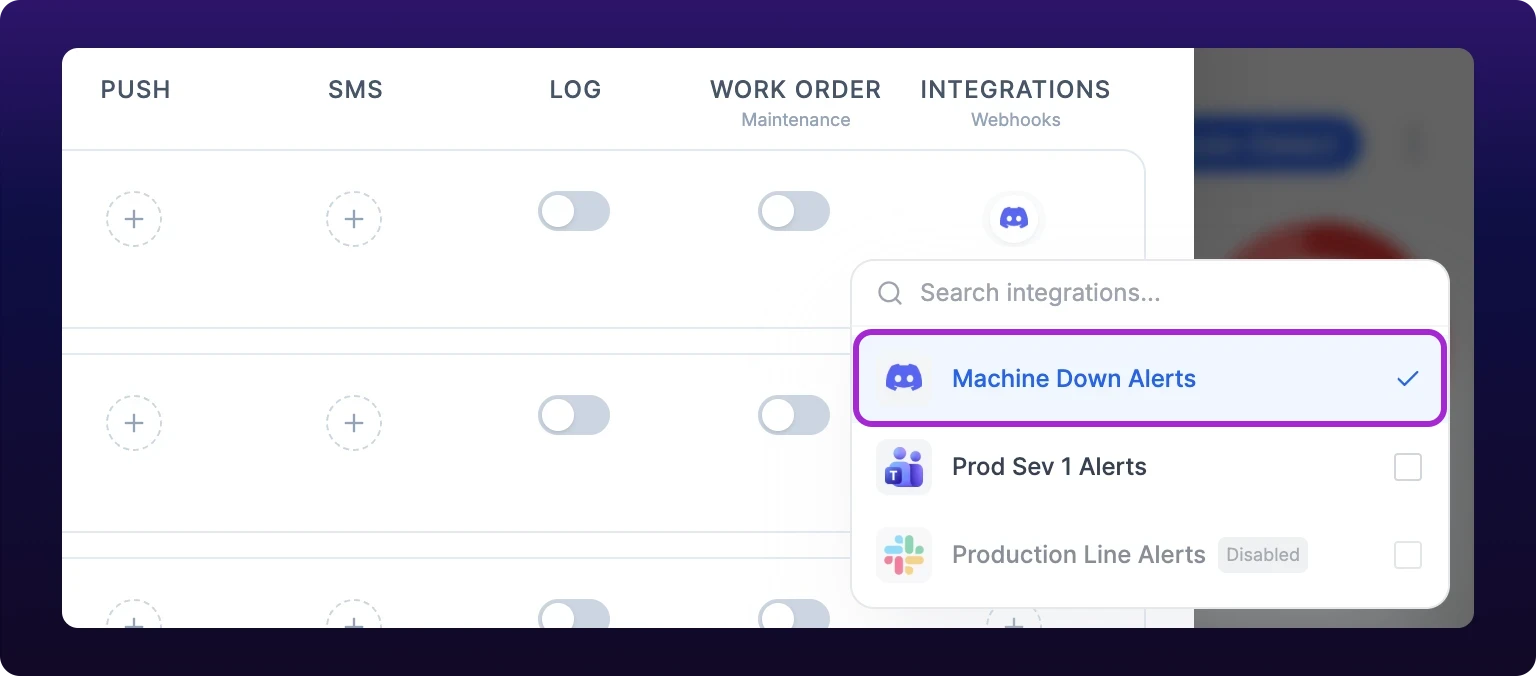 Attaching an integration to an event rule, from the machine's notification settings.
A machine with no integrations in the organization shows No integrations yet in that dropdown, with a Create integration link back to this page.
Rename or change the URL
Both fields are editable on the card, and both save together.
- Click the card to expand it.
- Edit Name, Webhook URL, or both.
- Click Save changes. The button stays disabled until something changes.
A toast reads Integration updated. Changing the URL keeps every attachment: the rules pointing at this integration now post to the new channel, with nothing to redo on any machine. That makes an edit the right move when a channel is renamed or a webhook is rotated, and a new integration the wrong one.
Enable, disable or delete
The same expanded card carries an Enabled toggle, described as Allow this integration to receive events.
Disable rather than delete when you want the destination back. A disabled integration stays attached to every rule and stops posting, and it still appears in the per-event dropdown, dimmed and tagged Disabled, so a rule that looks configured sends nothing. Turn it back on and the same rules resume.
Delete when the channel is gone for good. Click Delete Webhook on the expanded card and confirm in Delete Integration, which warns that the action cannot be undone and that the webhook URL stops receiving events immediately. Deleting removes the integration from every rule that used it, and the rules themselves stay switched on with nothing in the Integrations column.
Quiet a noisy channel for a night by disabling the integration, not by deleting it. Deleting loses which machines were attached, and nothing records the list.
Errors
| Message | Cause | Do this |
|---|---|---|
| Failed to create integration | The integration was not created. Nothing was saved | Check the URL is complete and starts with https://, then retry |
| Failed to update integration | A name, URL or enabled change did not save. The card keeps your typed values | Retry, then collapse and reopen the card to see what actually saved |
| Failed to delete integration | The integration is still there | Retry. Refresh the page before deciding it failed |
| Failed to send test event | IoTFlows could not reach the webhook URL | Confirm the webhook still exists in the platform and that the URL is pasted whole |
| Failed to update integrations | Attaching or detaching on a machine's rule failed. The cell reverts | Retry. Confirm the integration still exists on this page |
| Test event sent, but nothing in the channel | The URL is valid in shape and revoked at the platform end | Create a new webhook in Teams, Discord or Slack and paste the new URL in |
A generic Something went wrong or An error occurred means the request failed and the change was not saved. Retry it, and if it keeps failing see Troubleshoot alerts you did not receive.
See also
Push is the only IoTFlows channel that reaches someone away from a screen. Allow the operating system permission, see which three things send push (machine event alerts, work orders and their comments, and chat messages), where each notification opens when you tap it, how a notification from a second organization is routed, and the Android sign-out defect that stops push arriving until the app is reinstalled.
Post IoTFlows events to an HTTPS URL you control. Add a hosted endpoint under Organization Settings with its URL, description and the signing secret you choose, subscribe it to the events your system acts on, and send each event's real test payload to your URL before you write the handler. The selectable event list is served by IoTFlows and read off the screen, so this page shows how to read it rather than reproducing it.