

Set alert rules for a machine
The per-machine notification matrix: which events fire, who hears about them, and through which channel.
Every machine carries the same grid of rules. A rule pairs an event type, one of the ten conditions IoTFlows watches for, with the channels that carry it: email, push, SMS, the event log, an automatic work order, and any chat integrations your organization has set up. Rules are set one machine at a time and stored on that machine, so the Haas VF-2 and the Doosan 2600 beside it can watch for different things.
Prerequisites. A machine with a sensor, see Add a machine. Owner or Administrator to decide who is subscribed, see Roles and permissions. Health and temperature events need firmware 5 or later, and a BeamTracker shows machine status and connectivity only, see Which sections you see for which device.
Open notification settings
- Open the machine at
/assets/selected-asset/:id. - Find the row of icons at the top right of the header, above the tab strip.
- Click the bell. Its tooltip reads Event Notifications.
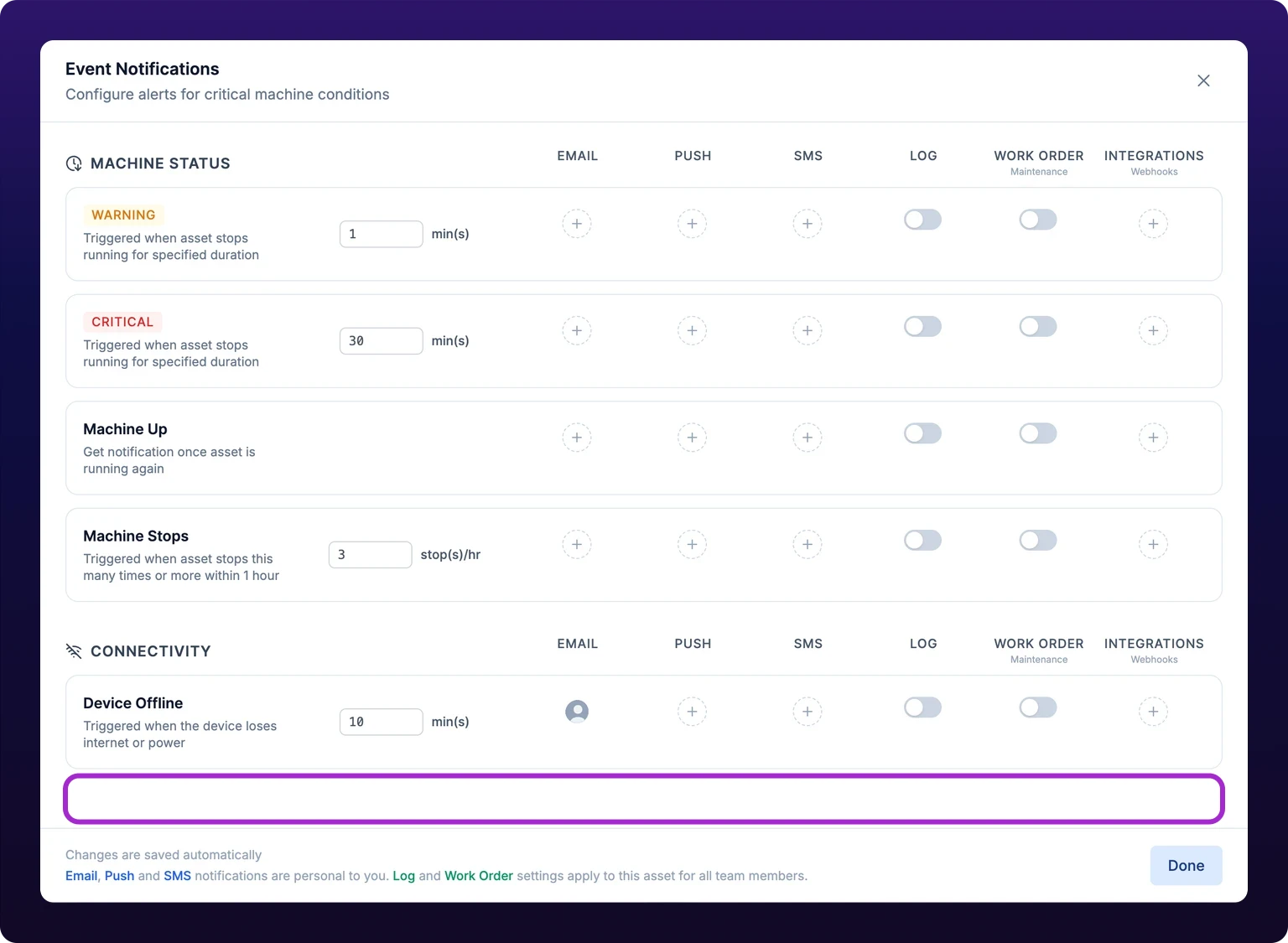
The modal opens on the full matrix, headed Event Notifications over Configure alerts for critical machine conditions. The same bell sits in the control bar of Operator View, so an operator station reaches the same settings.
Nothing here is staged. The footer reads Changes are saved automatically, and every switch writes as you flip it, so Done closes the modal rather than saving it.
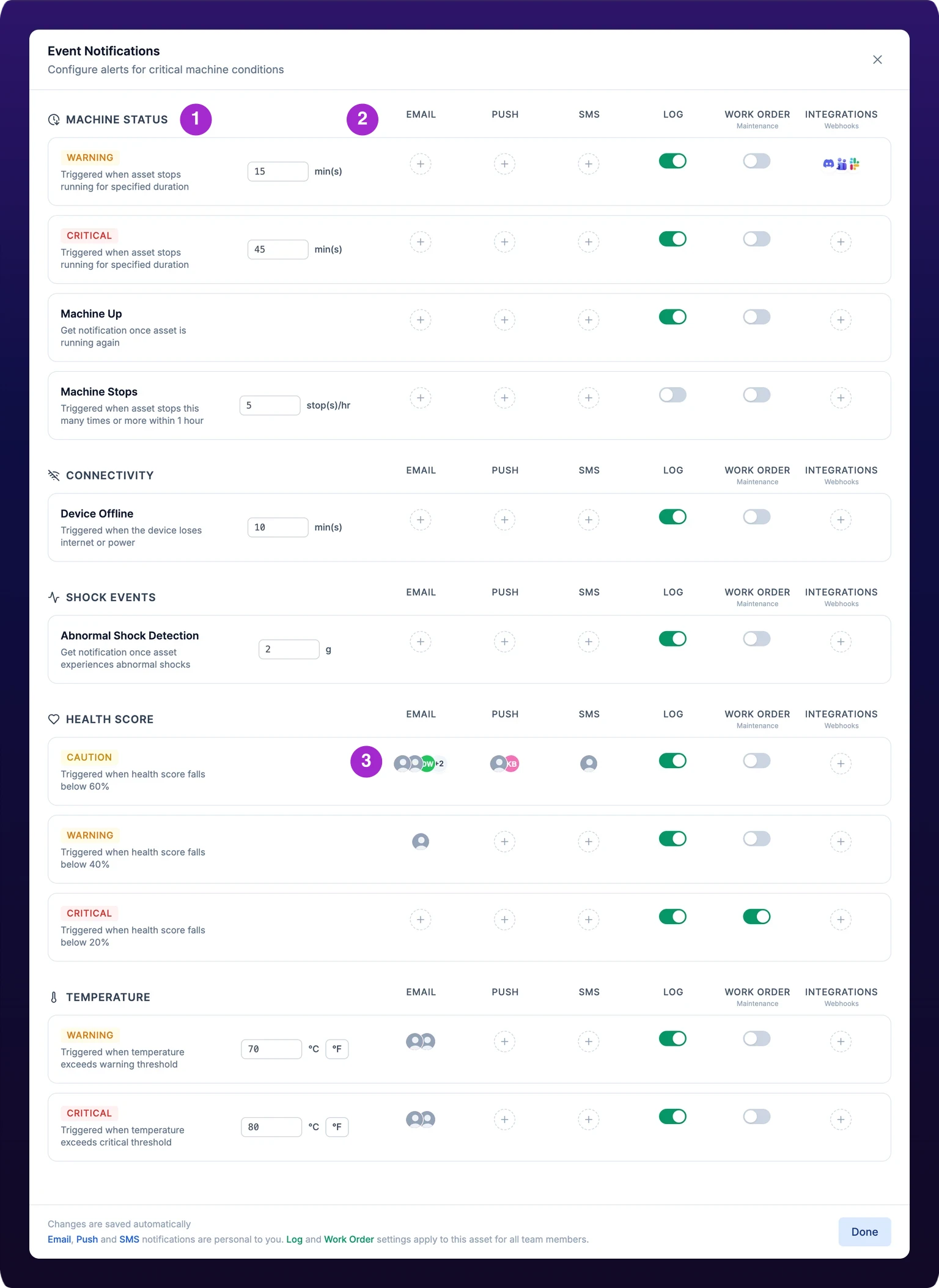 The full notification matrix for a SenseAi machine.
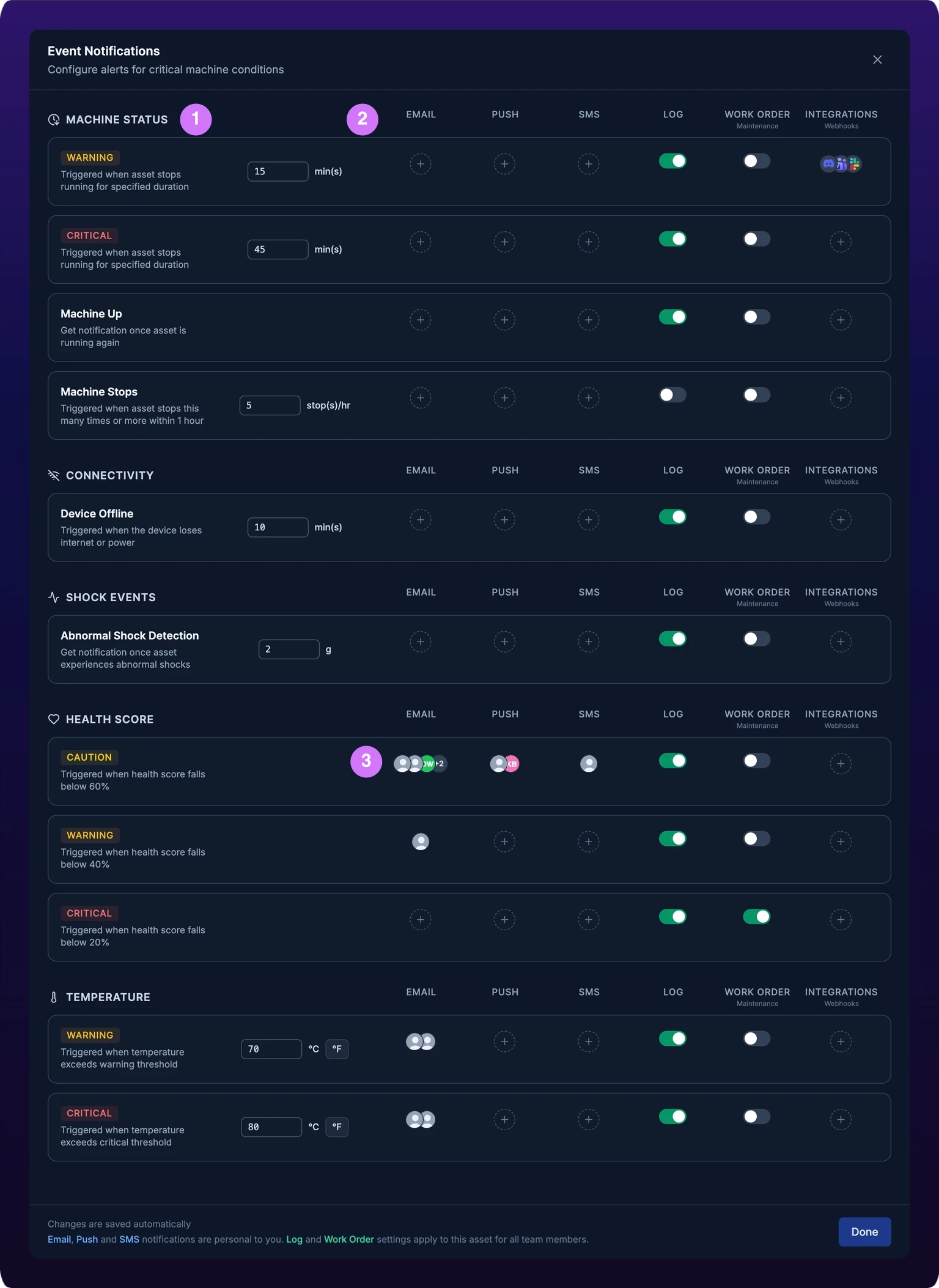
How a rule is built
There is no Add rule button and no master on/off switch. All ten event types are always present, grouped into five sections, and a rule is live on the channels you switch on and silent on the rest. An event type with every column off is a rule that watches nothing.
Each row carries three things on its left side and six switches on its right.
- The name. Either the event type's title, such as Device Offline, or a colored severity chip that replaces it. Severity is the seriousness IoTFlows assigns the event, written as CAUTION, WARNING or CRITICAL.
- A one-line description of what fires it, for example "Triggered when the device loses internet or power".
- A threshold, where the event type takes one. A threshold is the number the condition is measured against: ten minutes of stoppage, 100 g of shock, 70 °C.
Because the chip replaces the title, the two Machine Down rows and the three health rows are told apart by their chip and their description, not by a heading. A row showing WARNING in the Machine Status section is Machine Down at its warning time.
Thresholds save when you click out of the field, not as you type. Type the new value, then click anywhere outside the box and wait for the Threshold updated confirmation.
Event types
| Event | On-screen title | Fires when | Threshold | Default | Editable | Devices |
|---|---|---|---|---|---|---|
aet_downtime_warning | Machine Down, shown as a WARNING chip | The machine has been stopped for the time threshold | Minutes | The machine's own downtime alert time | Yes | Every device |
aet_downtime_critical | Machine Down, shown as a CRITICAL chip | The machine has been stopped for a longer time threshold | Minutes | The machine's own downtime alert time | Yes | Every device |
aet_machine_up | Machine Up | The machine starts running again | None | — | — | Every device |
aet_offline_warning | Device Offline | The device has not reported for the time threshold | Minutes | 10 | Yes | Every device |
aet_shock_critical | Abnormal Shock Detection | Acceleration at the sensor passes the g threshold | g | 100 | Yes | SenseAi, SenseAi Embedded |
aet_health_score_caution | Caution Health Alert, shown as a CAUTION chip | Health score falls below 60% | % | 60 | No | SenseAi, SenseAi Embedded on firmware 5 or later |
aet_health_score_warning | Warning Health Alert, shown as a WARNING chip | Health score falls below 40% | % | 40 | No | SenseAi, SenseAi Embedded on firmware 5 or later |
aet_health_score_critical | Critical Health Alert, shown as a CRITICAL chip | Health score falls below 20% | % | 20 | No | SenseAi, SenseAi Embedded on firmware 5 or later |
aet_temperature_warning | Warning Temperature, shown as a WARNING chip | Temperature passes the warning threshold | °C or °F | 70 °C (158 °F) | Yes | SenseAi, SenseAi Embedded on firmware 5 or later |
aet_temperature_critical | Critical Temperature, shown as a CRITICAL chip | Temperature passes the critical threshold | °C or °F | 80 °C (176 °F) | Yes | SenseAi, SenseAi Embedded on firmware 5 or later |
The full matrix of every event type against every channel is on Event types and channels.
Machine status events
Machine Status holds the three rules that follow the running state: Machine Down at a warning time, Machine Down at a critical time, and Machine Up.
Both Machine Down rows take a time threshold in whole minutes. A row with nothing saved yet starts from the downtime alert time stored on the machine, and whatever you type replaces it. Set the warning row to the stop length you want to hear about and the critical row to the stop length that means something is properly wrong, for example 15 minutes and 45 minutes.
Set the warning threshold above your normal changeover. A five-minute threshold on a machine that changes over in twelve emails all day, and you will turn it off by Thursday.
Is this the same as the status color thresholds? No. The two durations behind green, orange and red on the Assets page are organization-wide and cosmetic, and changing them alerts nobody, see Set status colors and downtime thresholds. The thresholds here belong to this machine and decide when it tells someone.
Machine Up has no threshold. It is the closing bracket on a Machine Down alert, which is why it depends on it: switching Machine Down at the warning time off for yourself on a channel also switches Machine Up off on that channel, and leaves the Machine Up switch disabled until you turn the warning row back on.
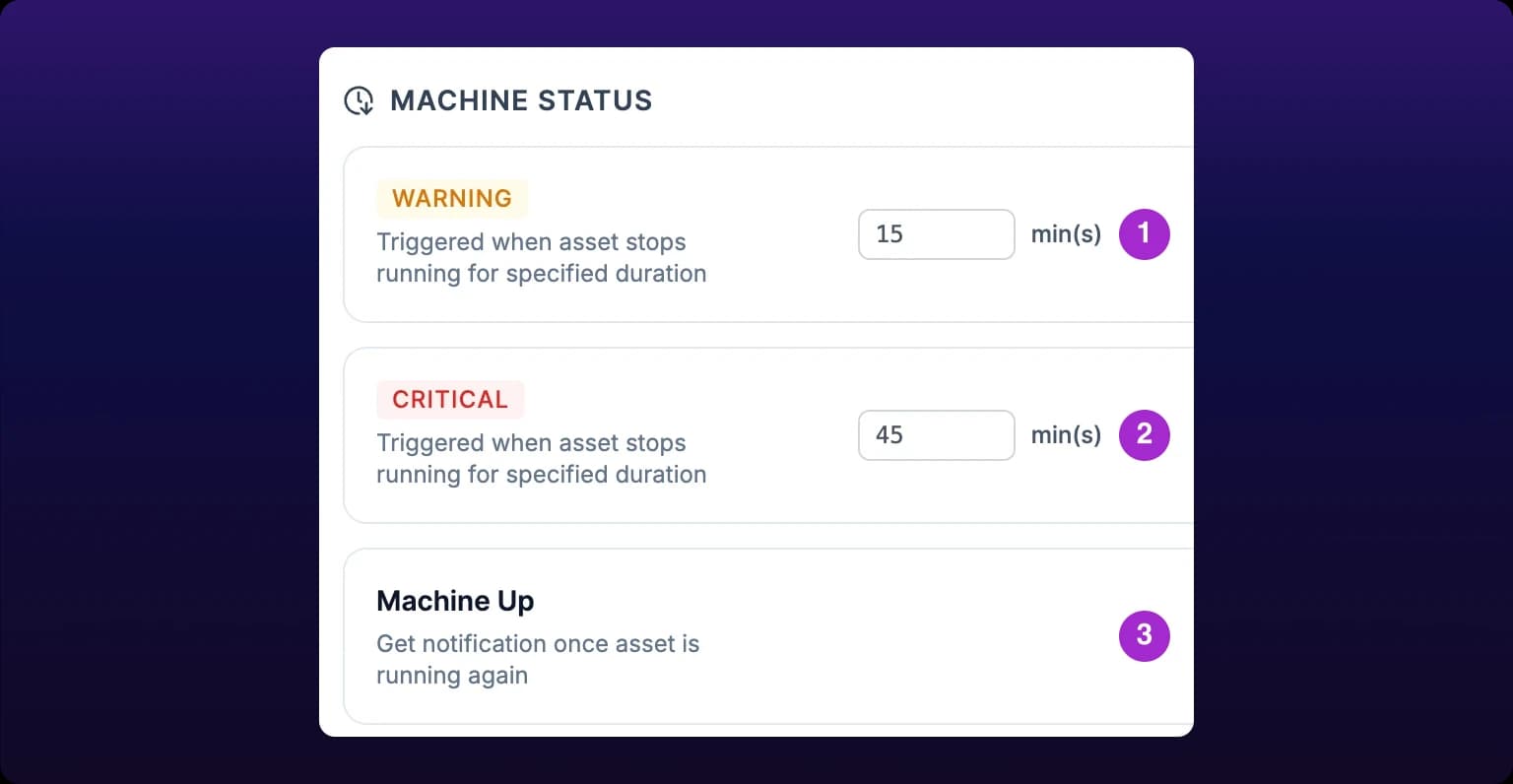 Machine status events. Turning off Machine Down warning also turns off Machine Up on that channel.
Connectivity events
Connectivity holds one rule, Device Offline, and it appears on every device type IoTFlows sells. It fires when the device stops reporting for the time threshold, which defaults to 10 minutes.
A device that stops reporting is not the same as a machine that stopped. The machine keeps reading as stopped, because the card shows the last state the cloud recorded, and it is the status bar that grays out for the stretch with no data. See Troubleshoot a device that is offline.
Leave the threshold at 10 minutes unless the machine sits somewhere with known weak coverage. Shortening it to 2 minutes on a machine at the edge of an access point's range turns one flaky afternoon into forty alerts.
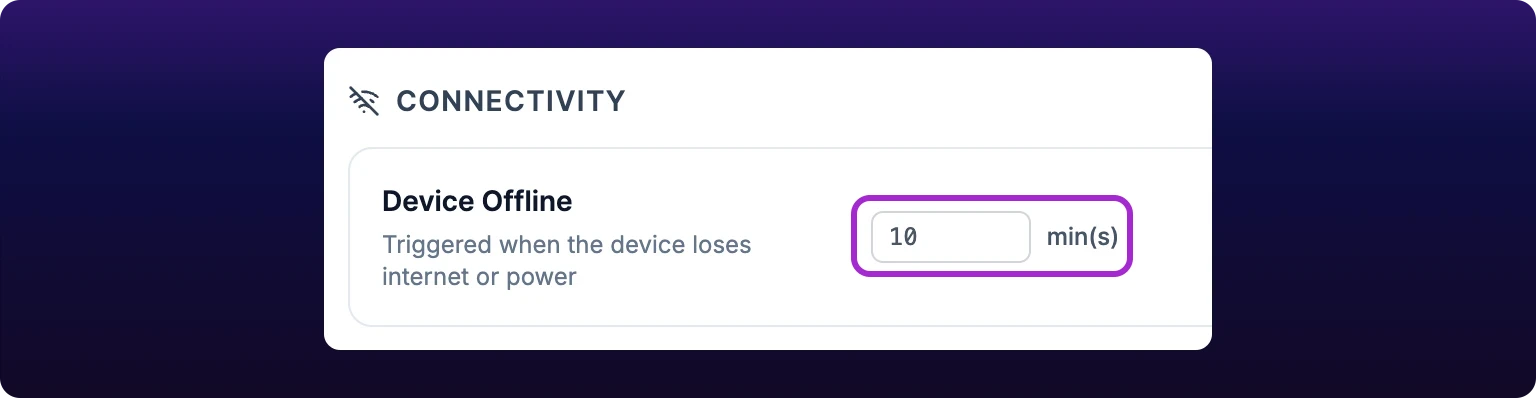 Device Offline. Available on every device type.
Shock events
Shock Events holds Abnormal Shock Detection, which fires when acceleration at the sensor passes a threshold in g. The field accepts 20 to 100, in steps of 1, and starts at 100 g.
This threshold is not stored with the rule. It is written to the sensor itself, so changing it here changes the device, and every reading the device reports afterward is judged against the new number. A successful save confirms with Shock Acceleration Threshold has been changed rather than the Threshold updated the other rows show.
The default of 100 g, the top of the range, only flags severe impacts. Lower it toward 20 g to catch smaller shocks too, but go carefully: a press that reports a 45 g shock on every stroke is not faulting, it is a press, and a threshold set below its normal stroke turns every cycle into an alert.
 Abnormal shock detection. This threshold is stored on the sensor, so changing it changes the device.

Health events
Health Score holds three rules that watch the same number falling: Caution Health Alert at 60%, Warning Health Alert at 40% and Critical Health Alert at 20%. The health score itself is explained in Monitor machine health and vibration.
Their thresholds are fixed. The percentages are shown for reference and the modal offers no field to change them, so the only decision on these three rows is which channels carry them.
Enable the Warning Health Alert, not the critical one, as your first health rule. Critical fires at 20%, which on most machines is after the failure you were trying to prevent. Add the caution rule at 60% to the event log only, where it builds a trend without buzzing anybody.
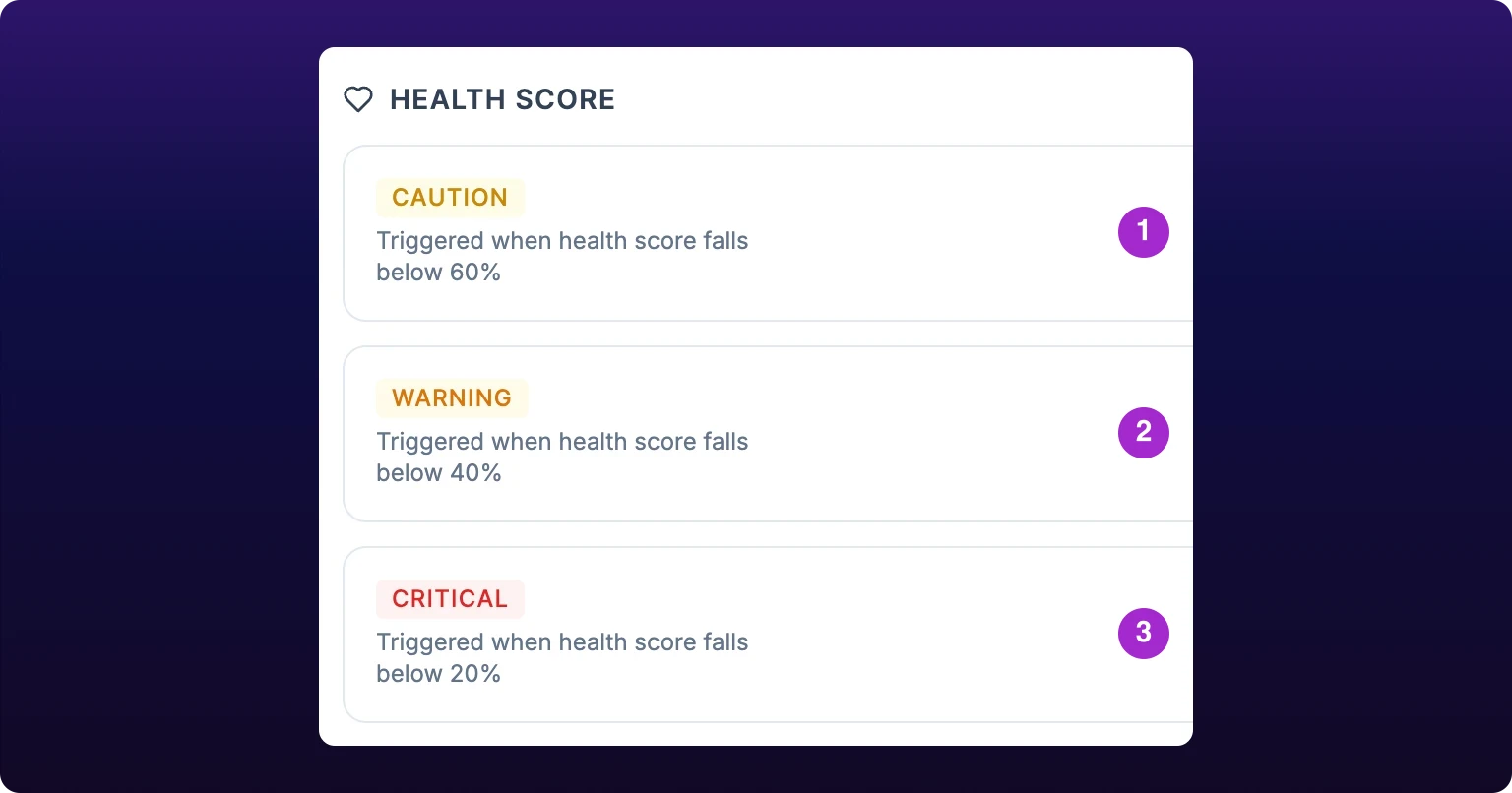 The three health alerts. Their thresholds are fixed and not editable.
Temperature events
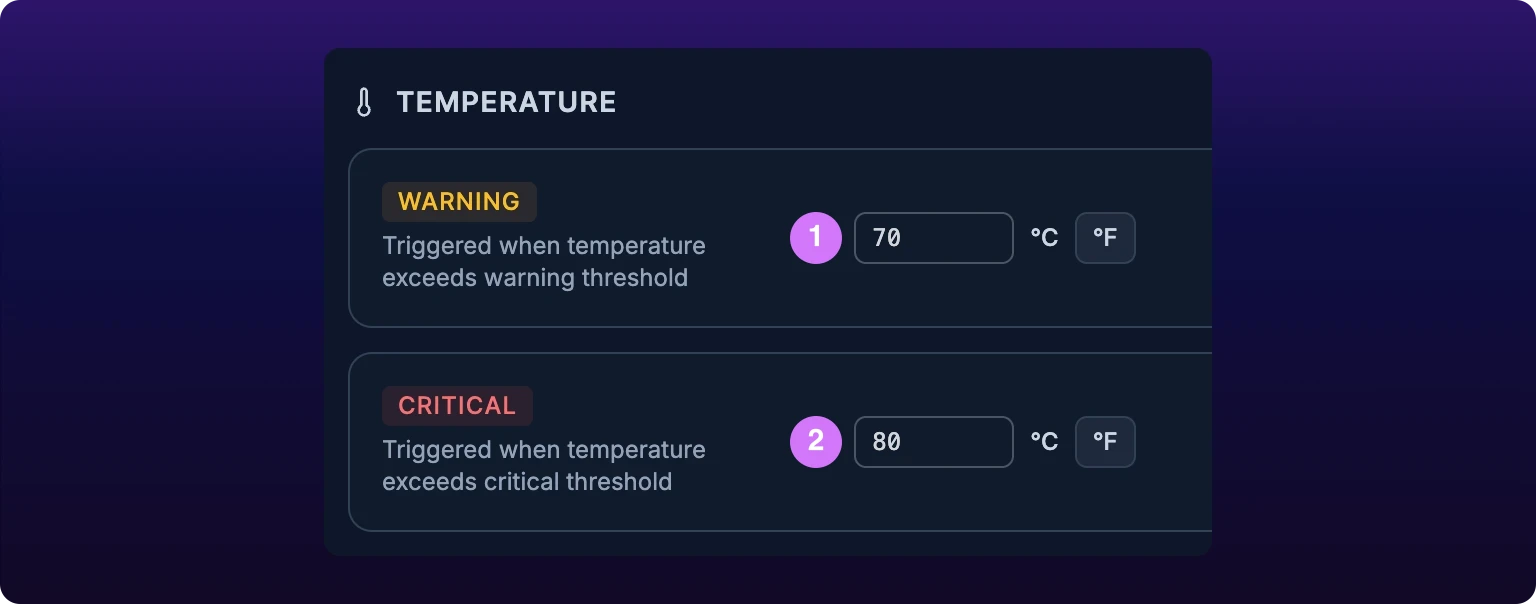
Temperature holds Warning Temperature and Critical Temperature, which fire when the sensor's temperature passes their thresholds. The defaults are 70 °C and 80 °C.
Each row carries a unit button beside its field showing the unit you are not in. Click it to switch the whole modal between Celsius and Fahrenheit, and the thresholds convert with it: 70 °C reads as 158 °F. The choice is a preference of the browser you are working in, so a colleague opening the same machine may see the other unit.
IoTFlows stores the threshold in whole degrees Celsius. A Fahrenheit value is converted and rounded on the way in, so typing 101 °F stores 38 °C and the field reads 100 °F when it comes back.
Critical must be higher than warning. Set the critical threshold below the warning one and a red line reads Critical must be higher than warning under the two rows. The message does not block the save. Both values are written as typed, and the critical alert then fires before the warning alert, so correct it before you close the modal.
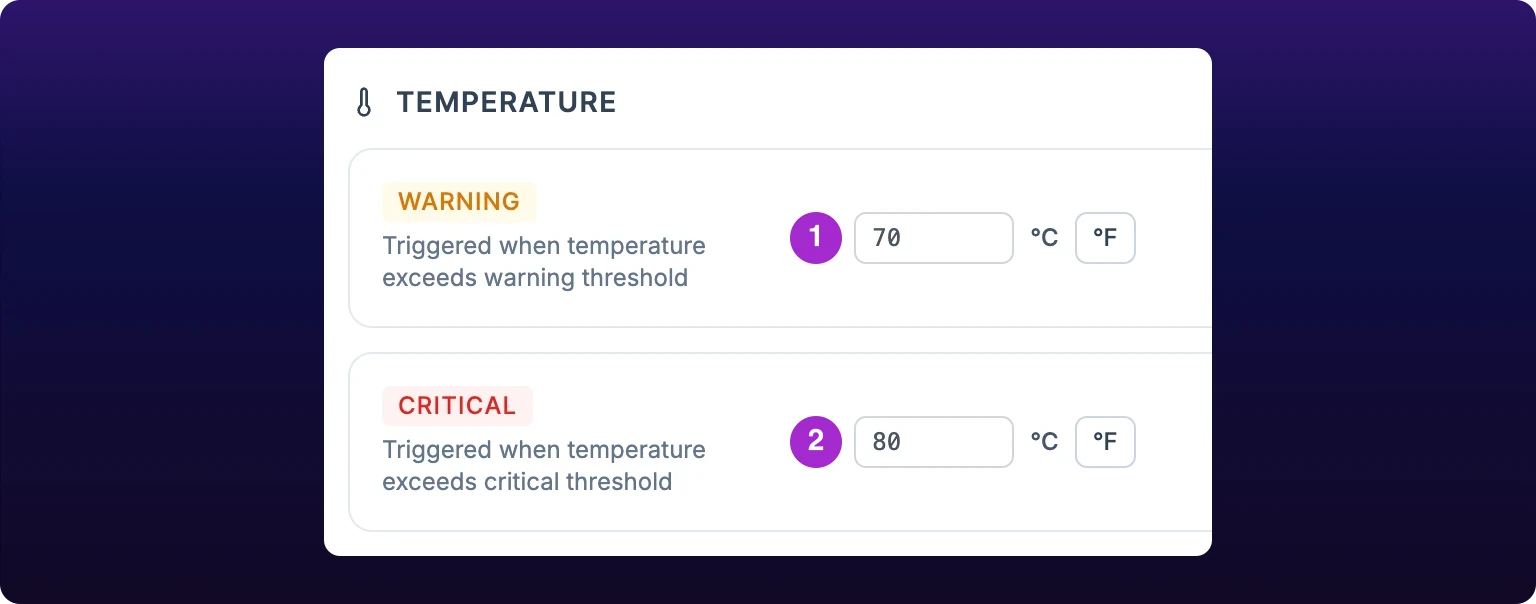 Temperature alerts. Thresholds follow your Celsius or Fahrenheit preference.
Channels
Every event type offers the same six columns, and each one is independent of the others.
| Column | What it does | Scope |
|---|---|---|
| Emails the event | Per person, through the subscriber list | |
| Push | Sends a phone notification | Per person, through the subscriber list |
| SMS | Texts the event | Per person, through the subscriber list |
| Log | Records the event on the machine | The whole machine |
| Work Order | Opens a maintenance work order | The whole machine |
| Integrations | Posts to a chat channel or webhook | The whole machine |
The split matters. Email, Push and SMS reach people through a subscriber list, where a subscriber is one member signed up to one event type on one machine. Log, Work Order and Integrations are settings on the machine, so switching one on changes what everybody sees.
Choose SMS only for events someone must act on within the hour. Every channel you add to a rule lowers the attention the rule gets, and a plant where every event buzzes a phone stops reading any of them.
Email, push and SMS subscriber lists
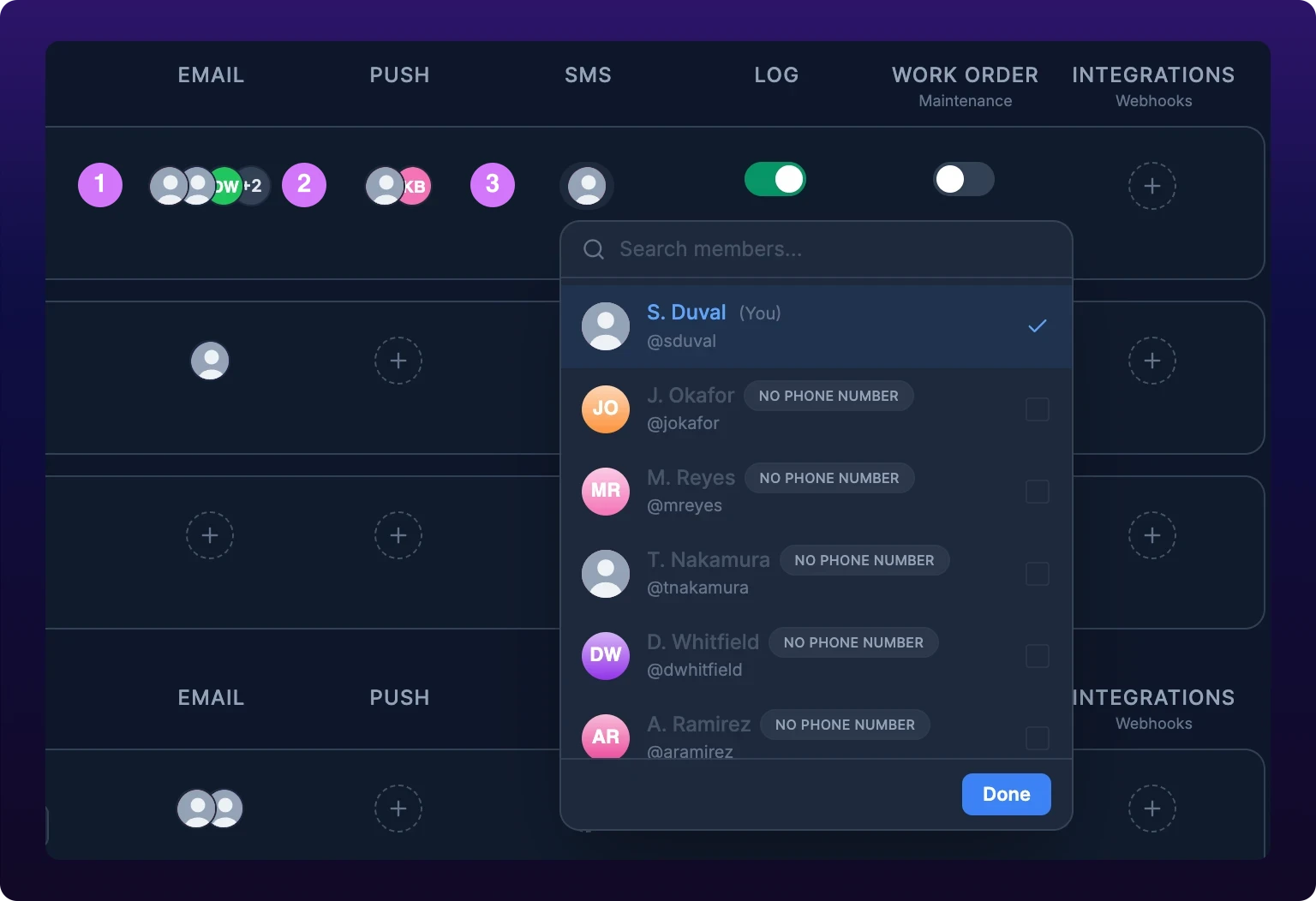
As an Owner or Administrator, the three personal columns are not switches. Each cell is a stack of avatars showing who is subscribed, and a dashed circle with a + when nobody is.
- Click the cell in the Email, Push or SMS column of the row you want.
- Search the organization in Search members... if the list is long. You are sorted to the top.
- Click a member to subscribe them. Click a subscribed member to remove them.
Each change saves on its own and confirms with the member's first name, for example Maria subscribed. Close the dropdown when you are done.
The list belongs to the event type, not to the machine's rules as a whole. Subscribing someone to Machine Down tells them nothing about Device Offline on the same machine, and this is the single most common reason a rule that looks correct reaches nobody.
Members who are not Owners or Administrators see the same three columns as plain switches, which subscribe and unsubscribe only themselves. That is what the footer line means when it reads that email, push and SMS are personal to you.
Why is a member grayed out in the SMS list? SMS needs a verified phone number on the recipient's account. A member without one is listed as No phone number and cannot be added, and clicking them reports This user has not added their phone number. A member who has opted out of texts is listed as Opted Out. See Change your phone number.
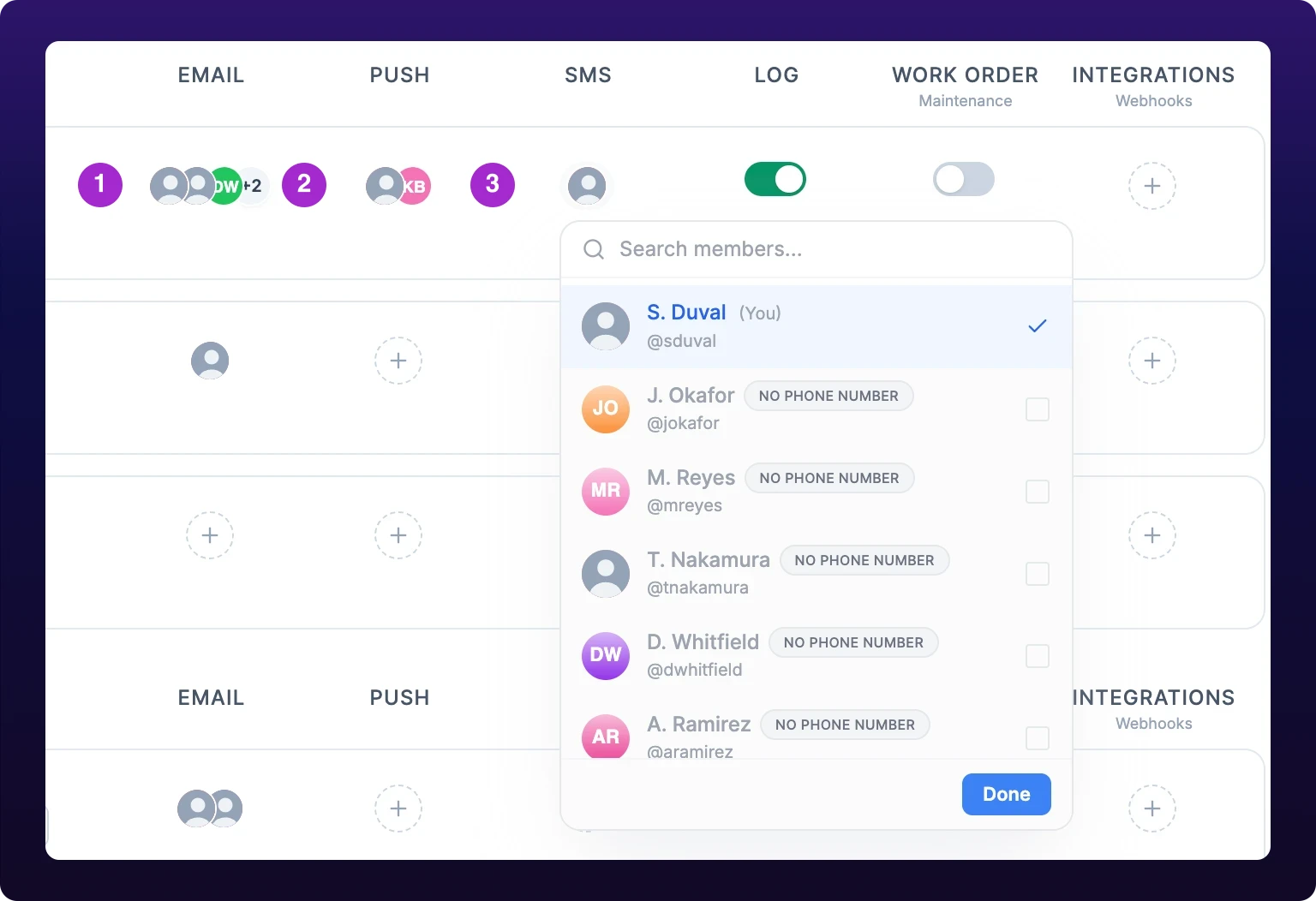 Subscriber lists are per event type. This is the most common reason an alert reaches nobody.
Log the event
Log records the event against the machine without telling anyone. Switch it on and the event joins the Event Alerts list on the machine's Health tab, where it stays until somebody dismisses it, see Review and dismiss machine events.
Turn Log on for every event type you care about, including the ones you do not want notifications for. It costs no one's attention, and it is what makes "this machine has thrown four caution health alerts this month" a question you can answer.
An event type with Log off sends its notifications and leaves no record. A machine with an empty event list and an obvious problem usually has a rule notifying but not logging.
Create a work order automatically
Work Order opens a maintenance work order each time the event fires. The column header carries Maintenance under it: the work order lands on your organization's maintenance board, see Organize work on the maintenance board.
The rule carries no assignee and no board picker, so the work order arrives unassigned and somebody has to pick it up. Give the board a routine for triaging what arrives before you switch this on for anything that fires often.
You do not need an auto work order on every event. Turn it on for events with one obvious response, such as a bearing fault, and leave it off for events that need a person to decide, or you will spend the first month closing work orders nobody opened. Machine Down and Device Offline are the two to leave off: both fire routinely and usually mean a changeover, a jam or a network, not a repair.
Attach an organization integration
Integrations sends the event to a chat channel or your own endpoint. An integration is a destination your organization has already set up, such as a Slack channel or a Teams webhook, created once in Organization Settings and reused across machines, see Send alerts to Slack, Teams, or Discord.
- Click the cell in the Integrations column of the row you want.
- Search in Search integrations... if you have several.
- Click an integration to attach it, and click it again to detach it.
Attaching confirms with Production line alerts connected and detaching with Production line alerts disconnected, using the integration's name. An integration that has been disabled in Organization Settings is still listed, dimmed and tagged Disabled, and sends nothing until it is enabled again.
With nothing set up the dropdown reads No integrations yet. You do not need an integration to get alerts. Email and push work with nothing configured beyond a subscriber list.
Which sections you see for which device
The modal hides the sections the device cannot produce, so two machines in the same organization do not offer the same rules.
| Section | SenseAi | SenseAi Embedded | BeamTracker |
|---|---|---|---|
| Machine Status | Yes | Yes | Yes |
| Connectivity | Yes | Yes | Yes |
| Shock Events | Yes | Yes | No |
| Health Score | Firmware 5 or later | Firmware 5 or later | No |
| Temperature | Firmware 5 or later | Firmware 5 or later | No |
A BeamTracker counts units passing a point rather than reading a machine's own vibration, so it produces no health score, no temperature and no shock reading, and its modal is two sections long. A SenseAi on firmware below 5 keeps shock but loses health and temperature; ask IoTFlows to update the device, see Get support.
If the event type you are looking for is not in the list, check the device before you check anything else. It is the reason more often than a permission is.
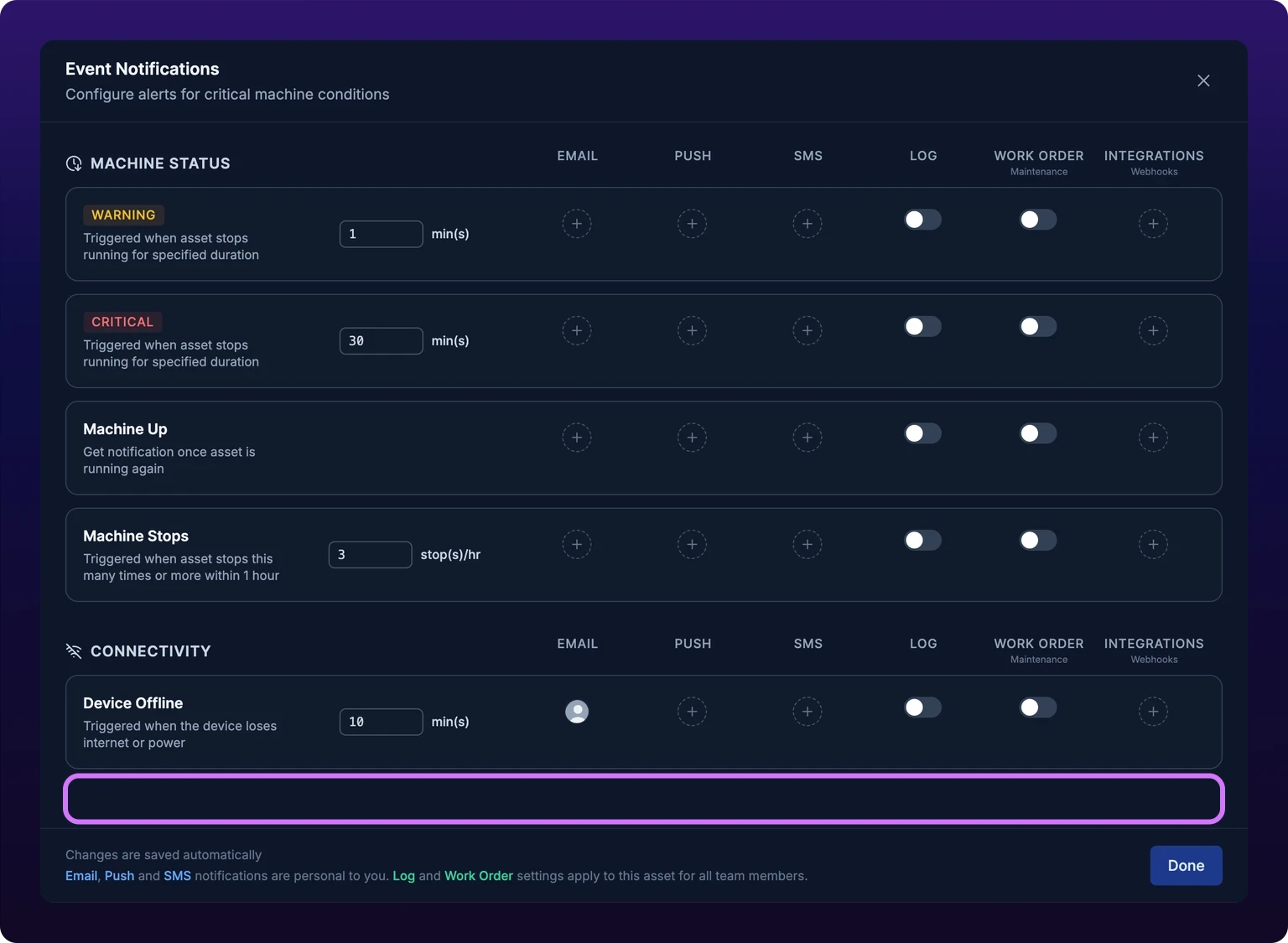
 The same modal on a BeamTracker: machine status and connectivity only, with no health, temperature or shock.
Errors
| Message | Cause | Do this |
|---|---|---|
| Failed to update event type | A channel switch, Log, Work Order or a threshold did not save. The switch flips back to where it was | Retry. Nothing was changed |
| Failed to update email subscription | A member was not added to or removed from the email list. The avatar pile reverts | Retry, then reopen the modal to confirm the list |
| Failed to update push subscription | The same, for the push list | Retry, then reopen the modal to confirm the list |
| Failed to update SMS subscription | The same, for the SMS list | Retry, then reopen the modal to confirm the list |
| This user has not added their phone number | You tried to add an SMS subscriber with no phone number on their account | Ask them to add and verify one, see Change your phone number |
| Failed to update integrations | The integration was not attached or detached. The avatar pile reverts | Retry. Check the integration still exists in Organization Settings |
| A shock threshold save fails | The spinner on the field keeps turning and the typed value stays on screen | Close the modal and reopen it to see the value that actually saved |
| A threshold you typed is not saved | The value is written when the field loses focus. Closing the modal with the keyboard skips that | Retype it, click outside the field, and wait for Threshold updated |
| The alert reached nobody | The channel is on but the event type's subscriber list is empty | Open the cell in that column on that row and add people, see Email, push and SMS subscriber lists |
A generic Something went wrong or An error occurred means the request failed and the change was not saved. Retry it, and if it keeps failing see Troubleshoot alerts you did not receive.
See also
From the blog
- How to track machine downtime and its causesLet a machine signal record every stop and ask operators only for the reason. A worked shift, rules that name routine stops, and a first-week checklist.
- How to choose a maintenance strategy for each machineMatch each machine to reactive, preventive, usage-based, condition-based or predictive maintenance with a four-question test, survey data and worked examples.
- The true cost of idle machinesAn idle machine keeps costing you depreciation, floor space, idle power and any operator waiting at it. Price an idle hour, and learn when it costs output too.
Set up one alert end to end: open Event Notifications on one machine, find the Machine Down row by its amber WARNING chip, set the time threshold in minutes above your normal changeover, add yourself to that event's email subscriber list, then stop the machine on purpose and confirm the email arrives.
Push is the only IoTFlows channel that reaches someone away from a screen. Allow the operating system permission, see which three things send push (machine event alerts, work orders and their comments, and chat messages), where each notification opens when you tap it, how a notification from a second organization is routed, and the Android sign-out defect that stops push arriving until the app is reinstalled.