

Manage chat members and settings
Rename a group, change who is in it, and leave one properly.
Everything on this page happens in a chat's info panel, the same panel for a direct chat and a group. A chat owner is a member who can delete the chat for everyone; a group can have several, and the rest of the membership is flat.
Before you start: have a group chat. See Start a direct or group chat.
Open chat info
- Select Messaging in the navigation to open
/chats. - Select the chat in the list.
- Select the chat's picture or its name in the header. More in the same header, then Info, does the same thing.
The panel replaces the thread. At the top sit the chat picture and name, then Add and More, then four tabs: Members, Media, Files, and Voice. Back at the top left returns you to the messages.
A direct chat has no Add button and no Edit, because its membership and its name are both fixed. See Chat types.
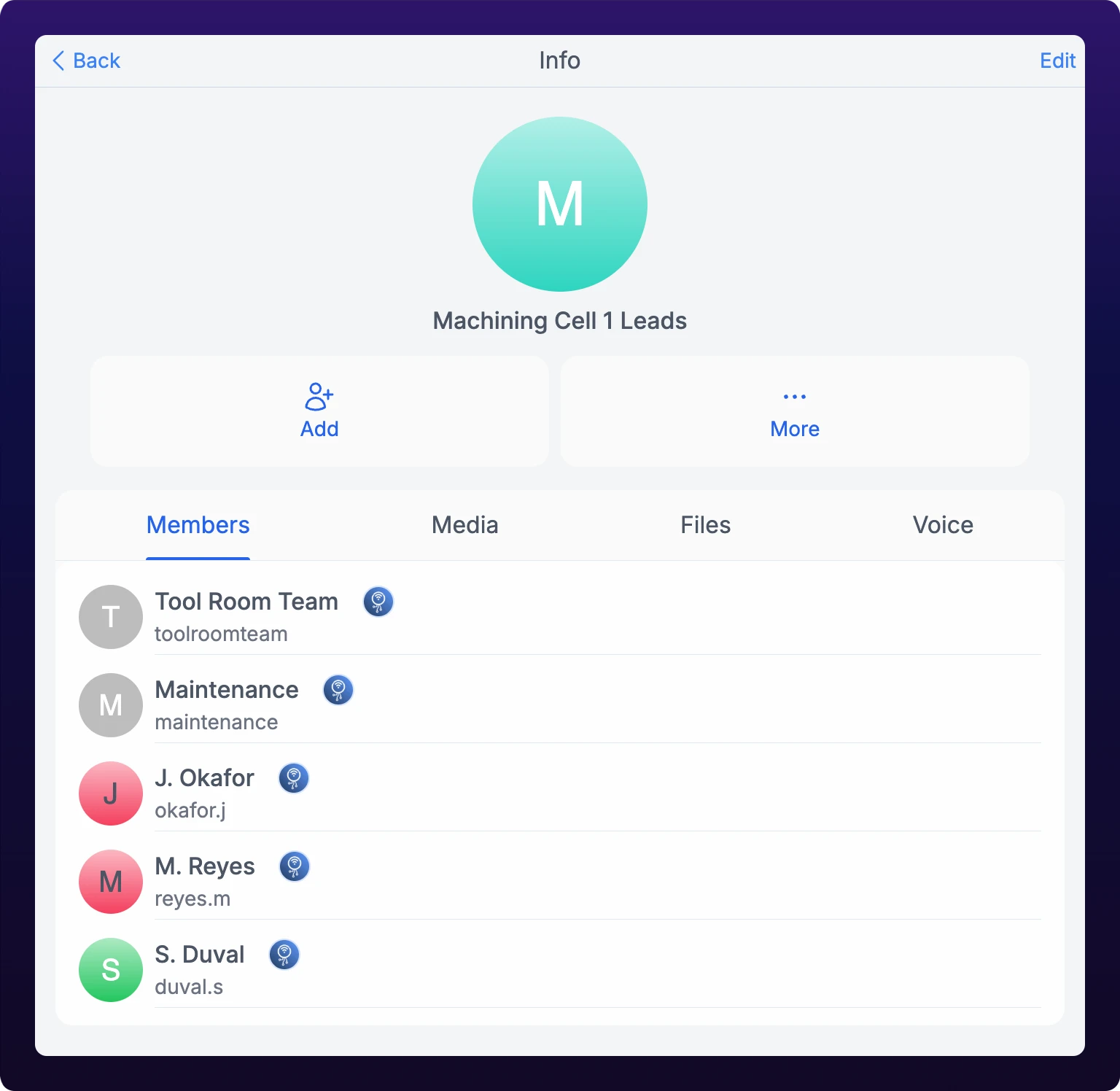 The chat info panel.
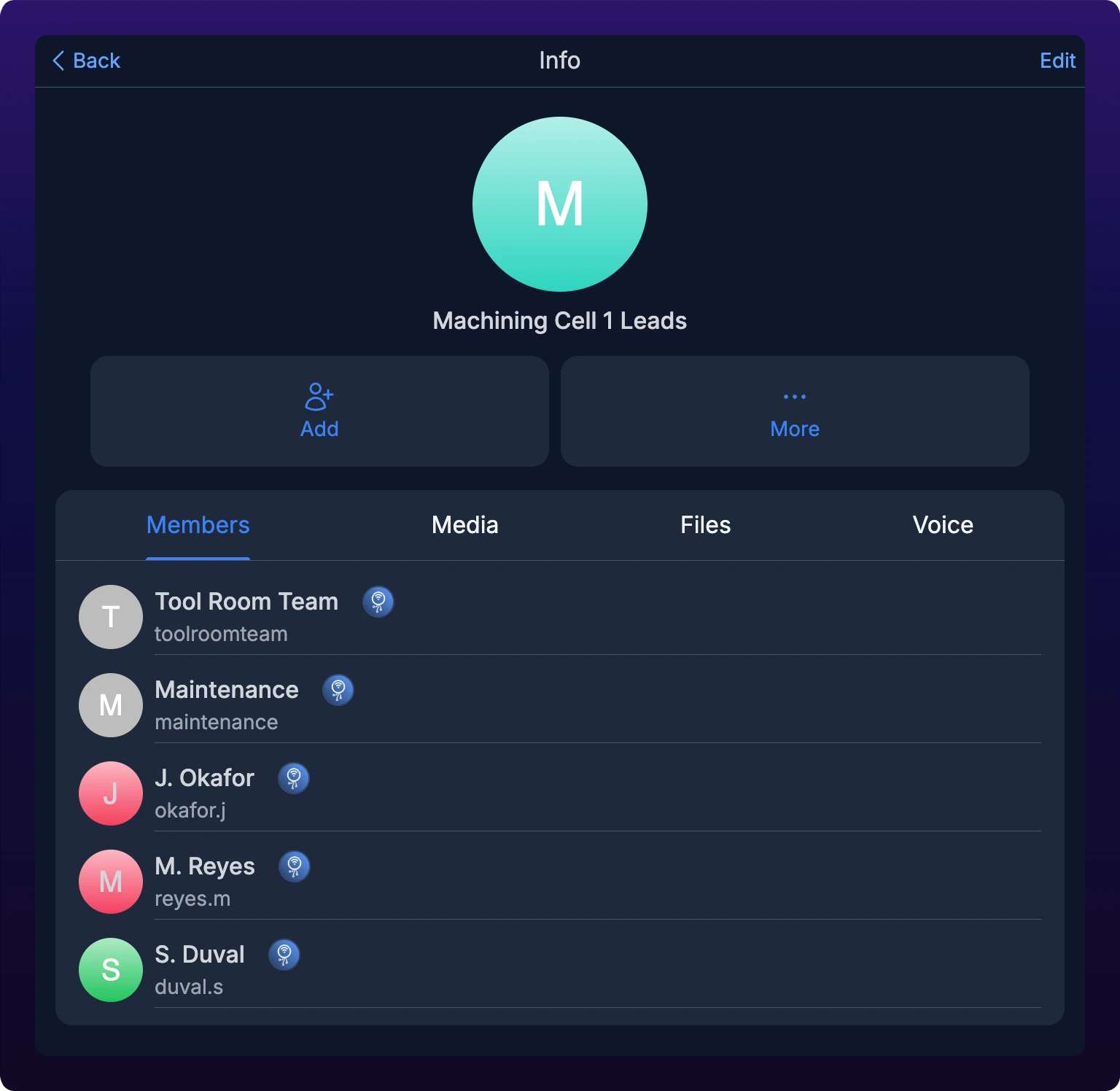
The Media, Files, and Voice tabs list everything anyone has ever attached to the chat. See Browse a chat's media, files, and voice notes.
Who can do what
| Action | Member | Owner |
|---|---|---|
| Rename the group and change its picture | Yes | Yes |
| Add members, including from another organization | Yes | Yes |
| Remove a member | Yes | Yes |
| Make or remove an owner | Yes | Yes |
| Leave the chat | Yes | Yes |
| Delete the chat | No | Yes, but not from the dashboard |
Why can I see controls I am not supposed to use?
Make Owner, Remove Owner, and Delete appear on every member row for everyone, including on your own row, and the server decides whether the request goes through. Treat the rows above as the intent, not as a lock.
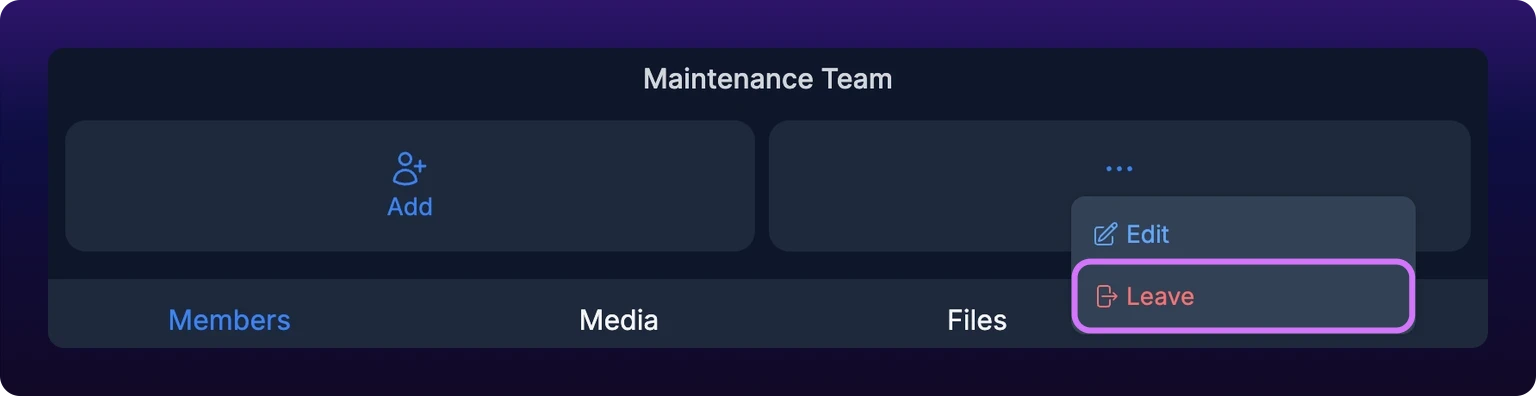
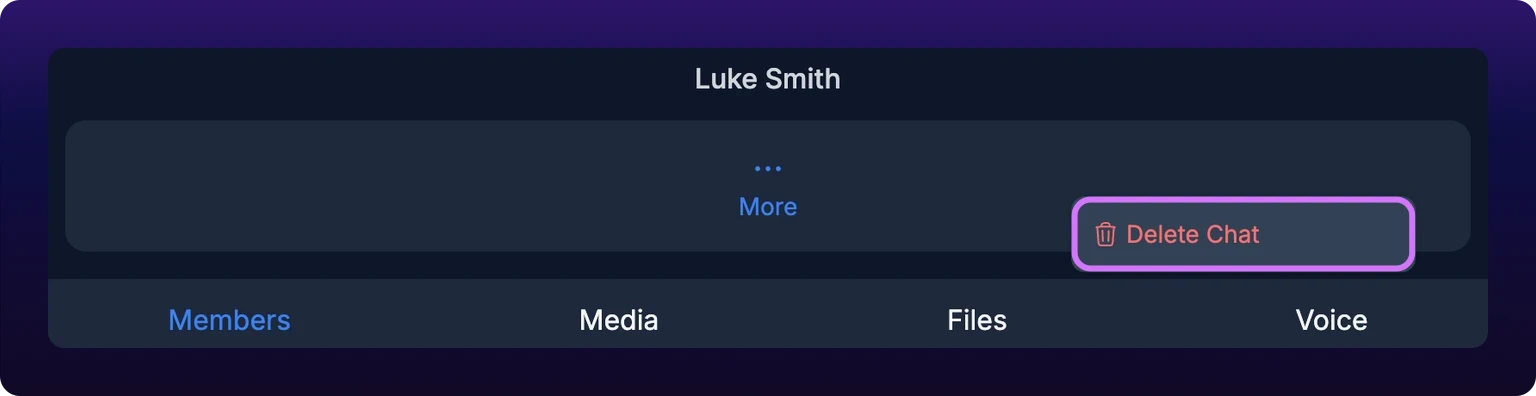
The dashboard's group More menu is Edit and Leave and nothing else, so an owner cannot delete a group from the web. Delete a group from iOS or Android. A direct chat is the reverse: its More menu is Delete Chat alone.
Rename a group and set its image
- Select Edit at the top right of the info panel, or More and then Edit.
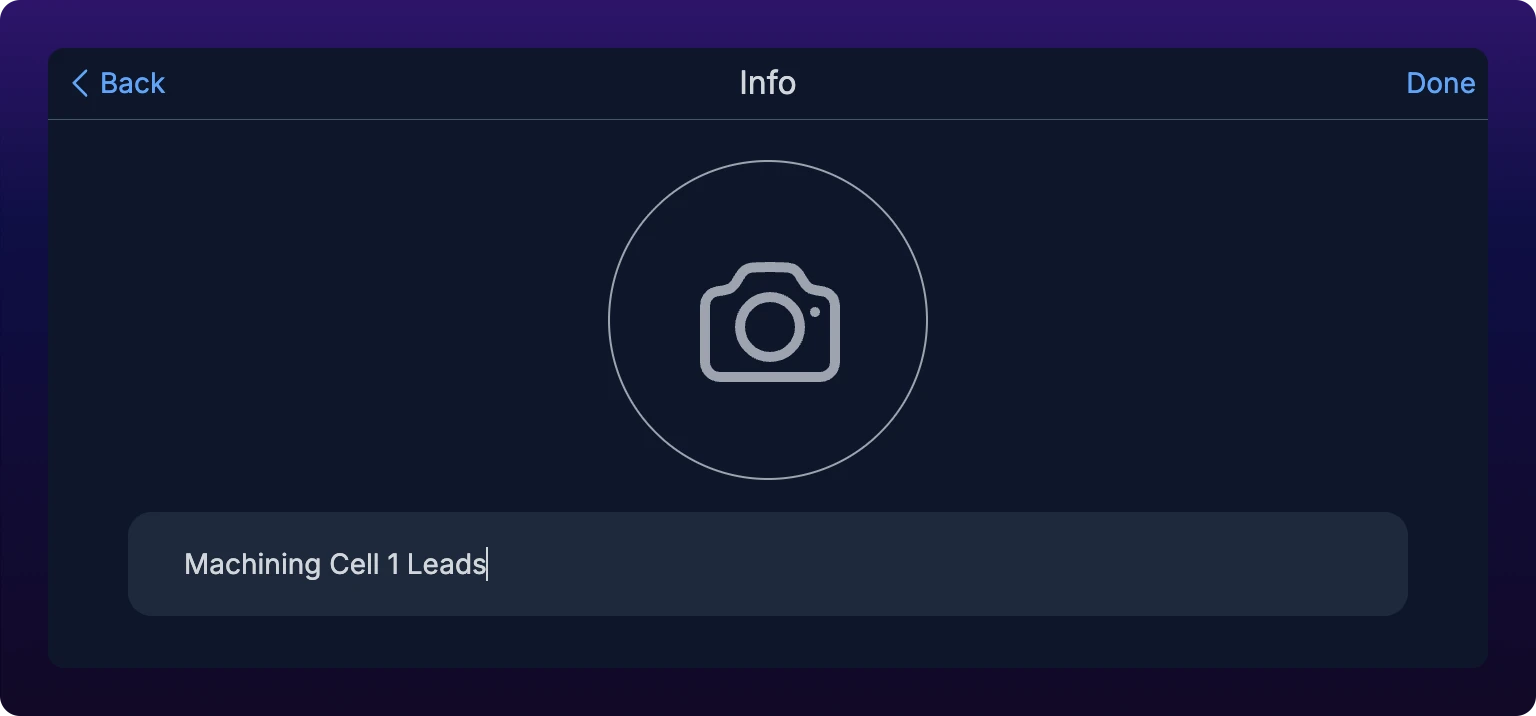
- Type the new name. The field holds 80 characters and stops there.
- Optional: select the picture square above the name, then upload and crop an image for the group.
- Select Done. A toast reads Chat updated.
Done stays inactive while the name is empty, so a group cannot be left unnamed. The new name and picture reach everyone in the chat, not only you.
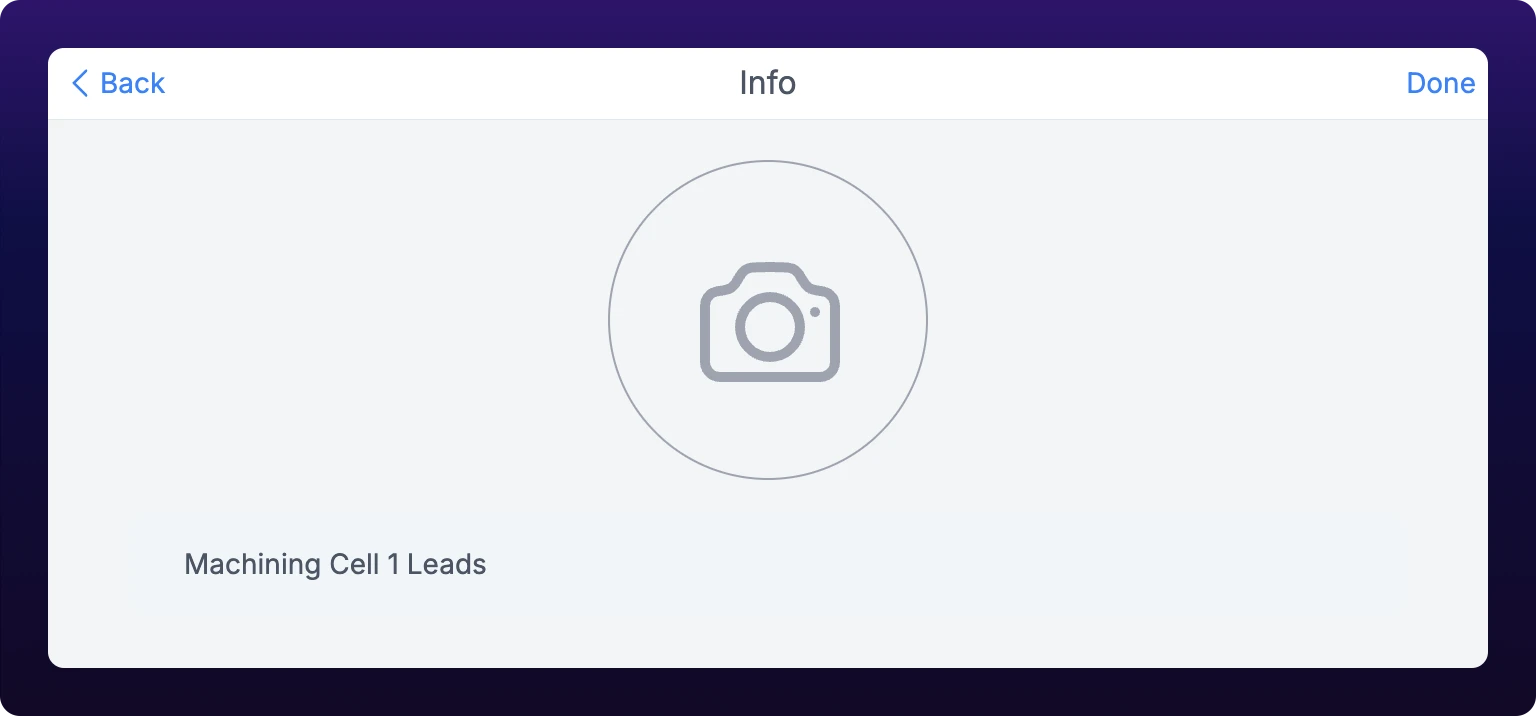 Renaming a group and setting its image.
Add members
- Select Add in the info panel. The Add Members dialog opens.
- Pick people from Users and teams from Teams. Both lists come from the organization you have selected.
- Optional: type into Who would you like to add? to filter the two lists by name, handle, or email.
- Select Add Members.
Everyone you pick becomes a blue chip above the lists, and Add Members stays inactive until there is at least one. Anyone already in the chat is dimmed in the list and cannot be picked twice.
Adding a team adds it as one row in Members rather than as its people, so the chat follows the team. See Create and manage teams.
Add someone from another organization
Type their whole handle into the search field, including the organization after the colon, then press Enter. A comma or Tab does the same thing.
The lookup is exact rather than a search, so maria alone finds nothing and maria:acme fails if their organization's handle is acme-mfg. A handle that does not exist reports No matches found, and a handle you have already added reports User already added. See Add someone from another organization.
An external member carries a small orange marker on the bottom right of their avatar in Members. Hovering their name lists the organizations they belong to.
Remove a member
- Open the Members tab.
- Hover the member's row. Make Owner, Remove Owner, and Delete appear on the right.
- Select Delete, in red.
There is no confirmation step: the row disappears and a toast reads User has been removed, or Team has been removed for a team. Everything that person wrote stays in the thread, and they keep no access to the chat.
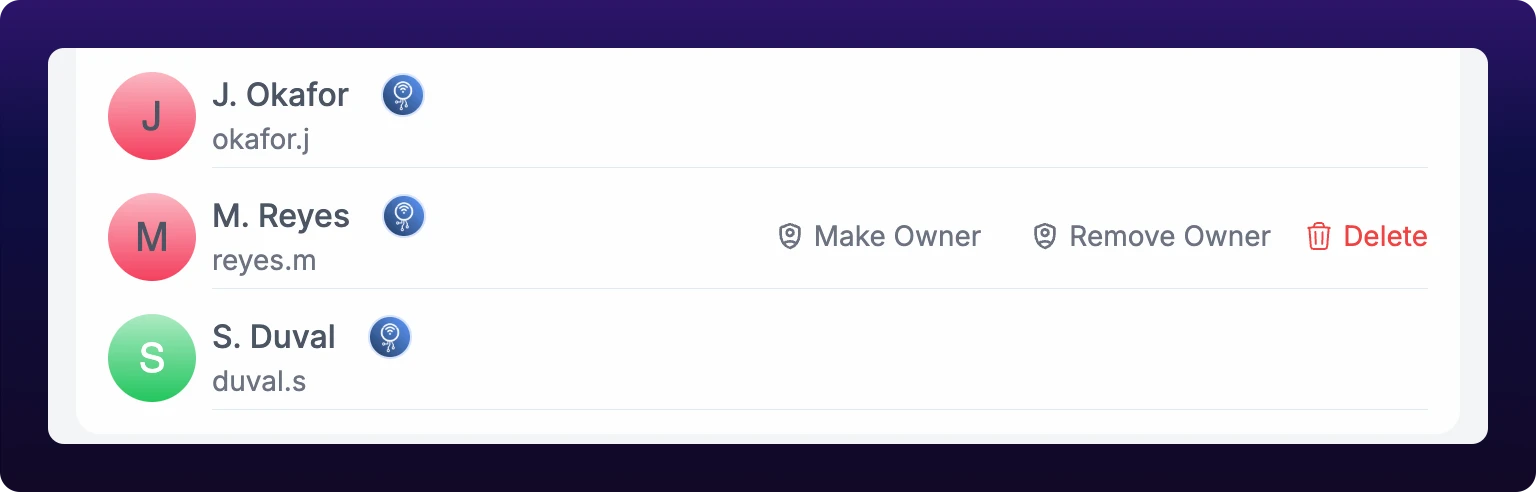 Removing a member from a group chat.
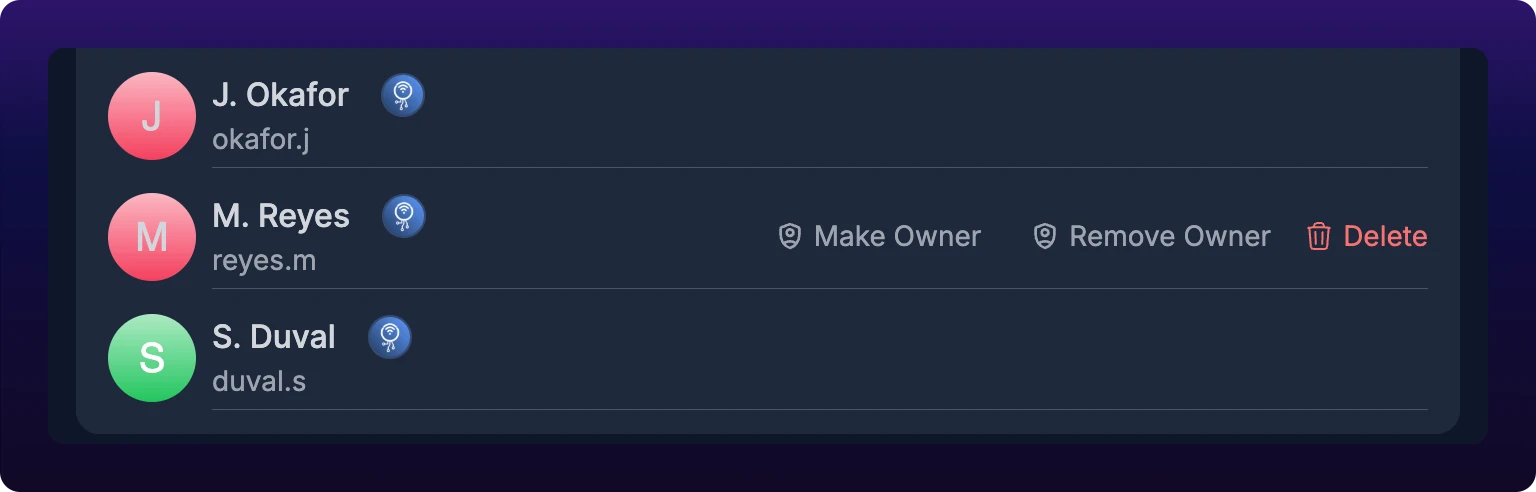
To put them back, add their handle again.
Owners
An owner is marked by a green shield on the top right of their avatar, labeled Owner on hover. Ownership decides one thing: who sees Delete Chat.
Hover a member row and select Make Owner or Remove Owner. A toast reads Owner Added or Owner Removed, and the shield appears or disappears on the row. Both buttons show on every row whatever the row's current state, so read the shield rather than the buttons.
Give a group a second owner while the first is still in it. A group whose only owner leaves has nobody who can delete it.
Read receipts
Read receipts are a mobile feature, and they cover direct chats only.
| Where | What a message you sent shows |
|---|---|
| Web | Nothing, in either chat type |
| iOS and Android, direct chat | One check once the message reaches IoTFlows, two checks once the other person has read it |
| iOS and Android, group chat | Nothing. The signal describes one other reader, so a group has nothing to say |
Every client reports how far you have read, whatever it displays. That position is stored against the chat rather than against the device, so reading a thread on the web clears its unread count on your phone and reopens it at the same Unread Messages divider. See The chat list and unread counts.
A message that has not reached IoTFlows yet shows a clock instead of a check. See When you lose connection.
Leave a chat
- Select More in the info panel or in the chat header.
- Select Leave.
- Read the dialog, which names the chat, and select Leave.
A toast reads Left chat with the chat's name, the chat drops off your list, and the dashboard returns to /chats. The chat, its history, and your messages stay exactly as they are for everyone else. You cannot rejoin by yourself: someone still in the chat has to add your handle again.
Leave appears on groups only. A direct chat offers Delete Chat instead.
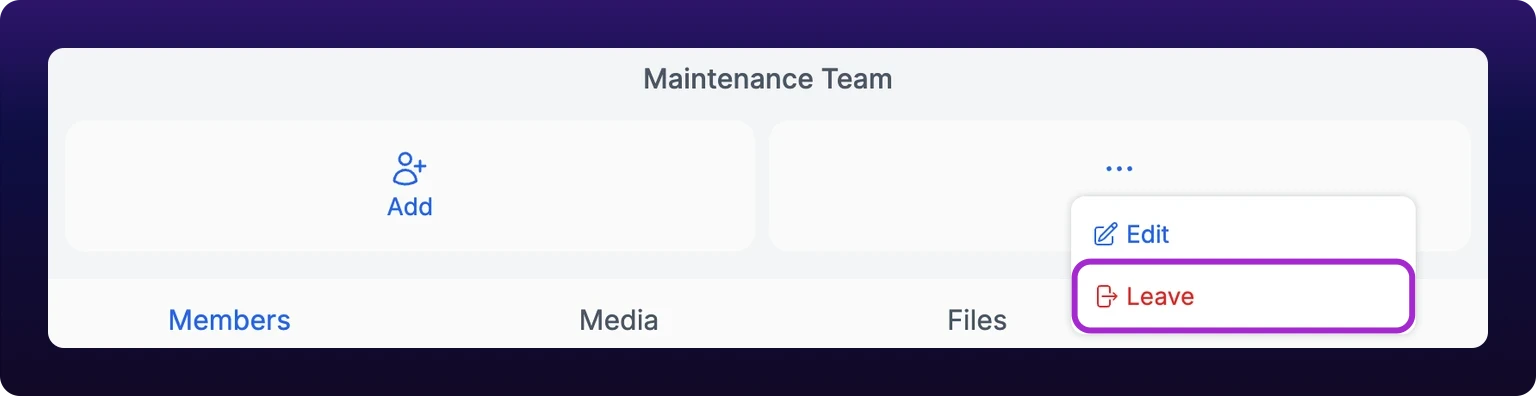 A group offers Leave. The chat stays exactly as it is for everyone else.
Delete a chat
- Select More in the info panel or in the chat header.
- Select Delete Chat, in red.
- Read the dialog, which names the chat, and select Delete.
A toast reads Chat deleted and the dashboard returns to /chats. The chat disappears for every member, taking its messages, its pins, and its attachments out of reach.
On a direct chat, either person can delete it, and it goes for both of them. On a group, the dashboard offers no Delete Chat at all, to an owner or to anyone else: the group More menu carries Edit and Leave only. Delete a group from iOS or Android, where the owner check runs against a payload that carries it.
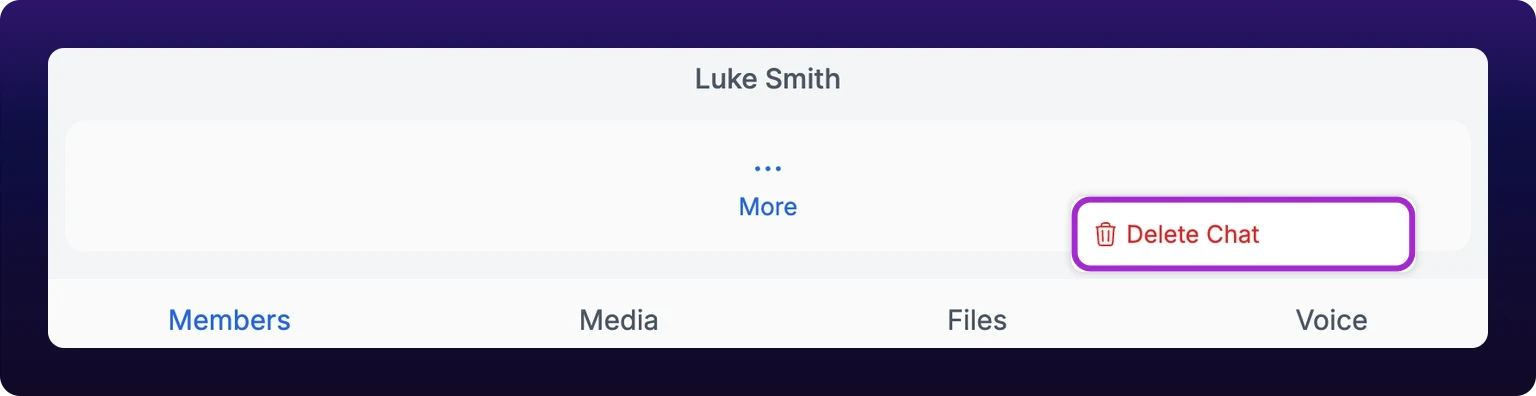 A direct chat offers Delete Chat instead. There is no Leave.
Leaving or deleting?
Leave a chat rather than deleting it when other people still need the history, which is almost always the case on a group that ran for any length of time. Deleting removes it for everyone, and there is no way back. Delete when the chat was a mistake, for example a group created against the wrong handle before anyone posted to it.
Nothing in the dashboard brings a deleted chat back, so move anything worth keeping before you delete: download the attachments you need, and put the decision in the work order it belongs to. See Chat versus work-order comments.