

Start a direct or group chat
Direct, group, and cross-organization conversations.
Every chat starts in the same place, the compose button on the chat list at /chats. What you pick next decides whether the conversation is between two people, a standing group, or a thread that spans two organizations.
You pick people by handle. A handle is a username qualified by its organization, written maria:acme. An external organization is any organization in a chat other than the one you have selected: a contractor, a customer, or another of your sites that IoTFlows runs as its own organization.
Before you start: sign in to the dashboard. See Sign in to IoTFlows.
A chat belongs to the organization you have selected, so switch first if you are in the wrong one. See Switch organizations.
Chat types
| Type | Members | Can add external | Renameable |
|---|---|---|---|
| Direct | You and one handle you pick, either a person or a team. Membership is fixed once the chat exists. | Yes, when the handle you pick belongs to another organization | No |
| Group | You and every handle you select, with members added and removed afterward | Yes, as many handles as you need | Yes, from the chat's info panel |
Both types carry the same messages, replies, attachments, and pins. See Send, reply to, edit, and delete messages.
Start a direct chat
- Select Messaging in the top navigation, then the compose button at the top right of the Messages heading.
- Find the person. Your organization's people are listed under Users and your teams above them under Teams. The Search field narrows both lists on a name, a username, an email address, or a handle, so
maria,maria@acme.com, andmaria:acmeall find the same person. - Select their row. IoTFlows creates the chat and opens its empty thread.
Selecting a Teams row starts the chat with the team instead of one person, which is how you reach a crew whose shift you do not know. See Teams.
A direct chat has no name, no confirmation step, and no way to add a third person later. If you picked the wrong row, open the chat's info panel and select Delete Chat.
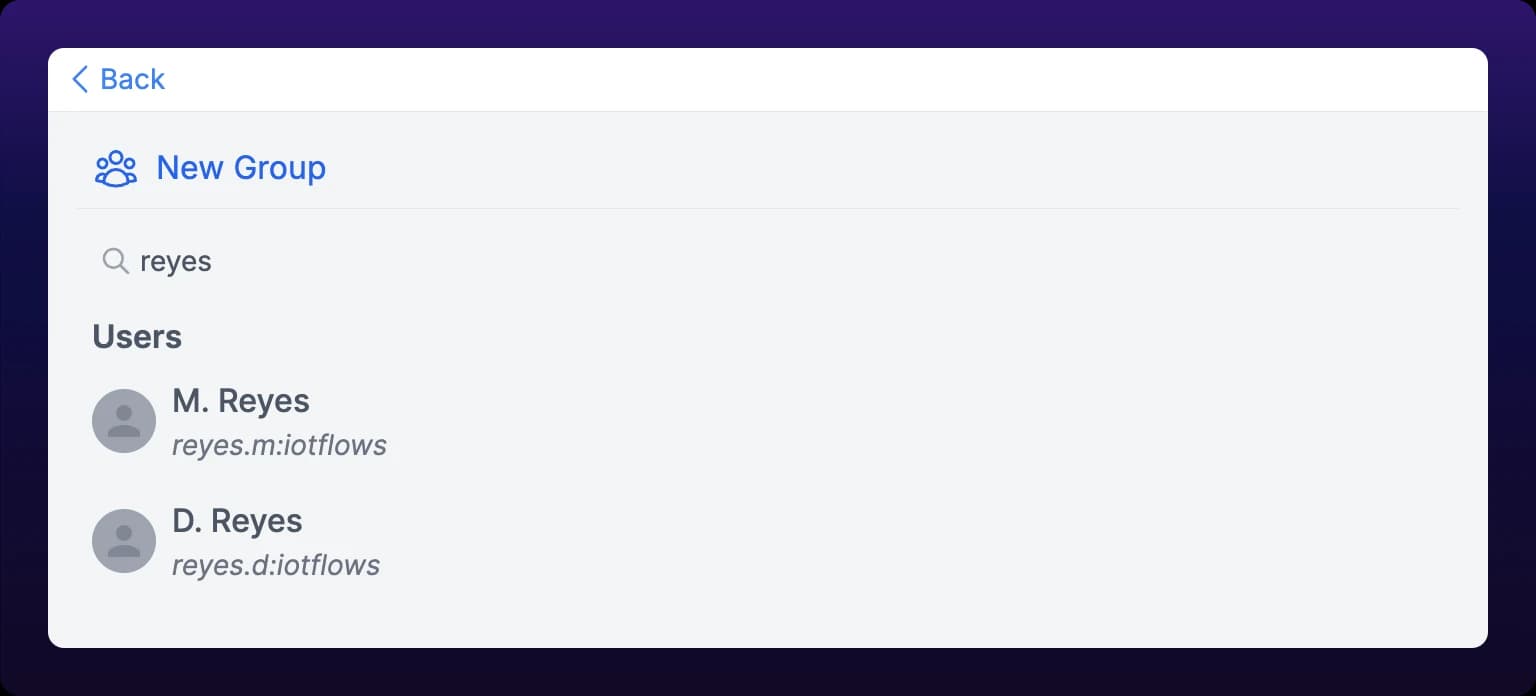 Starting a direct chat with someone in your organization.
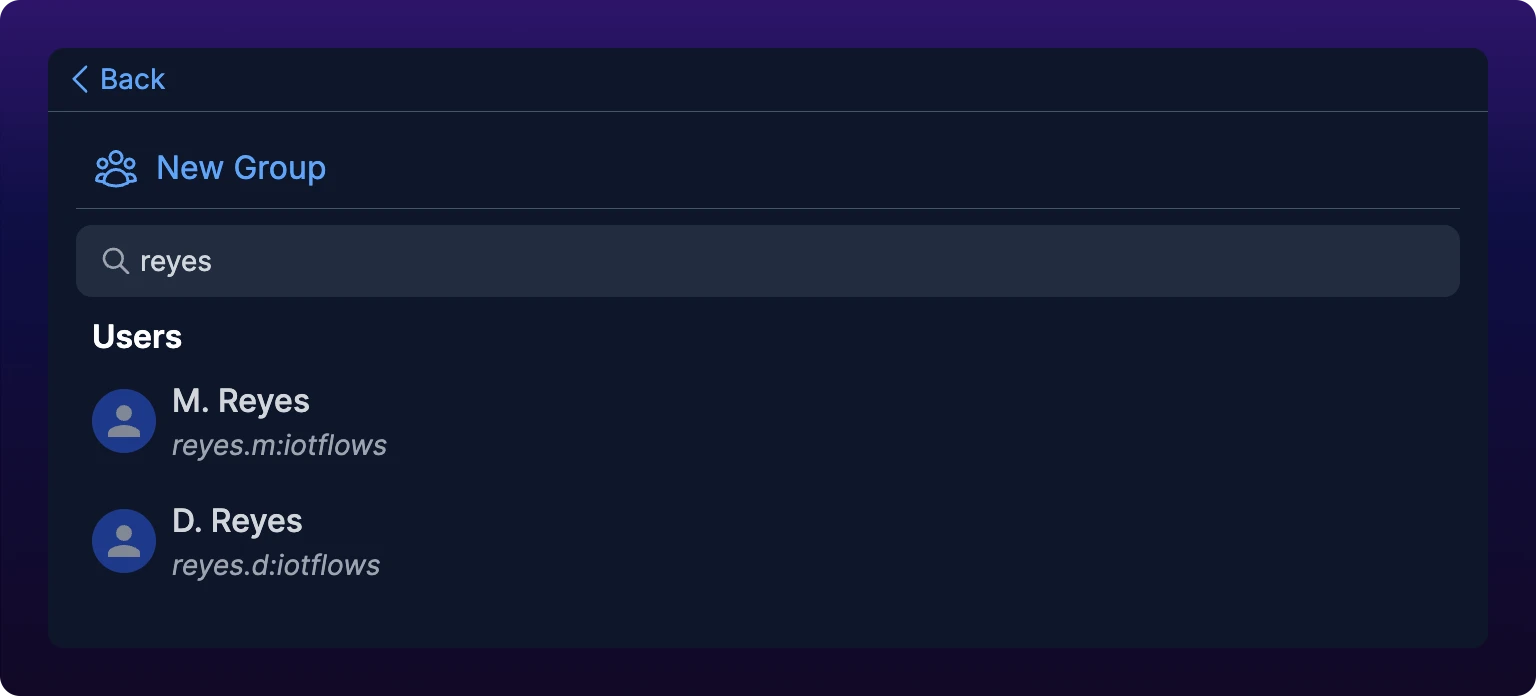
Start a group chat
- Open the compose view and select New Group.
- Select everyone you want in the group. Each one becomes a chip in the field at the top of the screen, headed Select Users, and selecting a chosen row again takes them back out.
- Remove a chip by selecting the X on it. With the field empty, Backspace highlights the last chip and a second Backspace deletes it.
- Select Next to name the group. Next stays inactive until at least one member is selected.
A group can mix people and teams, and members can be added and removed after the chat exists. See Manage chat members and settings.
One group per machine?
You do not need a group per machine. Machine-specific conversation belongs in the work order's comments, where the next technician finds it. Group chats are for the people who work together, not for the equipment they work on.
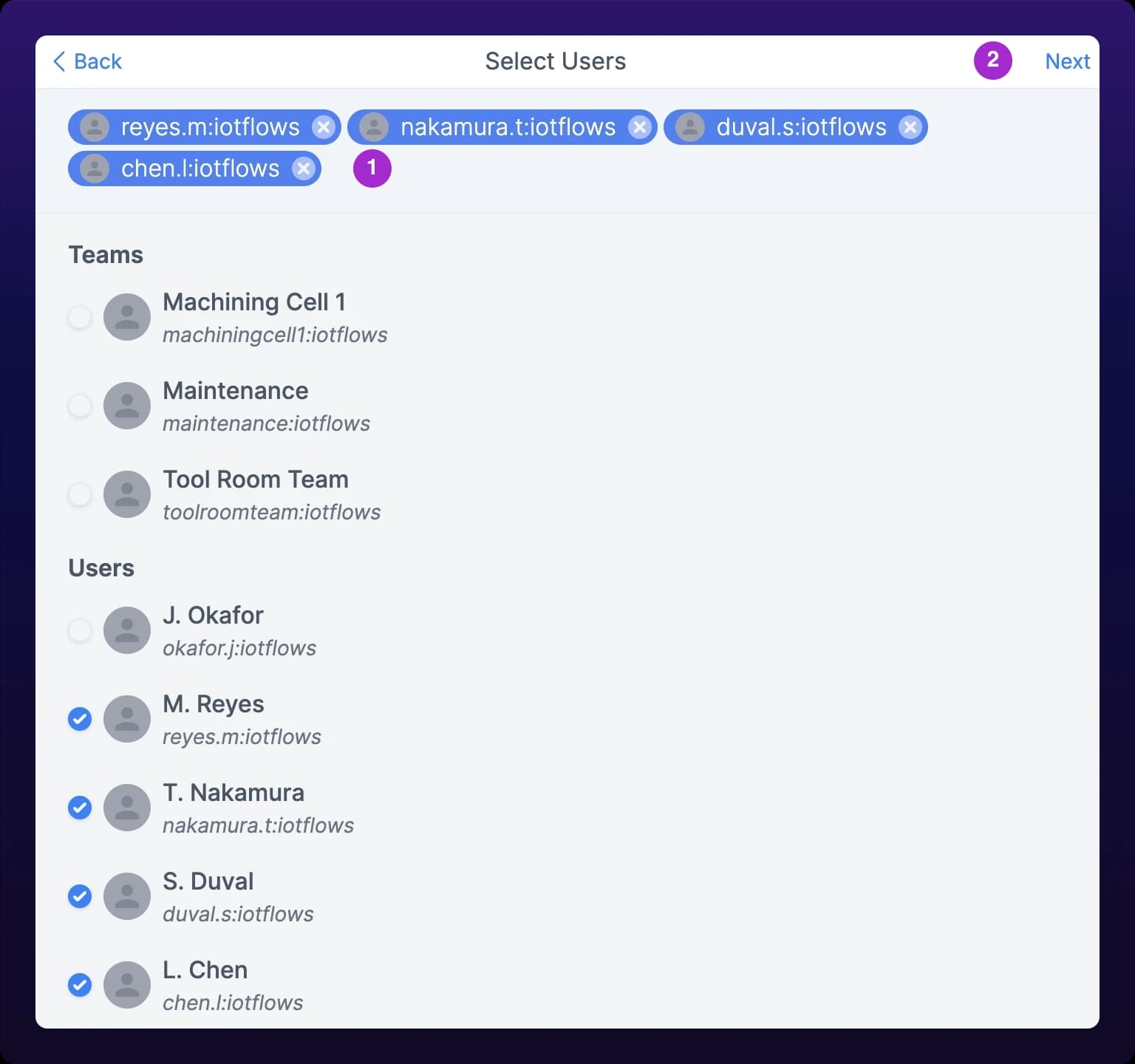 Creating a group chat.
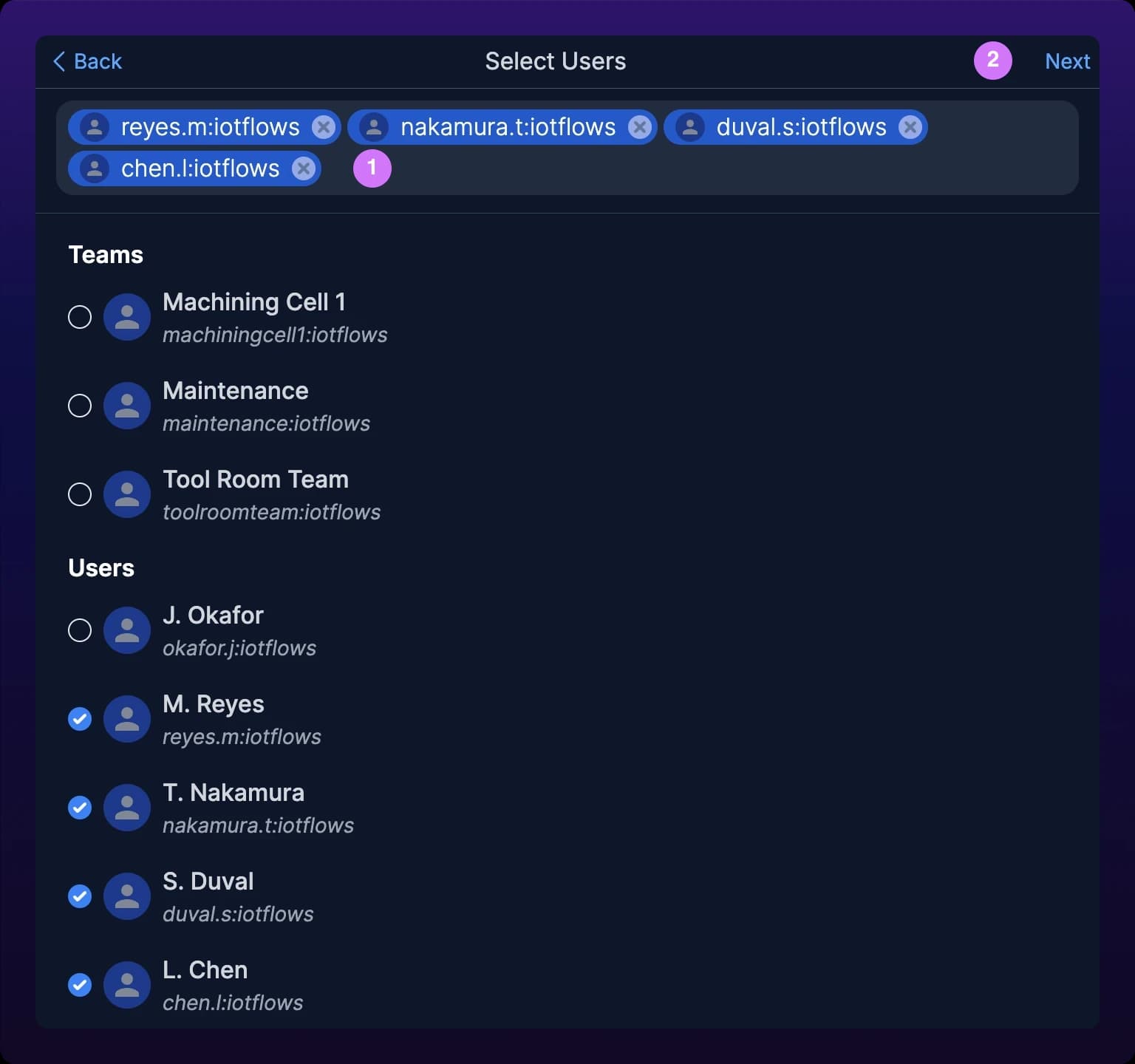
Add someone from another organization
- Ask the person for their handle. Everyone finds their own on their profile page. See Update your profile and handles.
- Type the whole handle into the search field, including the organization after the colon.
- Press Enter. A comma or Tab does the same thing.
The lookup is exact rather than a search: IoTFlows checks whether that one handle exists. In the direct flow a match creates the chat immediately. In the group flow it lands as a chip alongside the members you picked from the list, and adding the same handle twice reports User Already Added.
Someone from another organization you have chatted with before is already in the Users or Teams list, with a small marker on their avatar. Anyone new has to be typed in full.
"No matches found" under the search field?
No account carries that handle. Check the spelling of both halves, and check that you typed the organization part: maria alone is not a handle, and maria:acme fails if their organization's handle is acme-mfg.
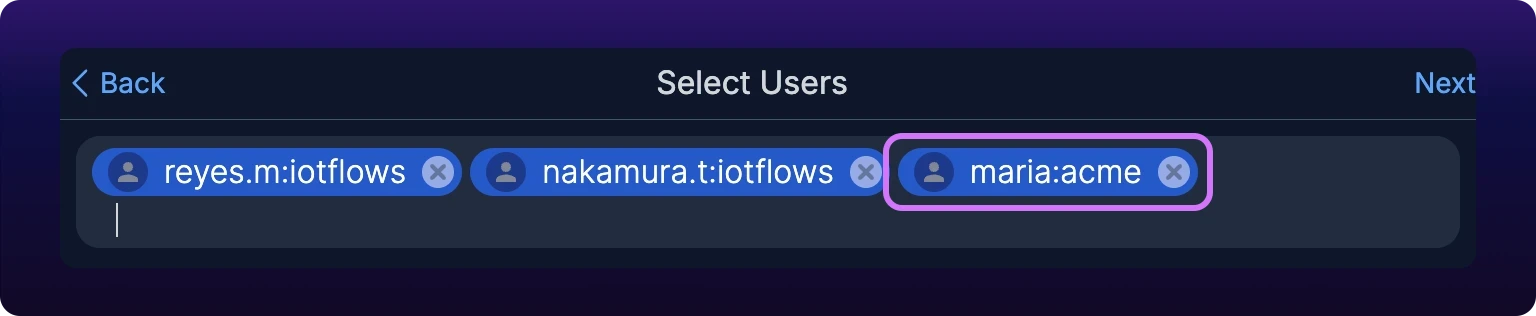
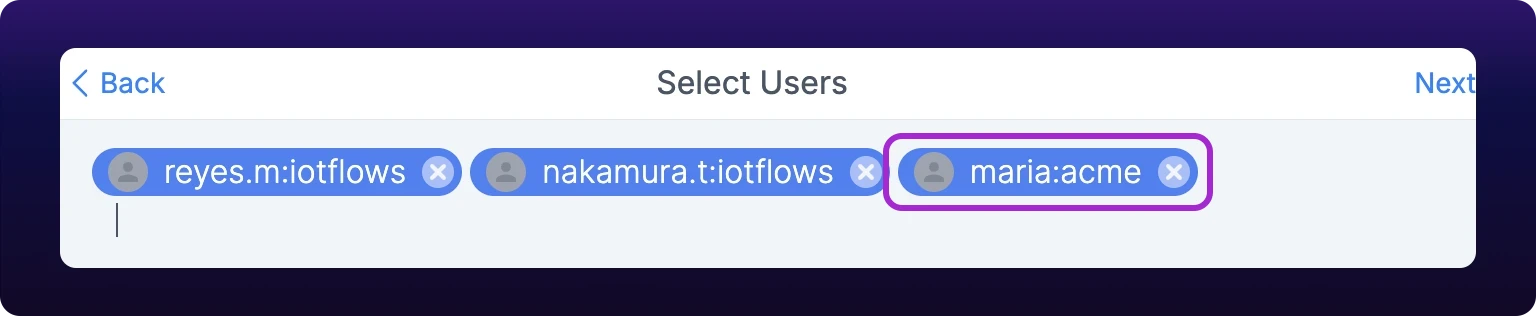 Adding someone from another organization by handle.
Why not email?
Add a vendor or customer by handle rather than emailing them a PDF. Cross-organization chat keeps the thread with the work, and everyone who joins later reads the whole history. Email does not.
Once the chat exists, its header carries an orange badge with the outside organization's logo and name, so nobody posts to the wrong audience. See Cross-organization chat.
 The orange badge in the chat header that marks a chat spanning two organizations.

Name a group
- Type into Group Name on the New Group screen. A name is required, and it stops at 80 characters.
- Optional: select the image square to the left of the name, then upload and crop a picture for the group.
- Select Create. IoTFlows creates the chat and opens its thread. Create stays inactive while the name is empty.
Name the group after the standing job, not after today's members: Second-shift maintenance still reads correctly in six months, Maria and Jon does not. Any member can rename a group later, and change its picture, from the chat's info panel. See Manage chat members and settings.
On mobile
Chats are native on Android and on iOS 18 and later. On iOS 17 and earlier, the app opens the dashboard's web view, so the steps on this page apply as written. See Install the mobile app.
See also
Send your first IoTFlows message end to end: open Messaging at /chats, start a direct chat by picking a colleague out of the Users list, type into the Write a message box and press Enter, then answer what comes back by right-clicking the message and choosing Reply.
Work a thread in IoTFlows chat: type into the Write a message box and press Enter to send, then right-click any message (long press on a touch screen) for Reply, Edit, Delete for Myself, and Delete for Everyone. Edit and Delete for Everyone appear only on your own messages, neither delete asks for confirmation, an unsent draft is saved per chat and reappears on your other devices, and every one of these actions travels over MQTT, so all of them fail together behind a Waiting for Network toast.