

Switch between organizations
Move between the organizations your account belongs to, on any client.
One IoTFlows account can belong to several organizations. An organization is the workspace that owns a set of machines, people, and data, and nothing is shared between two of them unless someone deliberately shares it.
Everything below assumes your account has been invited to more than one organization. If it belongs to one, no switcher appears.
Switch on the web
The switcher sits at the far left of the header, showing the current organization's logo and name.
- Select the organization name in the header.
- Pick an organization from the list.
 The organization switcher. Data that looks missing is often the wrong organization.

Switching lands you on the Assets page of the new organization, not on the page you were reading. The organization is also the first segment of every URL, so opening a link someone sent you from their organization switches you to it.
Switch on mobile
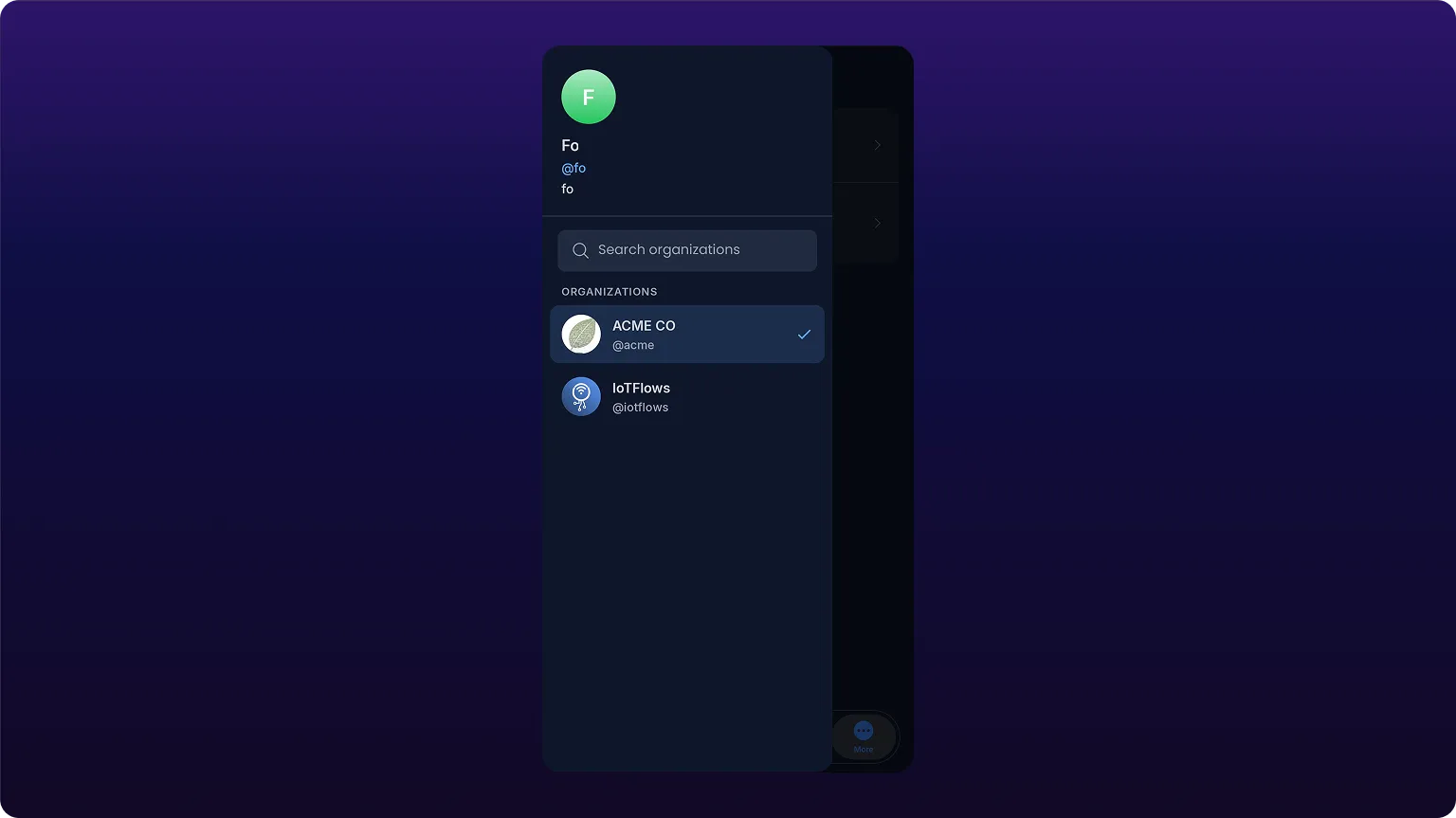
On Android, tap the organization at the top of the home screen. A drawer slides in with your account details, a search box, and the organization list.
On iOS, open Settings and tap the organization. A modal opens with a searchable list.
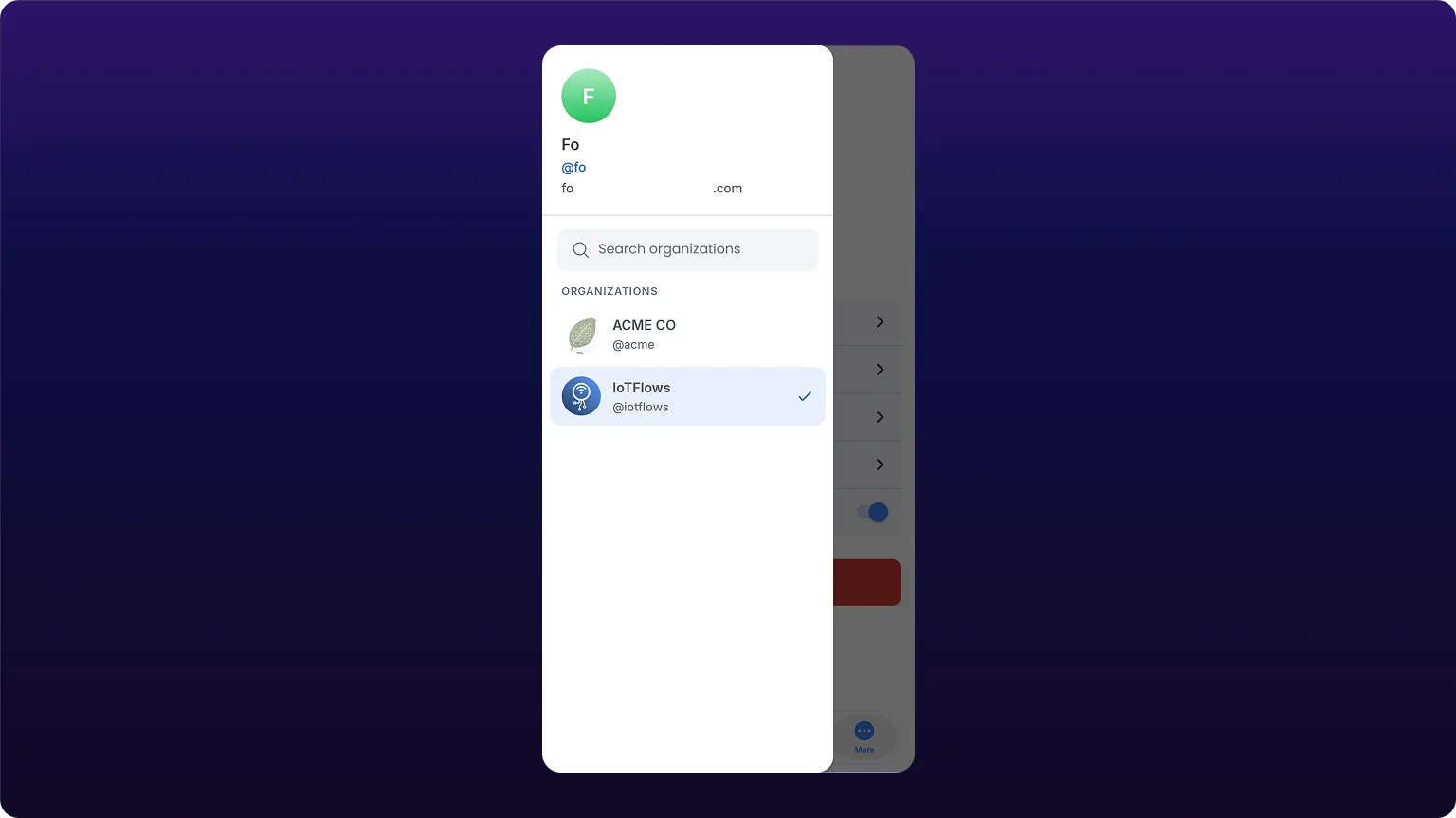 Switching organizations on iOS opens a modal; Android uses the navigation drawer.
What follows you across the switch
Your account follows you, and so does your username. A handle is that username qualified by the organization it is used in, written maria:acme, so the same person is maria:acme in one organization and maria:iotflows in another. What makes a handle unique is the organization, not the name in front of it.
Your profile, your role, and the timezone the numbers are reported in are all set by the organization you are in.
Chats are the exception. A chat can hold people from more than one organization, and IoTFlows badges the outside organizations on the member list. The badge is drawn against whichever organization you are currently in, so the same chat looks external from one side and internal from the other.
Push notifications route themselves. Tapping one opens the item in an organization you can reach it from, switching you if you are somewhere else.
You do not need a second account to work with a customer or a vendor. Cross-organization chat reaches them from the organization you are already in.
An asset list, report, or work order board with nothing in it is usually the wrong organization rather than a bug. Check the switcher before filing one.
See also
How the IoTFlows dashboard is laid out: the eight product tabs and the routes behind them, the header search box that finds a machine, part or person by name across your organization, the dark mode switch that is stored on your account rather than the browser, the profile menu that holds Operator View, and what the mobile app carries instead.
A four-phase plan for putting a plant on IoTFlows: pilot one line for two weeks, win operator adoption and turn on alerts, cut the downtime category list down to reasons you can act on, and only then add scheduling and maintenance. Each phase carries a gate that has to close before the next one starts.