

Sign in to IoTFlows
Every route into the product, and how to get back in when one fails.
IoTFlows signs you in at dashboard.iotflows.com/login. The page asks for your email address first and decides from the address what to ask for next: a password, or a handoff to your company's identity provider. The same account signs you in to the iOS and Android apps.
You need an invitation from an organization before any of this shows data. You can create an account from the sign-in page, but a new account belongs to no organization and sees an empty product until someone invites it.
Organizations themselves are not self-serve. IoTFlows creates yours during onboarding, so contact support if nobody has invited you.
Sign in with email
- Go to
dashboard.iotflows.com/login. - Type your address in Email or Username, then select Continue.
- Type your Password, then select Sign in.
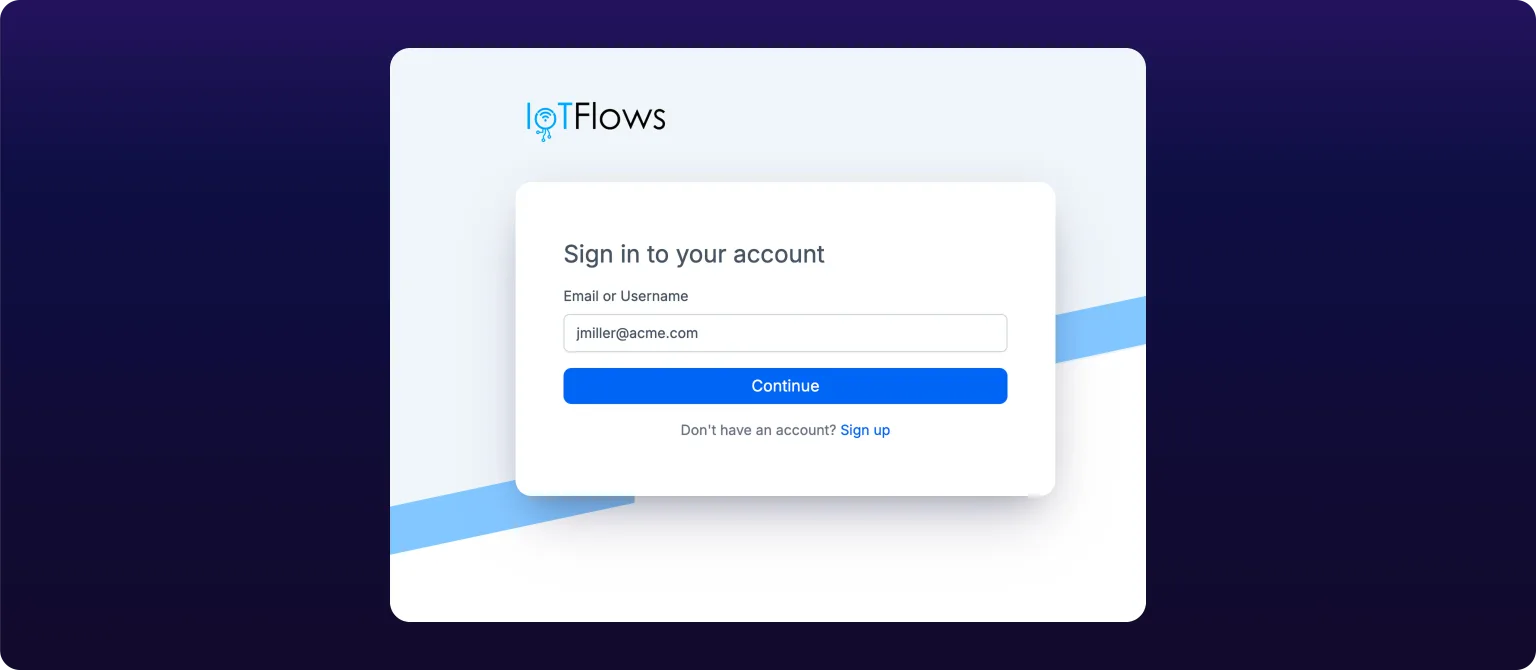 The sign-in page asks for your email first. What happens next depends on whether your organization uses SSO.
Between step 2 and step 3, IoTFlows looks the address up. Most addresses get the password field. To sign in as someone else, select your address above the password field to go back.
Landing in the wrong organization is normal on a multi-organization account, and it is not a sign-in failure. See Switch between organizations.
If your organization uses SSO
SSO, or single sign-on, means your company's identity provider holds your credentials and vouches for you to IoTFlows.
For an address covered by SSO, Continue sends you to your provider's own sign-in page rather than showing a password field. Sign in there and the provider returns you to the dashboard, already signed in.
You do not need a separate IoTFlows password if your organization uses SSO. The password field never appears for those addresses, and resetting a password does nothing for them, because your provider owns the credential.
If two-step authentication is on
Two-step authentication asks for a six-digit code from an authenticator app after your password, so a stolen password alone does not get anyone in.
After Sign in, the card is replaced by Two-step authentication and six code boxes. Type the current code from your authenticator app. IoTFlows submits it the moment the sixth digit lands, so you do not select Continue.
Enrolment happens on the web only. See Add two-step authentication.
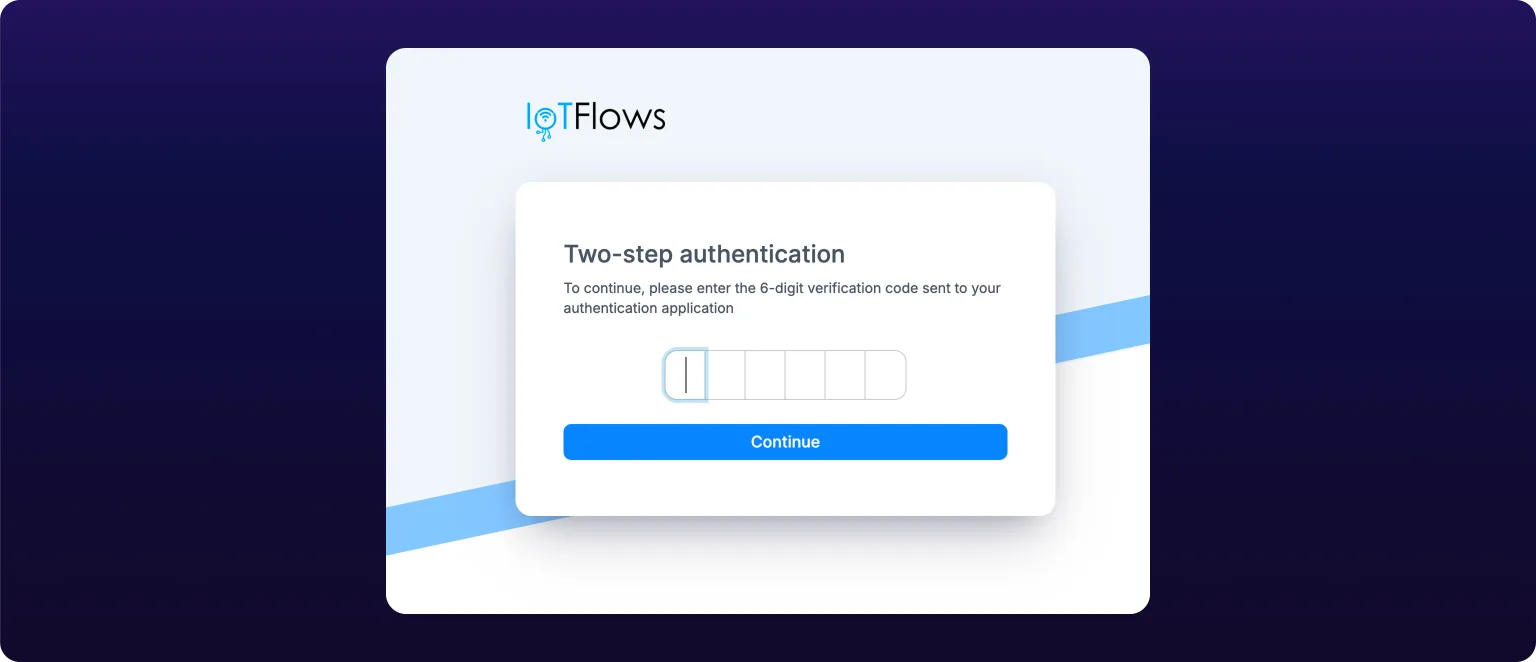 The two-step code prompt. This appears on web, iOS and Android once you have enrolled.
Lost the authenticator app? There is no self-serve recovery. Contact support from an address your organization can confirm, and ask to have two-step authentication cleared.
Sign in on mobile
The mobile apps use the same account and the same email-first flow, including the SSO handoff and the six-digit code. Install them first: see Install the mobile app and sign in.
On iOS, you can turn on Face ID or Touch ID after one successful sign-in, and later sign-ins take a glance instead of a password. The Android app has no biometric option and asks for the password each time.
Sign-in methods
| Method | Web | iOS | Android | Set up on |
|---|---|---|---|---|
| Email and password | Yes | Yes | Yes | Not applicable |
| SSO through your identity provider | Yes | Yes | Yes | Your identity provider |
| Two-step code | Yes | Yes | Yes | Web only |
| Face ID or Touch ID | No | Yes | No | The iOS app |
Reset your password
- Select Forgot your password?, which appears once the password field is showing.
- Type your username on Reset Password, then select Continue.
- Read the code IoTFlows emails you, and type it into Code.
- Type the same new password into New password and Confirm new password, then select Continue.
The new password needs at least 8 characters, one uppercase letter, one lowercase letter, one number, and one special character. The form checks all five as you type and lists any that are unmet.
See also
The four layers a reading passes through, from the sensor on the machine through Wi-Fi or the 4G/LTE router to the IoTFlows cloud and the dashboard: what each layer decides, why running and stopped is decided on the device while uptime and health are computed in the cloud, and what each layer looks like when it fails.
Install the IoTFlows app from the App Store or Google Play, sign in with the same account you use on the web, turn on Face ID on iOS, allow notifications so push alerts arrive, and see which capabilities exist only on a phone: Bluetooth Wi-Fi provisioning, push, camera-first maintenance requests, and the system share sheet.