

LED and screen status codes
Every indicator pattern on every device, and what to do about it.
SenseAi and SenseAi Embedded report their state through a single LED, BeamTracker on its touchscreen. Both answer the same three questions in order: does the unit have power, did it join the network, and what is the machine doing.
You do not need this page while a device reads online. The Devices page is the authority on connectivity. Read the indicator when the dashboard says offline and you need to know how far the device got.
SenseAi and SenseAi Embedded LEDs
Both units run the same application and use the same patterns.
| Device | Color | Pattern | State | Next step |
|---|---|---|---|---|
| Both | Blue | Blinking | Wi-Fi setup mode, waiting for credentials | Send the network and password from the mobile app: Connect to Wi-Fi |
| Both | Red | Flashing every few seconds | Joining the configured network | Wait two minutes, then work Device never came online |
| Both | Orange, green, white, cyan | One blinking sequence | Joined the network, opening the cloud connection | Wait for a steady color |
| Both | Cyan | Steady | Online; the machine reads as down | None |
| Both | Orange | Steady | Online; the machine reads as running | None |
| Both | Purple, then red | While you hold the Wi-Fi button | Ten-second reset reached | Release. The unit reboots into setup mode or back onto the router |
| Both | Nothing | Dark | No power | Check the supply: nothing lights |
A unit reports the machine as running or down, with no third state, so steady cyan is not a fault. A machine paused between cycles sits below the running threshold calibration sets, and shows cyan.
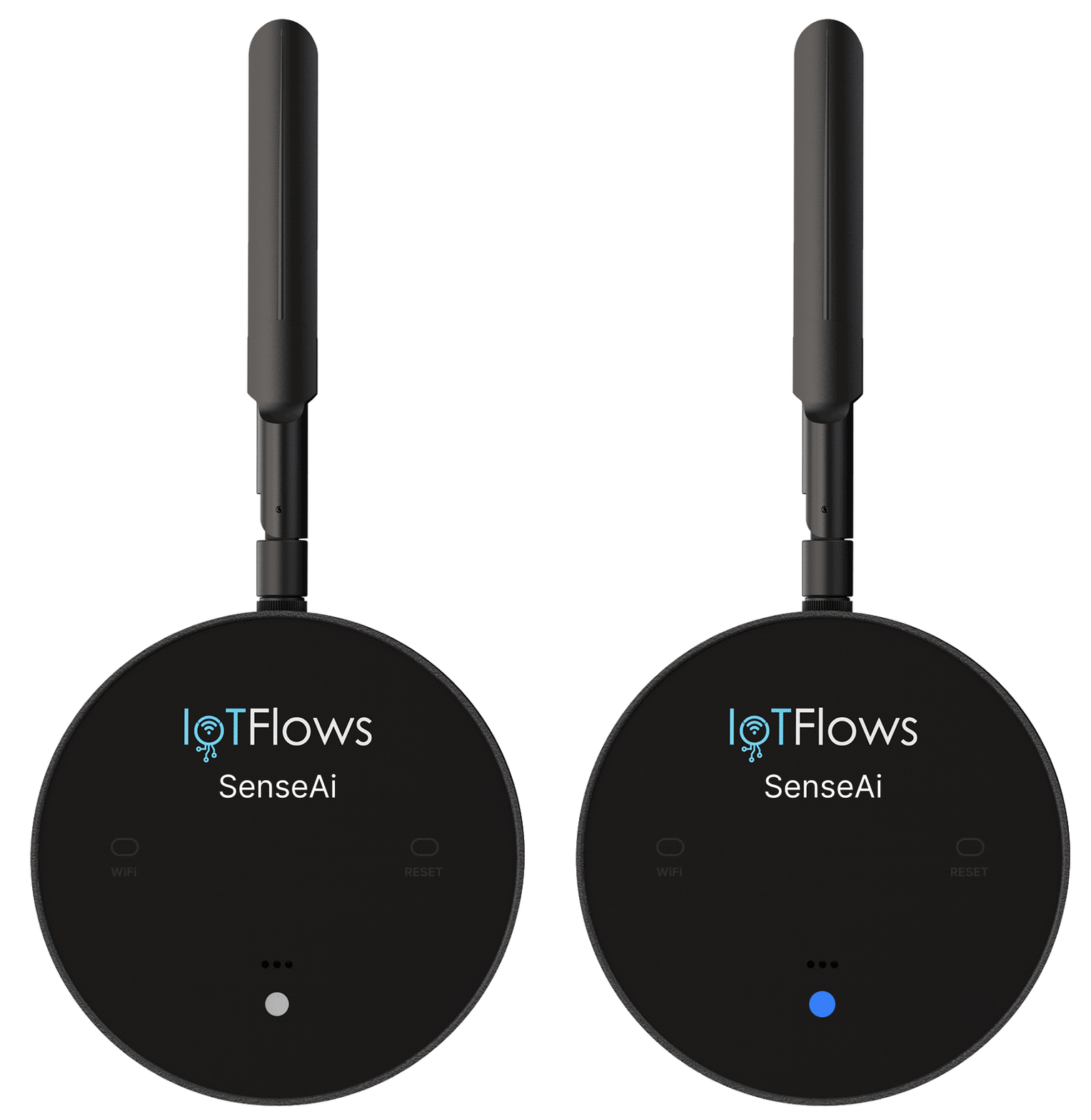 Setup mode
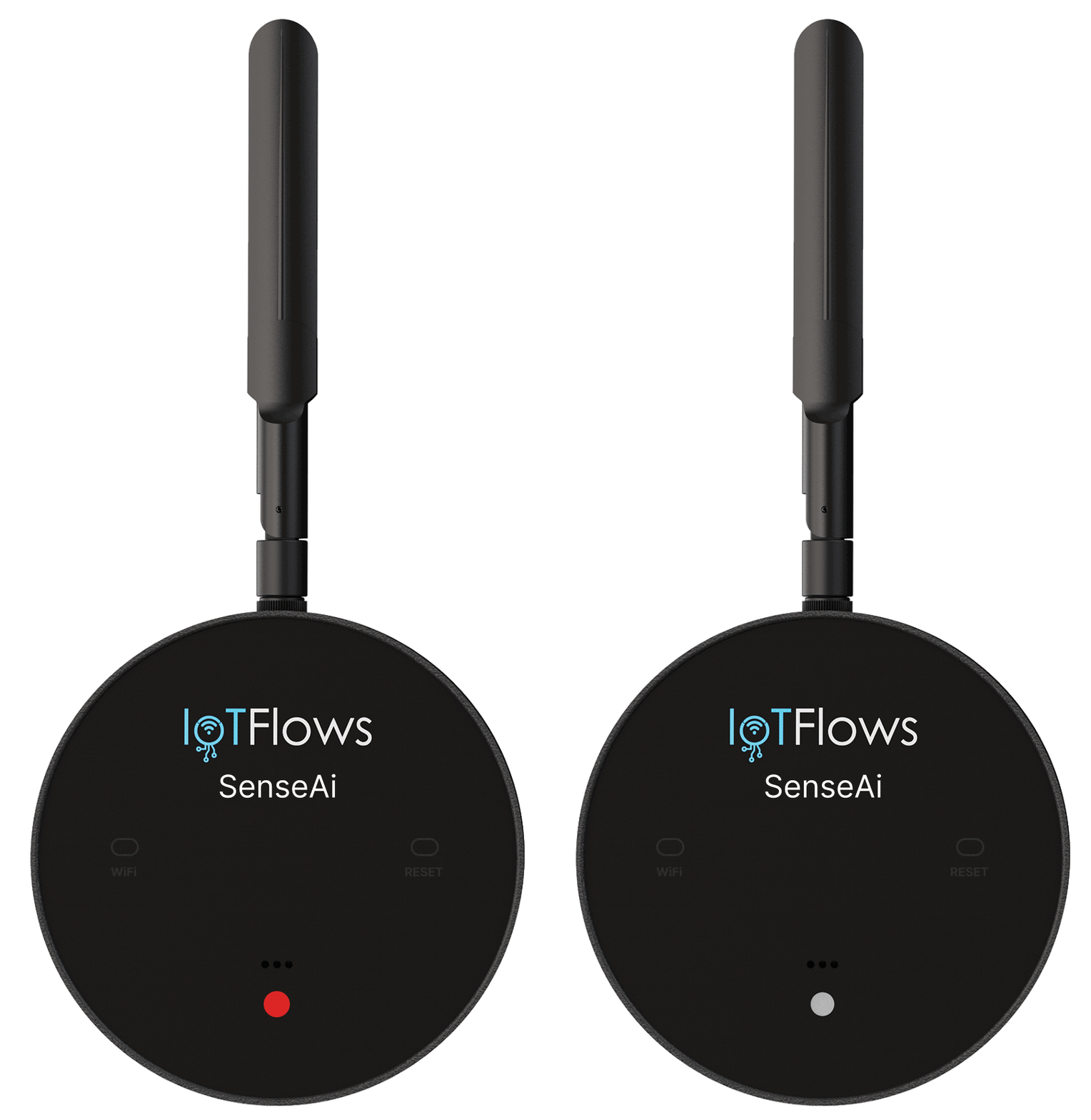 Reconnecting
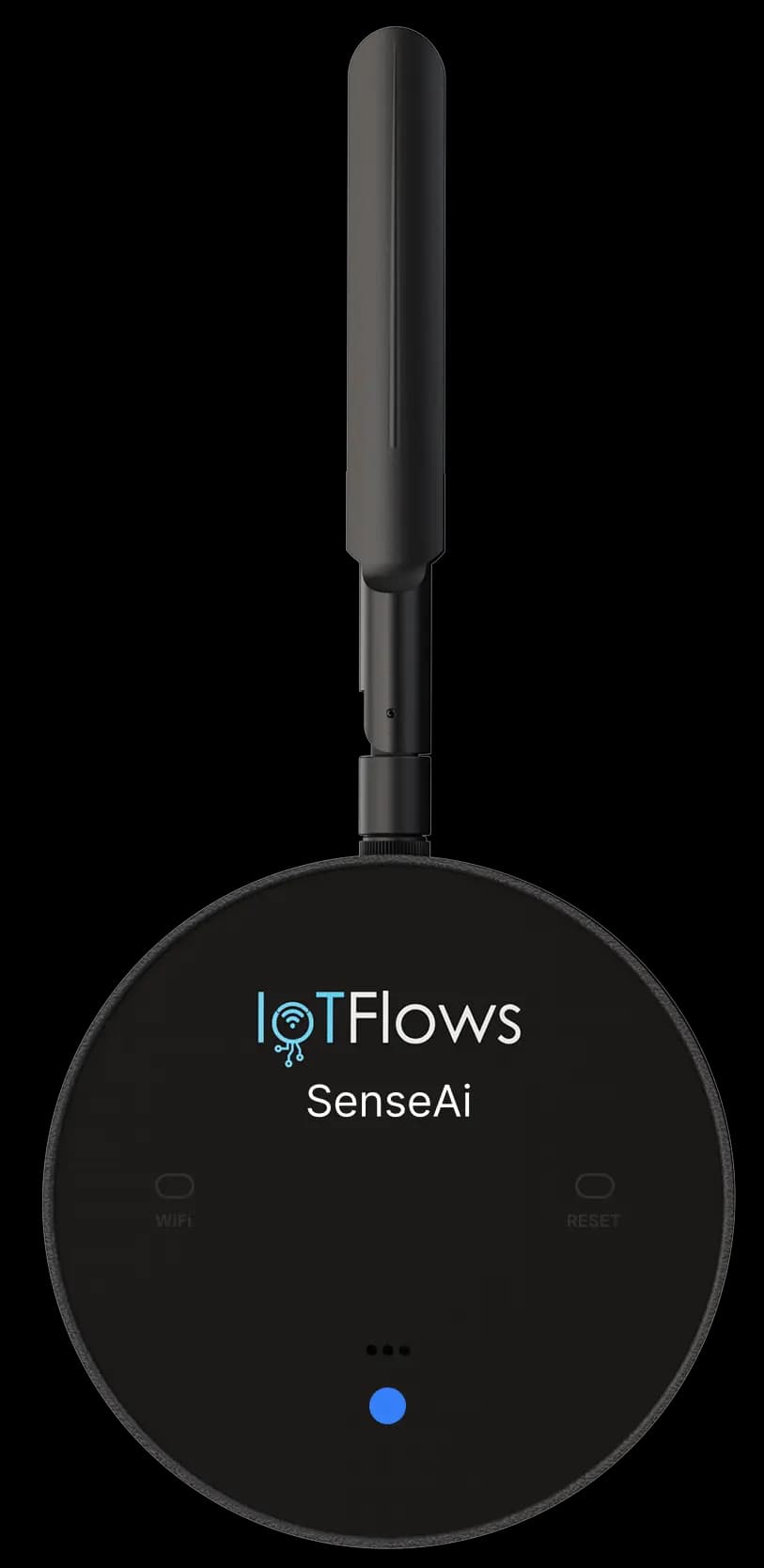 Down
Down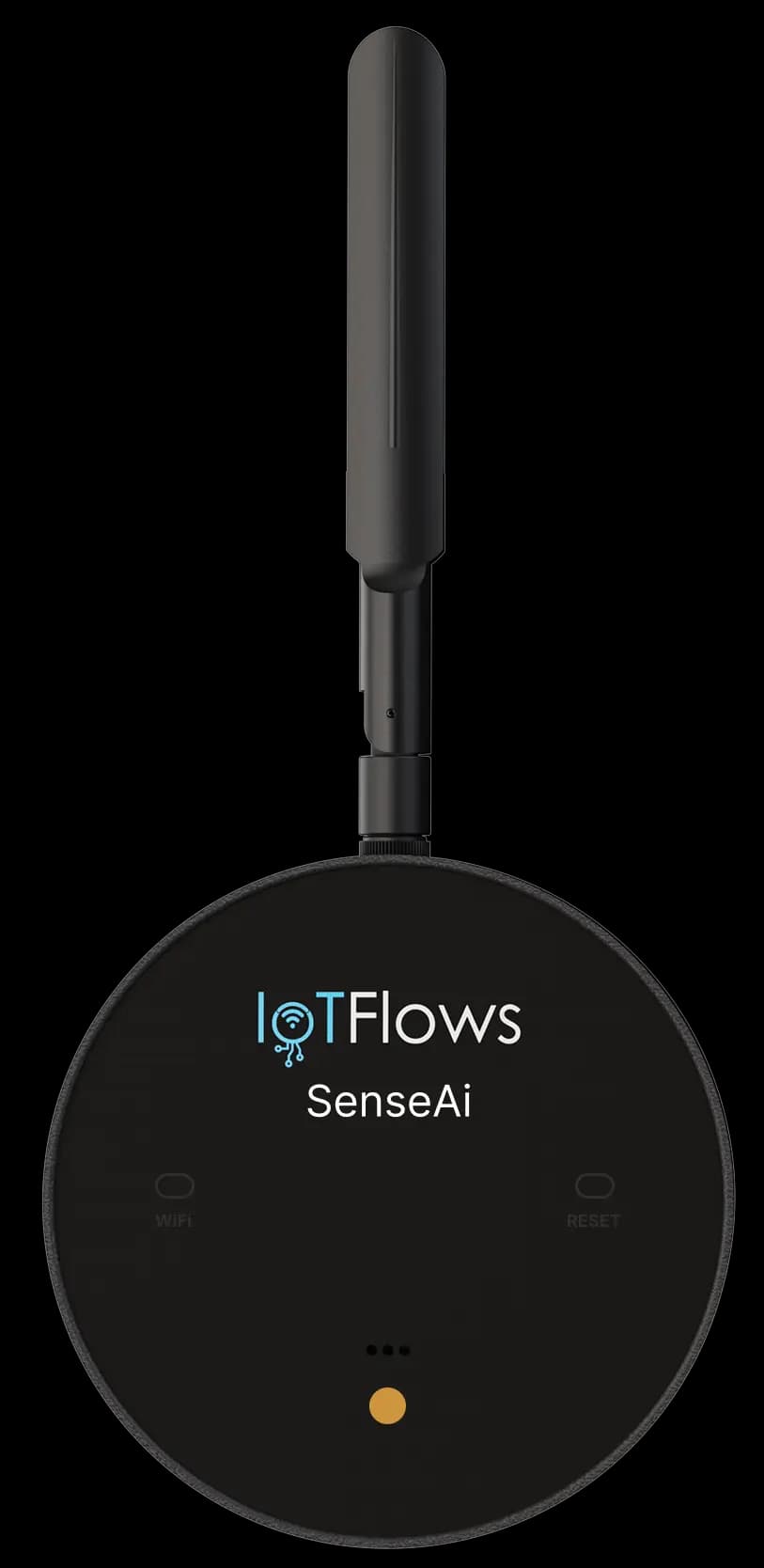 RunningThe four states you see most often, here on a SenseAi: blinking blue in Wi-Fi setup mode, the reconnect sequence, steady cyan for a machine reading as down, and steady orange for one reading as running.
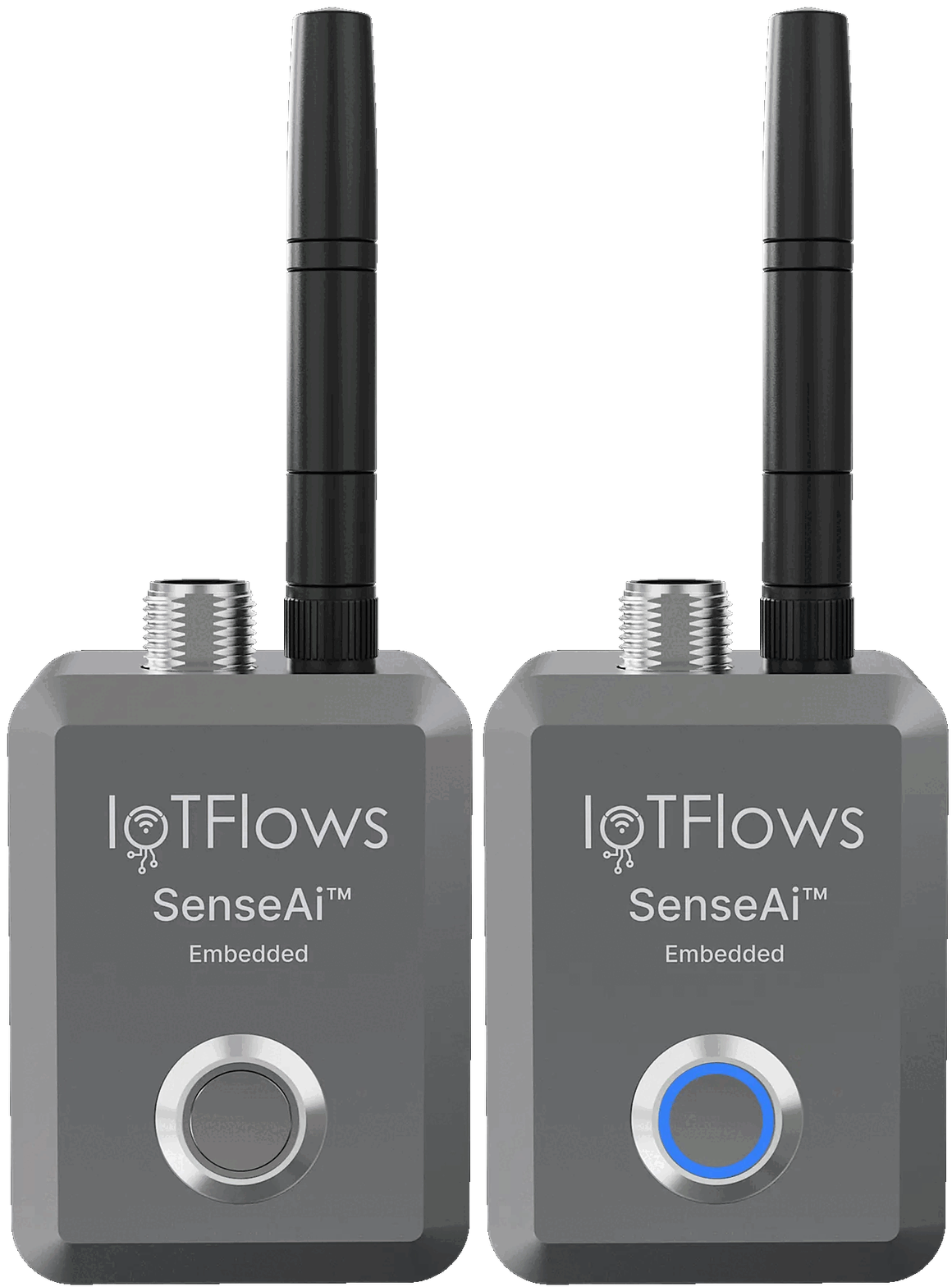 Setup mode
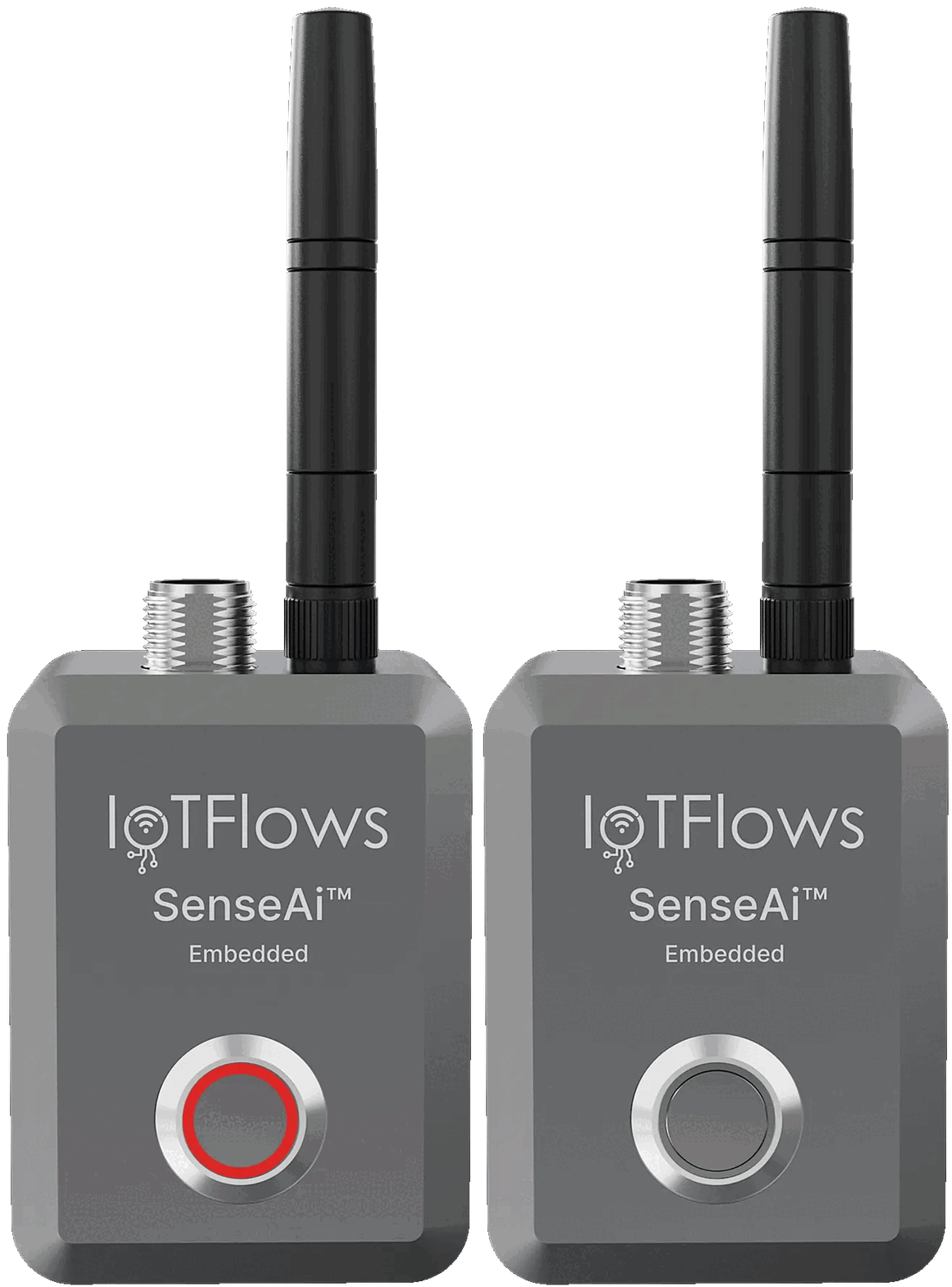 Reconnecting
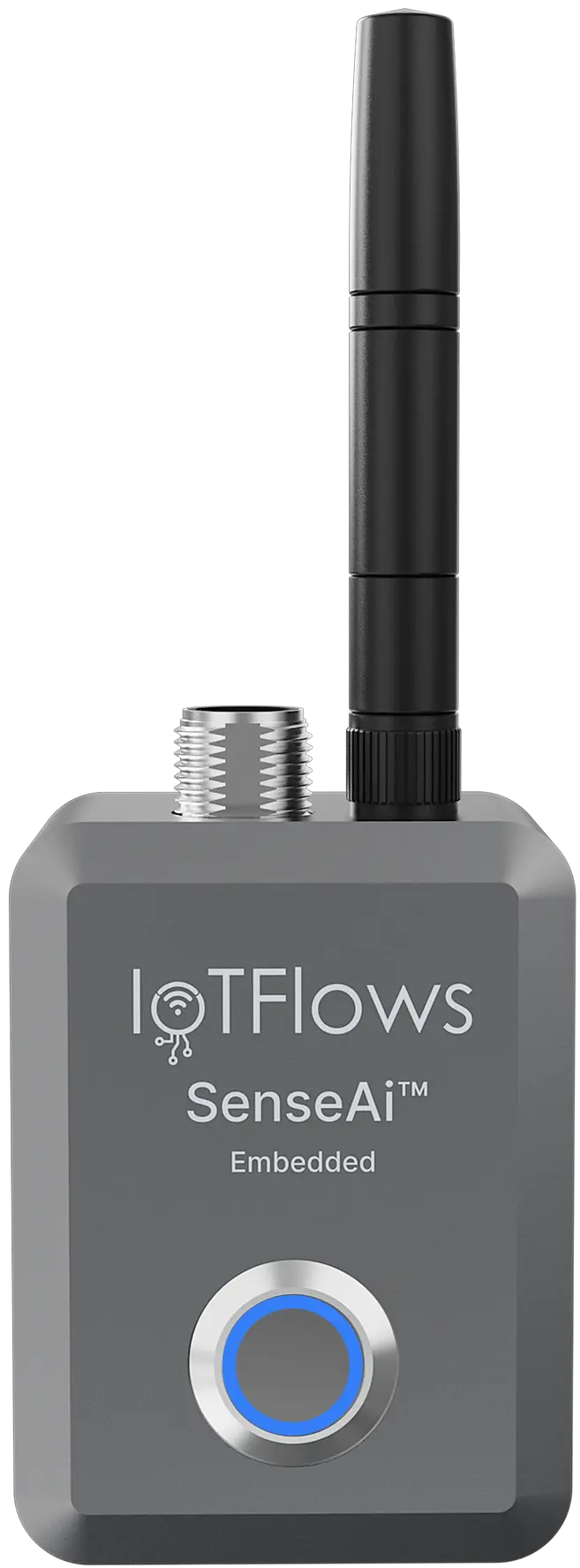 Down
Down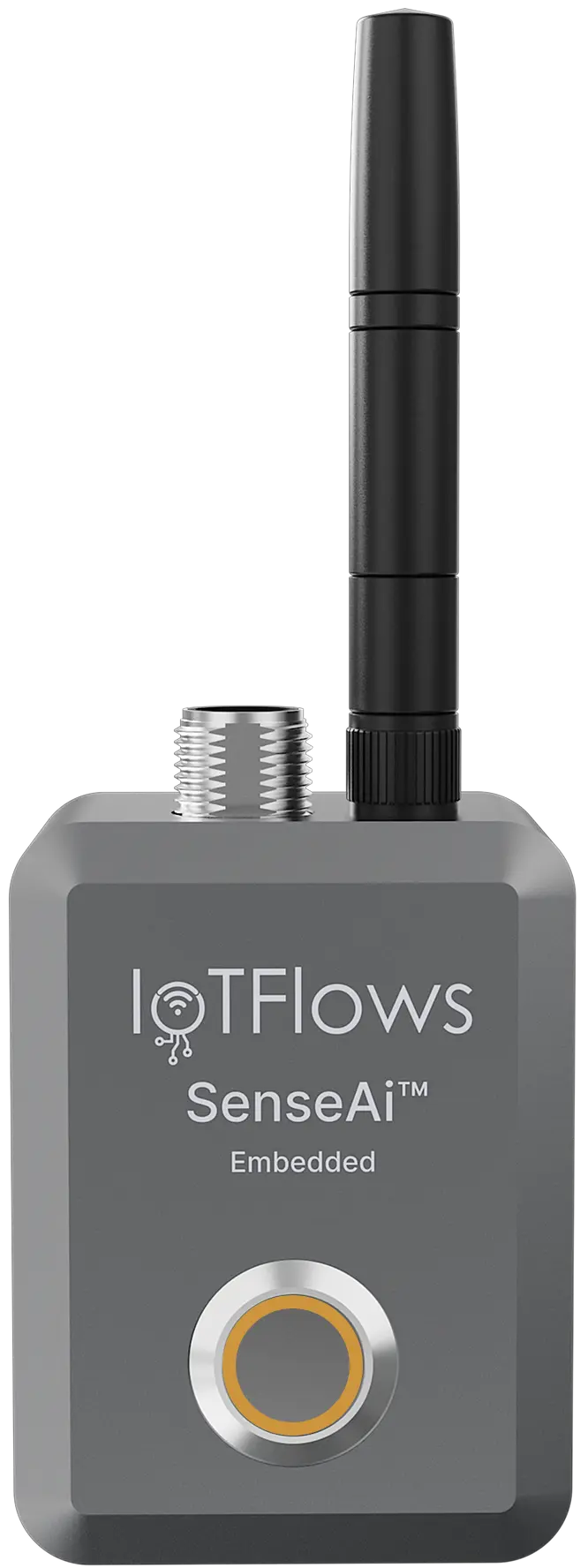 RunningThe same four states on a SenseAi Embedded. The patterns are identical to SenseAi, so read either strip for either unit.
BeamTracker screen states
BeamTracker has no status LED. The touchscreen carries the same information in words.
| Screen | Means | Next step |
|---|---|---|
| Dark, no response | No power | Check the M12 connection: screen stays dark |
| IoTFlows boot screen | Powered and starting | Wait |
| Get Started | Booted, not yet configured | Tap through to set up the device |
| QR code | Offering the pairing code | Scan it, or open Connect Device to WiFi in the app |
| WiFi Setup | Listening over Bluetooth | Select BeamTracker in the app and send the network |
| Connecting… | Joining the network | Wait. It appears online within five minutes |
| Connection Failed | The network refused the device | Confirm it is 2.4 GHz and re-enter the password |
| Readable but dim | Brightness or glare, not a fault | Raise brightness in the device settings menu, shade the screen, wipe it dry |
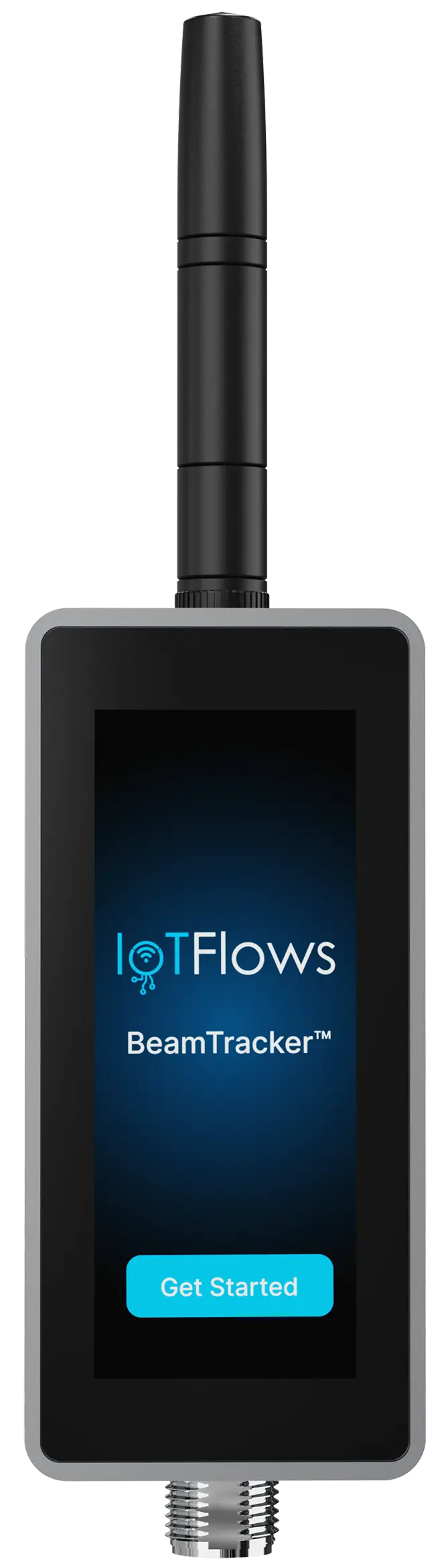 Get Started
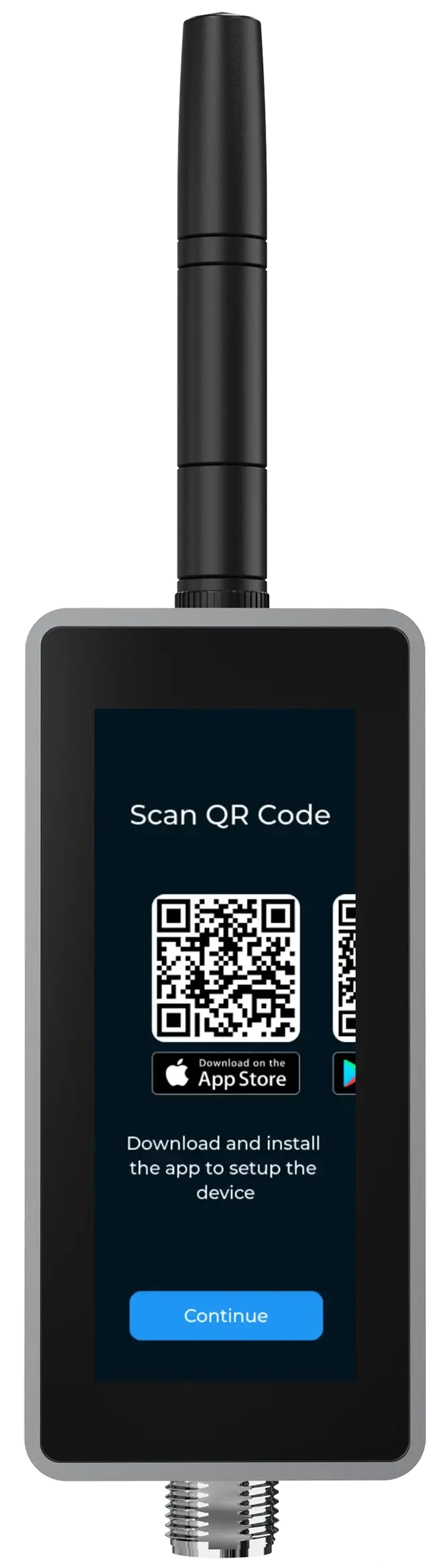 QR code
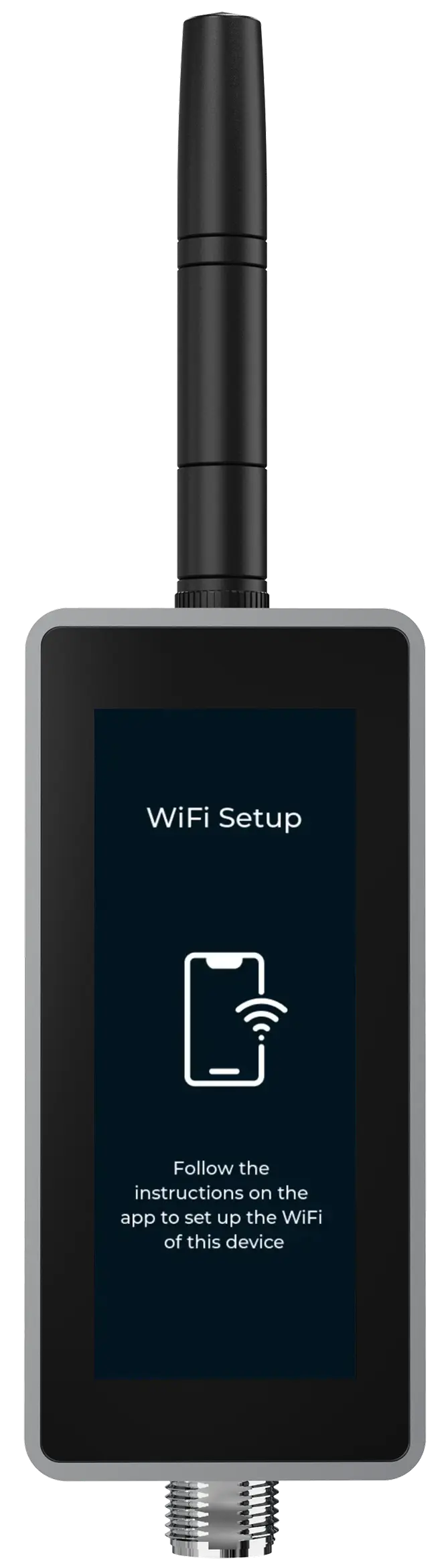 WiFi Setup
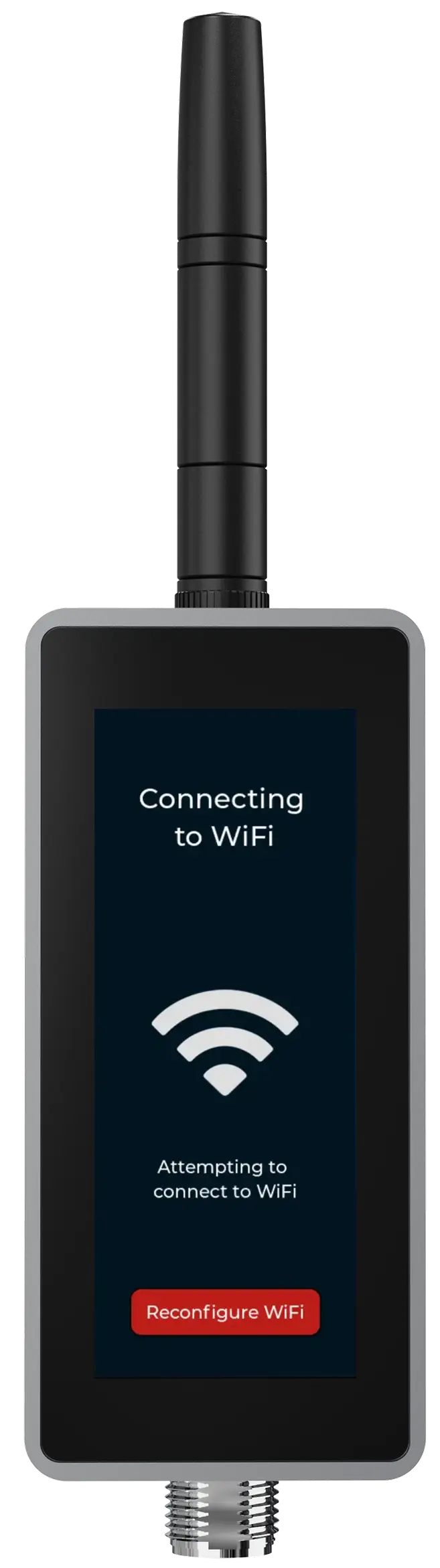 ConnectingThe BeamTracker setup screens in the order they appear: Get Started after boot, the pairing QR code, WiFi Setup listening over Bluetooth, and the connecting screen.
IFCR-150 router lights
The IoTFlows 4G/LTE router ships configured, so nothing on it needs reading during a normal install. Power it, allow a few minutes for it to reach the cellular network, and the devices behind it join its access point on their own.
Check the devices instead. A sensor on steady cyan or orange has a path to the cloud through the router; one still flashing red does not. If every device behind a router is offline at once, work Device never came online.
See also
Work the chain from power to radio to network to cloud when an IoTFlows device stops reporting: what the signal icon's three levels mean in dBm, why a device that drops several times a day is nearly always a signal problem rather than a failed sensor, and how to tell a dead device from a dead link when a machine reads as stopped.
Look up any SenseAi, SenseAi Embedded or BeamTracker calibration field: its unit, the range the control accepts, its shipped default, what it changes, and where it is edited. Starts with a symptom router that maps what the numbers are doing wrong to the one field that corrects it, and links each row to the procedure page that explains how to set it.