

Manage saved Wi-Fi networks
Change the network on a device that is already deployed, and maintain the credentials your organization reuses.
A saved network is an SSID and password stored on your organization rather than on one device. Save the plant's IoTFlows0 network once, and every later device joins it without anyone retyping the passphrase or needing to know it.
Prerequisites. The Owner or Administrator role, see Roles and permissions. The device must be online. Getting a device onto a network for the first time is Connect a device to Wi-Fi.
Open the device's Networks tab
- Go to Devices.
- Click Edit Sensor at the top right. The sensor cards on the map are not clickable.
- Find the device you want to move in the Sensor List dialog.
- Click the gear icon on its row.
- Open the Networks tab.
All three devices have this tab. It lists every network your organization has saved, plus IoTFlows, the built-in default a device looks for when it has no credentials of its own. A tick marks the one this device is on now.
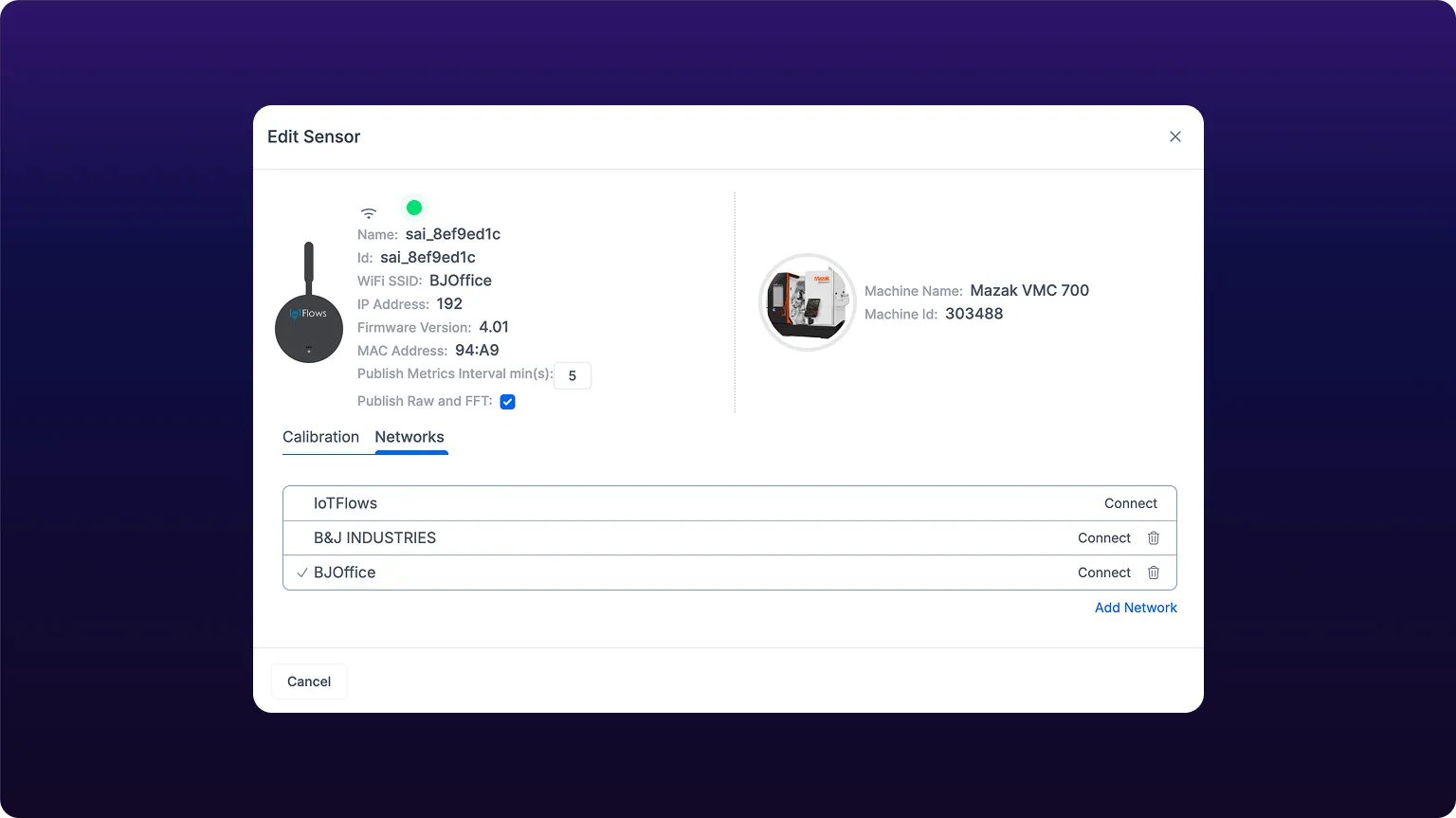 The Networks tab on an online device. This is the web counterpart to Bluetooth provisioning.
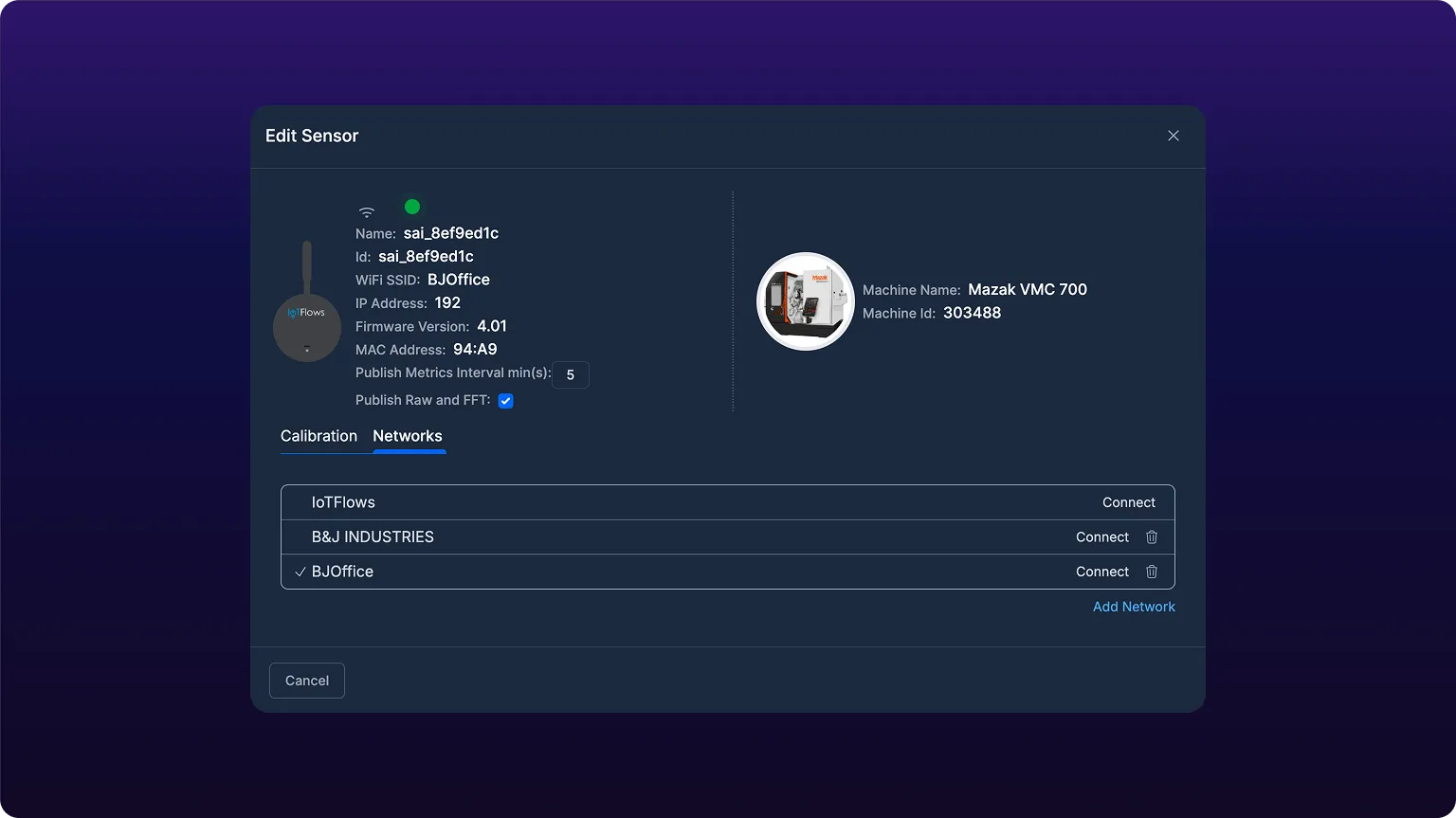
Networks tab fields
| Field | What it does | Applies to |
|---|---|---|
| Network row | A saved network, or IoTFlows, the built-in default. The tick marks the one the device reports being on. | The organization |
| Connect | Pushes that network's stored password to this device. | This device |
| Add Network | Opens the form for credentials nobody has saved yet. | Both |
| Wi-Fi SSID | The network name to send. Required. | Both |
| Wi-Fi Password | The passphrase. Leave empty for an open network. | Both |
| Delete icon | Removes the saved credentials from your organization. Absent on IoTFlows. | The organization |
Push new credentials
Do this when the site's Wi-Fi password changed, or the device is moving to a network nobody has saved yet.
- Click Add Network.
- Enter the Wi-Fi SSID.
- Enter the Wi-Fi Password.
- Click Connect Wi-Fi.
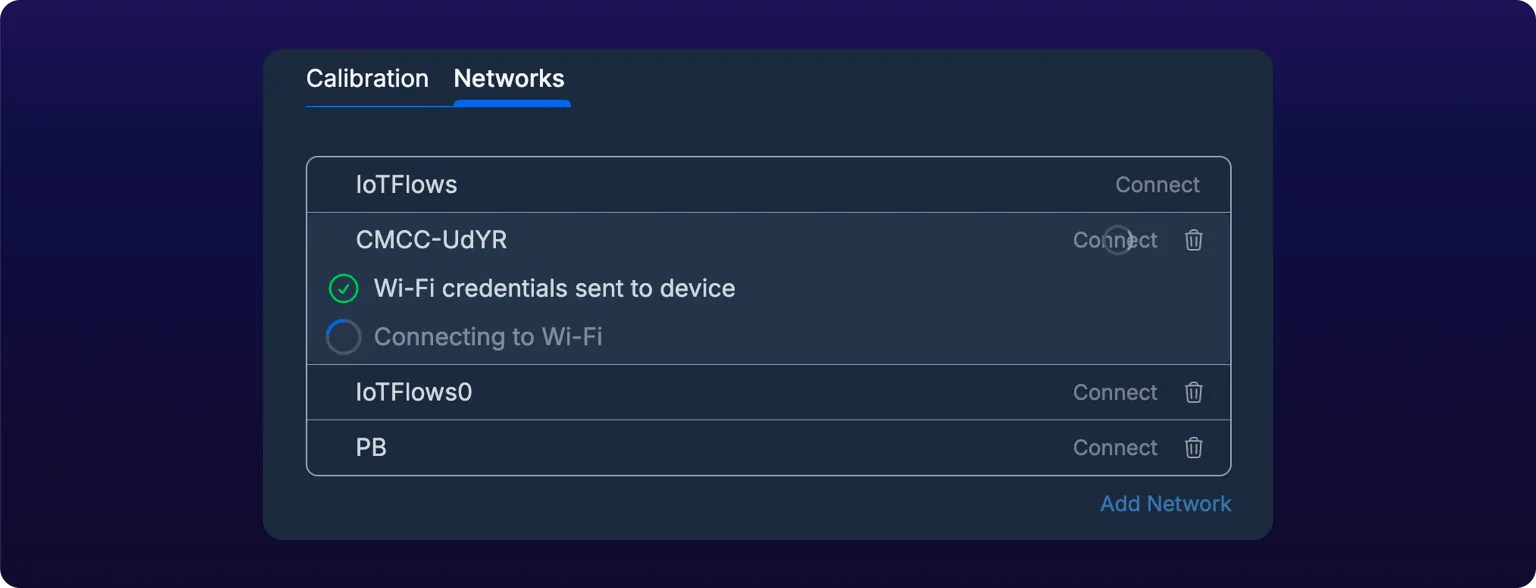
The dashboard sends the credentials over the connection the device already has, so no phone is involved. It reports Wi-Fi credentials sent to device, then Connecting to Wi-Fi while the device leaves the old network and rejoins on the new one. Success reads New Wi-Fi connection added, and the network is saved for the next device.
If the device has not reappeared after 45 seconds, the dashboard gives up with Wi-Fi connection failed, please try again and the device falls back to the network it had. Confirm the new network reaches the machine before retrying: see the warning in Change the network later.
Reuse a saved organization network
Click Connect on any row. The dashboard pushes that network's stored password and reports the same sequence as above.
Choose this when the device is moving between networks your organization already runs, for example a sensor joining the cell the rest of its line is on.
There is no bulk action. A password change on a network ten devices use is ten pushes, so work down the Devices list in one sitting.
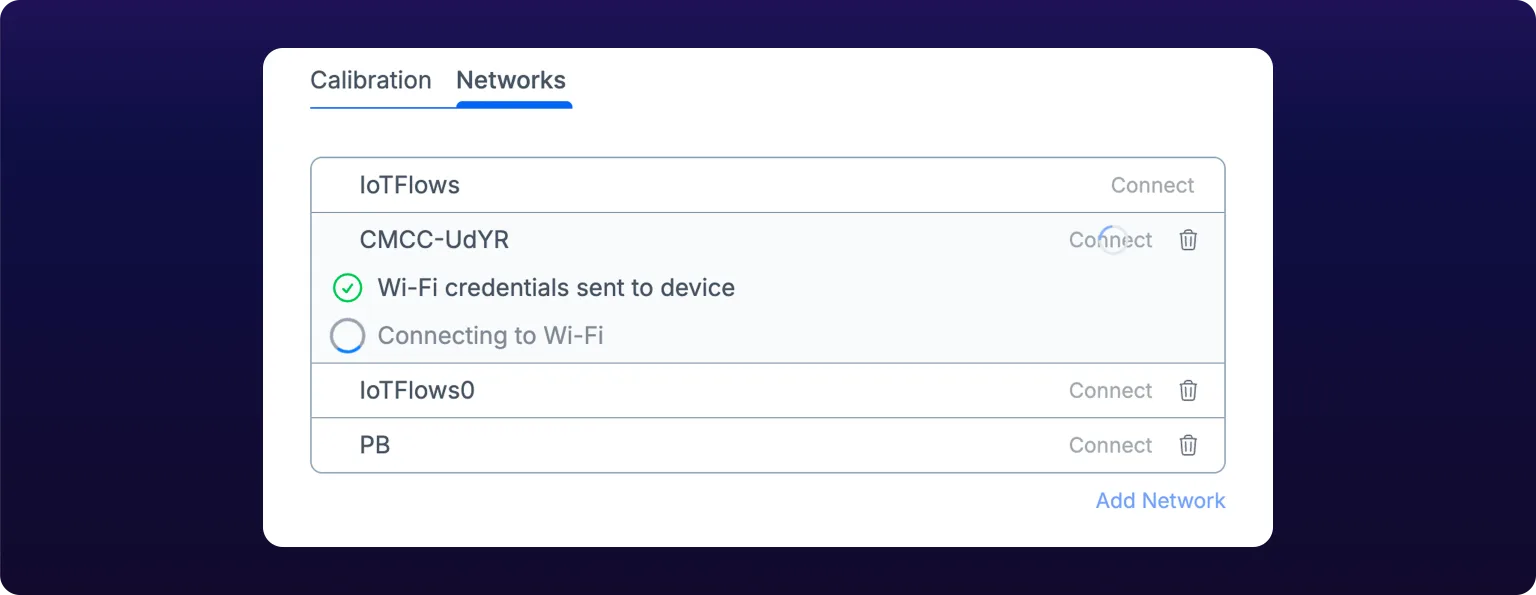 Pressing Connect on a saved network. The tab reports the credentials sent, then waits for the device to rejoin on the new network.
Delete a saved network
- Click the delete icon on the network's row.
- Click Delete in the Delete Network dialog.
The tab confirms Network has been deleted. IoTFlows carries no delete icon, because it is the built-in default rather than something you saved.
Deleting removes the credentials from your organization only. Devices already on that network stay connected, because they hold the password they were given. Delete a network when the site retires the SSID, or when a stored password is stale.
When the device is offline
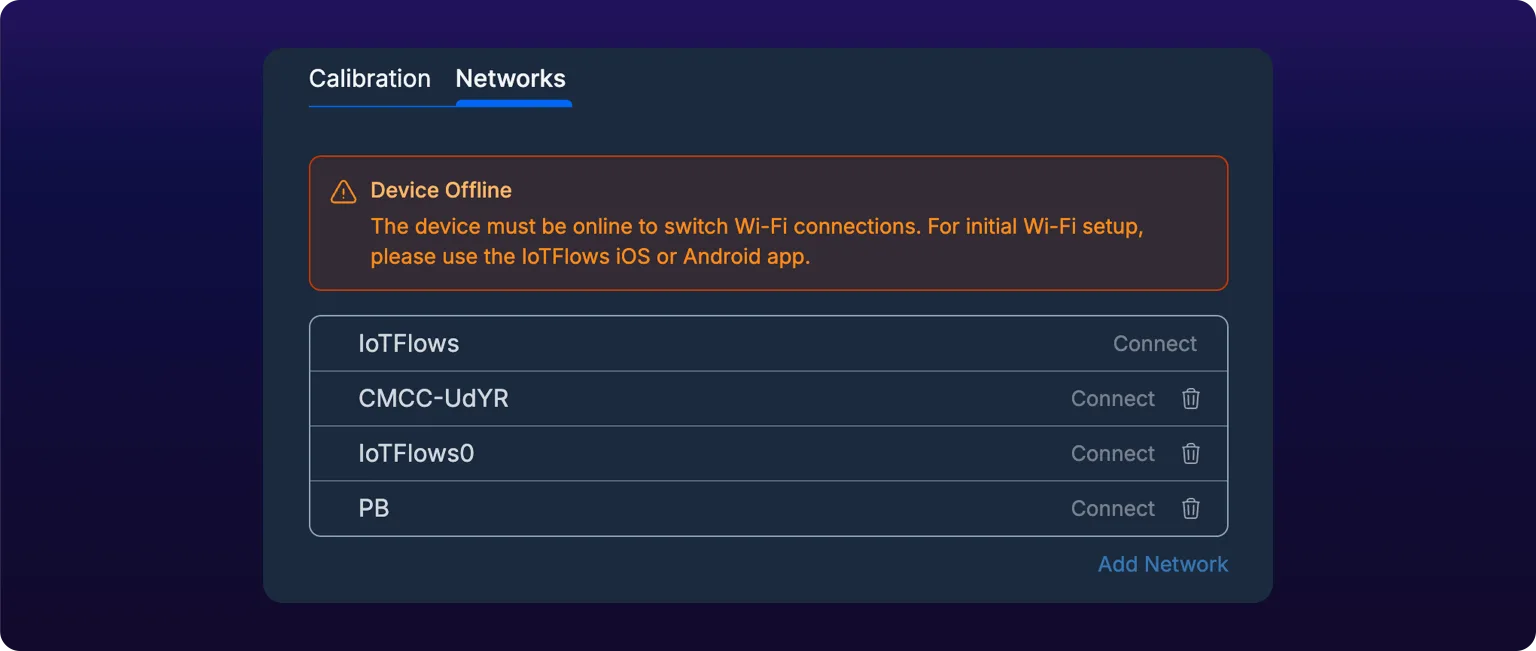
A device that cannot reach the cloud cannot be told anything over it. The tab disables Connect and Add Network and shows an orange Device Offline banner: The device must be online to switch Wi-Fi connections. For initial Wi-Fi setup, please use the IoTFlows iOS or Android app.
Use Bluetooth provisioning from the app when the device is offline, new, or has no working connection to push over. That is Put the device in setup mode, and this page does not replace it.
If the device should be online and is not, start at Troubleshoot a device that is offline.
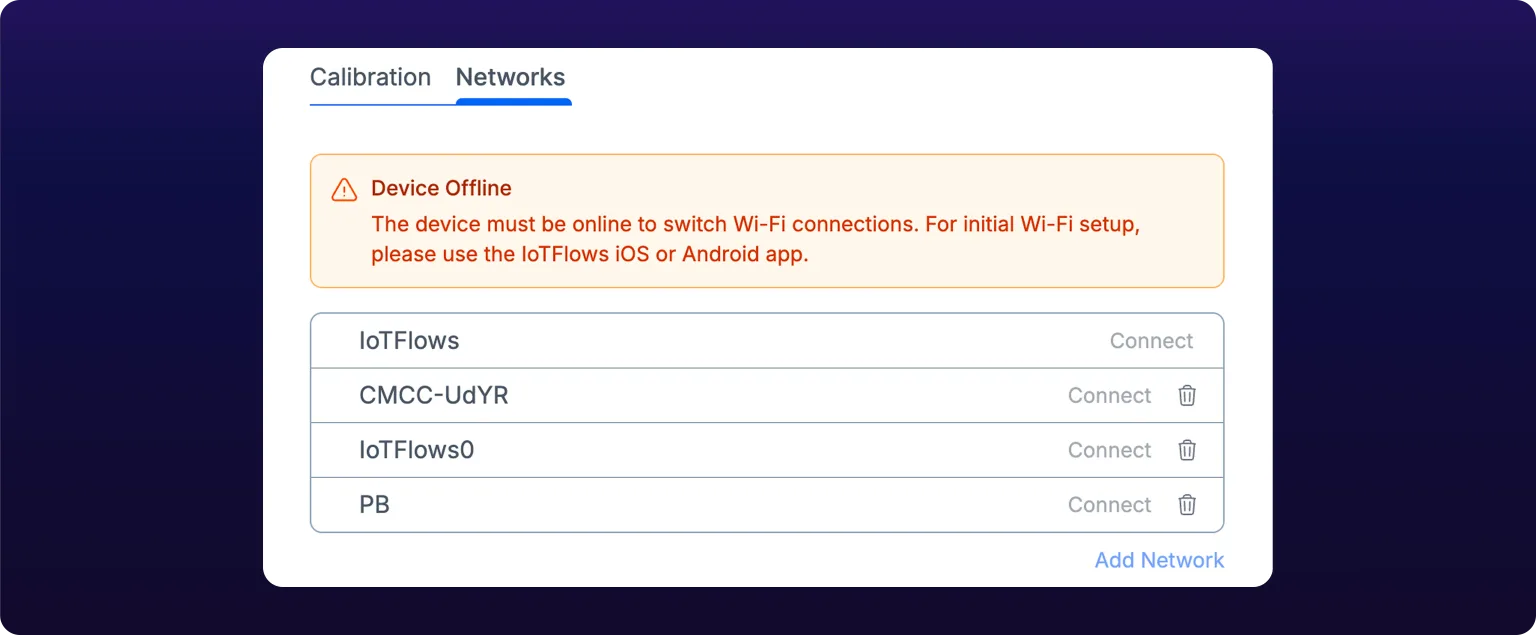 When the device is offline the web tab cannot reach it, and tells you to use the mobile app instead.
See also
Bring a SenseAi, SenseAi Embedded or BeamTracker online through the IFCR-150 without touching the facility network: site the router where a phone gets signal, keep every device within 100 ft (30 m) of it, let the devices join its Wi-Fi on their own, and confirm them at Devices in the dashboard. One router serves a cell, not one per machine.
Tune running and stopped detection for one specific machine from the device's Calibration tab: stream live vibration while the machine works and while it idles, place the running and stopping thresholds against what you captured, then use momentum to stop the status flickering. The same panel carries the shock threshold, the channel selection, the uptime filter and short-stop handling, and this page maps every control to the setting it writes and whether that setting belongs to the sensor or the machine.