

Limit which machines a member can see
Grant a member access to specific machines instead of the whole fleet.
You need to be an Organization Owner or Organization Administrator. Everyone else does not see the control at all. See Roles and permissions.
Machine access is a per-person list of the machines someone is allowed to see. Each machine on that list is an allowed asset. The list is empty by default, and an empty list means no restriction: the member sees every machine in the organization.
You do not need machine access if everyone should see everything. It is a restriction, not a requirement, and an organization that never touches it is configured correctly.
What machine access controls
Machine access is managed from the member directory at /members. Each member row carries a control between the person's role and the pencil icon:
| What the control shows | What it means |
|---|---|
| All machines, on a dashed pill with a globe | The list is empty. This member sees the whole fleet |
Up to three machine avatars, then a count of the rest, such as +4 | The member is restricted to those machines |
The restriction applies everywhere, not only to the Assets page. It narrows the machine pickers too, so a restricted member cannot choose an off-list machine when building a report or creating a work order.
Machine access never adds a permission. It can only take machines away from what the person's role already allows.
Grant access to specific machines
- Go to
/members. - Find the member's row and select the machine-access control on it. The Machine access dialog opens, with that person's name, username, and email at the top.
- Use Search machines to find a machine by name or by identifier, or scroll the list.
- Select each machine the person should see. A selected machine gets a blue check and the list header counts it, for example
Machines · 4/27 selected. - Select Done.
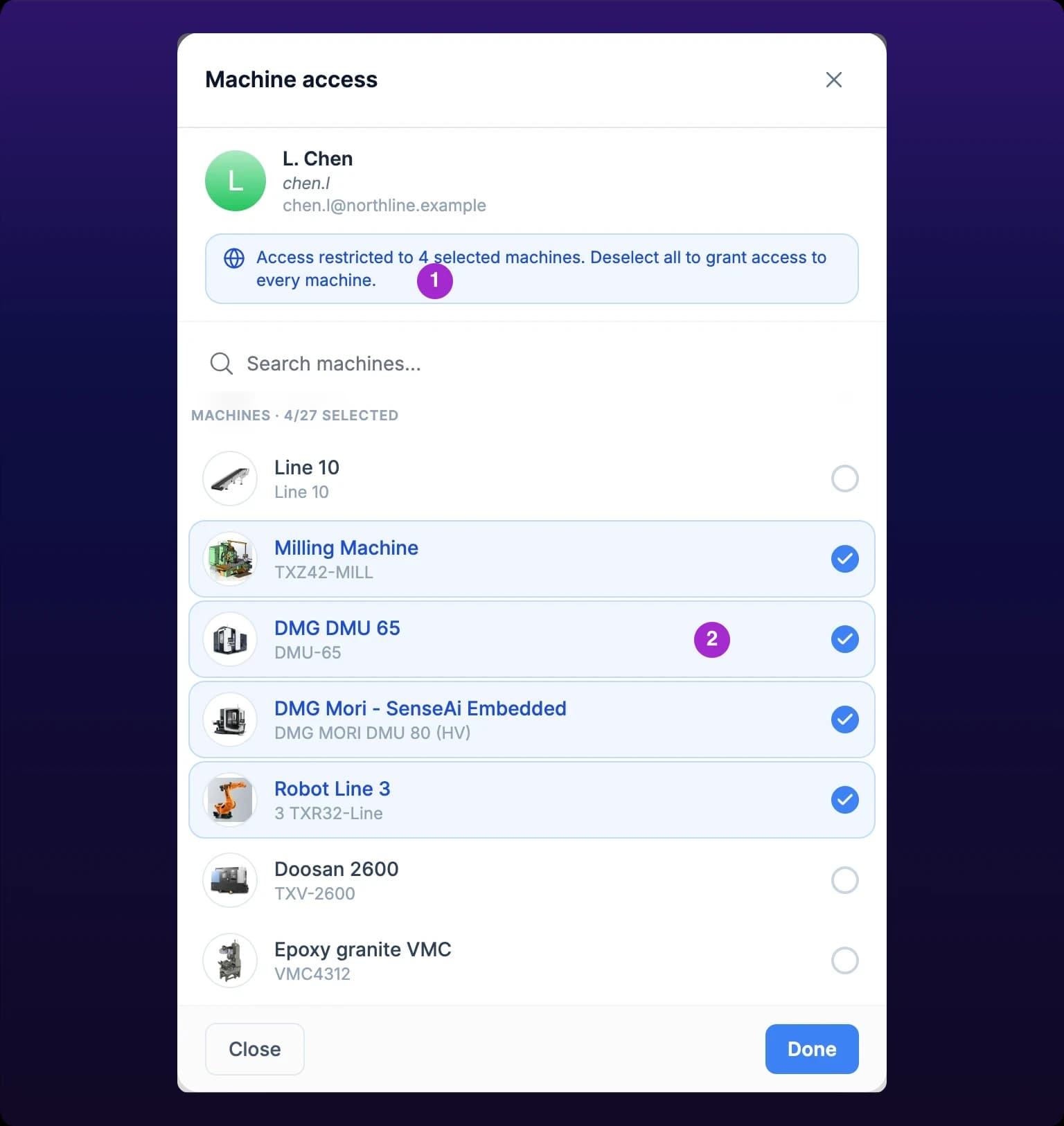 Granting a member access to specific machines.
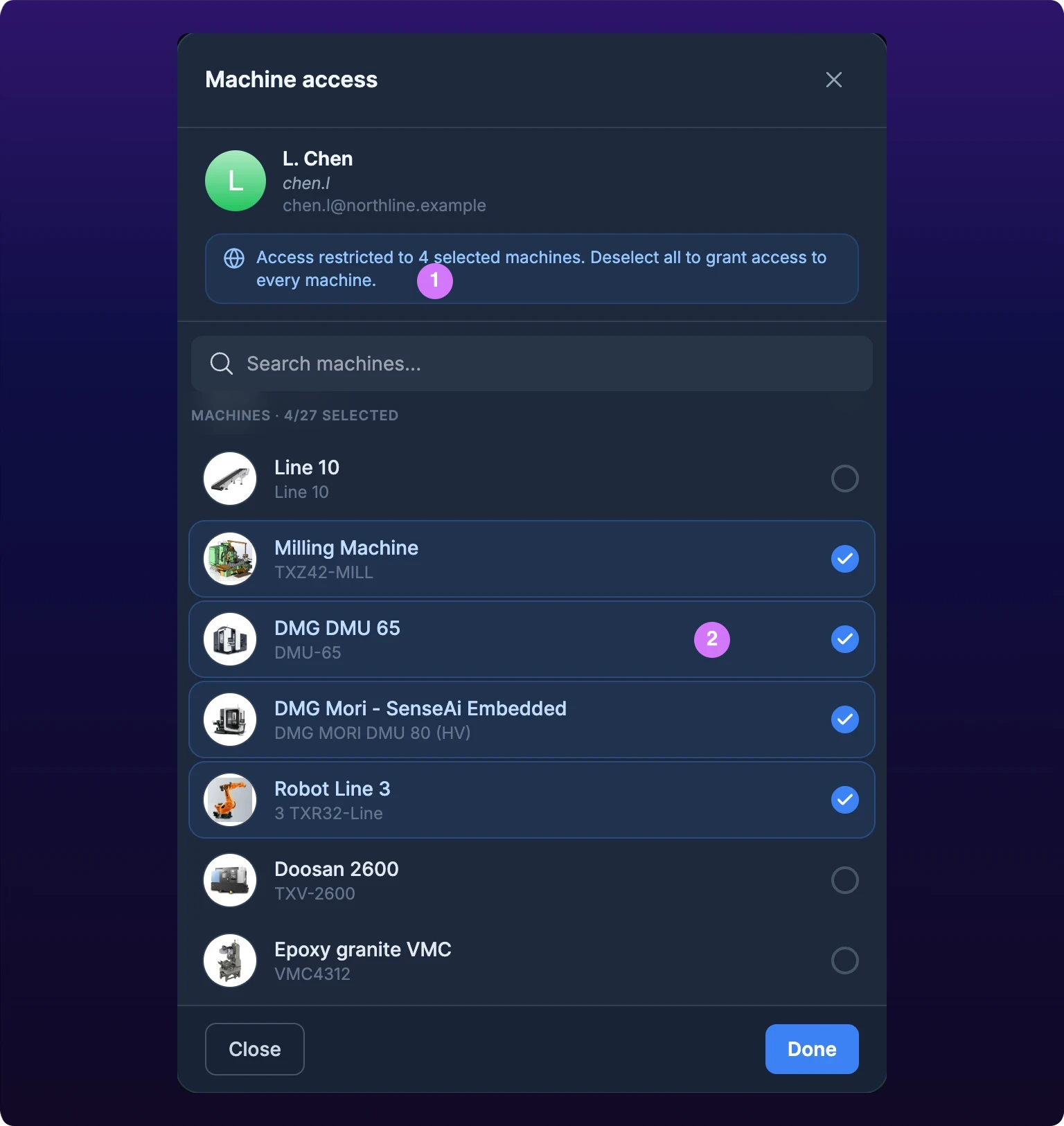
Is there a Save button?
No. Each machine saves the moment you select it, and a toast confirms it: "Access to Haas VF-2 granted". Close and Done do the same thing, which is to close the dialog. Closing it does not discard anything.
Grant machine access by cell, not by a person's current assignment. An operator restricted to one machine files a support ticket every time they cover for someone, and the administrator ends up granting the whole fleet anyway. Restrict a press operator to the six presses in their cell, not to the one press they ran last week.
If a grant fails, the toast reads "Failed to update machine access" and the machine goes back to unselected, because nothing was saved. Try it again, and if it keeps failing, contact IoTFlows.
Revoke access
- Open the Machine access dialog on the member's row.
- Select a machine that is already highlighted. The check clears, and the toast reads "Access to Haas VF-2 revoked".
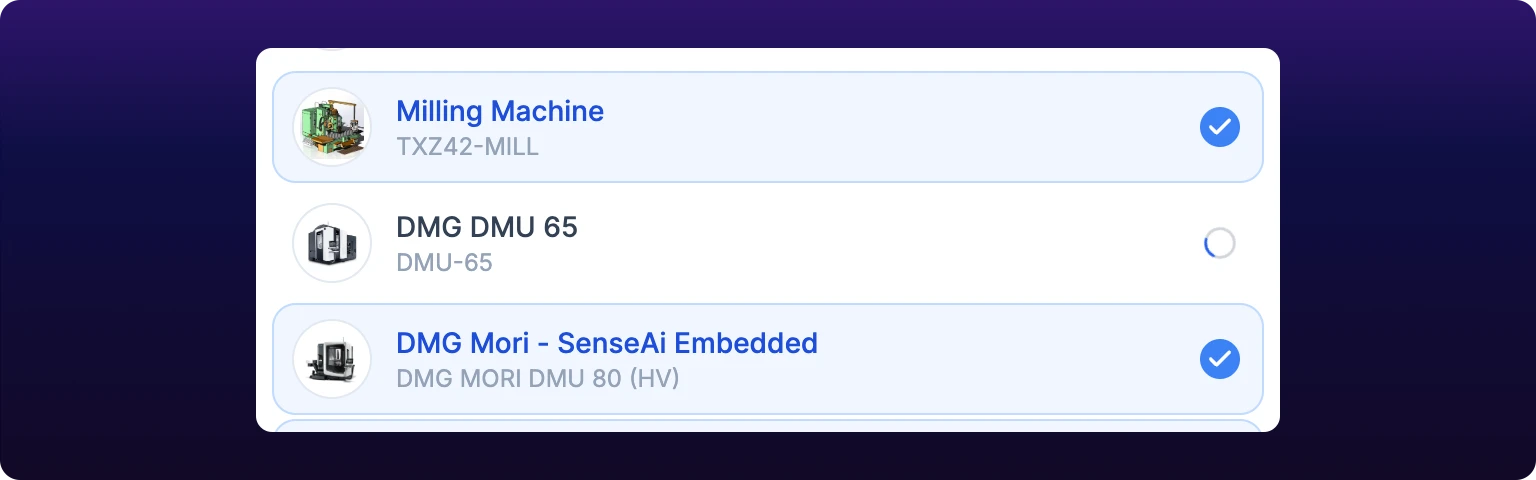 Revoking access to one machine.
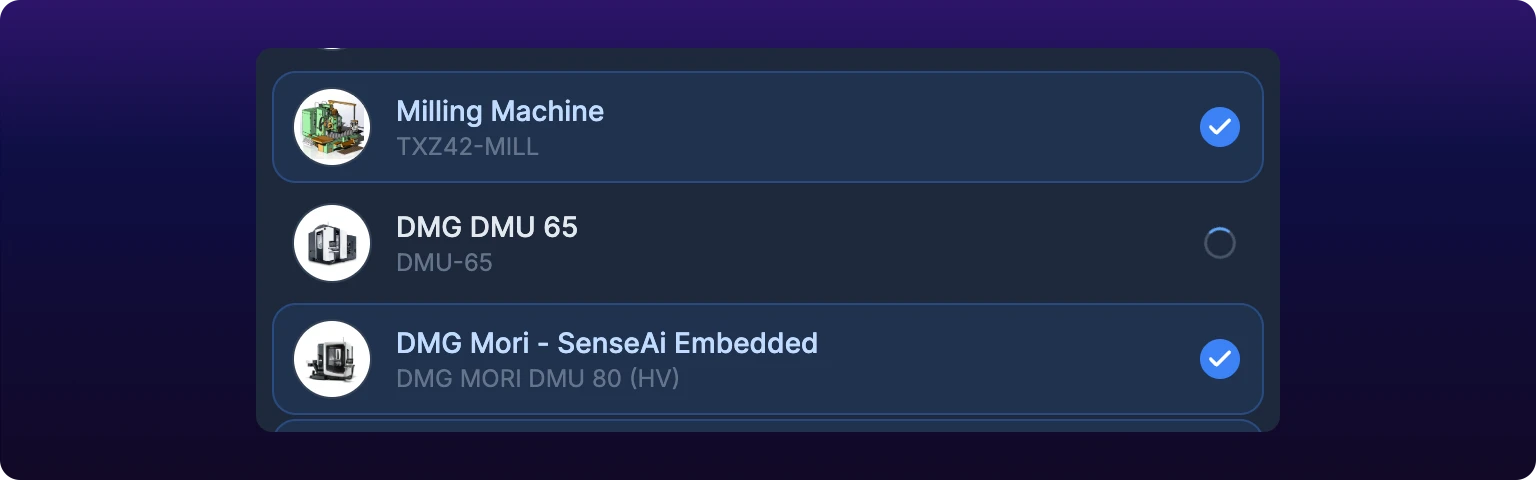
To lift the restriction entirely, deselect every machine. The note at the top of the dialog switches to "No machines selected. This member can access all machines", and the directory row goes back to reading All machines.
Removing a member is a different job, and it removes their access to everything rather than narrowing it. See Change roles and remove members.
How access interacts with roles
A role says what someone can do. Machine access says which machines they can do it to. The two are set separately and both apply.
| Role | Machine access |
|---|---|
| Organization Owner | Can be restricted, but do not. The Owner is the billing and ownership role and needs the whole fleet |
| Organization Administrator | Can be restricted. Administrators still manage machine access for everyone, including themselves |
| Organization Member | The usual target. A Member restricted to Haas VF-2 classifies downtime there and cannot see Brother S700X1 |
| Organization Observer | Can be restricted. Read-only on a shorter list |
Changing someone's role does not change their machine access, and clearing their machine access does not change their role. A Member promoted to Administrator keeps the same four machines until you clear the list.
For what each role can do, see Roles and permissions.
What a restricted member sees
A restricted member sees a smaller fleet, with no indication that anything was filtered out. There is no banner, no count of hidden machines, and no request-access control.
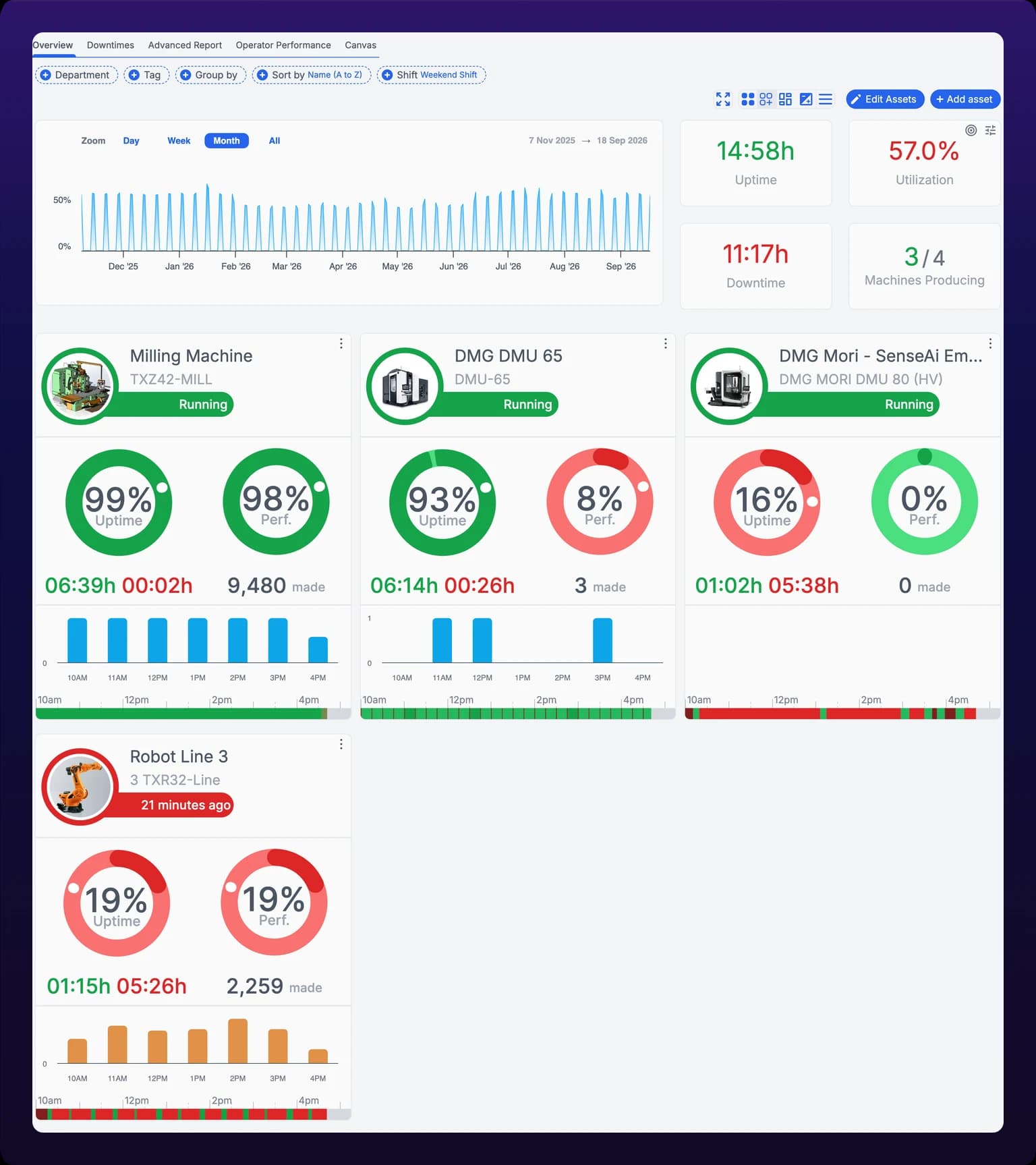 What a restricted member sees. A machine that 'disappeared' is usually this.
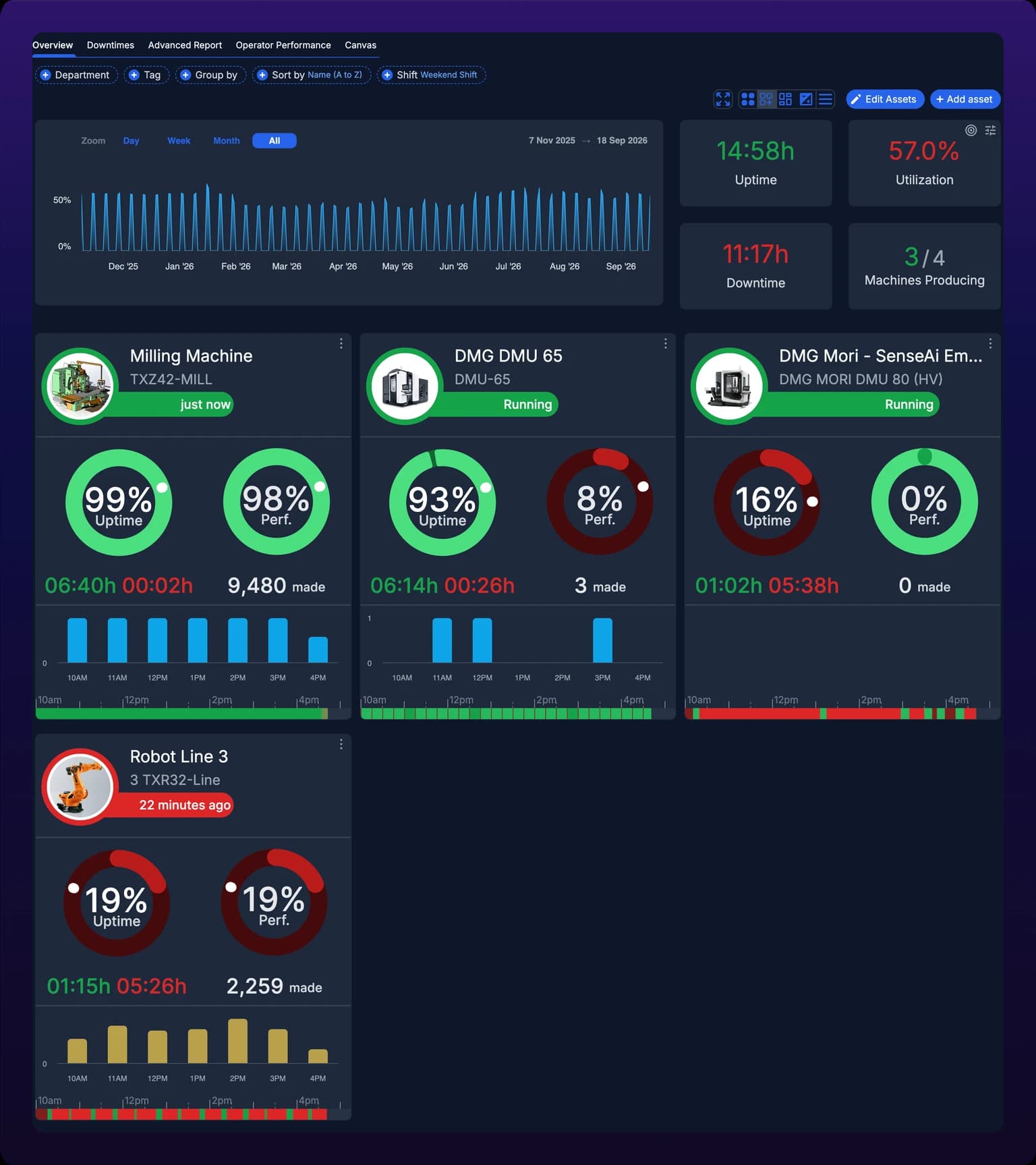
A machine that "disappeared" is the first report you will get, and a machine missing from a report or work-order picker is the second. Both have the same cause, so check machine access before you treat either as a data problem.
Open the member's row at /members and read the machine-access control. If it shows a stack of avatars rather than All machines, the machine was not lost. For everything else that makes a machine look wrong, see Troubleshoot monitoring.
See also
How to work the IoTFlows member directory at /members: one search field covering teams and members, the row controls that change a role and remove someone, and what removal leaves behind. Changing a role opens the Edit member role dialog and reports "Member role changed to" the new role. Removing opens the Remove member dialog, and if the person is the last administrator of something inside the organization, a second step asks whether to keep or delete what they administer. A removed member loses access to everything, and their open work orders stay open and become unassigned. The dashboard has no dedicated transfer-ownership control: ownership moves by setting another member's role to Organization Owner.
How to create and run an IoTFlows team: a named group of members that boards, chats, and work-order assignment can point at instead of naming people one at a time. Teams live in the Teams section of the member directory at /members, and each team has its own page at /members/teams/<team-uuid>. Create Team asks for a team name and a team handle, checks the handle for availability as you type, then asks you to pick at least one other member; you are added automatically. The team page renames the team and edits the handle in place, adds and removes members, promotes members to team owner, and carries Leave Team and Delete Team. Deleting a team needs a team owner or an Organization Owner or Administrator. There is no team image control in the web dashboard: a team gets a colored avatar automatically.