

Restore a suspended organization
See what the lockout looks like, and reach the one page it leaves open.
Suspension is the state IoTFlows puts an organization into when its account goes unpaid. It locks the dashboard for every member of that organization at once, and only the Organization Owner can lift it, because the recovery runs through Billing and no other role can open that page.
Before you start. Clearing a suspension takes an Organization Owner, see Owner-only actions.
Does data keep collecting while we are suspended?
No. A suspended organization stops recording machine data. The sensors keep running and the machines keep making parts, but nothing reaches the record.
Paying the bill lifts the lockout and does not backfill the gap, so those hours are missing from every report forever. Clear a suspension the day it starts. Every hour it stands is an hour of machine history you do not get back.
What suspension looks like
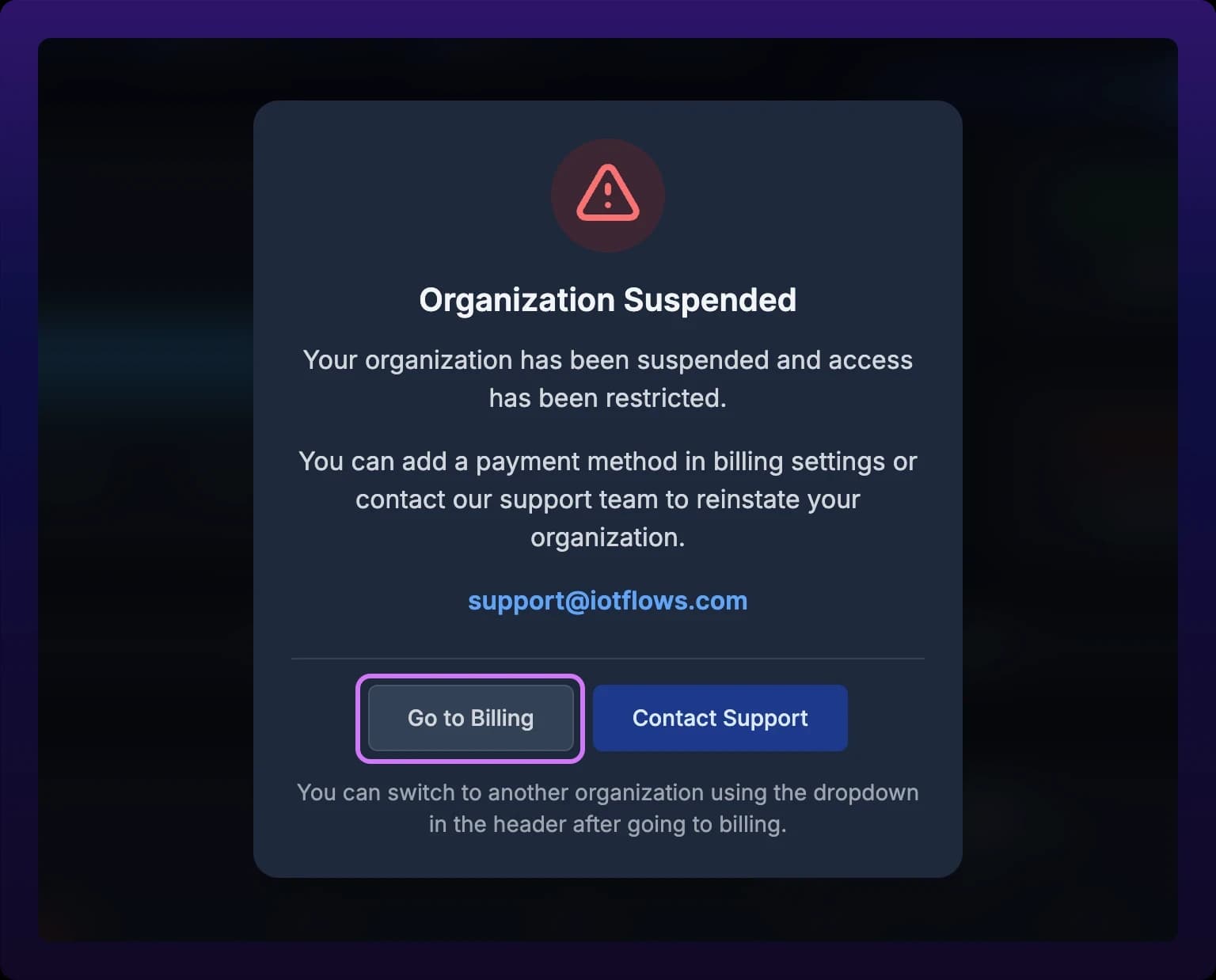
A dialog headed Organization Suspended opens over the dashboard, under a red warning icon. It reads "Your organization has been suspended and access has been restricted," then offers a payment method or support as the two ways out.
The dialog cannot be dismissed. There is no close button, and neither Escape nor a click on the backdrop does anything. It reopens on every route in the organization except the billing page, so navigating elsewhere puts it straight back.
Two buttons sit along the bottom. Go to Billing opens /{organization}/settings/billing. Contact Support writes to support@iotflows.com, the same address linked in the body text.
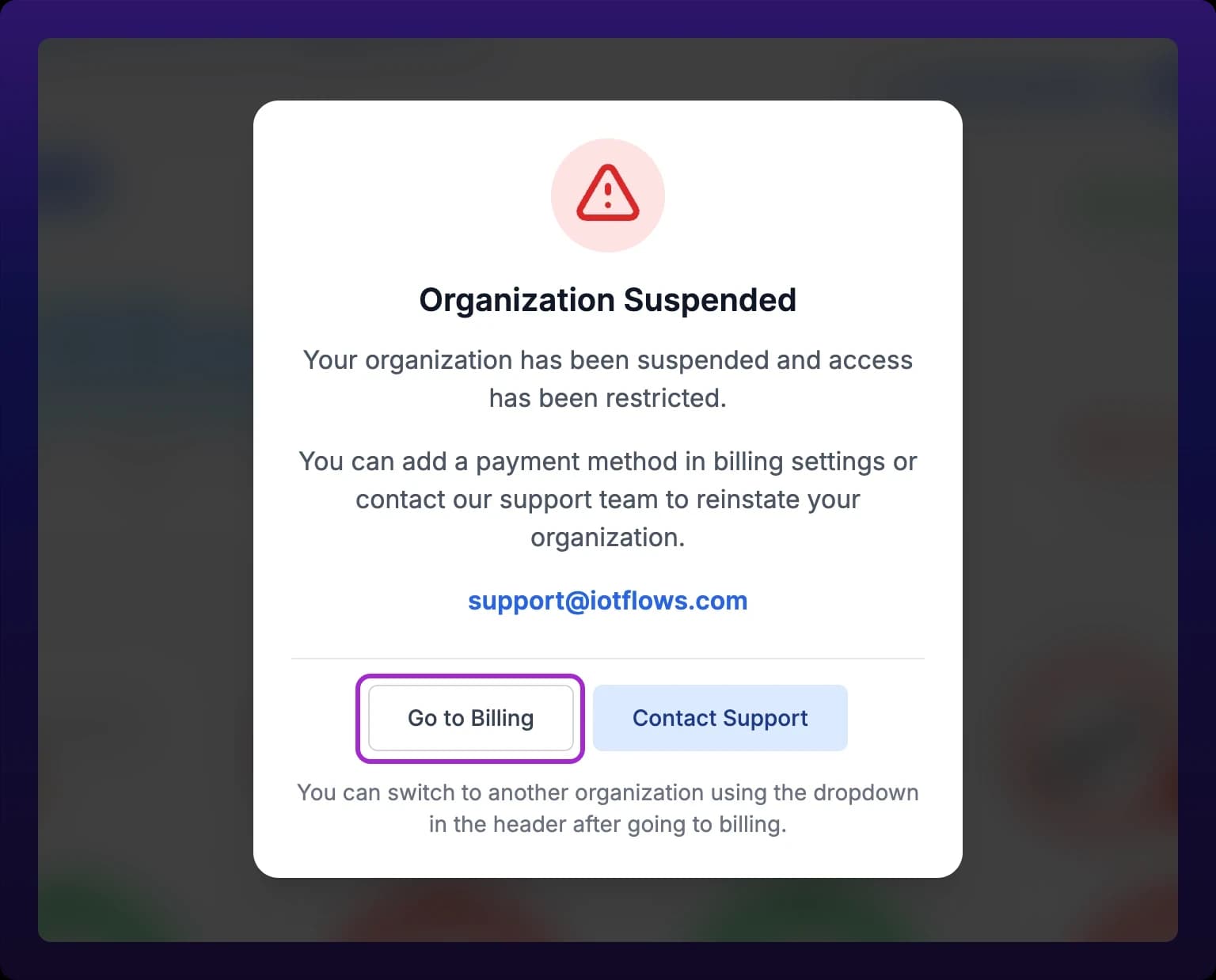 The suspension lockout. Billing is the only page you can still reach.
What still works
The billing page is exempt. It is the one route in a suspended organization that renders normally, which is how an Owner clears the lockout from inside the product.
The organization switcher in the header is reachable once you are on billing, so you can move to another organization from there. Suspension applies to one organization, not to your account, so the others you belong to are untouched, see Switch organizations.
Not the Owner? Do not try to work around the dialog. Go to Billing takes you to a page that answers "Only organization owners can access this page."
Find your Owner, or write to support. The organization stays locked until one of them acts.
Clear the suspension
- Select Go to Billing in the dialog.
- Add a working card, see Add a card.
- Make it the default, see Set the default card.
- Write to support to have the organization reinstated, quoting the organization name.
- Reload the dashboard once support confirms. The lockout clears when the app refetches your organizations, which it does on load, so a stale tab keeps showing the dialog after the account is current.
Reporting picks up again from the moment the suspension lifts, not from the moment the invoice was paid.
Preventing it
Suspension follows an invoice that goes unpaid long enough, so it is an inbox problem before it is a billing problem.
Send invoices to an address more than one person reads, see Set the billing email. Check the Invoices tab for anything sitting on Open past its due date, see Invoice statuses. Replace an expiring card before its last month rather than after the payment fails.
What the gap looks like in reports
Hours inside a suspended period carry no data, so reports count them as unknown time: neither uptime nor downtime, gray on the shift status bar. A report spanning the suspension shows a lower total for every metric because its window is shorter than it looks, see Unknown time.
See also
- Manage payment methods and invoices, the page the lockout leaves open
- Roles and permissions, for what else only the Owner can do
- Get support, to have an organization reinstated
- Billing questions, for plans, refunds and invoices
How an Organization Owner runs IoTFlows billing at /{organization}/settings/billing, the one settings page no other role can open. The page holds a Customer Billing email that every invoice and payment failure is sent to, a list of payment cards added through Stripe, and two tabs: Current Invoice, which previews the period in progress, and Invoices, which lists issued invoices with Paid, Open, Draft, Void, and Uncollectible status chips and a downloadable PDF for each. Set the billing email to a shared finance address, because an unpaid invoice suspends the organization, suspension stops machine data collection, and the gap in the record is permanent.
How to find out who changed something in IoTFlows, when, and what the value was before. The organization audit log lives at /logs and holds one row per change, with a Log message, a color-coded Event chip, and a date. Three filters narrow it: a Users picker, a date range that takes effect on Apply, and a free-text search that matches identifiers as well as words. Selecting a row opens the Log Information modal, which shows the request payload and the record Before and After the change as raw JSON. There is no export. A work order's Activity Logs tab is the same log filtered to that work order, and is the only version the mobile apps reach.