

Set your organization name, logo, and handle
How your organization appears to your members, and to anyone you chat with.
The organization profile is the four fields that identify your company across IoTFlows: a logo, a name, a description, and a handle, the unique short name other organizations use to reach your people in chat. All four sit in the Organization section at the top of Organization Settings, at /settings/organization. Shifts and the organization timezone are on the same screen, further down.
Before you start. You need to be an Organization Owner or an Organization Administrator. See Roles and permissions.
The section is read-only until you select Edit at its top right. Edit unlocks the name, description, and handle together, and one Save commits all three. The logo is the exception: it opens its own dialog and uploads on its own.
Upload a logo
- Select Edit at the top right of the Organization section. The logo tile does nothing until you do.
- Select the logo tile. Your file picker opens.
- Choose an image. IoTFlows takes any format the browser reads, plus
.heicand.heiffrom an iPhone, which it converts to JPEG first. - Drag the image inside the crop frame, and set the Zoom and Rotation sliders until the square holds what you want.
- Select Preview. To change the crop, select Back.
- Select Submit. An "Organization logo updated" toast confirms the upload and the dialog closes.
IoTFlows crops to the square you set and compresses the result to WebP at around 500 KB, so a 12 MB photo straight off a phone is fine.
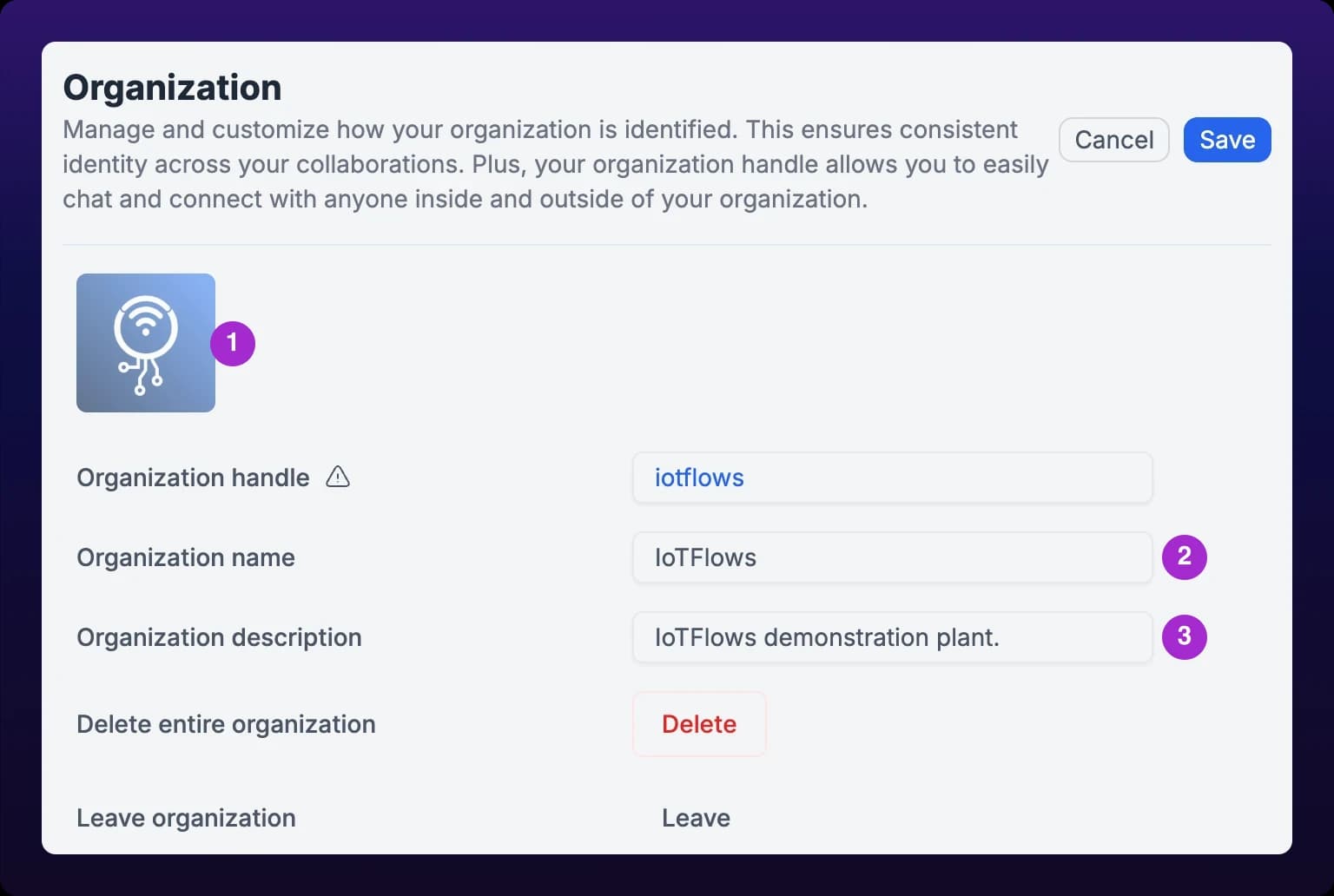 The Organization section of Organization Settings, with numbered callouts on the logo tile, the Organization name field, and the Organization description field.
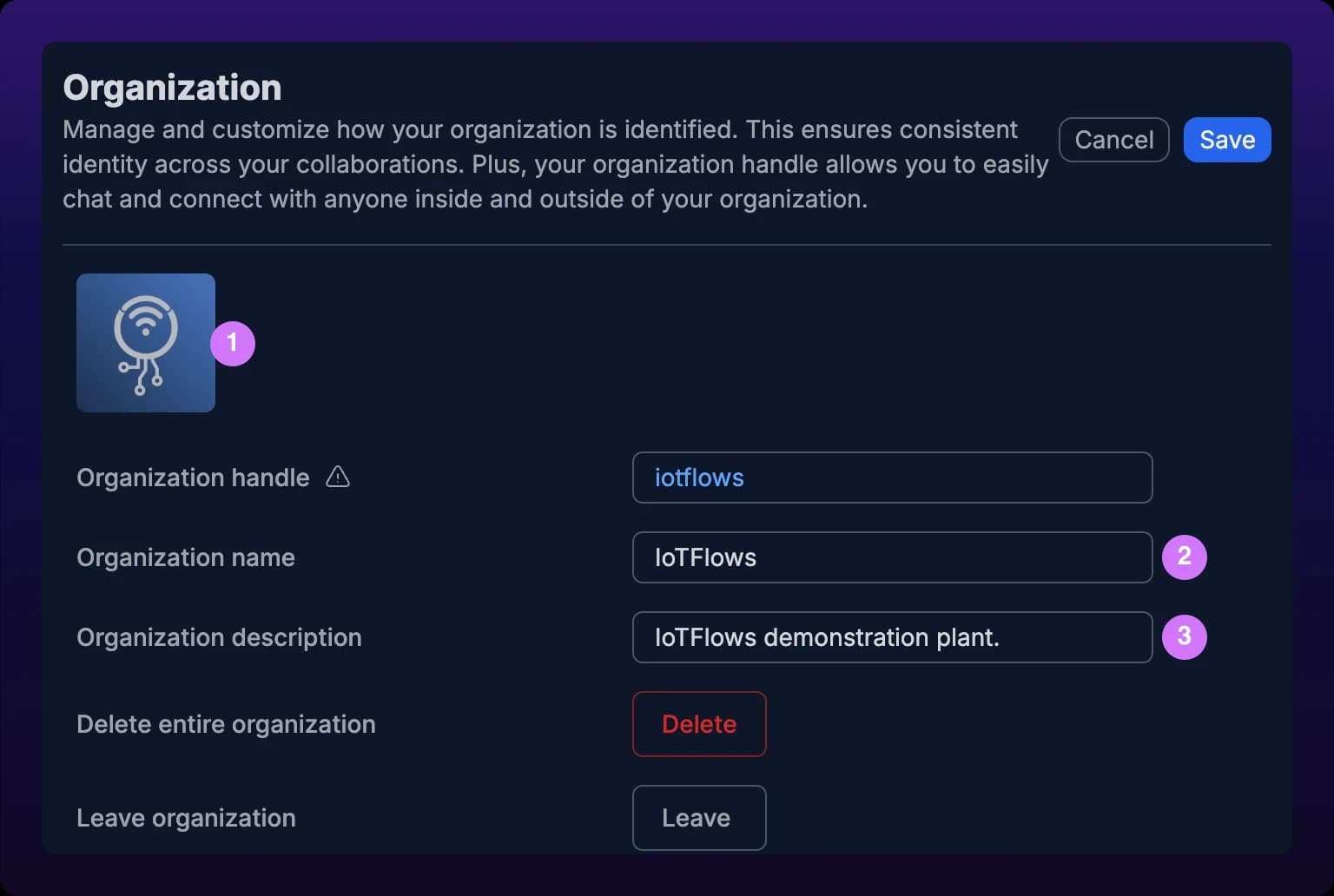
Use a square mark rather than a full wordmark. The logo renders at roughly 24 px in the organization switcher and in the organization lists in chat, and text that small is unreadable.
If the dialog stays open after Submit and no toast appears, the upload failed. This failure is silent, so nothing else tells you. Select Submit again, and if it fails twice, contact IoTFlows.
Set the name
The name is what members read in the organization switcher, and what people in other organizations see next to your logo when they search for someone in chat.
- Select Edit.
- Type the name into Organization name, for example
Midwest Tooling. - Select Save. An "Organization modified" toast confirms it.
Nothing checks the name against other organizations, so two companies can carry the same one. The handle is the field that has to be unique.
Renaming is safe: the name is in no URL and no report points at it.
Add a description
The description is one optional line of free text.
- Select Edit.
- Type into Organization description, for example
Progressive die stamping, Sterling Heights. - Select Save.
You do not need this. No screen in the web dashboard reads the description back out, so it is a note on the organization record rather than something your members see. Fill it in if you run several organizations and want the record to say which plant is which.
Change the handle
The handle is the second half of every member's chat address. If your handle is midwesttooling, a member whose username is jsmith is reachable at jsmith:midwesttooling.
- Select Edit.
- Type the new handle into Organization handle. The field lowercases what you type and drops anything that is not a letter, a digit, or an underscore, so
Midwest Tooling!leavesmidwesttooling. - Wait half a second. IoTFlows checks the handle and marks the field with a green check if it is free, or a red exclamation icon if another organization already holds it.
- Select Save once the icon is green.
 The Organization handle field being edited. The icon to the right of the field is the availability check, green for free and red for taken.

Why read the icon before saving?
Save is blocked neither while the check is running nor when the icon is red: the dashboard sends whatever is in the field. The check is advice. Type, pause, look at the icon, then save.
To hand your handle to someone, hover the handle row when the section is not in edit mode and select the copy icon that appears beside it. An "Organization handle copied!" toast confirms the copy. If your browser blocks clipboard access you get "Clipboard not supported" or "Failed to copy handle:" instead, and you can select the text and copy it by hand.
Choose a handle you will not want to change. It is how people outside your organization find you in chat, and the old one stops working the moment you change it.
What changing the handle breaks
The warning icon beside the Organization handle label spells this out. Read it before you commit.
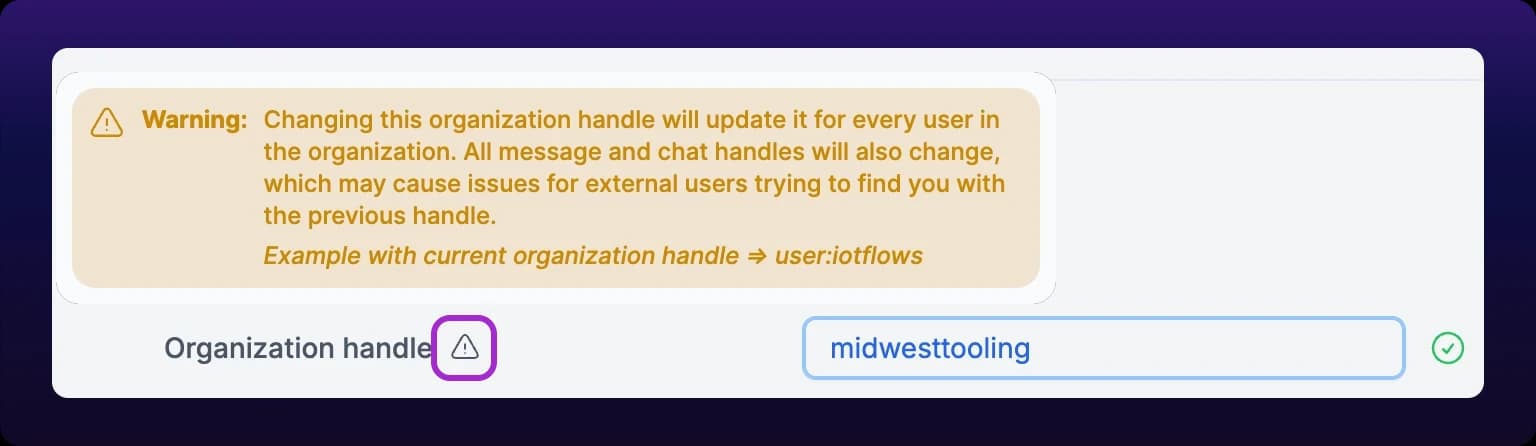 The warning on the Organization handle label: changing the handle changes it for every member, and rewrites every chat handle with it.
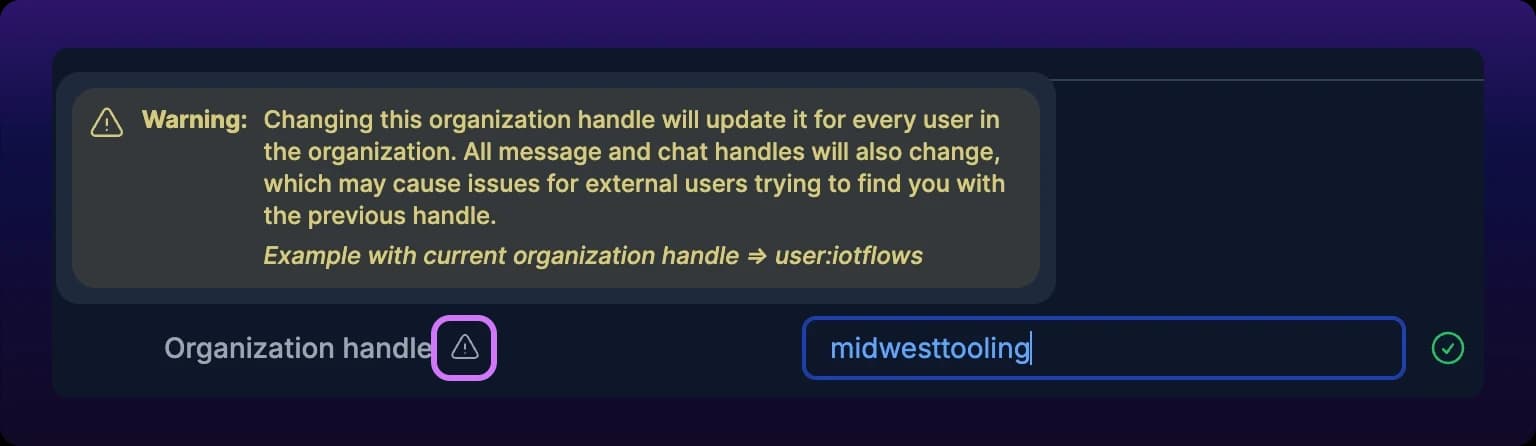
Changing the handle rewrites the chat address of every member and every team in one step. jsmith:midwesttooling becomes jsmith:mwtooling, and so does everyone else's.
That is only a problem outside your organization. Your own members find each other by name in the member directory and in chat, and never type a handle to do it.
People in other organizations do type it. Chat search looks up the exact address, so a supplier who saved jsmith:midwesttooling gets no match after the change, with no forwarding and no hint that the address moved. Send your external contacts their new addresses yourself.
Nothing else points at the handle. Dashboard URLs carry the organization's UUID, so bookmarks and links you have pasted into email keep working.
Organization fields
| Field | Required | Visible to | Changing it breaks |
|---|---|---|---|
| Organization logo | No | Your members, in the organization switcher; anyone who sees your organization in a chat search | Nothing |
| Organization name | Yes | Your members, in the organization switcher; anyone who sees your organization in a chat search | Nothing |
| Organization description | No | Nobody, on any screen in the web dashboard | Nothing |
| Organization handle | Yes | Everyone on IoTFlows, as the second half of every member and team chat address | Every saved chat address anyone outside your organization holds for your people |
Apart from the handle's character filter, the browser validates none of these fields. If Save fails, the dashboard shows the error the API returned and closes edit mode without keeping your change; reopen Edit and try again.
See also
- Define shifts and your timezone, the other half of the same settings screen
- Update your profile and handles, where each member sets the username in front of the colon
- Start a chat, where handles get used
- Overview: administer your organization
The four IoTFlows organization roles and what each one can do. Organization Owner is the billing and ownership role, Organization Administrator runs day-to-day administration, Organization Member does the shop-floor work including downtime classification, and Organization Observer is read-only. A role says what someone can do; machine access says which machines they can do it to. Scheduler and Maintain boards carry their own Owner and Member roles on top of the organization role.
How to set the hours IoTFlows reads your plant by. One Schedule Timezone covers the whole organization, and the work shifts sit under it in the Schedules panel of Organization Settings at /settings/organization; both save together behind one Edit and one Save, confirmed by a "Work shifts modified" toast. A shift carries a name, the days it runs, a start time, and an end time on 15-minute steps. A shift whose end time is at or before its start time runs past midnight and is entered on the day it starts, so a Friday night shift is one entry with Friday checked; the Assets page then shows that shift whole while reports split it at midnight unless Shift islands is on. Shifts cannot overlap, but the platform does not enforce it, so keeping them distinct is on you. Shifts bucket data as it arrives, so an edit changes how new data is bucketed and does not rewrite reports already computed.