

Link required and created parts to an operation
Tell IoTFlows what an operation consumes and what it produces.
Every operation in the Parts List has two ends. One lists what a run of it takes off the shelf, the other lists what it leaves behind. Fill them in and a work order raised against that operation arrives with its own materials already worked out, the ledger records the movement when the job closes, and the scheduler can forecast what the week will produce.
Before you start
- Sign in as an Organization Owner or Organization Administrator. This editor is the only role-gated edit surface on the Parts List: every other member can open it and read it, but not change it. See Roles and permissions.
- Create the items in Inventory first. There is no create-an-item path from this editor, and an item it cannot find cannot be bound. See Create and edit items.
- A part carrying at least one operation. See Add an operation.
What binding does
A required part is an item that one run of the operation consumes or holds: the tube of sealant, the four bolts, the torque wrench. A created part is what the operation leaves behind: the machined housing it produces, or a tool it hands back to the shelf.
Neither one moves stock by itself. A binding is a rule, not a transaction. It states how an item scales with the work, so that anything downstream can do its own arithmetic: one tube per 50 pieces, four bolts every time, one screwdriver however big the job is.
The rule reaches the floor in three steps. You bind the item here, on the operation, and a work order raised against that operation copies the rule onto itself, scaled to the quantity ordered. Closing the work order is what consumes, produces, and writes the ledger rows.
One of those four items is not consumed at all. A reusable tool is an ordinary inventory item carrying the reusable-tool flag, so it needs no separate list here, and it wears a Tool chip wherever it appears. Binding it is how you say the operation holds it, or hands it back. See Create and edit items.
Binding types
| Binding | Means | On completion | Also feeds |
|---|---|---|---|
| Required, ordinary item | One run takes this much off the shelf | Stock out, against the job | The work order's Parts Required list, and the reservation that holds the stock from the moment the job is raised |
| Required, reusable tool | The operation holds the tool while it runs | The tool leaves the shelf into the job's custody | The scheduler's tooling lane, where the same tool booked on overlapping jobs reads as a conflict |
| Created, ordinary item | One run produces this much | Stock in, credited to the job | The work order's Create/Release Parts list, and the scheduler's projected-output rows |
| Created, reusable tool | The operation hands the tool back | The tool returns to its shelf | The tooling lane, where this is what ends a hold an earlier operation opened |
Bind materials only for items you actually count in Inventory. Binding a consumable nobody stocks produces transactions nobody reconciles, and a ledger that carries movements nobody checks stops being worth reading. If shop rags and cutting fluid are not in your catalog, leave them out of this editor.
Add a required part
- Open Production, then the Parts List tab at
/production?select=parts_list. - Find the part, and the operation's row inside it.
- Click the package icon at the end of that row, tooltipped Assign the tools, materials and parts this operation needs. The Required for editor opens, and with nothing bound yet it opens its item picker for you.
- Search the item by name or SKU. The picker searches the whole catalog on the server, and its All, Purchased, Manufactured and Tools tabs narrow the list. Each row shows what is available.
- Click the item. The line is created immediately, with no Save button.
- Set the Amount. Type how much of the item in the first box, then how many of the operation that covers in the second.
1tubeper50opsreads back under the item name as 50 ops needs 1 tube. The number commits when you leave the box or press Enter. - Set Preferred location to the shelf this is normally pulled from.
- Leave Round up ticked for anything that cannot be half taken.
- Click Done.
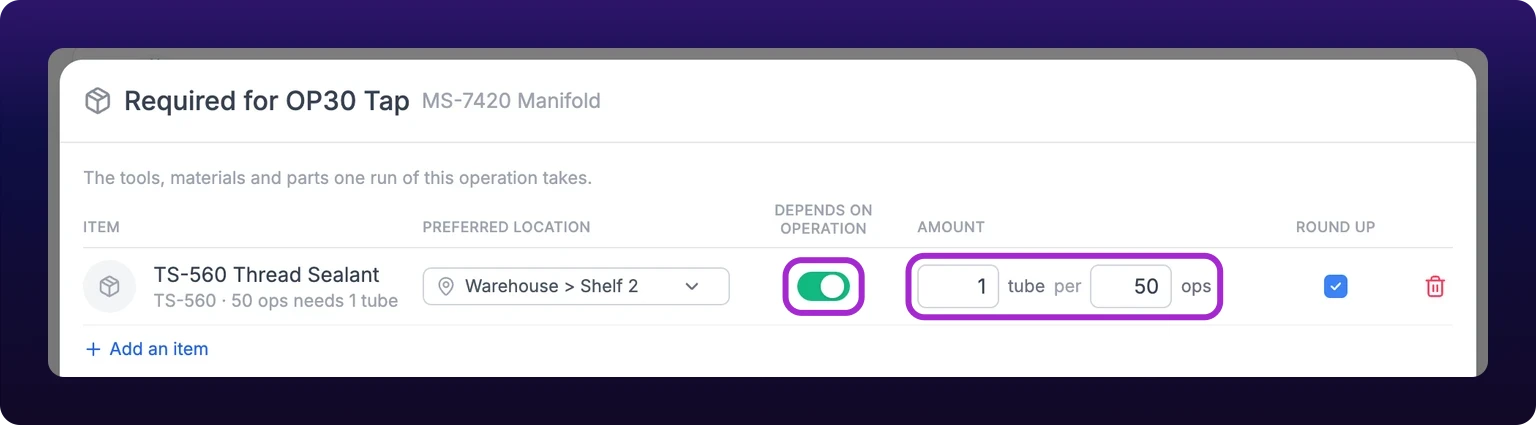 The Required for editor on one operation. The amount reads as a sentence under the item name: 50 ops needs 1 tube.
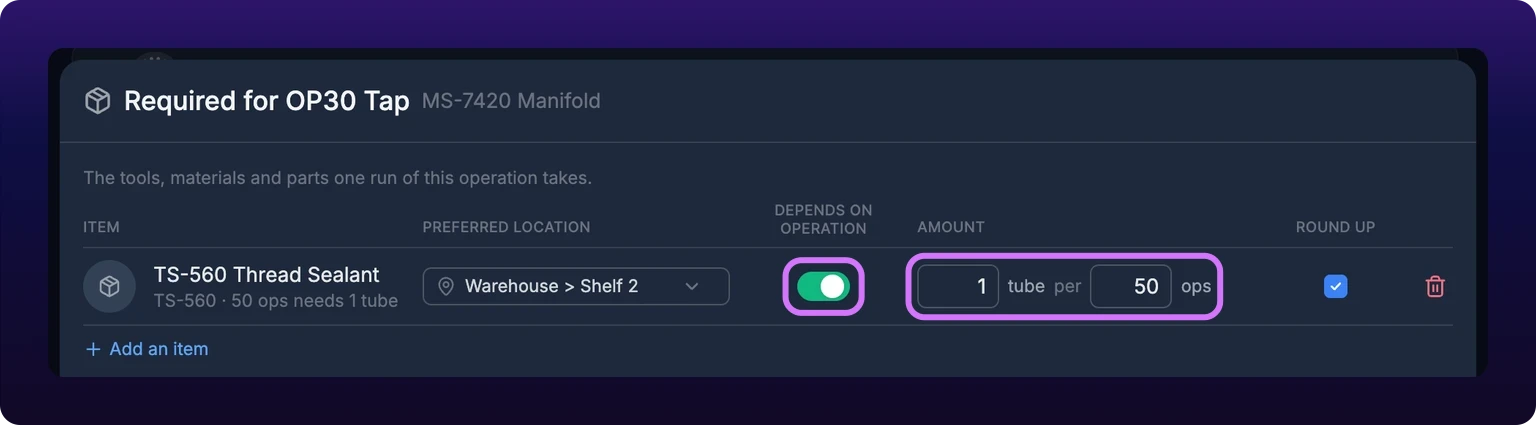
The second number is counted in the operation's own unit, which defaults to ops. See Unit and quantity per cycle.
Turn Depends on operation off for anything the run holds rather than takes. A screwdriver is one screwdriver whether the order is 10 parts or 10,000, so a fixed line drops its second box and reads 1 ea however much is run. Turning it back on starts again at one per operation rather than reviving whatever the line held before.
Round up is a property of the item, not of the arithmetic. A tube cannot be half taken, so 401 pieces at one tube per 50 needs nine tubes, while 2.5 kg of resin has no such floor. The box is ticked for you when the item's unit counts whole things, cleared when it does not, and left empty on a fixed line, which divides by nothing.
Preferred location decides which shelf a job starts from, and setting it here is the only way to make that answer stable. A line with no shelf sends the job to the fullest one holding that item at the time it is raised; a line whose shelf cannot be resolved at all reaches the planner flagged, then is dropped from the order if they submit without placing it. IoTFlows resolves shelves for at most 25 distinct unplaced items per operation, and the rest stage without one.
An item stocked as serialized pieces cannot be bound as itself, because the parent holds no stock. The picker lists its pieces instead, grouped under the parent's name.
Add a created part
The creates side is the same editor under a different name. Open it from the second icon at the end of the operation row, tooltipped Assign what this operation makes, or the tool it releases, and the Created by editor opens the same way.
- Search and click the item this operation produces.
- Set the Amount the same way. On this side the sentence reads 1 ops makes 1 housing, or 50 ops releases 1 fixture when the item is a reusable tool.
- Click Done.
Bind the release of a tool to the operation that hands it back, not to the one that took it. A fixture taken at OP10 and listed on the creates side of OP30 is a fixture that comes back when OP30 closes, and that is the only thing that ends the hold.
Once both sides carry something, the two cells at the end of the row stop being bare icons and become chips: the first item's name and its rule, compressed to x1/50, or the first name and +2 when more than one item is bound.
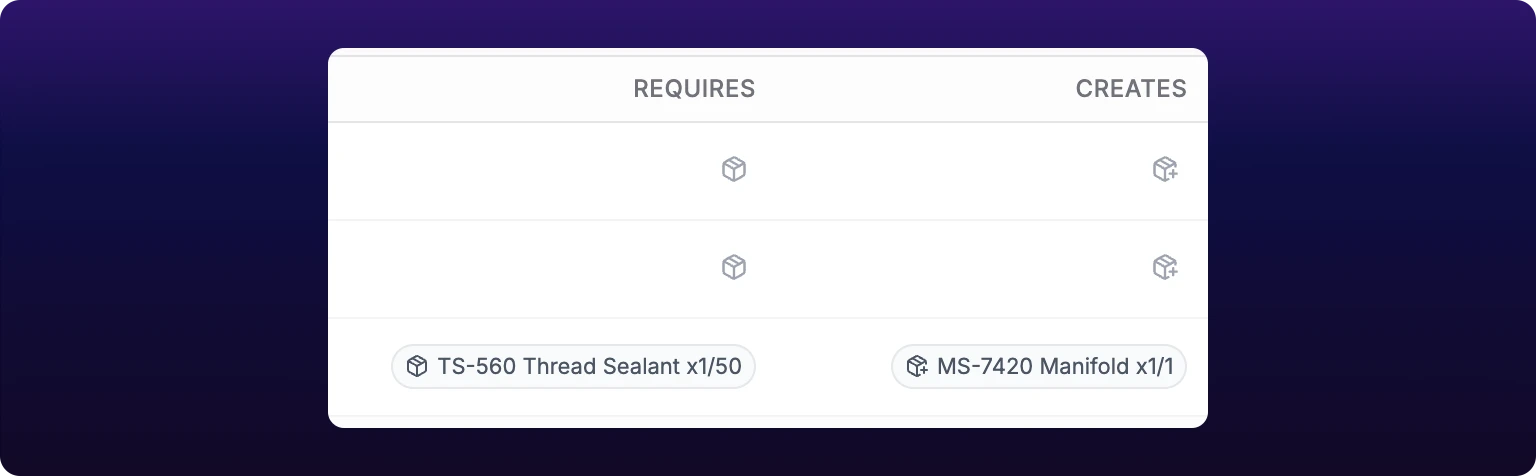 The end of an operation row once both sides are bound. The left chip is what the operation needs, the right is what it makes.
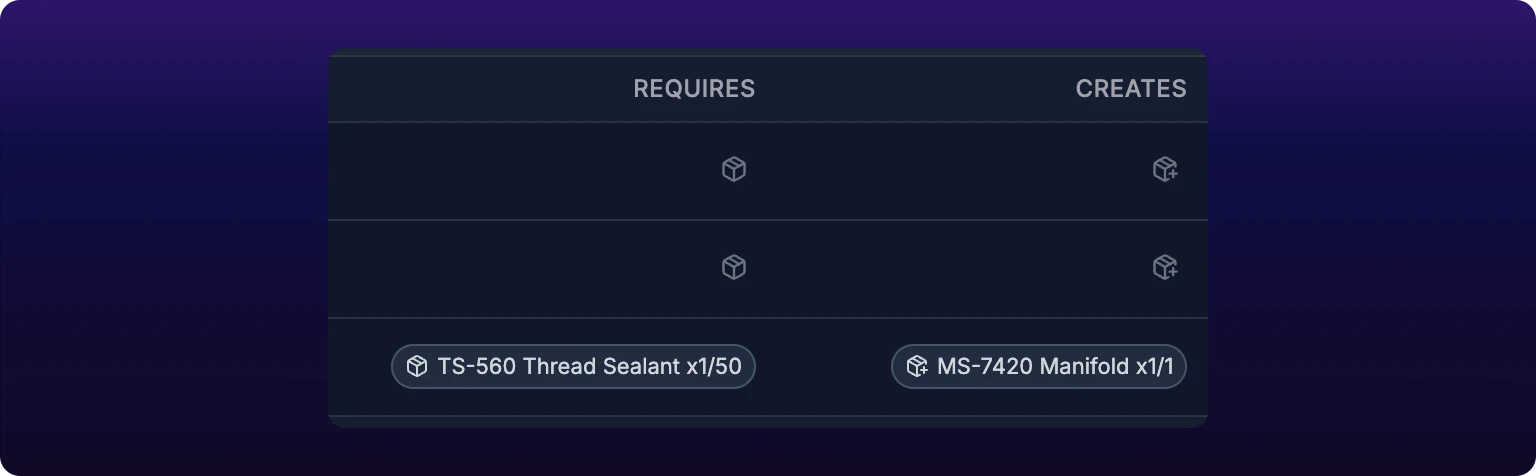
Bind created parts even if your stockroom does not track finished goods. It costs one line per operation, and it is the only thing that turns the scheduler's capacity lane into an output forecast. Nothing else on the board infers output.
Remove a binding
- Open the editor from the row, on the side the item is bound to.
- Click the trash icon at the end of the line. The row turns into Remove item from this operation?
- Click Remove, or the X to keep it.
Removing a binding changes the rule and nothing else. Work orders already raised against the operation carry their own copies of the lines and keep them, so a rule deleted today does not disturb a job that started yesterday. Fix those on the work order itself.
What happens when the work order closes
Closing the work order is where stock actually moves, and IoTFlows performs the movement server-side. It consumes the required lines, produces the created ones, writes the inventory transactions, and clears the reservation. Nothing you do in this editor writes a transaction.
Two things happen before that. A required line reserves its stock as soon as the job is raised, so what is available to other jobs drops immediately even though nothing has been consumed. And the completion dialog states both directions of the movement before it happens, read-only: what will be consumed, what will be produced, and at which locations.
That dialog reports the consequence rather than negotiating it. A quantity that turned out wrong is corrected in the work order's Parts Required and Create/Release Parts sections, not there.
The full model, including which transaction type each movement lands as in the ledger, is on How work orders move stock and Transaction types. The procedure for closing a job is on Update, discuss, and close a work order.
What created parts show you on the scheduler
The Gantt's capacity lane draws a projected-output row per part, and it reads those rows out of each work order's Create/Release Parts lines. Those lines are the ones your binding staged when the job was raised, which is why filling in the created side pays off on a screen you never opened.
Output is declared, never inferred. There is no fallback that guesses what a routing produces from its shape, so a part no work order declares gets no row, and a board where nothing declares anything gets no projected-output section at all. A part with a routing but no declared output still appears, under a header reading No output declared that names Create/Release Parts as the fix.
Once Inventory has stock levels for the parts on the board, the row becomes a projected balance rather than a cumulative total. It opens at what is on the shelf, climbs on created lines and falls on required lines, and a curve crossing below zero is a shortage the schedule is heading for.
Two lines never move that curve. A reusable tool is skipped on both sides, because a tool handed back is not output. A completed work order contributes no climb either, since its movement is already inside the opening count.
See Plan jobs in the Production Scheduler.
When a change does not save
Every write in this editor is immediate, and a failure raises the server's own message when it sends one. When it does not, the dashboard falls back to a short string that names what failed: Could not load this operation's items when the list will not open, Could not add this item, Could not save this change, or Could not remove this item. The line goes back to the value the server holds, so a control that appears to snap back is a rejected write rather than a broken switch.
Two failures carry their own meaning. An item you cannot find in the picker does not exist in Inventory yet, and has to be created there first. An amount of 0 or a negative number in either box is refused with no message at all: the old number returns, because a rule requiring none of something it lists derives nothing.
See also
Three numbers on an operation decide whether counts and goals match the floor: the ideal cycle time in the Ideal Operation Cycle Time column of the Parts List at /production?select=parts_list, the quantity per cycle in QTY/OP, and the continuous downtime filter percentage, which only Continuous Analysis operations carry and which accepts 0 to 200%. Production rate is the same number inverted, 60 divided by the cycle in seconds. The Calculated Goal on Shift Production, the parts gauge and the hourly bars are all derived from the ideal cycle time, and none of them can be set anywhere else.
Set up part counting on a machining center whose cycle time changes with the part. Mount the SenseAi near the spindle, measure a typical cycle by hand, create the part with one operation per thing the machine does, set the operation's algorithm to Discrete Analysis, then assign every operation the machine runs to it at once from the Auto-Detect modal's Discrete tab, which is multi-select. Validate against a hand count, expect 40 to 85% uptime depending on how much of the cycle an operator carries, and read setup time out of the Downtimes report.