

Find your next job in the Work Queue
What is assigned to you, what is available to pick up, and how to narrow the queue to the machine you are standing at.
The work queue is every scheduled production task in your organization on one page, with the job runner one click away. It is the Work Queue tab of the Production page, at /production?select=work_queue.
Each row is a task, one operation on one machine, which is what a job fans out into. See Tracking versus scheduling.
One request loads the queue and the page sorts it into two lists: work assigned to you, and available work, meaning everything else. You see one list at a time.
Before you start
- Production Scheduler is part of the Scheduling Engine module. The tab strip renders for every organization, so seeing the Work Queue tab is not proof you are entitled to it. See Module entitlement.
- Board membership, if you want anything under My Work. A planner can only assign work to someone on the production board. See Give people access to a scheduler board.
- Nothing on this page is role-gated. Anyone who can open the Production page can filter the queue, create a work order and delete one.
My work versus available work
The toggle at the top center switches the page between two lists.
My Work holds every task assigned to you by name and every task assigned to a team you belong to. Available Work is everything else the queue loaded: tasks assigned to somebody else, and tasks assigned to nobody at all.
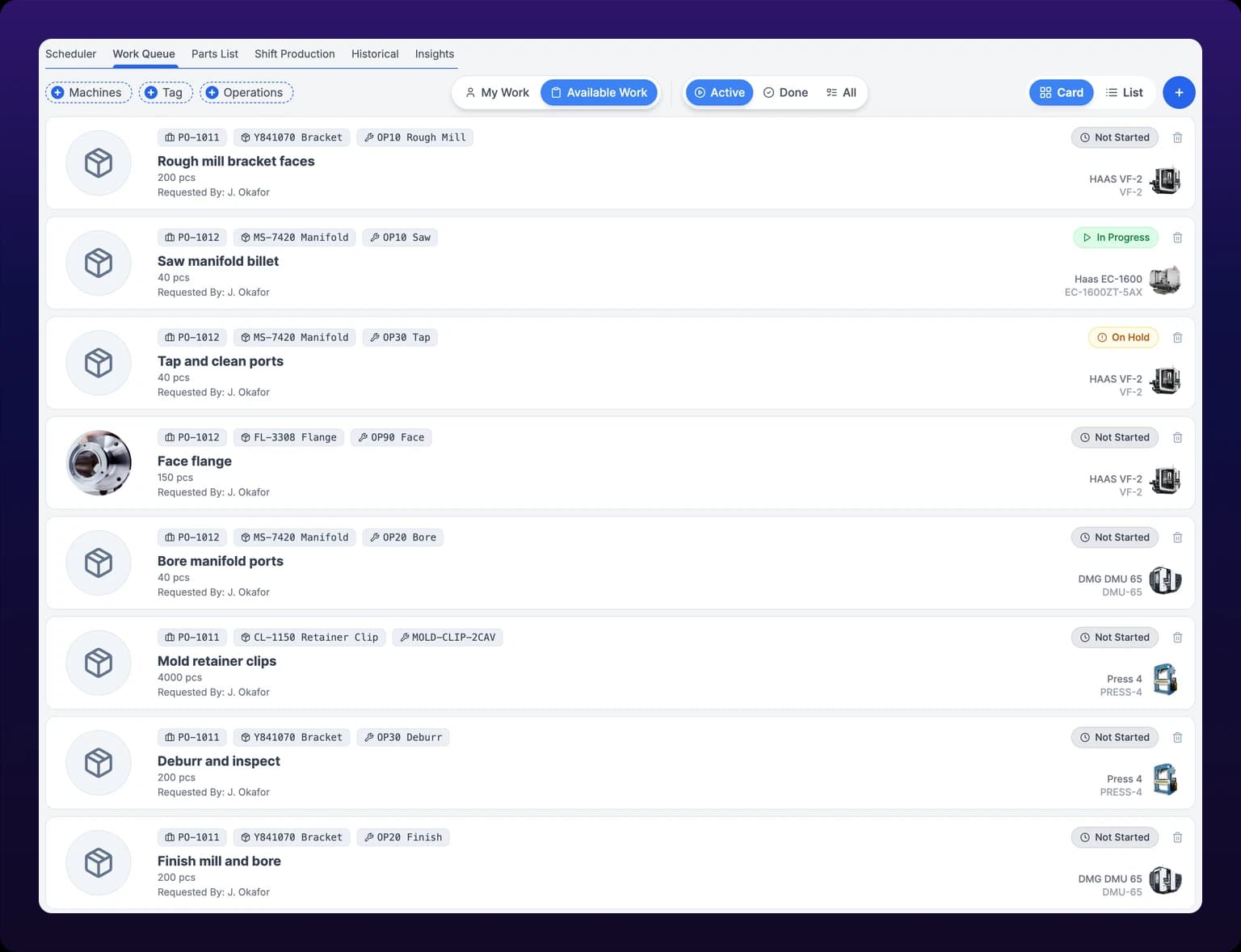 The Work Queue in card mode, scoped to Available Work. The My Work and Available Work toggle sits at the top center, the three filter buttons at the top left.
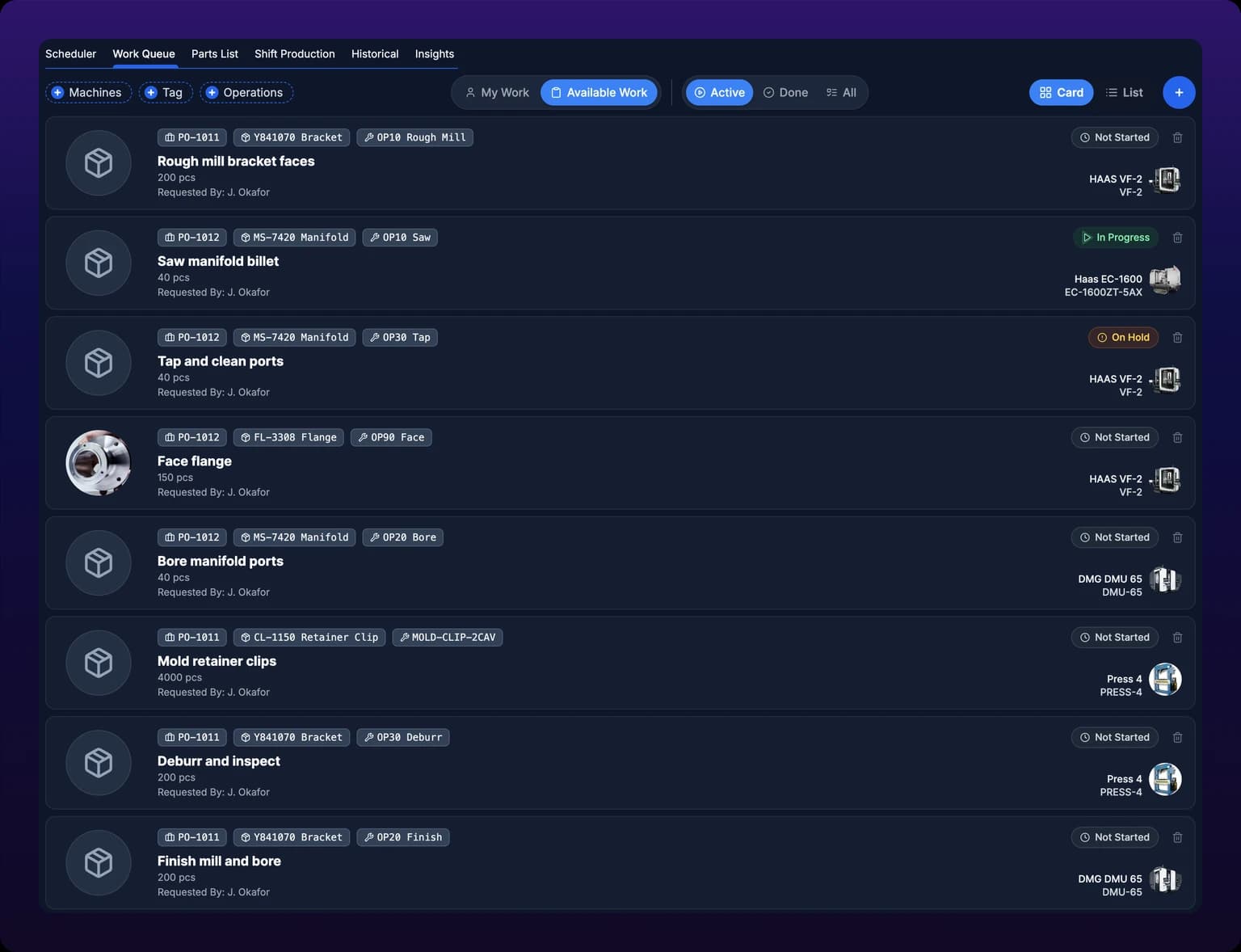
The queue opens on My Work, on every platform. The page writes show_my_work_only=true into the address bar the first time you land on it, so an operator whose planner has assigned nothing sees No work assigned to you over an empty page. Press Available Work before concluding the floor has nothing to run.
 The scope toggle at the top of the Work Queue, with My Work selected. Available Work is the other half of the same control.

Available Work is not a claim list. Nothing leaves it when somebody starts one of its jobs, see Pick up a job.
A job you create from this page is the exception. The create form always assigns the new work order to you, so it lands in My Work rather than in the list everyone shares. See Create a production work order.
Filters
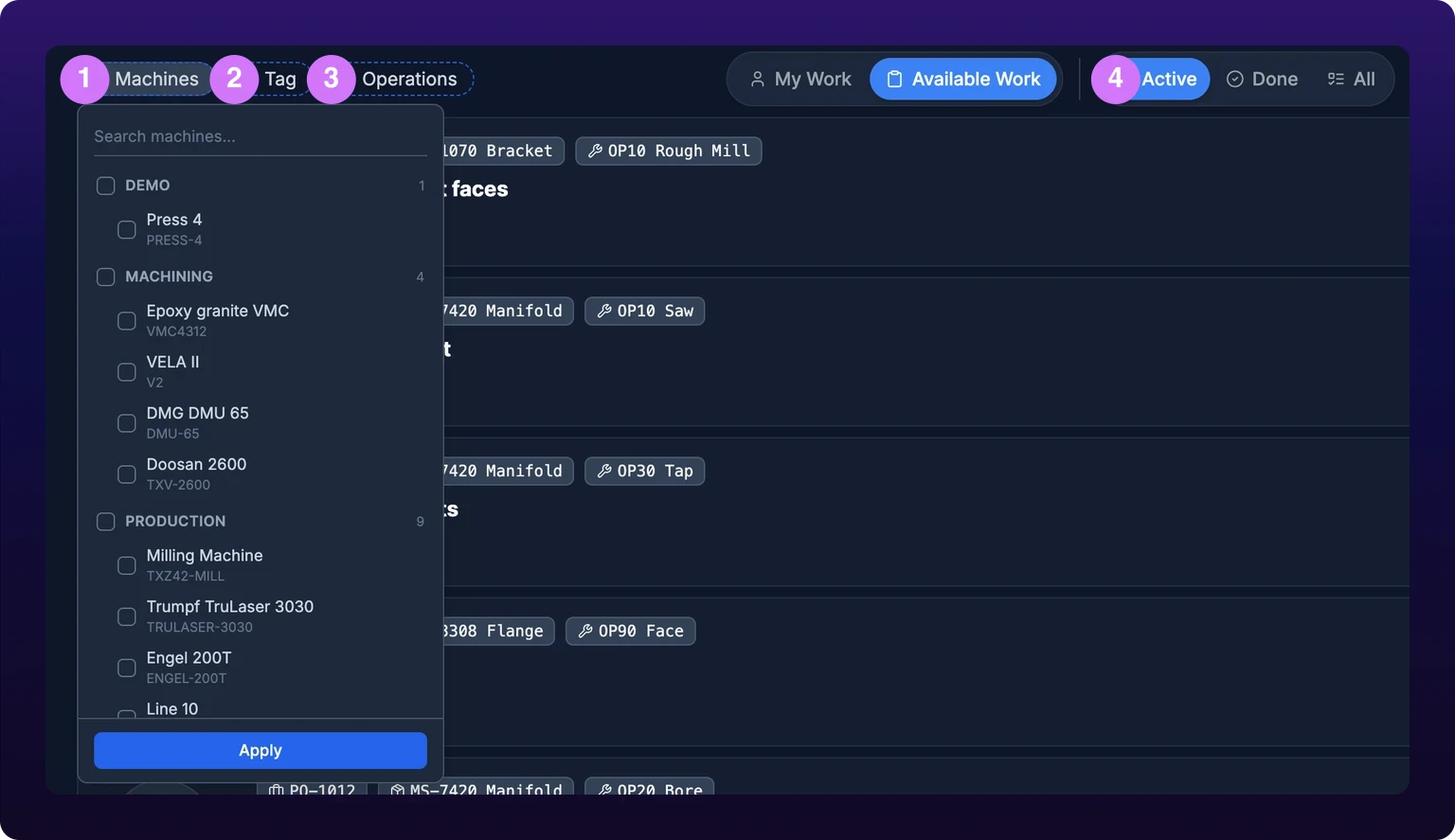
Three filter buttons sit at the top left and the completion status control sits beside the scope toggle. Each button opens a searchable list over an Apply footer, and nothing changes until you press Apply. A Clear button appears beside Apply only once at least one box in that list is ticked, so a filter you have never set offers no way to clear it and does not need one.
The middle button is labelled Tag, in the singular, although it filters on all of the tags you tick.
Filtering happens on the server. Every control writes to the address bar and the page reloads the queue from it.
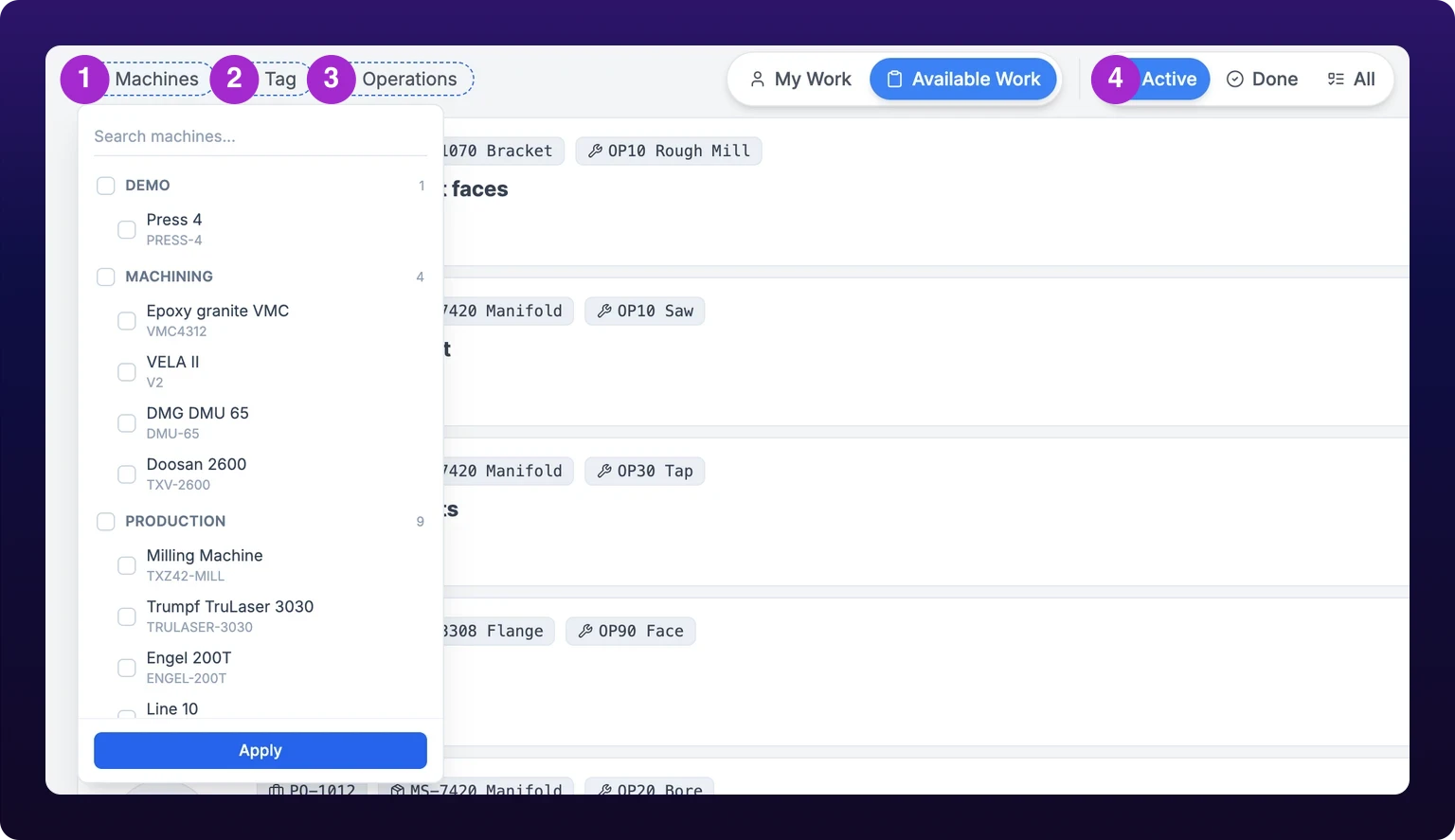 The Work Queue filter row: Machines, Tags and Operations on the left, and the Active, Done and All status control to the right of the scope toggle.
Queue filters
| Filter | Values | Persisted |
|---|---|---|
| Machines | Your departments, each expanding to the machines in it | machines in the address bar |
| Tags | The tags on your machines | tags in the address bar |
| Operations | Your parts, each expanding to its operations | operations in the address bar |
| Active / Done / All | Active is Not Started, In Progress and On Hold. Done is Completed and Approved. All is all five. Done and All also take a lookback of 1, 7, 30 or 90 days, and default to 7 | completion_status and last_updated_n_days in the address bar |
| My Work / Available Work | The two lists above | show_my_work_only in the address bar, set to true on first load |
| Card / List | The two layouts below | Saved in your browser, per device |
Everything in the address bar survives a reload and travels in a link you can send to someone. None of it survives leaving the tab: the tab strip navigates to a bare ?select=work_queue, so coming back from Scheduler drops your filters and puts you on My Work again. The 1-year and 5-year lookbacks appear in the Done list behind a padlock reading Enterprise plans only.
Filter by machine, not by yourself, if you cover a cell. My Work shows only what a planner has already assigned. The next job on the press you are standing at is usually in Available Work, and Machines is what finds it.
Reset Filters appears beside the three buttons as soon as one of them is set. It clears machines, tags, operations and the Done lookback, and leaves the scope toggle and the completion status alone.
Two lists are not quite what their names suggest. Tags is built from the tags on your machines rather than from anything on the job. Operations groups by part, so checking a part header checks every operation under it.
The web queue has no search box. Search is a mobile control, see On mobile.
Card and list modes
The Card and List switch at the top right changes the layout, and your choice is saved in the browser rather than in the address bar.
Card gives each task a band of its own: the part photograph, chips for the parent job, the part and the operation, the status chip, the count against the quantity ordered, the number of attached files, who requested it, and the machine with its identifier and photograph.
List drops to one line per task and adds two fields the card does not carry. The due date, written as a distance from now and turning red once it is past, and a priority dot: red for High, yellow for Medium, blue for Low.
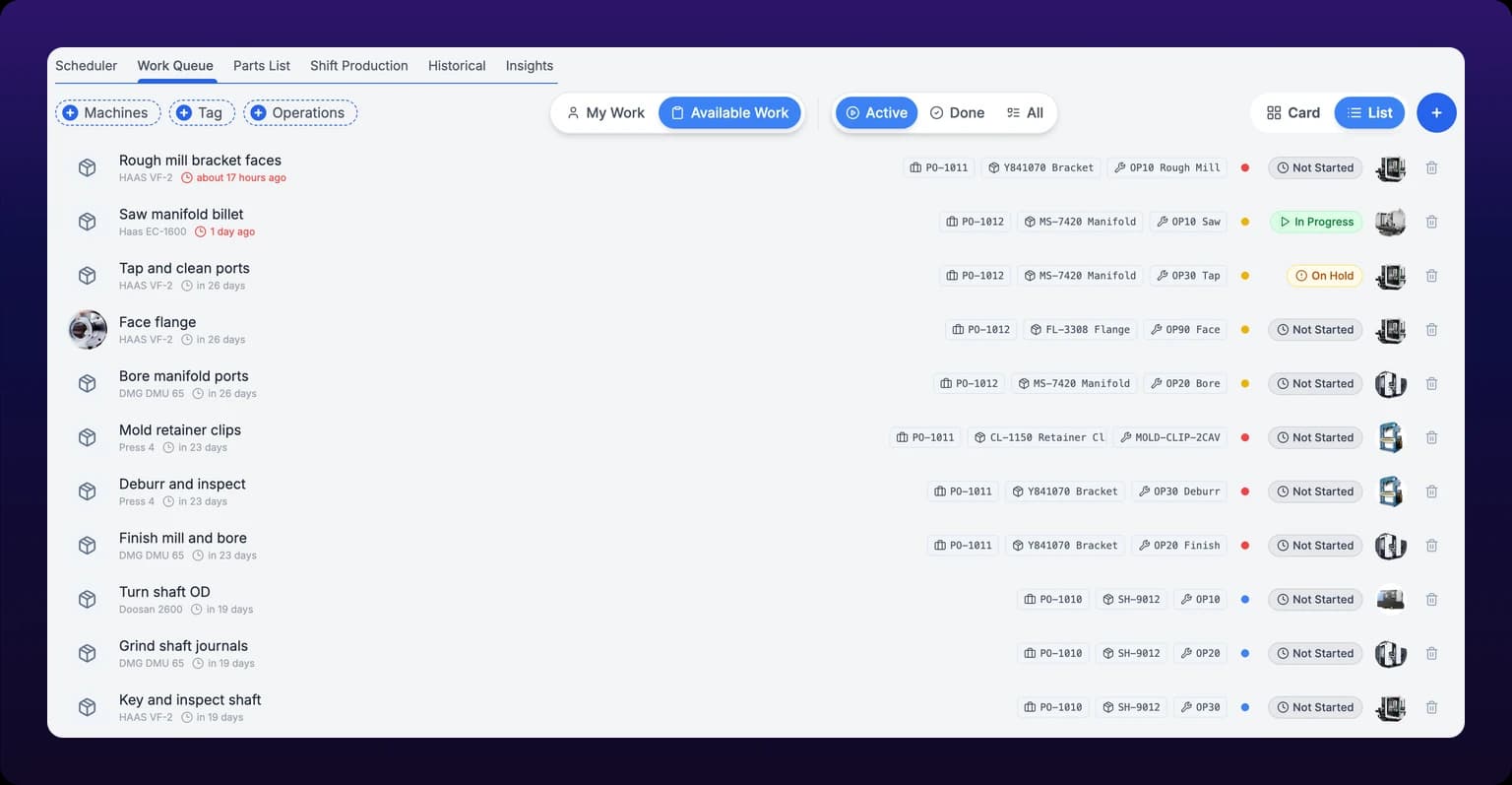 The Work Queue in list mode. Each row carries the due date and a priority dot, neither of which appears on a card.
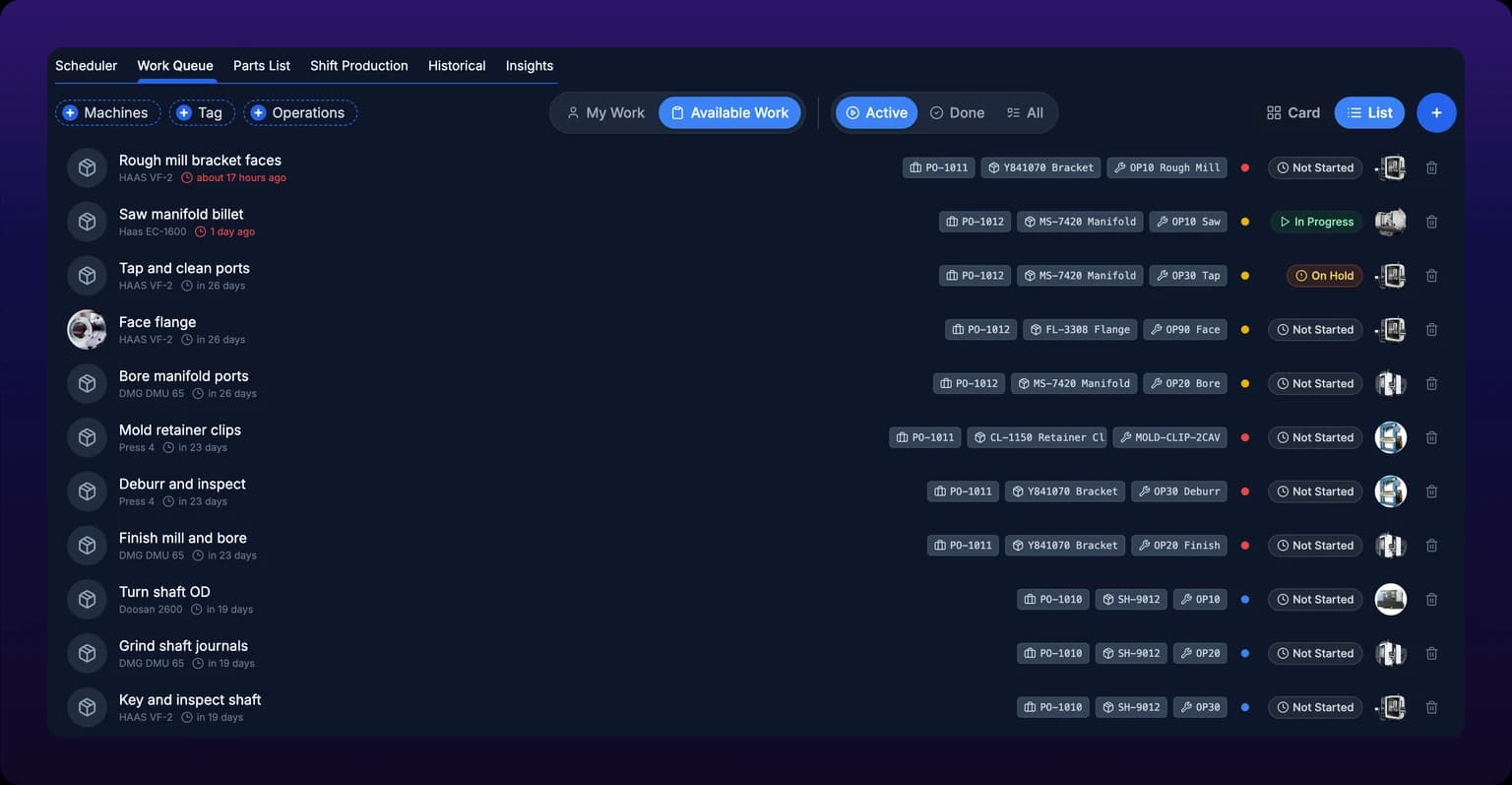
Use list mode when you are deciding what to run next, and card mode when you are hunting for a part. Due date and priority are the two fields that answer "what next", and they exist only in list mode. Card mode is the one that shows you what the part looks like.
The count on a web card, for example 12/50 pcs, is the machine's auto-detected count. A count corrected by hand in the Scheduler table does not replace it here, although it does replace it on the mobile card and on the board. See Edit in place.
The trash icon deletes the work order
Both layouts carry one, on the card at the top right and on a list row at the far right. It opens a Delete Work Order confirmation and, on Delete, moves the work order to the trash for the whole organization. Nothing in the dashboard restricts it to planners.
Pick up a job
- Press Available Work.
- Filter to your machine with Machines.
- Switch to List and read down the due dates.
- Click the task. The job runner opens at
/production/work-queue/<id>and your filters travel with it. - Check the machine and the quantity on the job, then press Start. See Start, pause, and complete a job.
Starting a job does not make it yours. The web queue has no assign control. A started task keeps whatever assignees it had, stays in Available Work, and still shows there for everybody else; the status chip is the only thing that changes, to In Progress.
There are two ways to actually own an existing task. Add yourself on the job page in the mobile app, see On mobile. Or ask a planner to drag it into your lane on the board, see Group by asset, job or operator. Creating a new work order is different: the create form assigns it to you automatically, see My work versus available work.
On mobile
The dashboard switches to the mobile layout inside the iOS and Android apps, and in any browser window narrower than 640 px. An iPad in a browser is wider than that and gets the web layout above; an iPad running the IoTFlows app gets the mobile one.
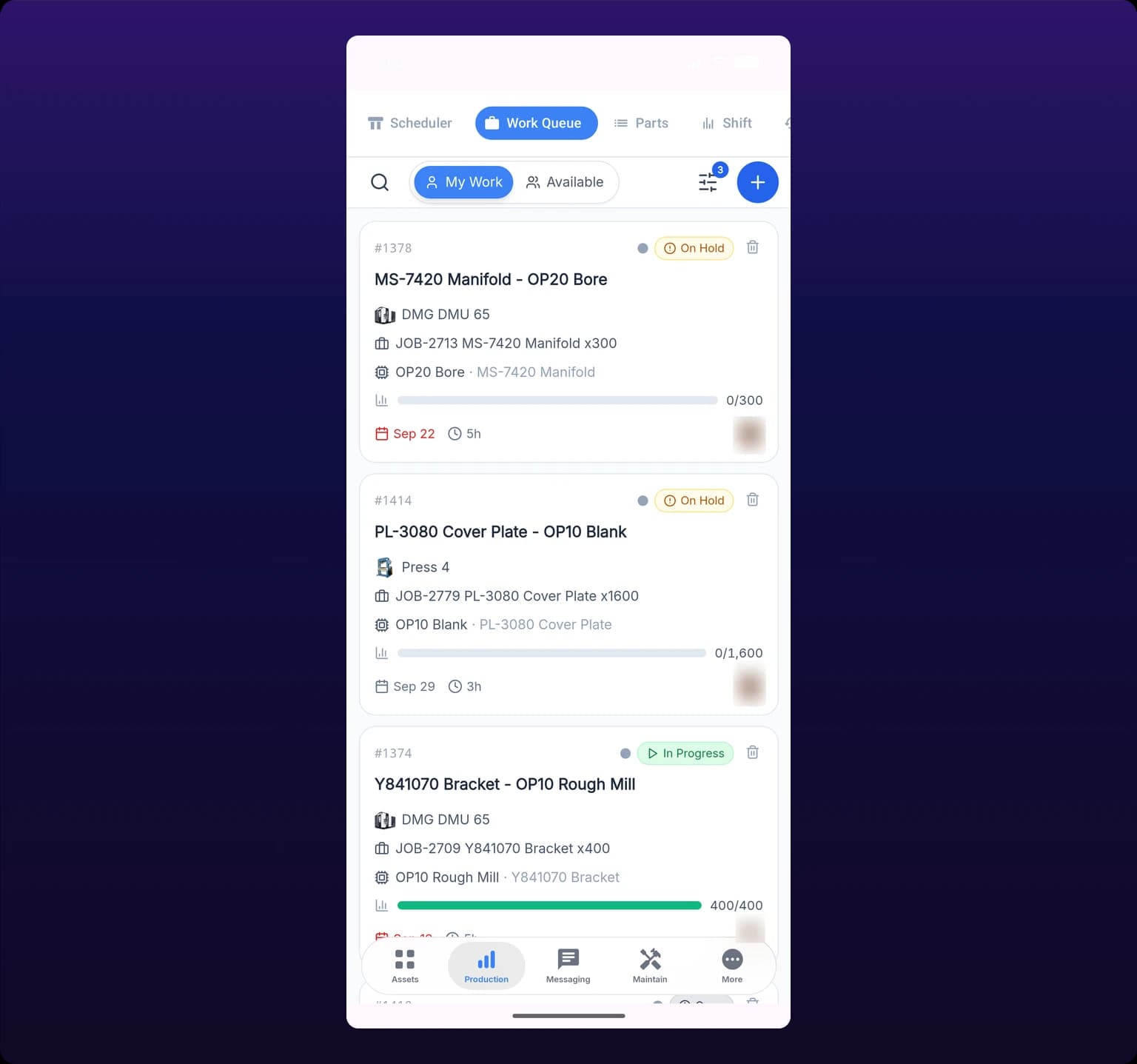 The Work Queue in the mobile app, opened on My Work. The scope control in the toolbar switches to Available.
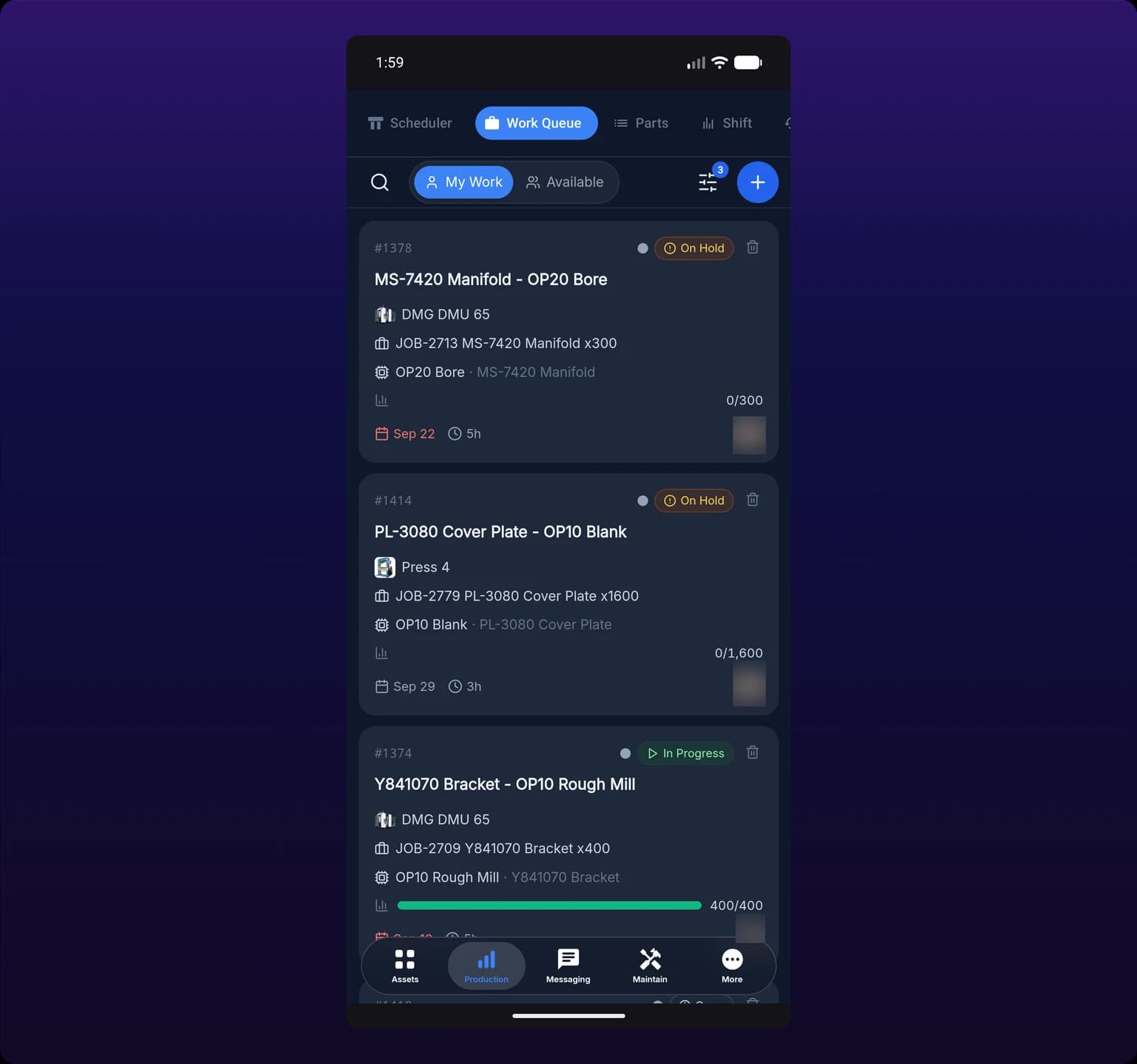
Five things differ from the web:
- The scope control reads My Work and Available, and it sits in the toolbar rather than at the top center.
- The filters move into a Filters sheet, with the card and list switch at the top of it. The filter button carries a count of how many are set.
- A search box opens from the toolbar. It matches the task title, its description, its work order number, the machine name and the parent job title.
- Card mode uses the mobile work order card, which draws a quantity progress bar and honors a count corrected by hand.
- The job page gains a People section listing the requester and the Assignees, with an + Add button beside them. This is the only assign control anywhere in the Work Queue.
Adding yourself toasts Assignee added, and the tap target next to your name removes you again with Assignee removed. A failure reads Failed to add assignee or Failed to remove assignee, and the assignment did not save.
How the queue stays current
The page subscribes to your organization's work order updates. When a task already on your screen changes anywhere in the product, the queue fetches that one task again and redraws its card in place, so a status chip flips to In Progress while you are watching. Bursts are collapsed, so a bulk edit on the board costs one round of updates rather than one per task.
Two limits follow from "already on your screen".
- A task that was not in the queue when it loaded never appears. A job a planner creates while you have the page open is invisible to you until the queue reloads.
- A task never moves between My Work and Available Work on its own. The split is computed once per load, so an assignment that changes under you shows up in the card's contents and not in which list holds it.
The queue reloads whenever the address bar changes: any filter, the status control, the scope toggle. There is no refresh timer and no refresh button, so the quickest way to force a reload is to flip the scope toggle and flip it back.
See also
Board membership decides who can be assigned work on the Scheduler. Your organization has one production board, and you add people to it as named members or as whole teams. The Invite to Scheduler dialog writes as you click, with no Save step: one click adds a person or a team, a crown marks a board owner, and a trash icon removes access. Owner is recorded on the board but the dashboard does not gate anything on it today.
The Create Workorder form adds one task to the production queue: one operation, on one machine, for a quantity of a part. Only the title is required, and every other field is a chip above it. Picking a machine auto-fills the operation, the time estimate and the parts that operation reserves. The form always assigns the new task to you and has no due date control, so work created here lands in My Work and starts out unscheduled on the board. Create from the Scheduler instead when you are planning work for somebody else.