

Try a schedule change without saving it
A sandbox on the Gantt where you move work, change the rules, and read the before-and-after numbers before anything is written.
The scheduler board writes every drag straight to the work order. That is right for one correction and wrong for a plan: pulling a rush order forward, taking a machine down for a day, or resequencing a week takes a dozen moves, and you want to see the whole result before any of it is real.
A Simulation gives you that. It stages your moves, scores them against the schedule you started from, and holds them until you commit or throw them away.
Before you start
- Production Scheduler is part of the Scheduling Engine module. The tab strip renders for every organization, so seeing the Scheduler tab is not proof you are entitled to it. If you are not sure, contact IoTFlows.
- You need membership of the scheduler board. That is a board-level permission rather than an organization role. See Give people access to a scheduler board.
- Simulations run on the Gantt. See Plan jobs in the Production Scheduler.
What a Simulation is
A Simulation is a draft copy of the board that lives in your browser. The draft is the schedule your staged changes would produce, and the baseline is the live schedule frozen the moment you started, which is what the draft is scored against. To commit is to replay your staged changes as real writes.
What a Simulation stages is tasks. A task is one operation of a job on one machine, and it is the record the board's own messages call a work order. Both words appear on this page because both appear on screen.
Run a Simulation when the change is big enough that you want the before-and-after numbers. Edit the board directly for anything you would not bother measuring, and use undo if you get it wrong.
You do not need a Simulation to try the optimizer. The Optimize pill already gives you a reviewable proposal on the live board, covered in Generate a schedule proposal. Reach for a Simulation when you want to combine several changes and score them together.
Start a Simulation
On the Gantt, click Simulations in the control row, to the right of the issues pill.
 The Simulations pill in the Gantt control row, to the right of the issues pill. Clicking it turns the whole board into a draft.

The board tints teal, a dashed teal outline wraps the chart, the pill changes to Simulation on, and the Simulation band appears above the bars. The What-ifs drawer stays closed until you ask for it.
Read the Simulation band
The band carries a SIMULATION badge, the line Draft · nothing is saved yet, the metrics, and the three controls: What ifs, Discard and Commit. Four metrics are always there; Violations makes five when there is one to report.
 The Simulation band as it looks on open, before anything is staged: a SIMULATION badge, the metrics as single numbers, and the What ifs, Discard and Commit controls. Nothing is saved until you commit.

A metric that has not moved shows one number. A metric that has moved shows baseline → draft, in green when the draft is better and rose when it is worse. Every metric is better low, Span included.
Simulation metrics
| Metric | Counts | Better when | Shown when |
|---|---|---|---|
| Violations | Work orders breaking a capacity rule, such as two jobs holding the same tool at once | Lower | The baseline or the draft has at least one, so a permanent 0 never sits there |
| Double-booked | Work orders sharing a machine or another capacity-1 resource with an overlapping bar | Lower | Always |
| Overdue | Scheduled, uncompleted work orders whose due date is already past | Lower | Always |
| Span | The stretch from the earliest start to the latest due date on the board, shown as 12.4d once it passes a day | Lower | Always |
| Unscheduled | Work orders with no due date, which are the chips down the left of the board | Lower | Always |
The baseline is scored against your real rules and the draft against the rules as the Simulation has them, so relaxing a rule moves Violations even when you have staged no moves at all.
Move work in the draft
Everything the Gantt does to a bar, it does in a Simulation: drag a bar to a new time, resize it, drag it into another machine's lane, link a dependency, drag an unscheduled chip onto a date, nudge a whole selection, or take a quick fix from the issues panel. The difference is where the change goes. Instead of a write, it is recorded in a staged ledger and the board redraws from that.
Undo and redo work normally inside the Simulation, and both stacks start empty when it opens, so undo reaches back to the start of your draft and no further.
Repeated edits to one work order collapse into a single staged change. Commit 6 means six work orders, not six gestures.
 The Simulation band after several bars have been moved. The band scores the draft against the frozen live baseline, green for better and rose for worse.

Open the What-ifs drawer
A what-if is a change to the rules or the calendar the draft is planned against, rather than to the work itself. Click What ifs in the band to open the drawer on the right of the board. The controls sit at the top and an Impact report sits under them.
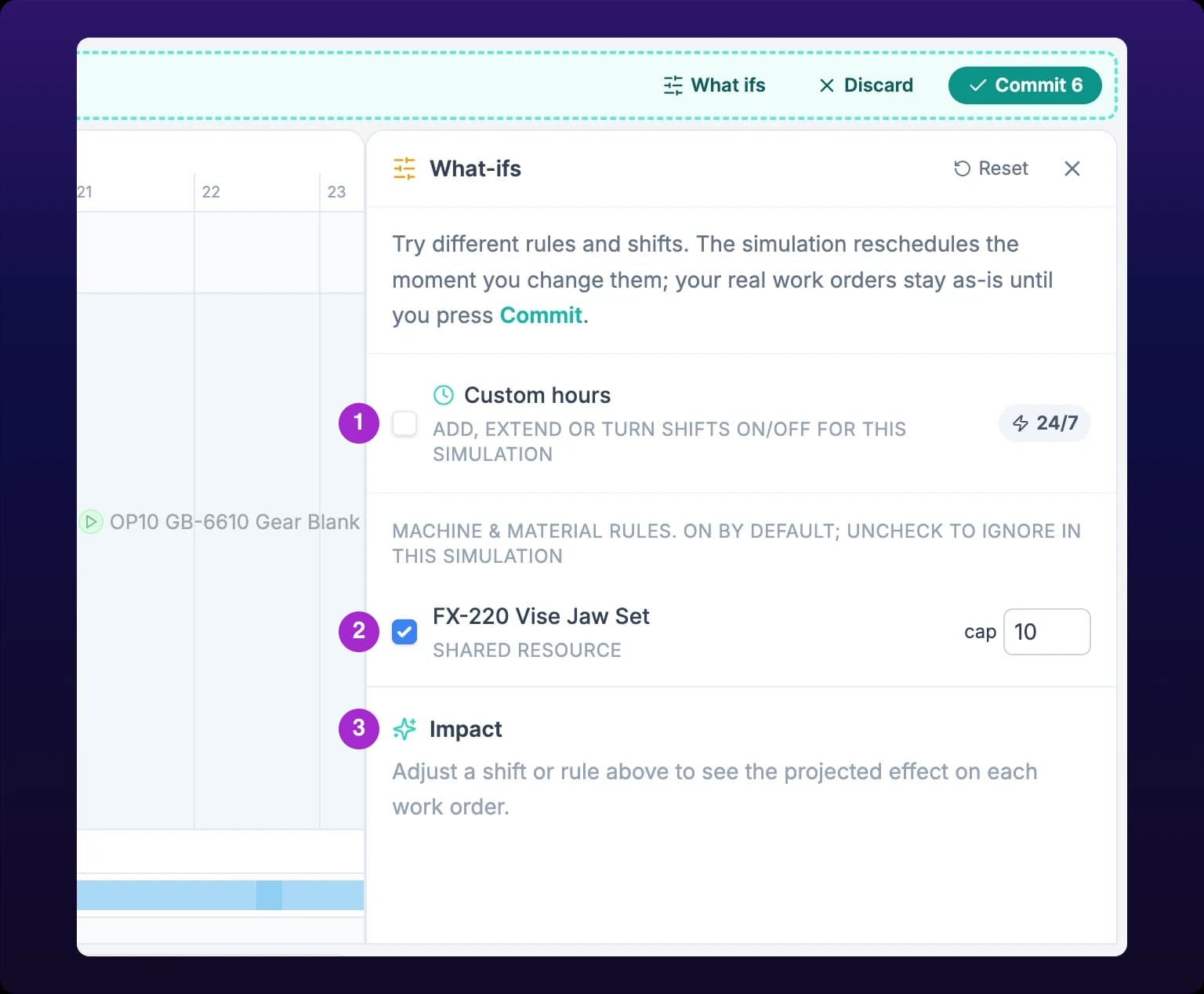 The What-ifs drawer, open beside the board. These overrides apply to the draft only and never change your real shifts or rules.
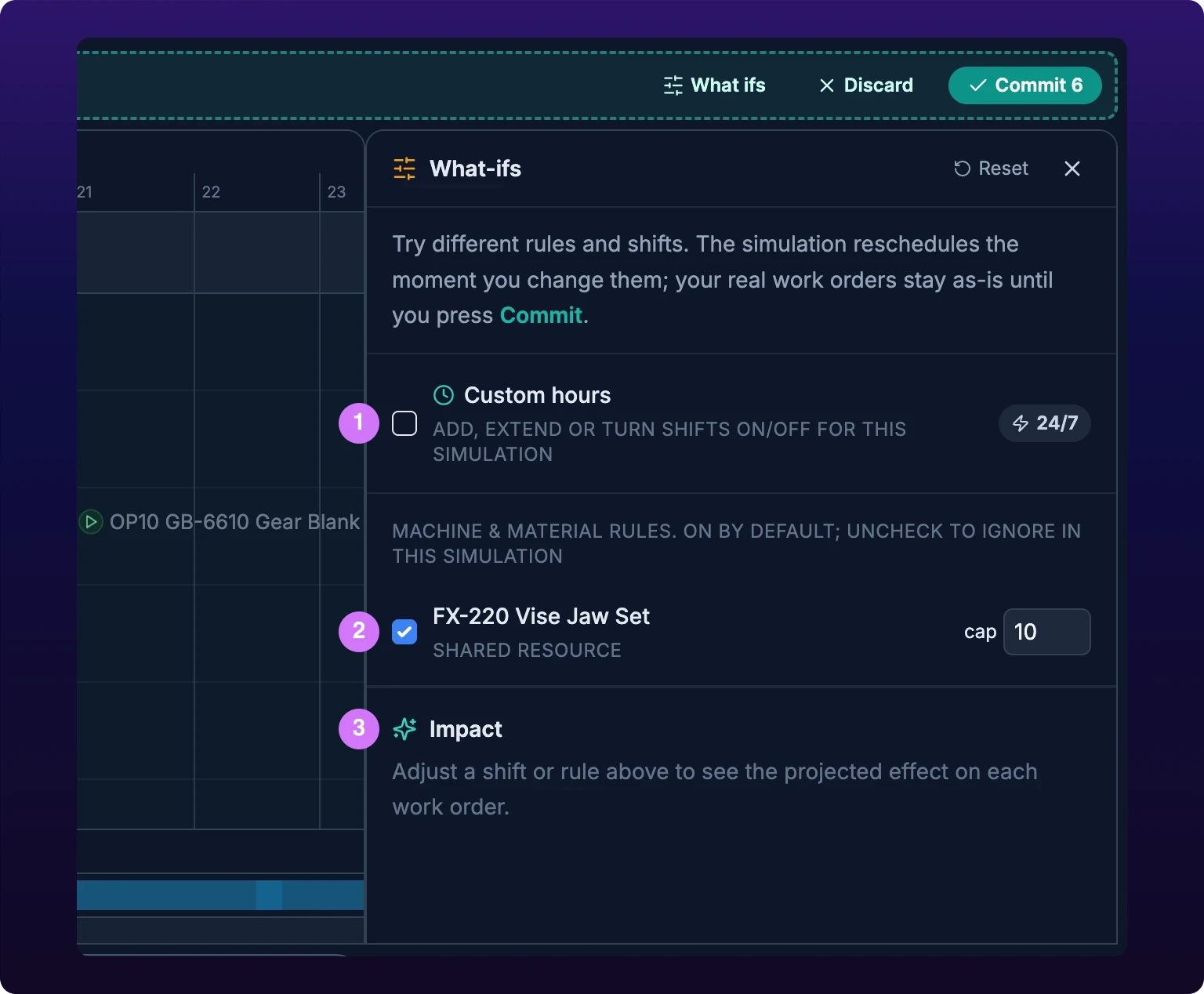
What-ifs overrides
| Override | Affects | Applies to | Persists after commit |
|---|---|---|---|
| Custom hours | The working calendar the draft is planned against | This draft, in this browser | No |
| A shift inside Custom hours, on or off | Whether that shift's time counts as available | This draft, in this browser | No |
| A machine or material rule, on or off | Whether the rule raises violations and constrains the optimizer | This draft, in this browser | No |
| cap on a shared resource | How many units of that resource the draft may use at once | This draft, in this browser | No |
Nothing in the drawer is ever saved. Commit writes the staged work orders and only those, so a draft built on an imagined Saturday shift commits the dates you staged, not the shift.
Once you change any of these, the Impact report below fills in. It runs the optimizer against your simulated rules and calendar and reports what re-planning would buy you: a headline finish date for the batch, how many days sooner or later that is, and a row per work order with its current due date, its projected one and the delta.
The report is tagged Advisory and has no Apply button, because it is priced in hours and rules that are not real. To act on it, move the bars yourself and commit.
Try different working hours
Check Custom hours. The drawer seeds an editable copy of every real shift your organization has, all switched on.
From there you can uncheck a shift to take it out of the draft, rename it, retime its days, set its start and end, extend its end by +2h or +4h, or add a shift that does not exist. 24/7 replaces the lot with one around-the-clock block, and clicking it again puts your real shifts back.
Only the checked shifts build the draft's calendar. A running total tells you what you bought: +16h working time / week, or No added working time. These hours are already covered by your shifts. when the change lands on time you already had.
 With Custom hours on, the toolbar's Working hours pill is locked and controlled from the What-ifs drawer.

With Custom hours on, the toolbar's Working hours pill locks. It stays filled but dims, and hovering it gives the reason: Controlled by Custom hours in the What-ifs panel. The override already forces the draft to schedule inside working time, so the toggle has nothing left to say.
Use custom hours to answer "what would a Saturday shift buy me", then take that answer to whoever schedules shifts. It changes the projection, never the plan. Real shifts are set once for the whole organization in Shifts and timezone.
Relax a rule
Under Custom hours, the drawer lists the machine and material rules the board actually has, checked on. Uncheck one and the draft ignores it. Where a rule carries a number, such as how many of a reusable tool you own, edit the cap instead of turning it off, which is how you ask what three more would be worth.
Rule overrides are warn-only. An ignored rule stops raising violations and stops constraining the optimizer, but neither the rule nor the override blocks an edit: the board lets you make the move and tells you what it costs.
Today those rows come from reusable tooling reserved on work orders. Serialized pieces never appear in the list, because one physical bar or roll is a capacity of exactly 1 and there is nothing to dial. They still raise violations in the draft like any other conflict.
Run the optimizer inside a Simulation
The Optimize pill keeps working inside a Simulation, and it plans against your simulated rules and calendar rather than the real ones. The proposal renders as dashed ghost bars with its own banner.
Apply behaves differently here. Instead of writing, it stages every move it proposes, so the count on Commit jumps by the number of bars it moved and the metrics rescore against the same frozen baseline. You can then keep editing by hand before deciding.
Optimize is unavailable in Sequence view, and regrouping the board clears an open proposal.
Commit the draft
Commit writes the staged work orders to the real schedule. The button carries the count, is disabled until something is staged, and takes you back to the live board when it finishes.
 Commit writes the staged changes to the real schedule. The number on the button is work orders, not edits.

Can you undo a commit? No. Entering and leaving a Simulation both clear the undo history, and the commit is not added to it, so there is no single action that takes the schedule back. Read the metrics before you press it.
Each staged work order is written on its own. If some of those writes fail you get 3 of 6 updates failed, reverted: the three that failed go back to the values they had at the baseline, the other three are saved, and the Simulation closes either way. Run it again for the ones that did not take.
Discard the draft
Discard throws the draft away and returns the board to the live schedule. It does not ask. The staged changes, the rule overrides and the custom hours all go at once, and the undo history goes with them, so there is no way back to a discarded draft.
Clicking Simulation on leaves the same way when nothing is staged. Once something is staged, that pill stops working and tells you so: Use Commit or Discard in the Simulation band to leave.
What you cannot do while a Simulation is open
A few actions write real data and have no staged form, so the board refuses them and says why.
| Action | What happens instead |
|---|---|
| Delete a work order, from the bottom bar, the right-click menu or the Delete key | Exit scenario mode to delete work orders, and nothing is deleted. This message names the feature by its internal name; everything else calls it a Simulation |
| Click a bar to open the work order's details panel | Commit or discard the Simulation to open a work order. |
| Click a work-session block, or open work sessions from the right-click menu | Commit or discard the Simulation to edit work sessions. |
| Click Simulation on with changes staged | Use Commit or Discard in the Simulation band to leave. |
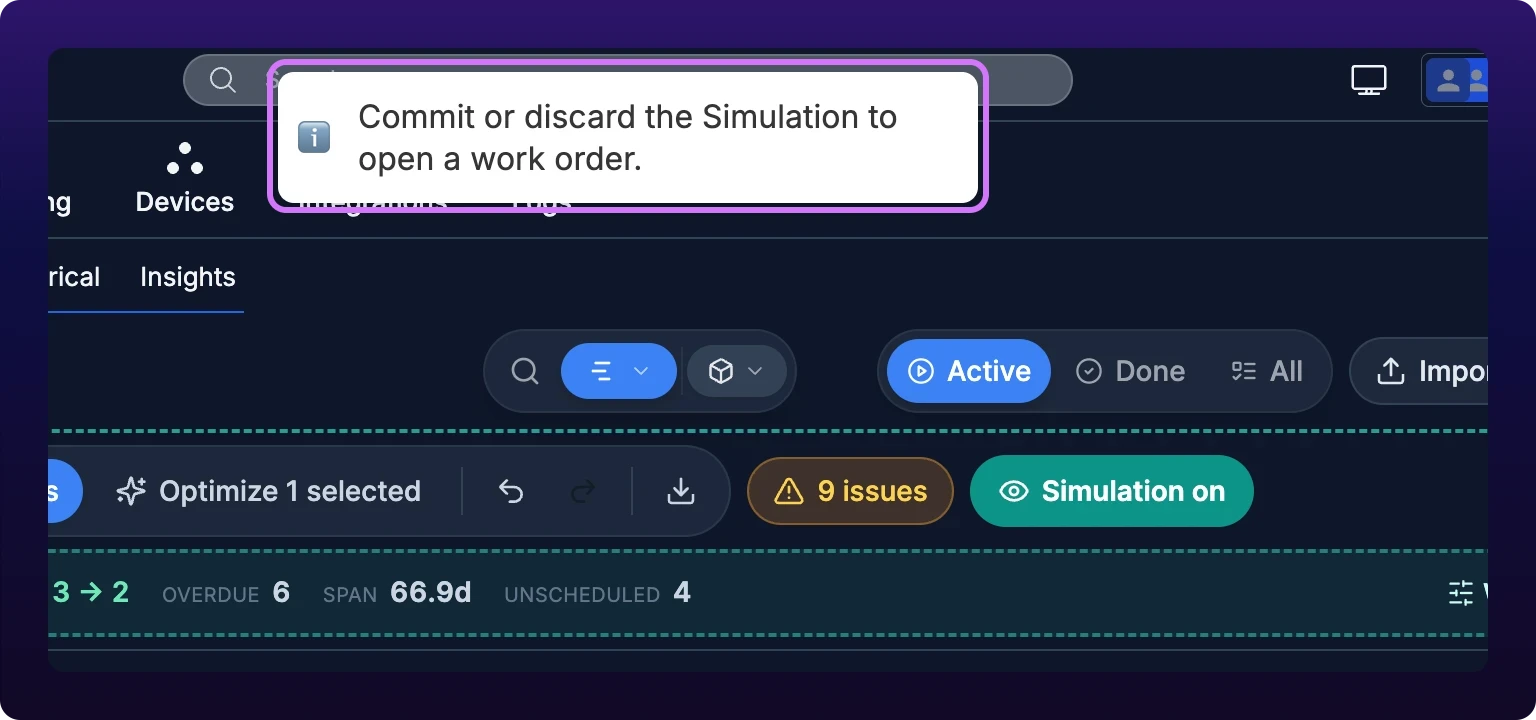
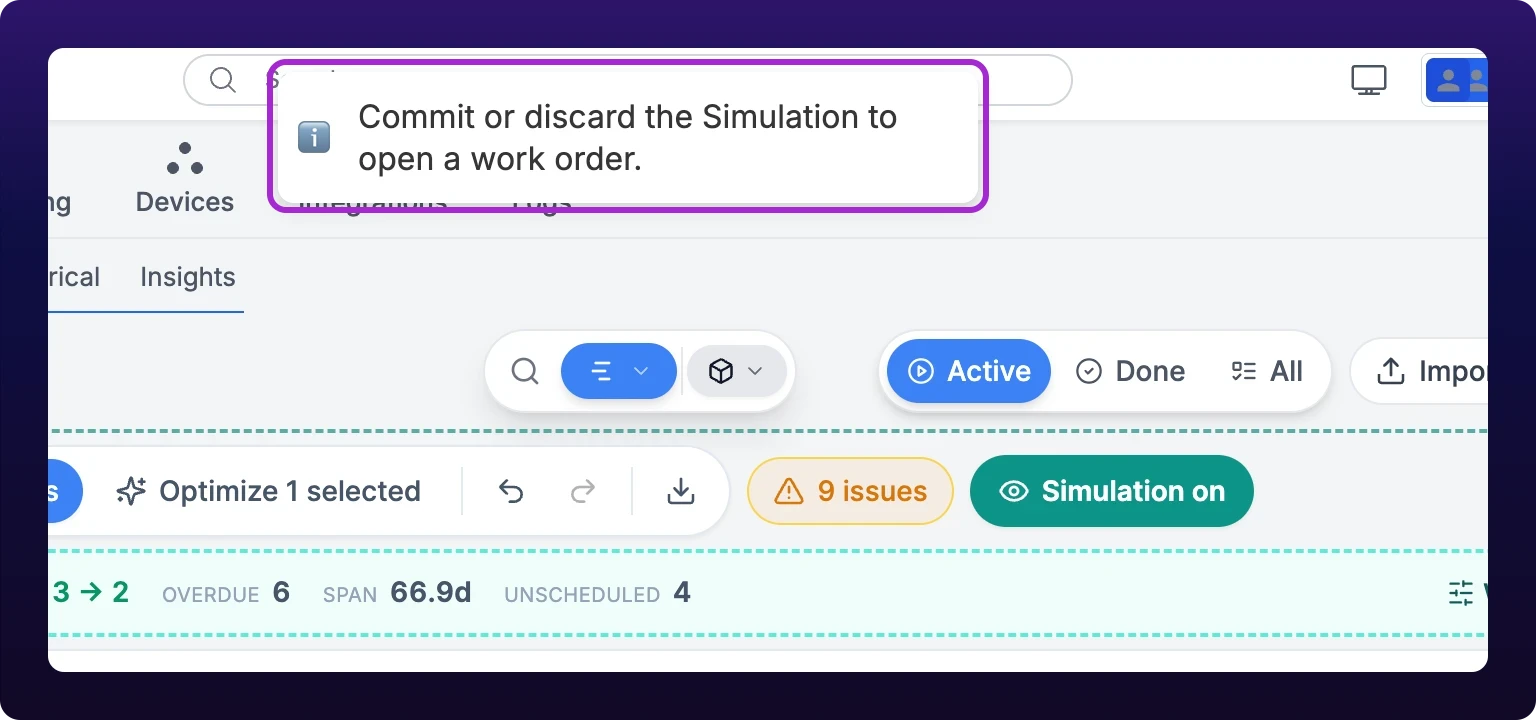 Opening a work order inside a Simulation raises a toast instead. Deleting a work order, opening the details panel and editing work sessions all wait until you commit or discard.
The draft itself is stored in your browser, separately from your view preferences, under the key schedulerGanttScenario. Two consequences worth knowing. A page reload restores an open Simulation exactly as you left it, and the key is removed the moment you commit or discard.
The other consequence is a trap. Switching to List, Table, Kanban or Calendar leaves the Simulation on, and those views show the live schedule rather than your draft, because staged changes exist only on the Gantt. An edit made there writes straight through.
When someone else changes the live schedule
The board keeps receiving updates while your Simulation is open, but the draft holds the values it froze on the work orders it is drawing. A colleague dragging a bar you are planning around does not shift the experiment under you. Regrouping and filtering flow through as normal, since those change which rows you see rather than what they say.
When you leave, IoTFlows compares the frozen baseline with what is now live and tells you how far it drifted: 4 live changes happened while your Simulation was open. Showing the current schedule now.
The last write wins. Your commit is a write, so it overwrites whatever a colleague set on the same work order while you were planning, and anything they change after your commit overwrites yours. On a busy board, that is an argument for short Simulations.
See also
The Production Scheduler at /production?select=scheduler shows one production schedule in five views: List, Table, Gantt, Kanban and Calendar. Table is the default and the only view with a CSV button. Grouping by asset, job or operator changes what the rows and columns mean in every view but Calendar. Dragging work between machines, editing in place and linking dependent tasks all write straight to the work order and revert on screen if the write fails. The Gantt carries Sequence view, Working hours mode, the work-sessions strip, unscheduled chips and the capacity lane.
The Optimize pill on the scheduler Gantt computes a constraint-aware plan and draws it as dashed indigo ghost bars with a banner reading violations and span before and after. Nothing is written until you click Apply, which saves every included move as one undoable batch. Completed, locked and in-progress work is pinned and never moves, and a scoped run on a selection holds the rest of the board fixed and plans the selection around it. Clicking a ghost skips that move, so you can apply part of a proposal.