

Generate a schedule proposal
Let IoTFlows compute a constraint-aware plan from the work already on the board, then review it before any of it is written.
Resequencing a busy week by hand means holding dependencies, machine availability, shift hours and tool contention in your head at once. The optimizer does that arithmetic and hands you the answer as a preview.
It writes nothing on its own. You get a set of proposed bars and a banner of numbers, and you decide whether the numbers are worth the moves.
Before you start
- Production Scheduler is part of the Scheduling Engine module. The tab strip renders for every organization, so seeing the Scheduler tab is not proof you are entitled to it. If you are not sure, contact IoTFlows.
- You need edit access to the board. See Give people access to a scheduler board.
- The work needs Time Estimate values. A task without one is planned as an hour, which is rarely right. See Create a production work order.
- Optimize runs on the Gantt. See Plan jobs in the Production Scheduler.
What Optimize does
A proposal is a computed plan the board shows you but has not saved. The optimizer walks your work orders in dependency order, earliest due date first, and gives each one the earliest slot where its machine, its materials and its predecessors all allow it.
It only ever changes two things on a work order: the due date and the Time Estimate. Quantities, statuses, assignees, dependencies and the machine stay exactly as they are.
Put real Time Estimates on the work before you judge the optimizer. A task with no estimate is drawn as a one-hour bar carrying a ~1h chip, and the plan is only as good as the durations it is given. A board where most bars read ~1h produces a thin proposal, and that is the most common cause of a disappointing first run.
Run it on the whole board
With nothing selected, click Optimize in the Gantt toolbar. The proposal appears immediately, since it is computed in your browser.
 The Optimize pill in the Gantt toolbar, after Sequence, Working hours and Work sessions. It plans against the Time Estimate on each task, so a task without one is planned as an hour.

Run it on a selection first. A whole-board run on a busy schedule moves work people have already promised to customers, and the fastest way to lose trust in the optimizer is to apply one of those. Optimize only what you selected is the safer first run.
Should Working hours be on? Turn it on before you optimize if the plan has to stay inside shifts. The optimizer reads the same toggle the bars do: with Working hours off it plans straight through nights and weekends, and the proposal will be shorter than anything the floor can deliver. See Turn on Working hours.
Optimize is unavailable in Sequence view, because those bars stand for order rather than time and carry no time axis to move along.
Review the proposal
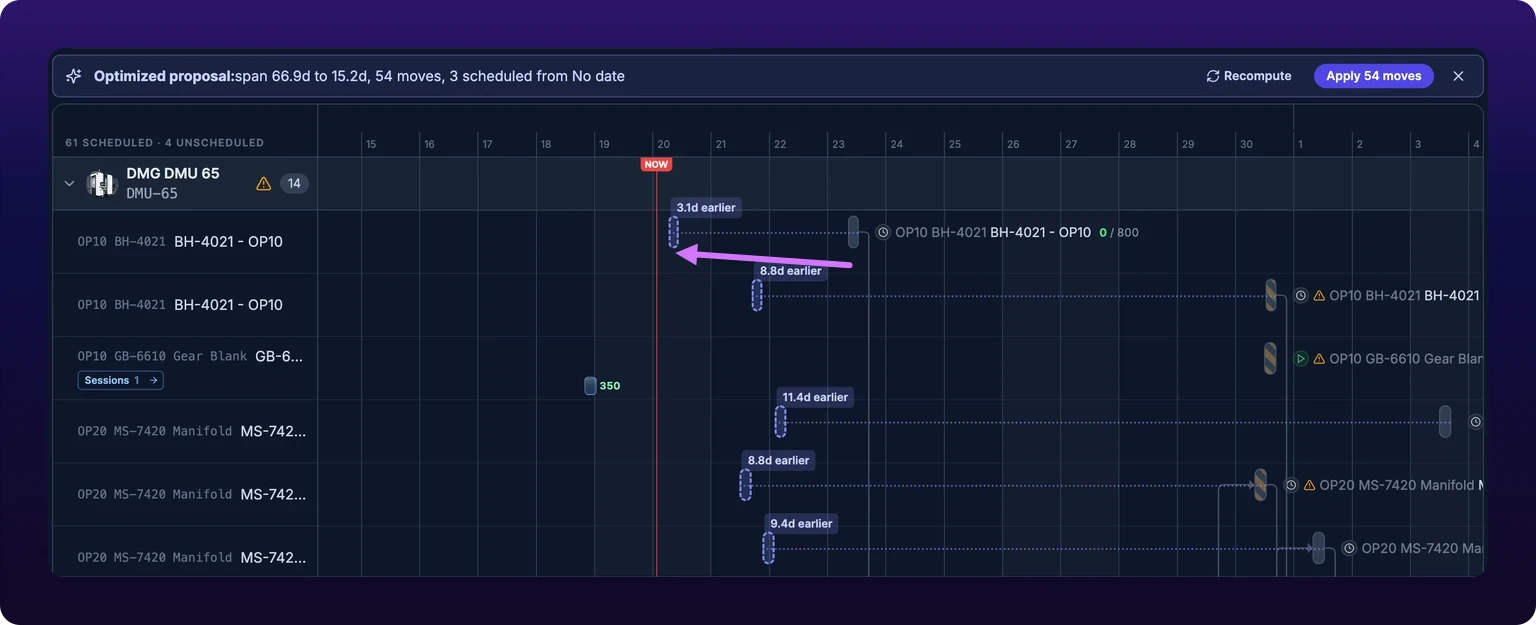
Every move is drawn as a dashed indigo ghost bar at the proposed time, joined to its live bar by a dotted line, with a chip above it reading how far it shifts: 6h later, 1.2d earlier, or gets scheduled for a task that had no date.
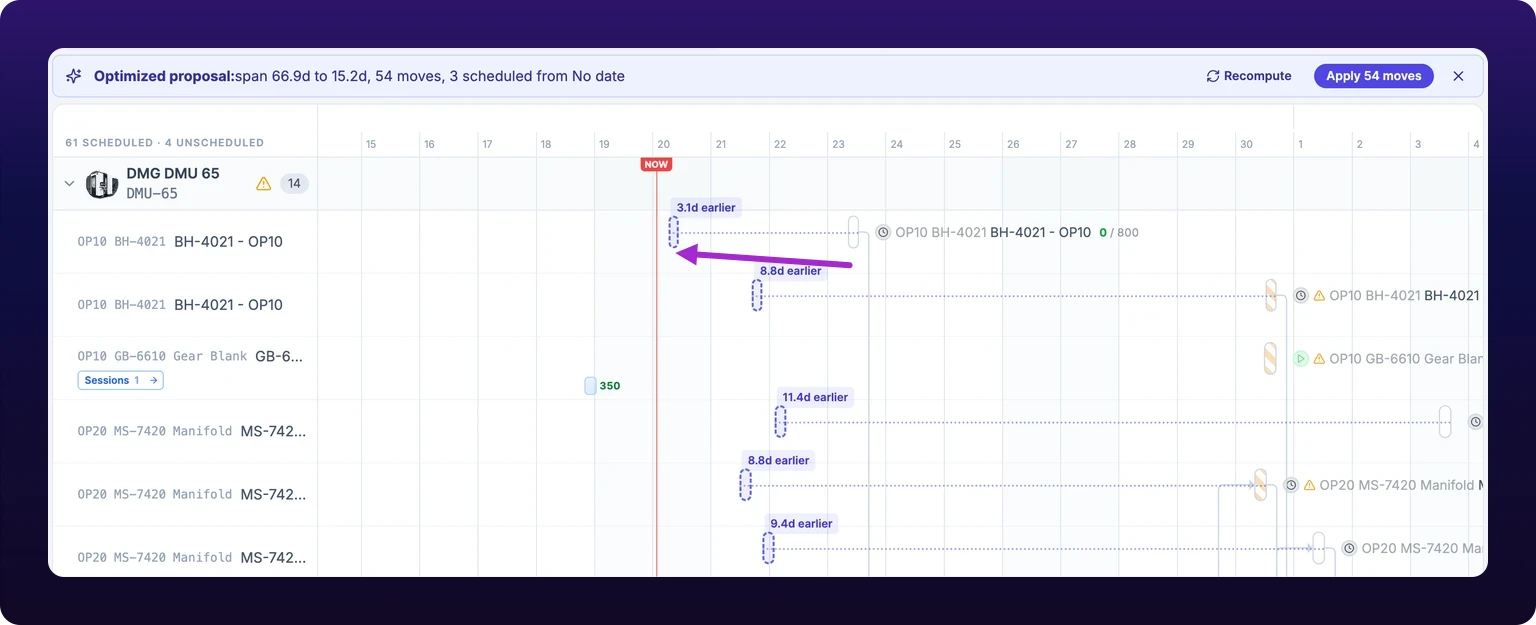 An optimizer proposal on the Gantt. Each move it suggests is drawn as a dashed indigo ghost bar, joined to the live bar by a dotted line, and nothing is written until you apply.
You do not need to accept the whole proposal. Click a ghost to skip that one move: it turns gray, takes a skipped label, and Apply relabels itself Apply 12 of 18. Click it again to put the move back.
Skipping is how you protect a job you have already promised without losing the rest of the plan. To protect it permanently, right-click the bar and choose Lock scheduling instead, which takes it out of every future run.
Read the banner
Span is the stretch from the earliest start to the latest finish across the board's scheduled work, written as 66.9d. Lower is better.
The banner above the chart is one sentence of numbers followed by the three actions. It reads, in order: violations before and after, span before and after, the number of moves, and the number of tasks scheduled from No date. Violations only appear when the board has at least one before or after, so a permanent 0 to 0 never sits there.
 The proposal banner: one line reading violations and span before and after with the number of moves, then Recompute, Apply and the cross that discards.

If span barely moves and violations do not fall, discard it. Eighteen moves that buy half a day are eighteen conversations you now owe the floor, and a proposal that gains nothing is telling you the schedule was not the problem.
The banner does not report double-booked machines. To see that number change, check the issues pill before and after, or run the optimizer inside a Simulation, whose band carries Double-booked as its own metric.
Proposal actions
| Action | Effect | Undoable |
|---|---|---|
| Click a ghost bar | Skips that move and dims the ghost. Apply relabels to Apply 12 of 18 | Nothing is written yet |
| Apply N moves | Writes a due date and a Time Estimate to every included work order | Yes, as one step |
| Recompute | Discards this proposal and runs the optimizer again over the same scope | Nothing is written |
| The cross at the right end | Discards the proposal and leaves the board as it was | Nothing is written |
| Clicking Optimize again | Same as the cross | Nothing is written |
| Regrouping the board | Clears the proposal | Nothing is written |
Apply the proposal
Apply saves every move you did not skip. Each work order is written on its own, and the whole set lands in the undo history as a single entry, so one Undo puts the schedule back where it was. A run of more than one work order confirms with Apply optimized schedule · 18 work orders.
What does Apply write to a task with no estimate? The one-hour default. A ~1h bar that moves comes back with a real Time Estimate of 60 minutes, which then looks like a number somebody chose. Set the estimates you know before you apply, not after.
If some of those writes fail you get 4 of 18 updates failed, reverted: the four that failed go back to the dates they had, the rest are saved, and the proposal closes either way. Run it again for the ones that did not take.
Inside a Simulation, Apply stages the moves instead of writing them, so they join the draft and wait for Commit. See Run the optimizer inside a Simulation.
Recompute
A proposal goes stale the moment one of the work orders in it changes underneath you, whether you dragged the bar, edited it in the drawer, or a colleague moved it. The banner replaces its numbers with The schedule changed while previewing. Recompute to get a fresh proposal. and Apply is disabled until you do.
 When a work order in the proposal changes, the banner replaces its numbers with a line saying the schedule changed, and Apply is disabled until you recompute.

Only the due date, machine and duration of a work order the proposal moves are watched. Editing a title, or a bar the proposal left alone, does not flip the banner.
Recompute reruns the optimizer over the same scope the proposal started with, so a scoped run stays scoped. Any ghosts you had skipped come back included.
Discard
Click the cross at the right end of the banner to throw the proposal away. Clicking Optimize again does the same thing, and so does regrouping the board. Nothing was written, so there is nothing to put back.
Optimize only what you selected
A scoped run is a run that may move only the work orders you selected. Select bars first, by dragging a box across the chart, Shift-clicking to add, or holding Ctrl and clicking one bar to take its whole dependency chain. The pill then reads Optimize 5 selected.
 With bars selected, the pill reads Optimize 5 selected. A scoped run may move only those five work orders and plans them around everything else.

Everything outside the selection is held exactly where it is. It still reserves its machine time and its materials first, so the selection is planned around the untouched work rather than on top of it, and an unselected predecessor still sets the floor for a selected successor.
The banner names the scope: Optimized 5 selected:, then the same numbers. Press Esc to clear the selection when you are done.
Select a rush order and its chain, run it, read the span, and you have asked "how early can this finish without disturbing anything else" and got an answer in one gesture.
What it will not move
Pinned work keeps its dates and its machine and is reserved before anything else is placed. Three things are pinned, always: work that is Completed, work that is In Progress, and work you locked with Lock scheduling on the bar's right-click menu. A locked bar carries a padlock and cannot be dragged by hand either.
Select only pinned work and there is nothing to plan. The board says so rather than opening an empty banner: Nothing to optimize in the selection: those work orders are completed, locked or in progress.
A run that finds no improvement is also a valid answer, not a failure. The banner opens reading 0 moves with Apply disabled, which means the optimizer could not beat the plan you already have.
What it respects
What Optimize respects and what it pins
| Input | Treated as | Notes |
|---|---|---|
| Completed, in-progress and locked work | Pinned | Reserved first, then planned around |
| Everything outside the selection, on a scoped run | Pinned | Same treatment as completed work, for that run only |
| Dependencies | Hard constraint | A task starts no earlier than its predecessor finishes, pinned predecessors included |
| One job at a time per machine | Hard constraint | Keyed to the machine on the work order, so the answer is the same in every grouping |
| Working hours | Respected when Working hours is on | Off, the plan runs through nights and weekends |
| Setup time on the work order | Added before the task starts | Arrives from your ERP import or the API; no dashboard field sets it |
| A serialized piece or a reusable tool | Capacity constraint | Work waits for the piece or the tool to come free. See the capacity lane |
| Demand larger than the shop owns | Placed anyway | No amount of moving fixes it, so it stays flagged as a violation |
| Now | Floor | Nothing is planned into the past, so overdue work all comes forward |
| The machine on the task | Untouched | The optimizer plans each task on the machine it already has |
| A task with no due date | Pulled in when it has a machine | It gets a date and the banner counts it under scheduled from No date |
Tasks with no due date and no machine stay in the unscheduled chips down the left of the board. Give one a machine, or drag it onto a date yourself, and the next run will plan it. See Schedule work that has no dates.
See also
From the blog
A Simulation is a sandbox on the scheduler Gantt. Every move is staged in your browser instead of being written, and a dashed teal band scores the draft against the live schedule frozen at the moment you started, on violations, double-bookings, overdue work, span and unscheduled tasks. The What-ifs drawer adds custom working hours and rule relaxations that change the projection but are never saved. Commit writes the staged work orders and cannot be undone; Discard throws the draft away without asking.
The Schedule issues pill on the scheduler Gantt is the one place that lists everything wrong with the board: machines booked twice at the same time, serialized pieces two work orders both need, tooling with no units free, past-due work and work waiting on a predecessor that cannot finish in time. It is always on screen, including at zero, and its count is distinct work orders rather than findings. Conflicts and violations come first and carry one-click fixes that move the task to the earliest free slot; the two at-risk sections come last and are folded, because moving an overdue job's date is a judgment call rather than a repair.