

Create a production work order
Put a task in the queue with the machine, the operation, the quantity and the files an operator needs to run it.
The Create Workorder form adds one task to the production queue: one operation, on one machine, for a quantity of one part. It is the same form on the web and in the mobile app.
Only the title is required. Every other field is a chip in the row above the title, and each chip opens a small panel over the form.
Before you start
- Production Scheduler is part of the Scheduling Engine module. Seeing the Work Queue tab is not proof you are entitled to it. See Module entitlement.
- A part with at least one operation, if you want the task to count anything. See Create parts and operations. You can create both from inside this form, see Operation and quantity.
- Nothing on this form is role-gated. Any member of the organization can open it and create work.
- The camera tile is mobile only. See Install the mobile app.
Creating work for somebody else?
Use the board, not this form. The Work Queue form always assigns the new task to you and has no due date control.
The Scheduler's Create button opens a longer version of the same dialog, adding Priority, Due Date, Assignee, Budget and Notes. See Plan jobs in the Production Scheduler.
Open the create form
- Go to the Work Queue at
/production?select=work_queue. - Press the blue circular + at the top right of the toolbar.
The dialog opens headed Create Workorder. It also opens from the + in the mobile toolbar, labeled Create work order, and from the Jobs tab of a machine page, where the machine is filled in for you. See Run a job from the machine page.
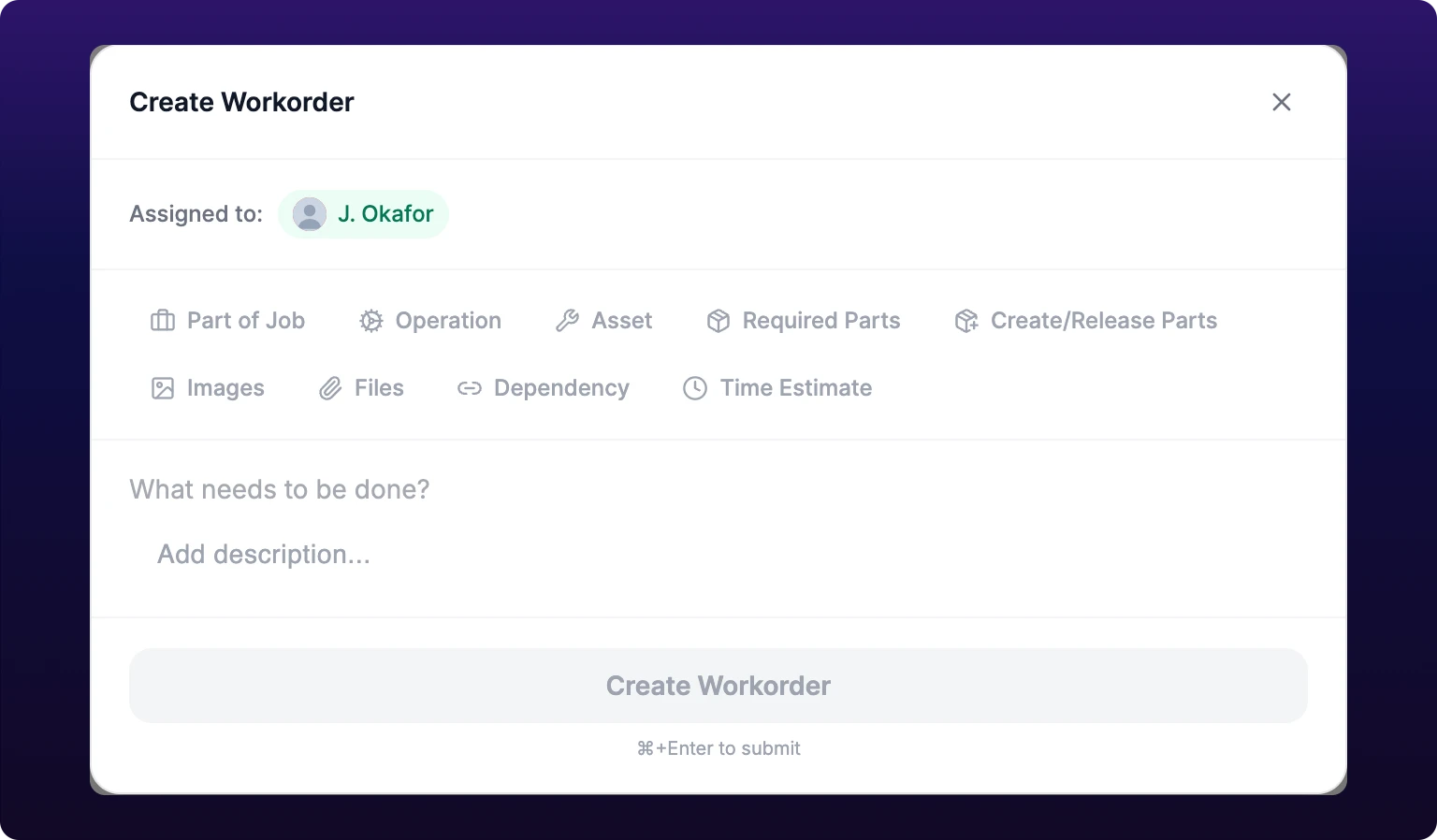 The Create Workorder dialog as it opens from the Work Queue, with every field collapsed into the chip row above the title.
The form resets every time it opens. Nothing is kept from the last work order you created, so a dialog you close by accident is a dialog you retype.
Press Cmd+Enter, or Ctrl+Enter on Windows, to submit without reaching for the button. The footer says which one your machine takes.
Machine and parent job
Asset is the machine that will run the task. Open the chip, search by name or identifier, and pick one. The list shows thirty machines at a time, so search rather than scroll in a large plant.
Part of Job is the parent job, the order this task belongs to: a quantity of a part, due on a date, that fans out into one task per operation. Tasks that share a parent job show the same job chip on every card in the queue.
 The Asset and Part of Job chips at the head of the chip row. Choosing a machine fills in the operation, and the parent job too when that machine already has queued work.

Choosing a machine fills in two other fields for you. The Operation chip takes the operation the machine is auto-detecting, the one its sensor is already counting against. The Part of Job chip takes the parent job of the machine's most advanced open task, preferring one in progress, then one on hold, then one not started.
Both are suggestions. Clear either chip and pick your own, and nothing refills it until you change the machine again.
To start a job that does not exist yet, open Part of Job and press Create new job. That opens the Create Job dialog, where you name the job, choose or create its part, set a quantity and a due date, and the new job is selected here when you save it.
Create Job can create a whole routing
The Create a workorder for each operation toggle in that dialog is off by default, and its button reads Create Job.
Turn it on and the button changes to Create Job + 4 Workorders. Saving then posts one task per operation on the part's routing, its ordered list of operations, on top of the one you are filling in here.
Read the button before you press it.
Operation and quantity
Operation is the step this task performs, for example OP20 Turn on part BH-4021. The picker groups operations under their part, and searches both names on the server, so typing a part number finds every operation on it.
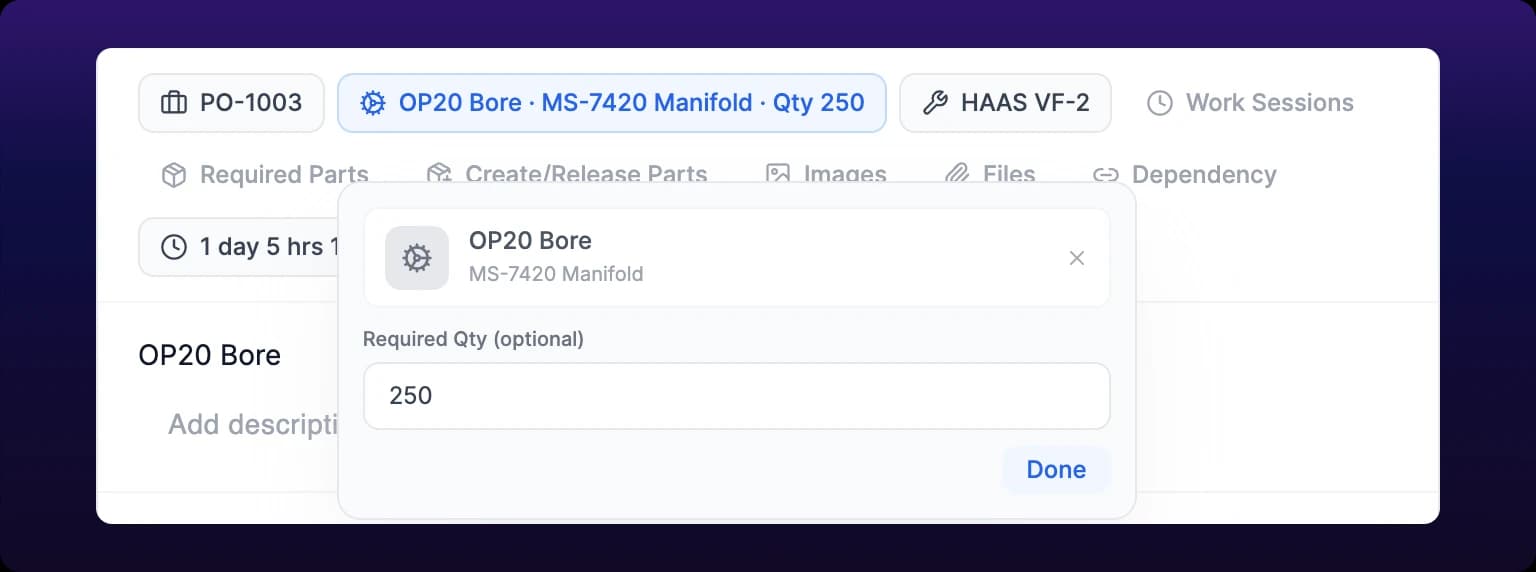 The Operation chip open on a chosen operation, with the Required Qty (optional) box beneath it.
Required Qty (optional) appears under the operation once one is chosen. It is how many good parts this task is for, and it is what the queue counts against, for example 12/250 pcs on the card.
Choosing an operation overwrites the title
The title follows the operation name, every time the operation changes. Type Rush order for Acme first, then pick OP20 Turn, and the title reads OP20 Turn.
Set the operation first, then write the title.
Create a part or an operation without leaving the form
Press Create New Operation in the operation panel to switch the panel into create mode. It works on every platform, not only in the mobile app.
- Search for the part, or type a new name and press the create row. The form posts the part and toasts Part created.
- Type the operation name. More details (optional) expands to a description, a quantity per cycle, an ideal cycle time in seconds, and a detection algorithm.
- Press create. The form toasts Operation created and lists the new operation under the part.
A part created this way arrives with no usable operation. The API creates a placeholder called Untitled Operation and the form deletes it, so step 2 is not optional if you want the task to count anything. For the full field list, see Operation fields.
Work sessions
A session is one run of a task: a start, an end, the good parts made and the scrap logged against them. The Work Sessions chip appears only once both a machine and an operation are set, because a session logs parts made for that operation on that machine.
Press the chip, then Add Work Session. The New Work Session editor opens with a Start and End, a Good Parts stepper, scrap rows carrying a reason and a note, and a free note field.
Sessions staged here are held on the form. Nothing is posted until you create the work order, so a session you stage and then delete costs nothing.
Opened from the Work Queue, the editor defaults to the last hour. Opened from a machine's Jobs tab it fills the gap instead: from the end of the previous finished session on that machine, or from the shift start, up to now.
The editor refuses a window it cannot store. It reads Start time must be before end time, Start and end time cannot be the same, Session cannot start in the future, Session cannot end in the future, or Overlaps with another session naming the job and the times it collides with.
Set workorder status appears under the staged sessions as soon as one of them has both a start and an end. It offers On Hold and Completed, and applies that status to the new work order after it is created. Leave it alone to create the task at Not Started.
Use it when you are recording work that already happened. A task you are backfilling at the end of a shift is finished, and creating it at Not Started leaves the queue claiming there is work to do.
Required and created parts
Required Parts is what the task consumes, and Create/Release Parts is what it leaves behind: a part it makes, or a tool it hands back to the crib. Each line names a part, a location to take it from or put it into, and an amount.
Both lists fill themselves from the operation. When the chosen operation has material rules, choosing it stages every rule as a line and scales the amounts to the quantity you entered.
For example, an operation that takes two carbide inserts per part stages Carbide insert CNMG-432 x 500 against a quantity of 250. See Bind materials to an operation.
A staged line reserves nothing until it has both a location and an amount above zero. A line missing either turns amber and reads Set a location, or this part is not reserved, and the chip count turns amber with it.
Pressing Create Workorder with an amber line stops once and explains itself: 2 staged parts will not be reserved: set a location and an amount, or press Create again to continue without them. Fix the lines, or press the button a second time to create the work order without them.
Delete a line and it stays deleted. The prefill remembers what you removed and does not put it back when you change the quantity.
Images and files
Images takes photographs and drawings that should render inline, and Files takes everything else. Both accept a drop as well as a click, and both upload as soon as the file lands.
Images are converted to WebP and capped at 1600 px on the long edge before upload, so a phone photograph does not arrive as an 8 MB file. The chip accepts JPEG, PNG, GIF, WebP, BMP and SVG, and rejects anything else with <name> is not a valid image. Send a PDF or a STEP file through Files instead.
You do not need to attach the drawing to every task. Attach it to the part once, in the Parts List, and every task on that part's operations shows it.
The Files panel in the job runner, the page an operator opens a task on, has two sections: Work Order Files and Part Files. It reads both. See Add pictures and files.
Dependency
A dependency says this task cannot start until another one is done. Open the chip, search the production work orders by title, operation or part, and pick the predecessor.
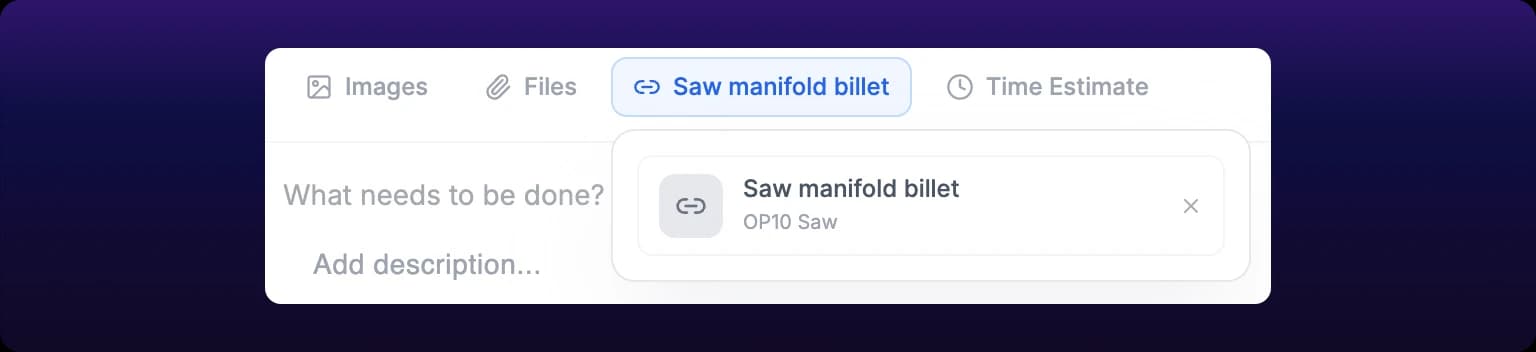 The Dependency chip open on a chosen predecessor. Set one only when this task truly cannot start until that one finishes.
Each result shows a title over an operation, and never the job it belongs to. The same operation queued on two different orders gives two results that read identically, so a search that returns a pair tells you nothing about which one to pick. Search the title rather than the operation when the distinction matters, or set the link on the Gantt instead, where the task carries its job.
Set a dependency only when the second task genuinely cannot start first. Dependencies constrain the Gantt, and a schedule over-constrained on the first pass is harder to debug than a late job. Sawing before turning is a dependency; running two unrelated jobs in a preferred order is not.
Once set, the link drives three things on the board: an arrow on the Gantt, a Predecessor is late entry in Schedule issues when the predecessor cannot finish in time, and the red bar that goes with it. See Link dependent tasks and Waiting on a late predecessor.
The operator never sees it. The job runner has no dependency field, so a task whose predecessor is unfinished still looks ready to start from the floor.
This form does not check for a cycle. The Gantt does, and refuses a link that would create one with That link would create a circular dependency, so an impossible chain built here surfaces the next time somebody drags it.
Time estimate and due date
The estimate is how long the task should take. It is what the Gantt draws the bar from and what the optimizer packs against, and it is the field most often left empty.
Time Estimate takes free text. 2h 30m, 90m, 1 day 3 hours and a bare 90 all parse; anything else reads Invalid format in red under the input and is discarded on create.
The form fills it in for you from the operation's ideal cycle time times the quantity, and says where the number came from: Estimated from 45s cycle x 250 pcs. Edit it or clear it once and the form stops touching it, even if you change the operation afterwards.
This form cannot set a due date
There is no due date control anywhere on it. A task created here has no due date, which makes it unscheduled: it keeps a row in the Gantt's left rail with a crossed-out calendar, and a chip pinned down the left edge of the chart instead of a bar.
Give it a date in the board's Table view before you expect it to schedule. See Schedule work that has no dates and Edit in place.
Priority is set for you the same silent way. The form takes the first priority in your organization's list and offers no picker, so change it on the board if it matters.
Create the work order
Press Create Workorder. The button stays grayed out until the title has text in it, which is the form's only validation.
The form always assigns the new task to you. The Assigned to line above the chip row names you, it is read-only, and there is no assignee picker. A task created here lands in your My Work list rather than in the Available Work list everybody shares.
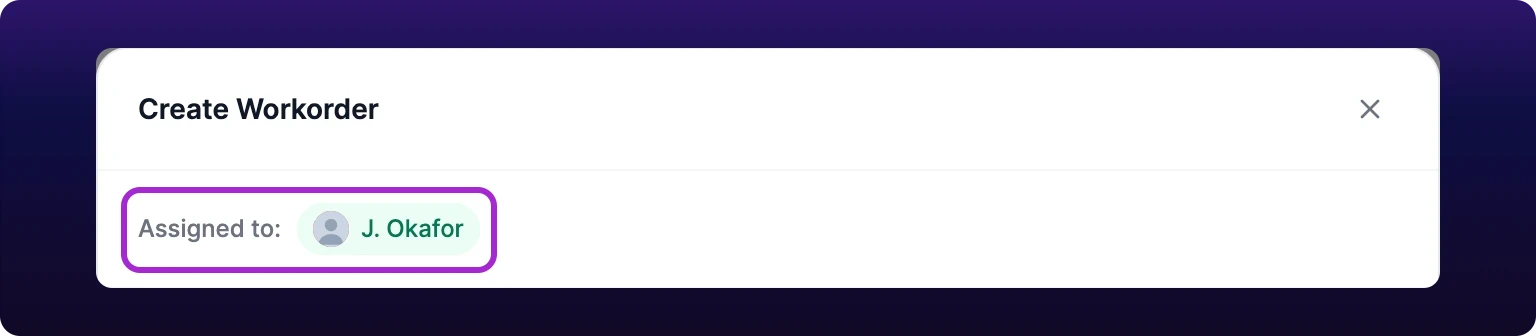 The Assigned to line above the chip row. It always names you, and the Create Workorder form has no control to change it.
To hand the work to somebody else afterwards, add them on the job page in the mobile app, or drag the task into their lane on the board. See On mobile and Group by asset, job or operator.
On success the form toasts Workorder created successfully, closes, and the queue reloads. The new task appears at once on the page you created it from, and does not appear on anybody else's open queue until they reload.
Job fields
| Field | Required | Accepts | Visible to operator | Editable later |
|---|---|---|---|---|
| Title | Yes | Free text, overwritten by the operation name | Yes, as the job title | On the board |
| Description | No | Rich text: bold, italic, underline, strike, lists, headings | Yes, under Notes, with the formatting stripped | On the board |
| Asset | No | One machine | Yes, in the machine bar | Yes, in the job page's Details panel |
| Part of Job | No | One existing job, or one you create inline | Yes, as a chip and the Job control | Yes, on the job page |
| Operation | No | One operation on one part | Yes, as a chip | Yes, on the job page |
| Required Qty | No | A whole number of pieces | Yes, as made / ordered pcs | Yes, in the Details panel |
| Work Sessions | No | Start, end, good parts, scrap with reasons, a note | Yes, in session history | Yes, on the job page |
| Required Parts | No | Part, location, amount | No | On the board, in the task drawer |
| Create/Release Parts | No | Part, location, amount | No | On the board, in the task drawer |
| Images | No | JPEG, PNG, GIF, WebP, BMP, SVG | Yes, in the file viewer | On the board |
| Files | No | Any file type | Yes, under Work Order Files | On the board |
| Dependency | No | One production work order | No | On the board |
| Time Estimate | No | 2h 30m, 90m, 1 day 3 hours, or a bare number of minutes | Yes, as Duration | On the board |
| Assignee | Set for you | You, always | Yes, under Assigned To | In the mobile app, or on the board |
| Priority | Set for you | The first priority in your organization's list | Only as a colored dot in the queue's list mode | On the board |
| Due date | Not on this form | Nothing. The field has no control | Yes, as Due, reading -- | On the board |
For the full field list across every production surface, including the scheduler columns and the export, see Job and scheduler fields.
When creation fails
| What you see | What happened | What to do |
|---|---|---|
| Create Workorder stays grayed out | The title is empty | Type a title. Nothing else is required |
2 staged parts will not be reserved: set a location and an amount, or press Create again to continue without them. | A staged parts line has no location, or an amount of zero | Fix the amber lines, or press the button again to create without them |
| Failed to create workorder, or a message from the server | Nothing was created. The form stays open with your work in it | Read the server's message if there is one, then try again |
| Workorder created, but a work session failed to log | The task exists. One or more staged sessions did not save | Open the task and add the session from its history. See Session history |
| Workorder created, but the status update failed | The task exists at Not Started. The On Hold or Completed you chose did not apply | Set the status on the job page |
<name> is not a valid image | The Images chip rejected the file type | Attach it through Files instead |
Failed to upload <name> | That one attachment did not upload. Everything else on the form is intact | Try the file again, or create the task and attach it from the board |
| Failed to create part, Failed to create operation, Failed to create job | An inline create failed. The parent form is untouched | Try again, or create it in the Parts List first |
A generic Something went wrong or An error occurred means the request failed and nothing was saved. See Troubleshoot monitoring.
On mobile
The mobile app opens the same form with the same fields. Only the layout changes, and which layout you get depends on the viewport rather than the device, see On mobile.
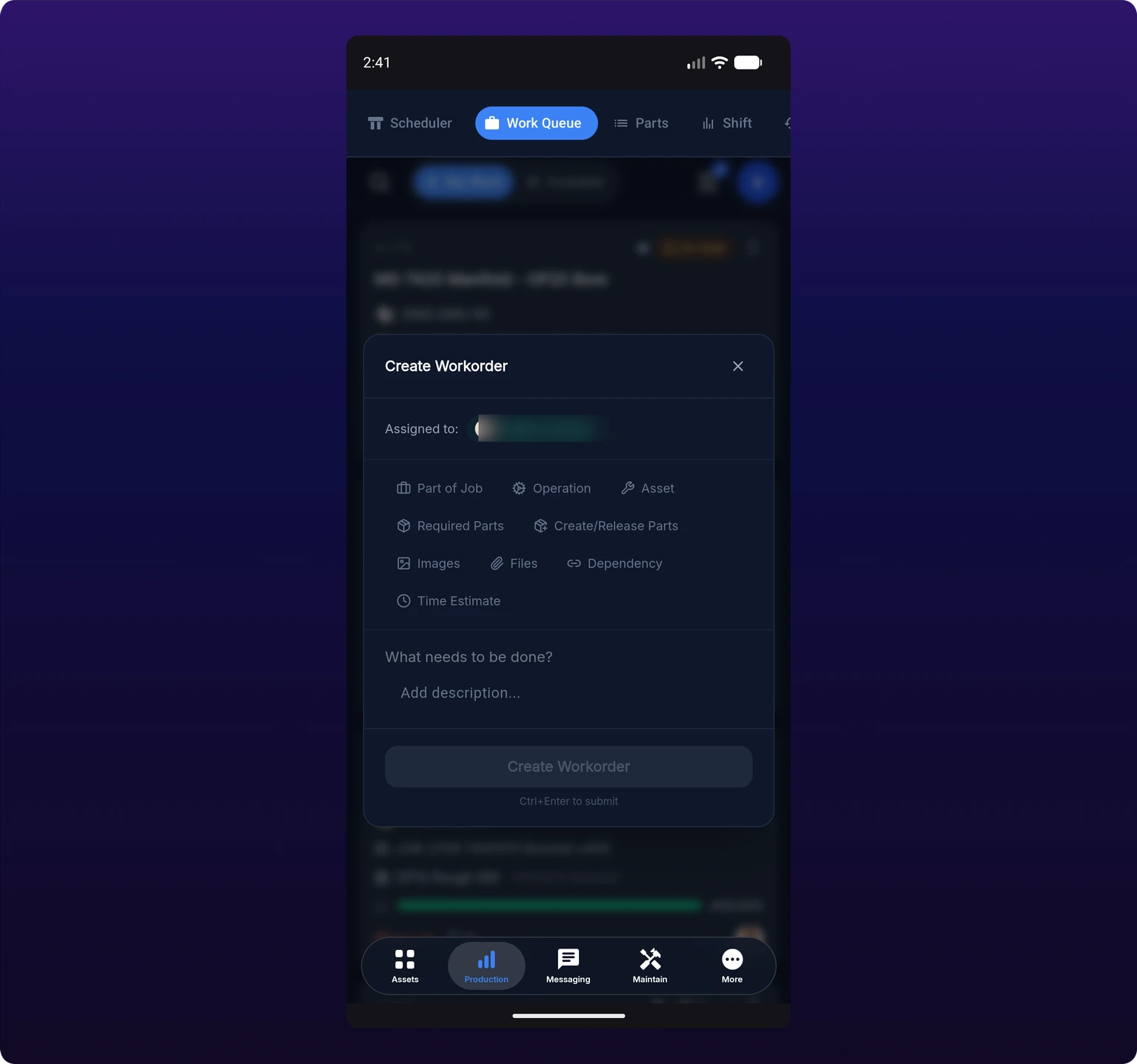
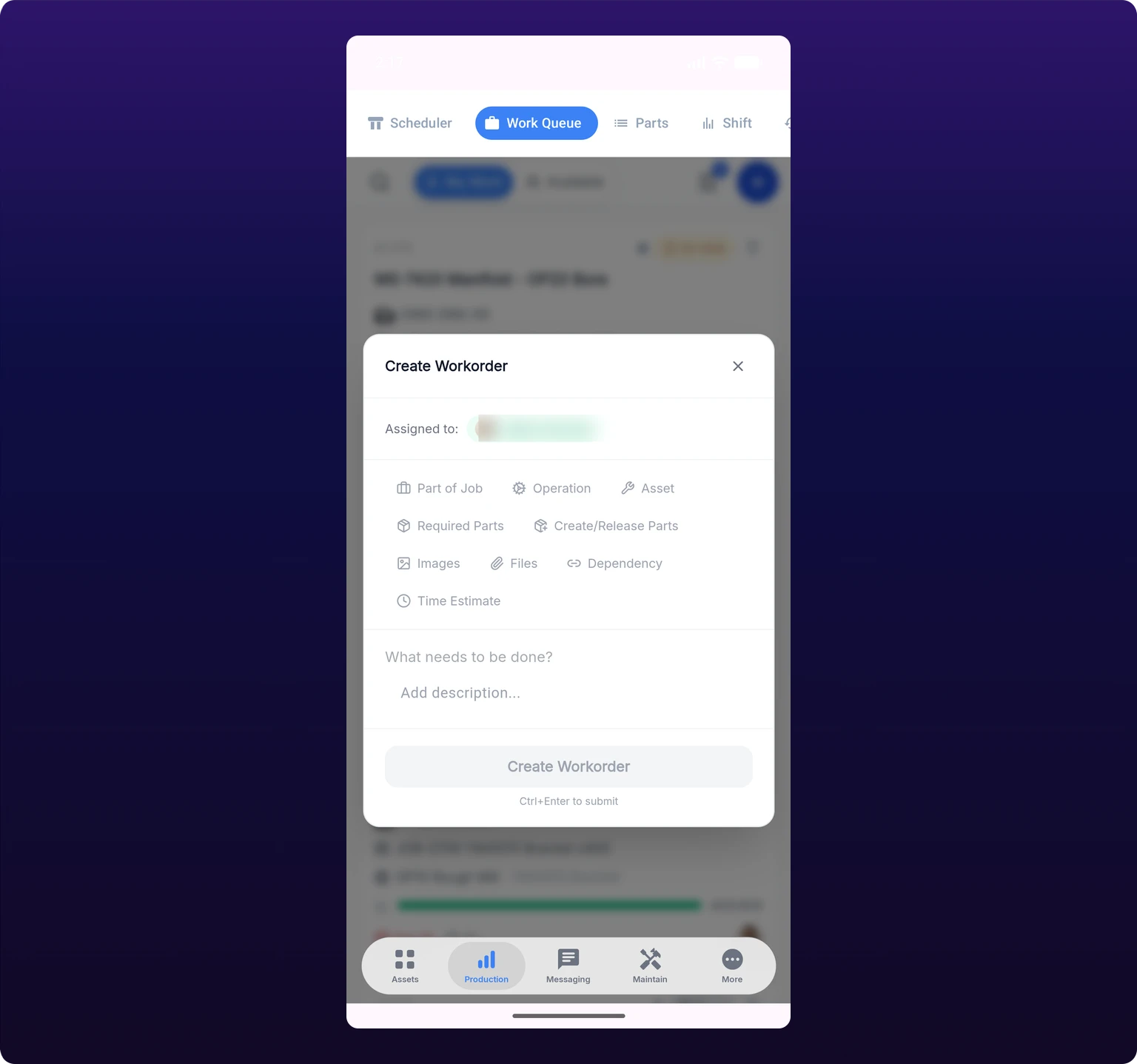 The same Create Workorder form in the mobile app. Every field is a chip: part of job, operation, asset, required and created parts, images, files, dependency and time estimate.
One control is mobile only. Take photo appears as a second dashed tile inside both the Images and the Files panels, and opens the rear camera straight into the upload. A photograph taken that way goes through the same WebP conversion as a file picked from the gallery.
Everything else behaves as it does on the web, including the self-assignment. The one thing the phone adds afterwards is the People section on the job page, which is the only assignee control anywhere in the Work Queue. See On mobile.
See also
From the blog
- When to replace a spreadsheet production scheduleAn Excel schedule fails once one change has effects nobody sees. Learn the five signs, what each replacement checks, and how to move your open jobs across.
- Production scheduling on real run ratesSchedule from the rate each machine really runs, not its ideal cycle time. Turn measured OEE factors into job durations, pick a rate and load machines safely.
The Work Queue is the operator's list of scheduled production tasks. My Work holds what is assigned to you or to one of your teams; Available Work holds everything else the queue loaded. It opens on My Work on every platform, which is why an operator with no assignments sees an empty page. Filters narrow it by machine, tag, operation and completion status, and list mode adds the due date and a priority dot that the cards do not show. Starting a job does not assign it to you: only the mobile job page and the Scheduler change who owns a task.
The job runner is the page an operator works a task on, at /production/work-queue/<id>. Start opens a work session, the part counter and the scrap button write to that session, and pause and complete both close it. Add to count adds to the session's count; Set session total replaces it, which is the mistake that costs a shift. Job History is where sessions are created, edited and deleted, and the right-hand rail carries the job's details, comments, files, queue and a maintenance request form.