

Log scrap and manage scrap reasons
Record a bad part against a cause, and keep the list of causes short enough to act on.
Scrap is a part a job produced that you cannot ship. You record it against the work session that made it, never against the machine or the shift, so a scrap entry always carries the job, the operator and the time with it.
Every entry needs a scrap reason code: a named cause, held in one list that the whole organization shares. The reason is not optional, and there is no free-text alternative to it.
Before you start
- A job in progress. See Start the job.
- Nothing on this page is role-gated. Anyone who can open a job can log scrap against it and change the organization's reason list.
Log scrap during a job
- Open the running task from the Work Queue. The runner is at
/production/work-queue/<id>. - Press Scrap in the action rail, below the part counter.
- Set Scrap Quantity with the minus and plus buttons. It opens at 1 and will not go below it.
- Pick a reason. See Choose a reason.
- Add a note if the reason alone does not explain the failure. See Add a note.
- Press the red button, which reads Log 3 Scrap for a quantity of 3.
The dialog closes and Scrap recorded confirms the write. The entry lands on the session that is open right now, and the job's scrap total moves with it.
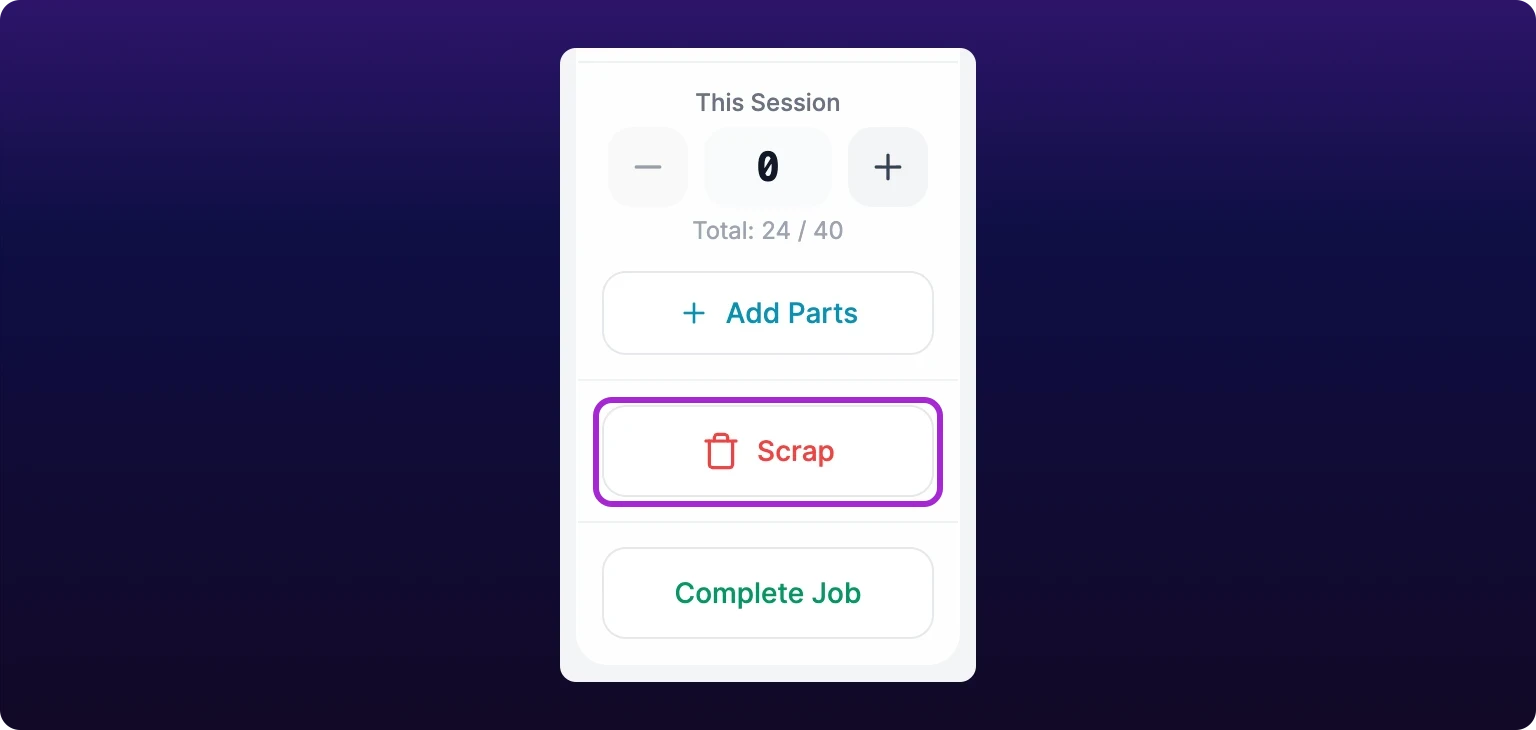 The Scrap button in the job runner's action rail, below the part counter and above Complete Job. It is grayed out until the job is In Progress.
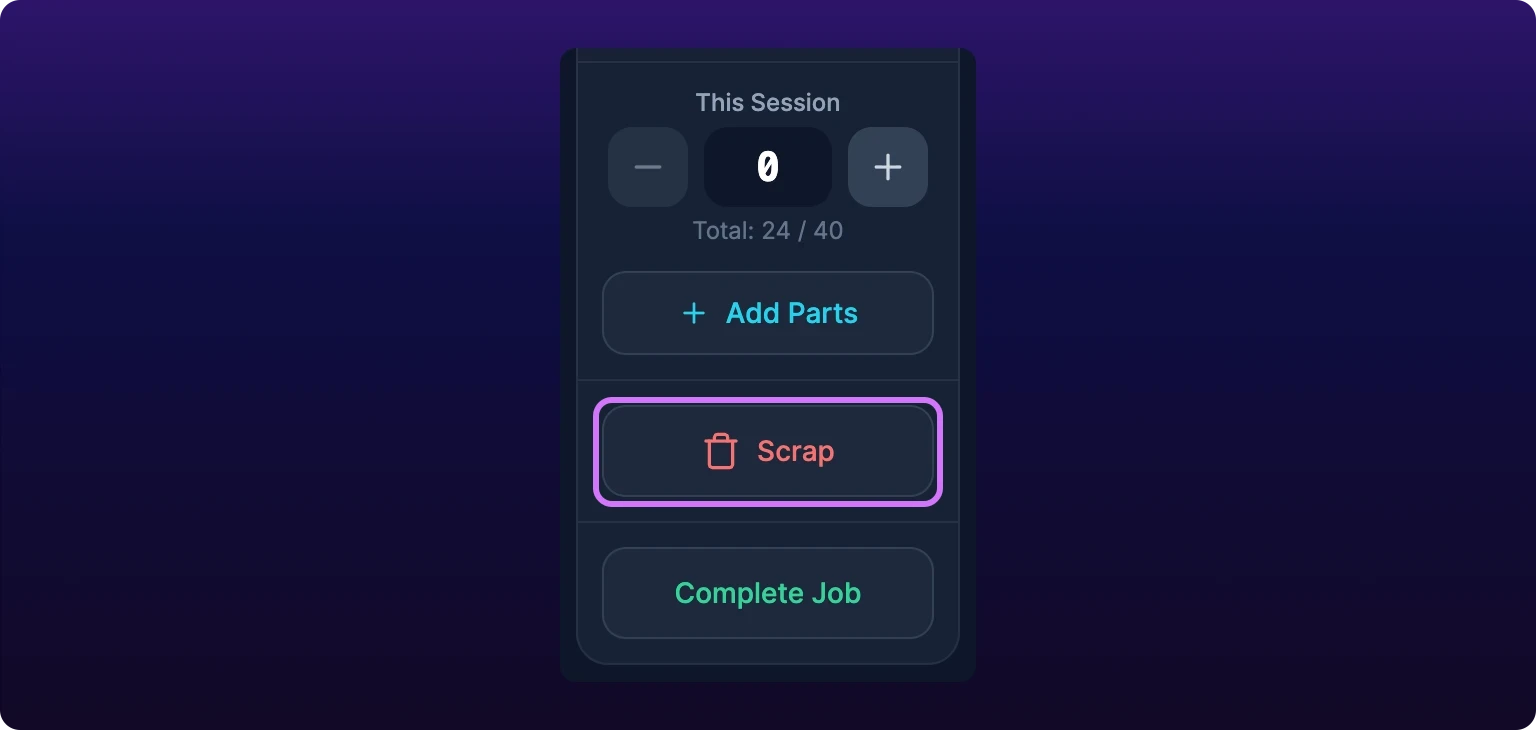
Not sure why Scrap is gray?
Scrap is disabled unless the job's status is In Progress. A paused job has no open session to write to, so press Resume first. See Pause and resume.
Two entries on the same reason inside one session become one entry. The quantities are added, so logging 2 against Tool wear and then 3 more leaves a single entry of 5 rather than two of its own.
The quantity is a stepper with no keyboard entry, so 30 parts is 30 presses. For a batch that size, or for scrap you are reconstructing at the end of a run, use the scrap rows in the Pause Session or Complete Job dialog instead, where the quantity is a field you can type into. See Log several reasons at once.
Choose a reason
The reason list belongs to the organization, not to the machine, the part or the operation. The same codes appear on every job, so one you add for a press is live on the mill down the row.
Tap a tile to select it. The tile turns red and the footer button becomes active. The dialog offers no free-text box and no way to skip the question, so the button stays disabled until a code is selected.
A list can still hold a catch-all such as Not Entered. It is an ordinary code on an ordinary tile, and it answers nothing: scrap logged against it reports as scrap with no cause. Rename it to a real cause rather than deleting it, because entries already logged against it break when the code goes. See Rename or delete a reason.
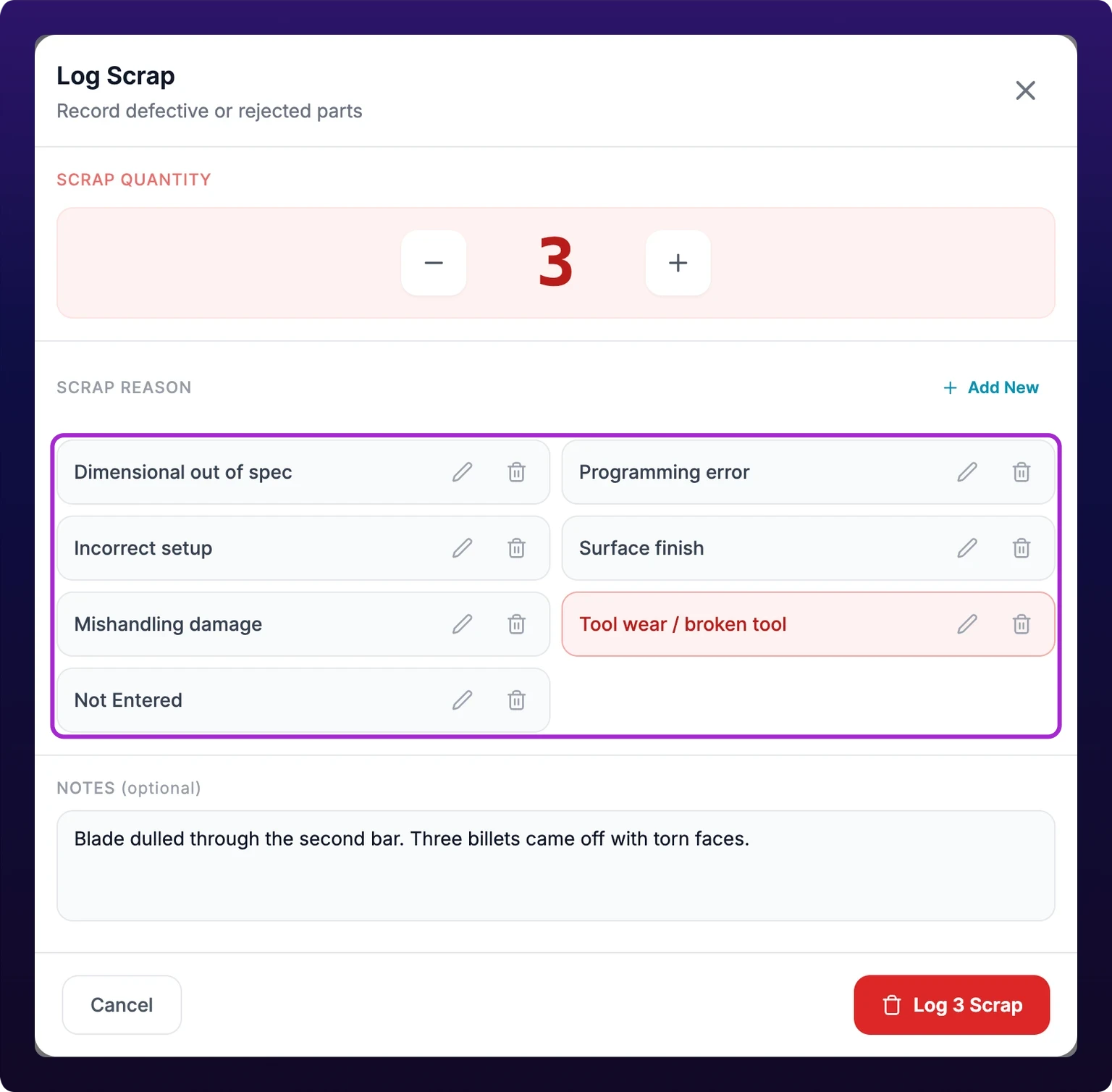 The Log Scrap dialog: a quantity stepper over a two-column grid of the organization's reason codes, with Tool Wear selected in red. The footer button stays disabled until a reason is picked.
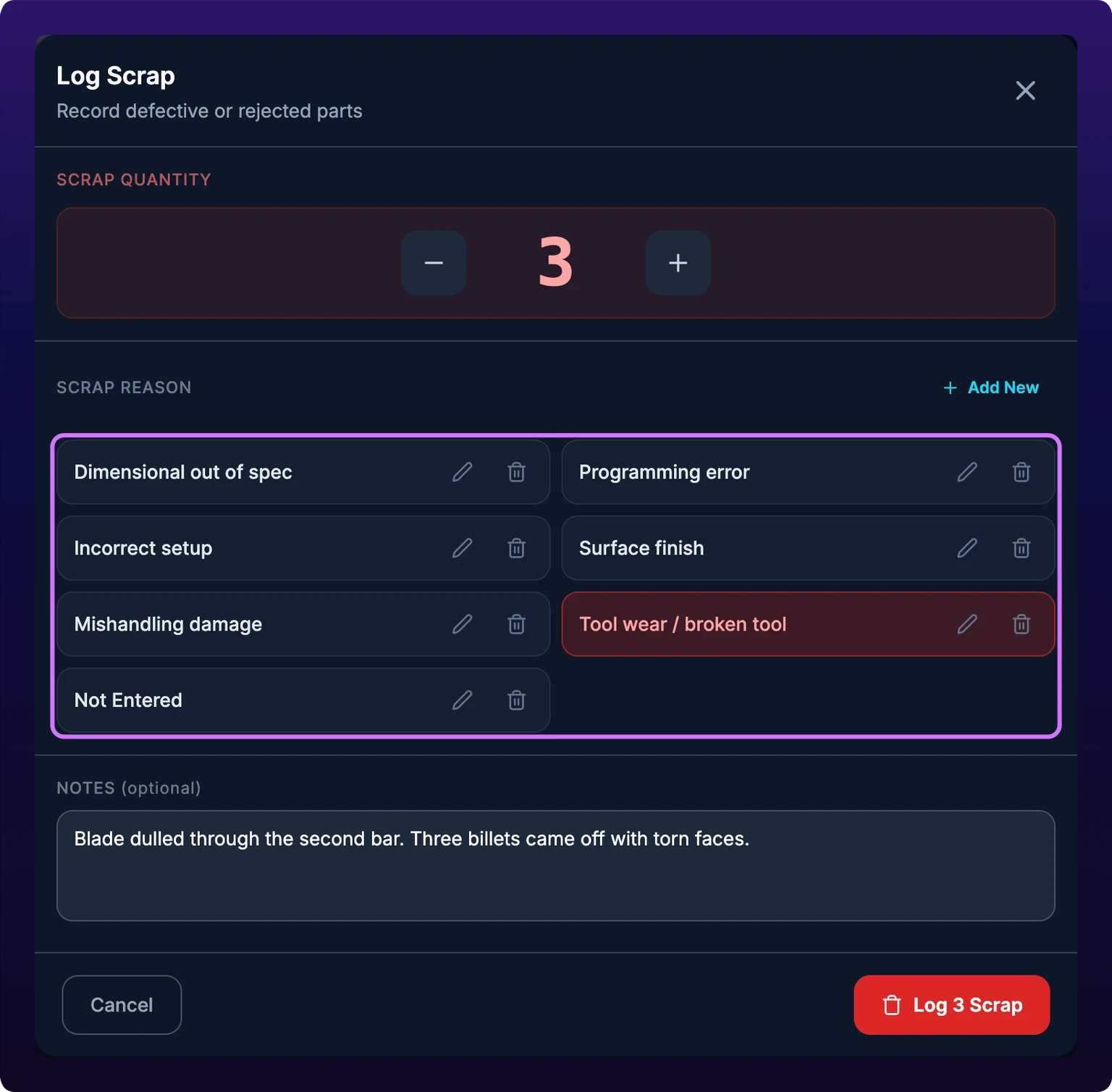
Keep the reasons to causes you can act on. Operator error is not a cause, because nothing follows from reading it in a report. Tool wear and material defect each send the next conversation somewhere useful, one to the tool crib and one to receiving.
You do not need a code per part number. The list is organization-wide and has no grouping, so a code per part becomes a list nobody reads to the bottom of.
Add a note
Notes is optional free text. Use it for the detail the code cannot carry: the tool number, the heat lot, which of the four cavities failed.
A second entry on the same reason replaces the note rather than appending to it. Leave the box empty and the earlier note survives the merge. Put the whole story in one note rather than spreading it across two entries.
Scrap reason fields
| Field | Required | Notes |
|---|---|---|
| Scrap Quantity | Yes | A stepper in Log Scrap, minimum 1. In the session dialogs it is a typed field that accepts 0, and a row left at 0 is dropped when the dialog saves |
| Scrap Reason | Yes | One code from the organization-wide list. Log Scrap will not submit without it, and a session will not save while any row has a quantity and no reason |
| Notes | No | Free text on the entry. A later entry on the same reason replaces it |
| Reason name | Yes | The code's own label, set when you create it. A code has no description, no color, no severity and no owner |
Log several reasons at once
Scrap belongs to the session, and a session's whole scrap list is editable in three places: the Pause Session dialog, the Complete Job dialog, and the session editor inside Job History.
Each carries a Scrap heading with the running total beside it and an Add Scrap button. Every press of Add Scrap adds a row.
A row holds a quantity you can type or step, a Select reason... dropdown, a trash icon that removes the row, and a Scrap note (optional) line of its own. One row per cause, so a session that lost parts three ways reads as three rows.
Every row with a quantity above zero needs a reason. The dropdown outlines itself in red the moment a row has a quantity and no reason, before you save anything, so an unexplained row is visible while you are still typing. Save with one still missing and the dialog stops with Please select a reason for all scrap entries and writes nothing. Pick a reason for it, or set the row to 0, which drops the row on save.
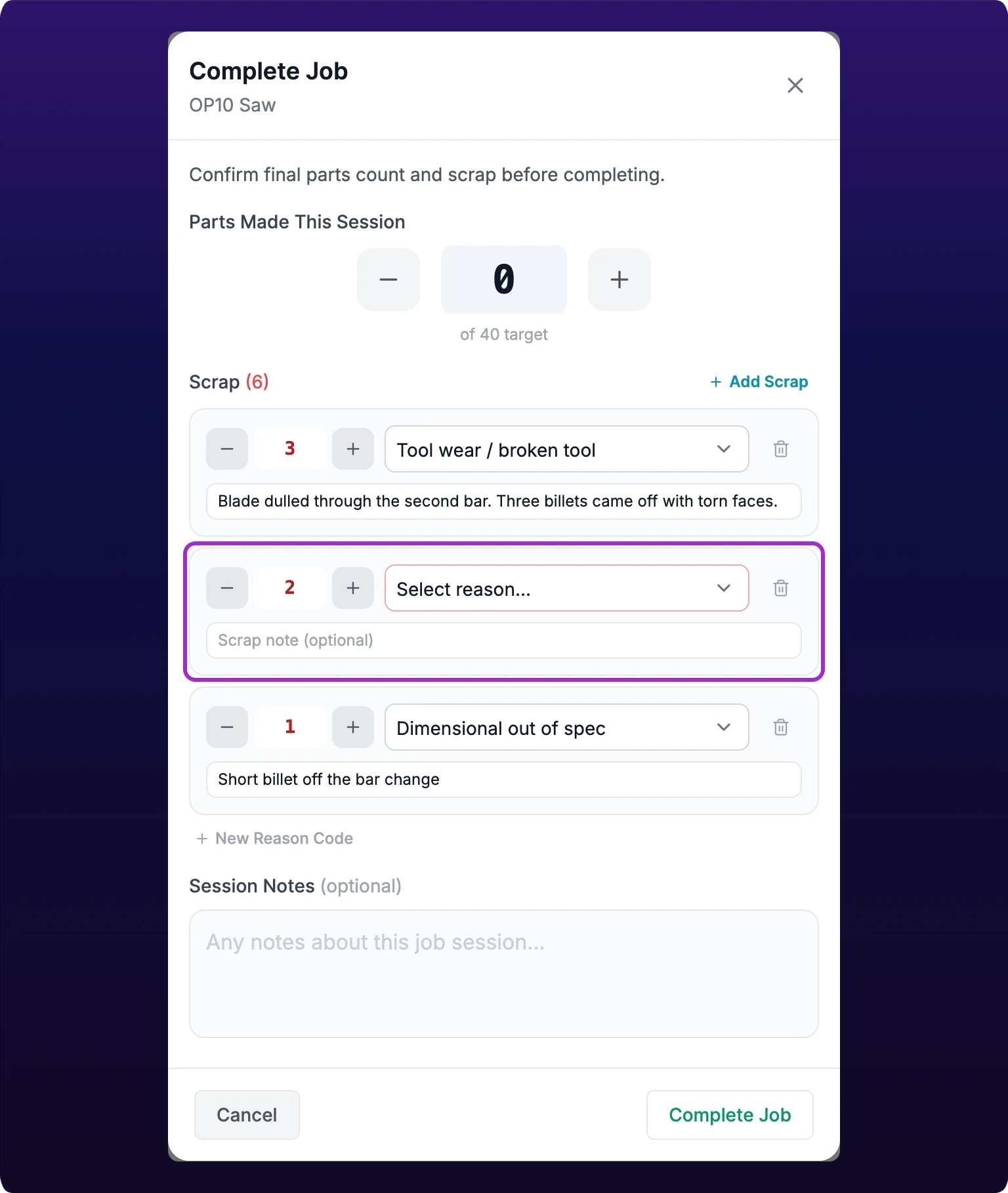 The Complete Job dialog's Scrap section with three rows. The middle row has a quantity and an empty reason dropdown outlined in red, and the job will not close until it is filled.
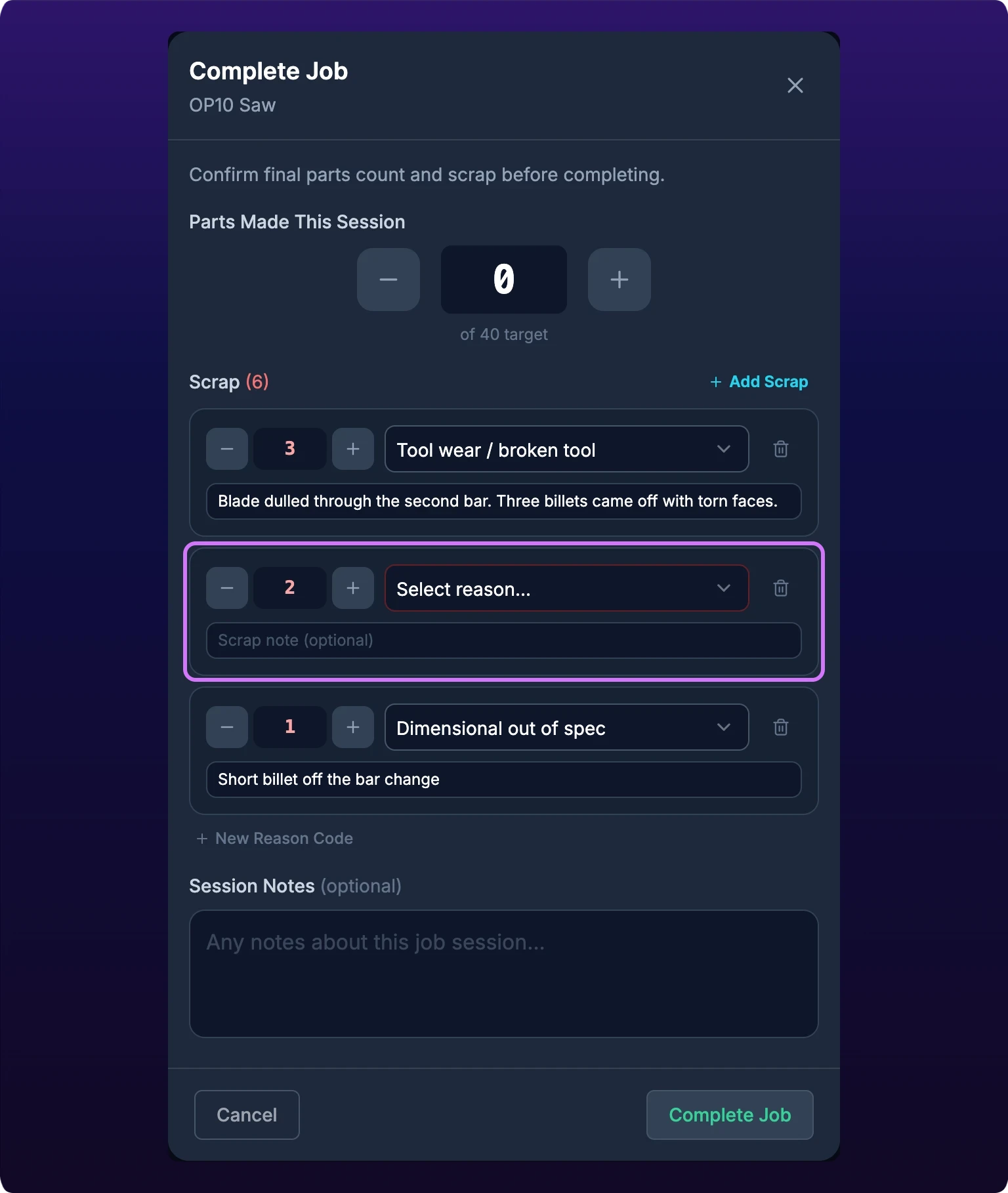
New Reason Code, under the rows, creates a code without closing the dialog. It cannot rename or delete one. See Rename or delete a reason.
Use the rows when you are accounting for a whole run at the end of it, and the Scrap button when a part fails in front of you.
Why does an old session open with an unexplained row?
A session recorded before its scrap was itemized carries a total and no breakdown. The dialog seeds a single row with that total and an empty reason, so the next pause or complete asks you to name it. Setting the row to 0 clears the block, and it clears the session's scrap total with it.
Create a scrap reason code
- Press Scrap on any running job.
- Press Add New, at the right of the Scrap Reason heading.
- Type the name. Enter saves it, Escape cancels.
- Press Add Reason.
Scrap reason code added confirms the write, and the new code is selected for the entry you were in the middle of. It is live on every job in the organization from that moment.
An organization with no codes yet reads No reason codes yet where the list would be, and no scrap can be logged until one exists.
Who can change the list?
Nothing here is role-gated, so anyone who can open a job can add, rename and delete a code for the whole organization. Agree the list before the floor starts adding to it, or it fills with near-duplicates like Tool Wear, tool wear and worn tool, which split one cause across three lines of every report.
Rename or delete a reason
Both controls sit on the tile itself, inside the Log Scrap dialog.
To rename, press the pencil. The tile expands into a text field across the full width of the list.
Edit the name and press Save, or press Enter. Scrap reason code updated confirms it.
Renaming is safe for history. An entry stores the code rather than its text, so every scrap already logged picks up the new name.
To delete, press the trash. Delete Reason Code asks you to confirm, and Delete removes it.
Deleting a code breaks the entries that used it
Job History looks each entry's reason up in the live list. Once the code is gone the lookup fails, and every scrap entry already logged against it prints a raw identifier where its name used to be.
Rename a code that has gone out of use. Delete only one that nothing was ever logged against.
Two surfaces carry the pencil and the trash: the Log Scrap dialog on the job runner, and the same dialog on a machine's Production tab. The session dialogs can add a code but not change one, and the mobile scrap sheet can do neither.
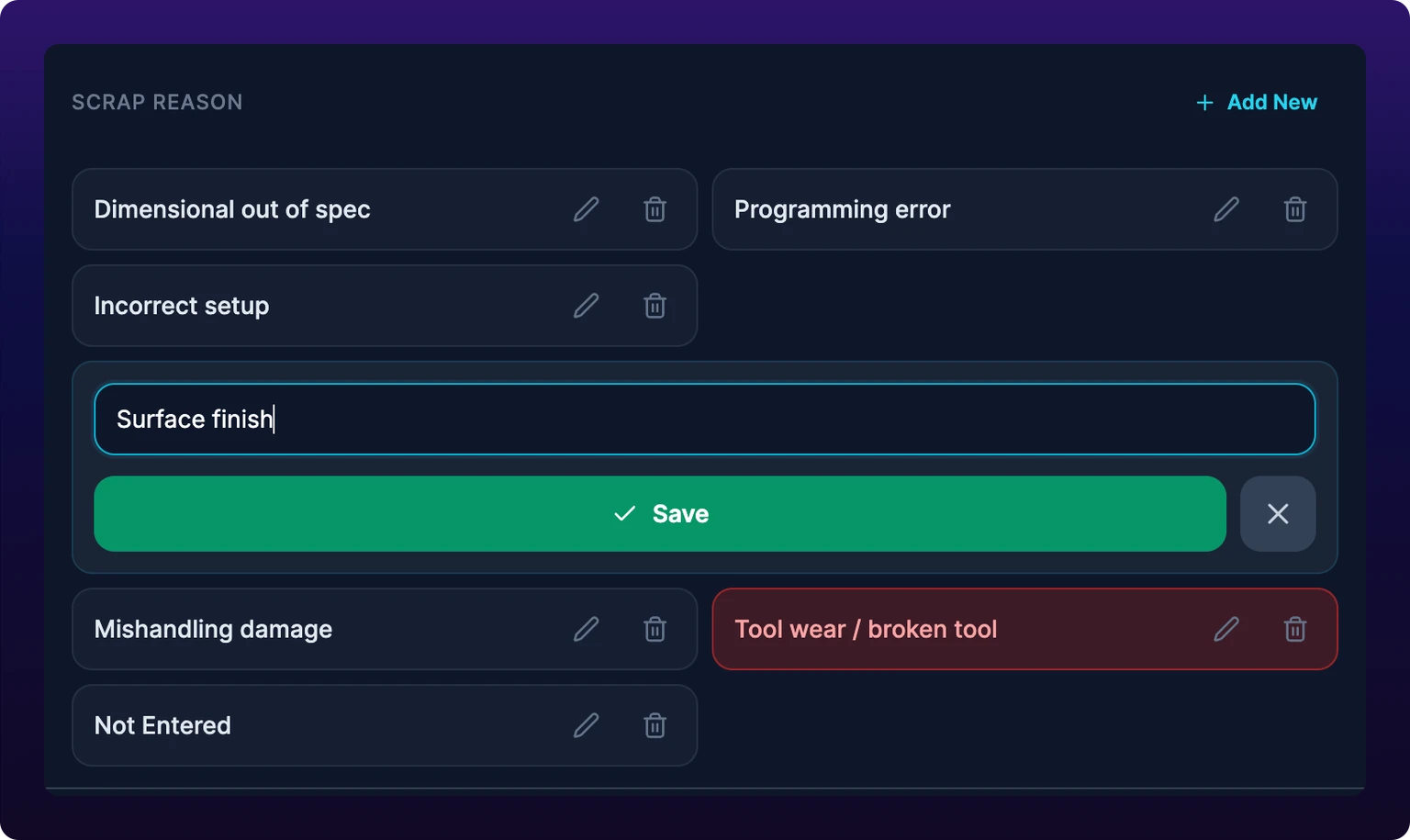
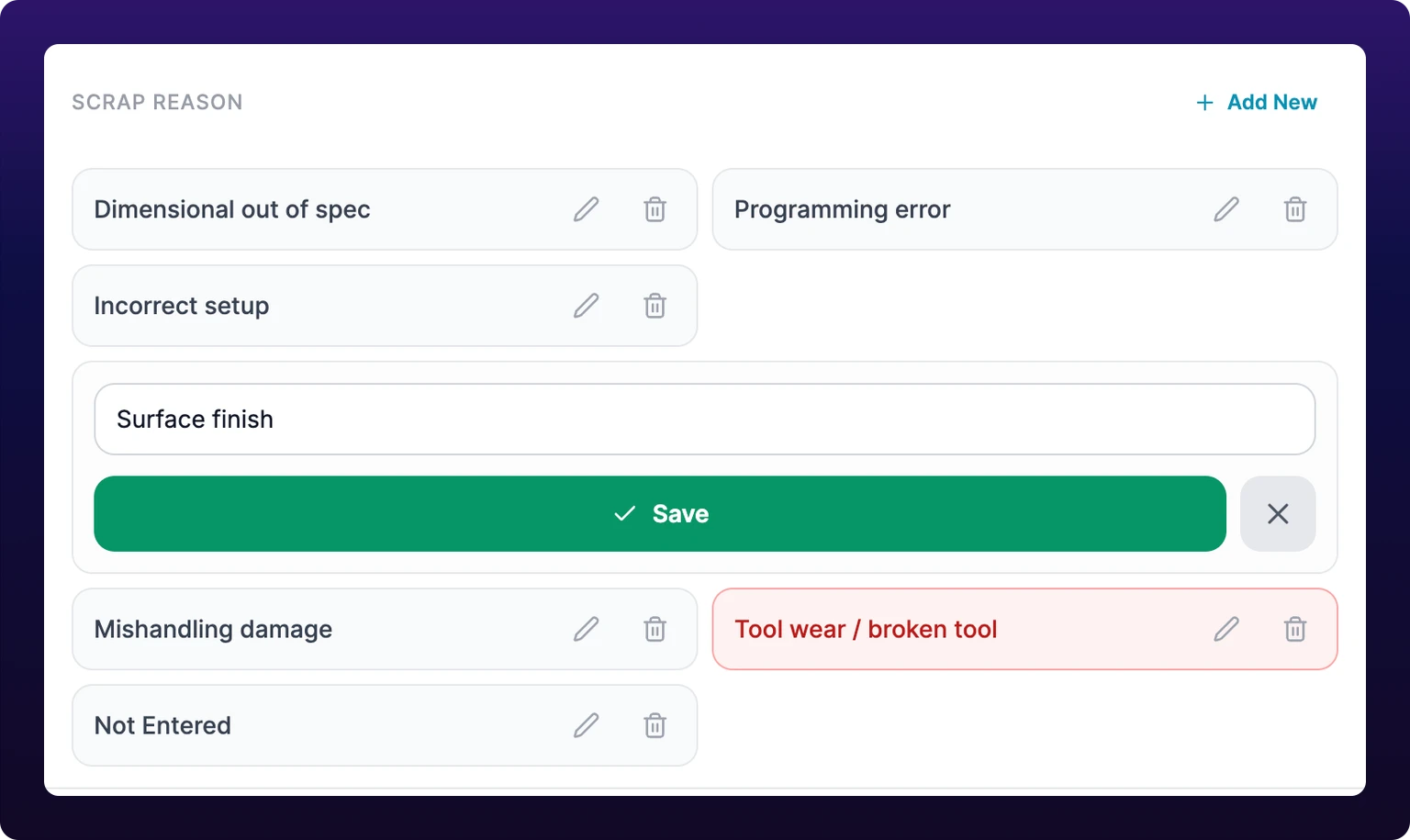 The reason list inside Log Scrap, with Add New above it and a pencil and a trash icon on every tile. One tile is open for renaming, expanded across both columns.
On mobile
The mobile job page logs scrap from the Scrap Parts tile in Production Summary, which opens a bottom sheet headed Log Scrap.
The sheet takes a typed Quantity, a Reason Code dropdown marked required, and optional Notes. Leave the reason empty and the field turns red under the line A reason code is required, and the button stays disabled.
The sheet reads the organization's codes but cannot add to them. Create the code you need on a desktop runner first. See Create a scrap reason code.
Where scrap appears
Scrap does not come out of the good count. Logging 3 scrap lowers no parts-made figure anywhere. Good and scrap are two parallel numbers, so if those 3 parts were already counted as made, correct the count yourself from the part counter. See Log good parts.
Once logged, scrap reaches three places:
- The job. Job History totals it across every session in a Scrap tile, and each session card carries a Scrap Breakdown with one line per reason, its note and its quantity. See Session history.
- The schedule. The work-sessions strip under a Gantt bar draws a thin mark at the right edge of any session that logged scrap, and the segment's label reads
2 scrap. See Compare the plan with what was logged. - Historical production. Show Scrap puts a red column beside each period's good column, and the CSV export gains
total_operation_scrap_countandasset_scrap_count. See Separate good parts from scrap.
FPY, first pass yield, compares a step's good count with the first step's in a cascading group, so it moves only when a good count moves. Hand-logged scrap is not subtracted from a good count, which is why a shift full of scrap entries can leave FPY where it was. See FPY and FPY across a cascade.
If a count looks wrong rather than a request failing, start at Troubleshoot inaccurate part counts.
When something fails
| Message | What happened | What to do |
|---|---|---|
| No active session | The session closed between opening the dialog and submitting it | Press Resume, then log the scrap again. Nothing was written |
| Failed to record scrap | The entry did not save | Nothing was written. Retry from Scrap |
| Please select a reason for all scrap entries | A scrap row has a quantity above zero and no reason | Pick a reason for that row, or set its quantity to 0 |
| Failed to add scrap reason code | The code was not created | Retry. Check it is not already in the list under another spelling |
| Failed to update scrap reason code | The rename did not save | The tile still carries the old name, and so does every entry using it |
| Failed to delete scrap reason code | The code is still in the list | Retry. Nothing was removed and no entry changed |
See also
From the blog
- Manual vs automatic OEE tracking in the first weekMachine-reported stops move lost minutes from performance into availability. OEE itself moves only if part counts, ideal cycle times or planned time were off.
- Which OEE factor is costing you the most time?Compare availability, performance and quality in lost minutes, check the inputs behind each factor, then weigh each loss by its cost to see where to look first.
- Why reworked parts don’t count in first pass yieldReworked parts aren’t good parts in first pass yield or OEE quality. Work FPY, final yield and scrap rate on one batch, and see why quality and scrap disagree.
The job runner is the page an operator works a task on, at /production/work-queue/<id>. Start opens a work session, the part counter and the scrap button write to that session, and pause and complete both close it. Add to count adds to the session's count; Set session total replaces it, which is the mistake that costs a shift. Job History is where sessions are created, edited and deleted, and the right-hand rail carries the job's details, comments, files, queue and a maintenance request form.
Every field a production task can hold, the five statuses it moves through, the fields a work session carries, and the 24 columns the scheduler table exports. Title is the only required field on a task, and a parent job carries no status of its own. Six export columns are always on, the CSV adds a Part column the table does not have, and two more ship visible, so a default export is nine of the 24. Maintenance work orders are a different object with a different field list.