

Start, pause, and complete a job
Work a task from the moment you pick it up to the moment you close it out, and log the parts and the scrap as you go.
The job runner is the page an operator runs one task on: one operation, on one machine, for a quantity of a part. It opens at /production/work-queue/<id> when you click a task in the Work Queue, and it is the only page that starts, pauses and completes production work.
Everything the runner records hangs off a session: one continuous run of the task, with a start, an end, the good parts logged against it and the scrap. Starting the job opens a session and pausing closes it.
Before you start
- A task to run. See Find your next job in the Work Queue.
- Production Scheduler is part of the Scheduling Engine module. The tab renders for every organization, so seeing it is not proof you are entitled to it. See Module entitlement.
- Nothing on this page is role-gated. Anyone who can open the task can start it, log parts against it, change its machine and complete it.
Open the job
- Go to the Work Queue at
/production?select=work_queue. - Click the task. The runner opens and your filters travel with it in the address bar.
The runner is four regions around a file viewer. The action rail on the left holds progress, History, the start control, the part counter, Scrap and Complete Job.
The panel rail on the right holds the job's details, comments, files, queue and maintenance. The machine's shift status bar runs along the bottom.
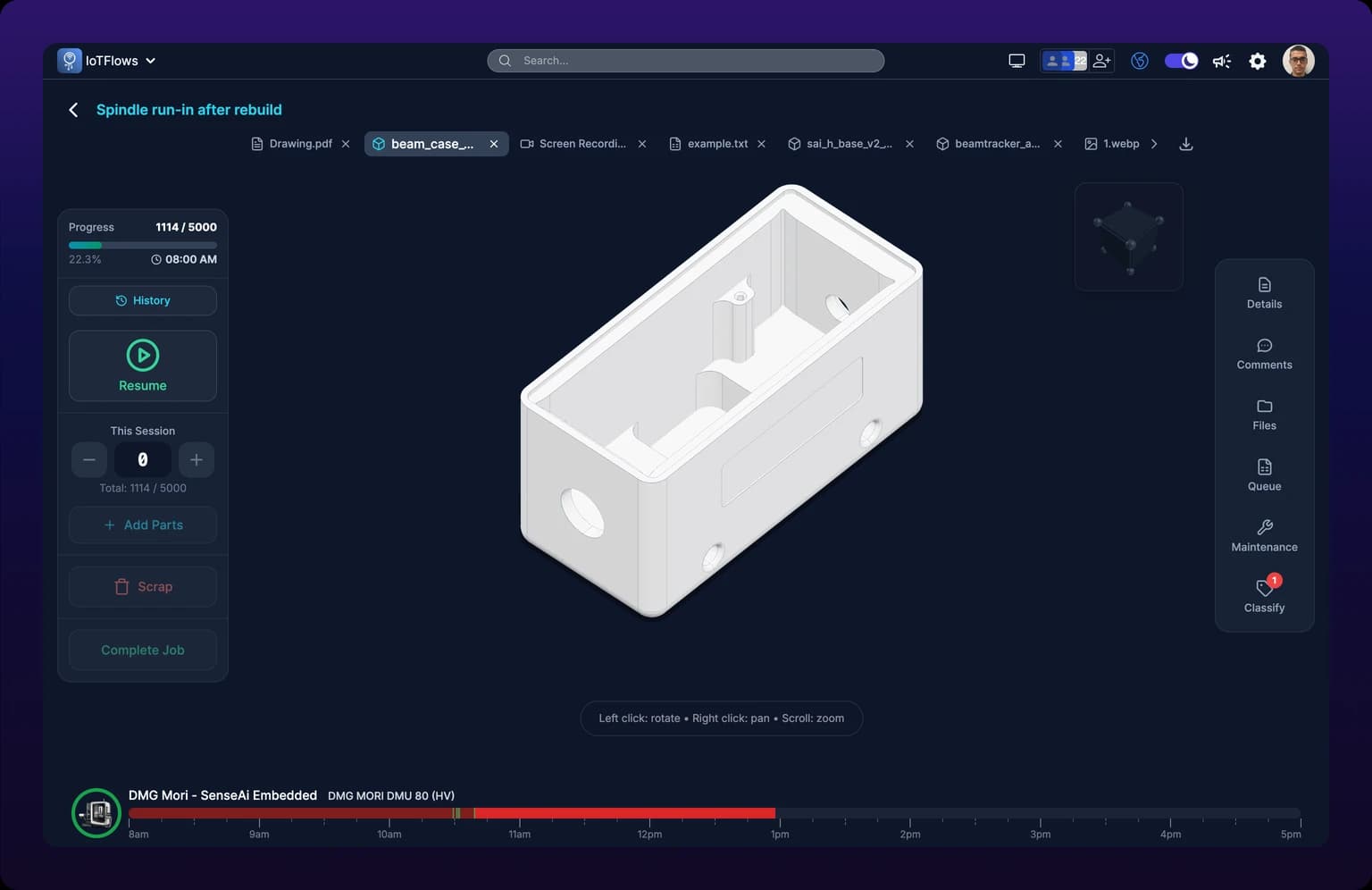
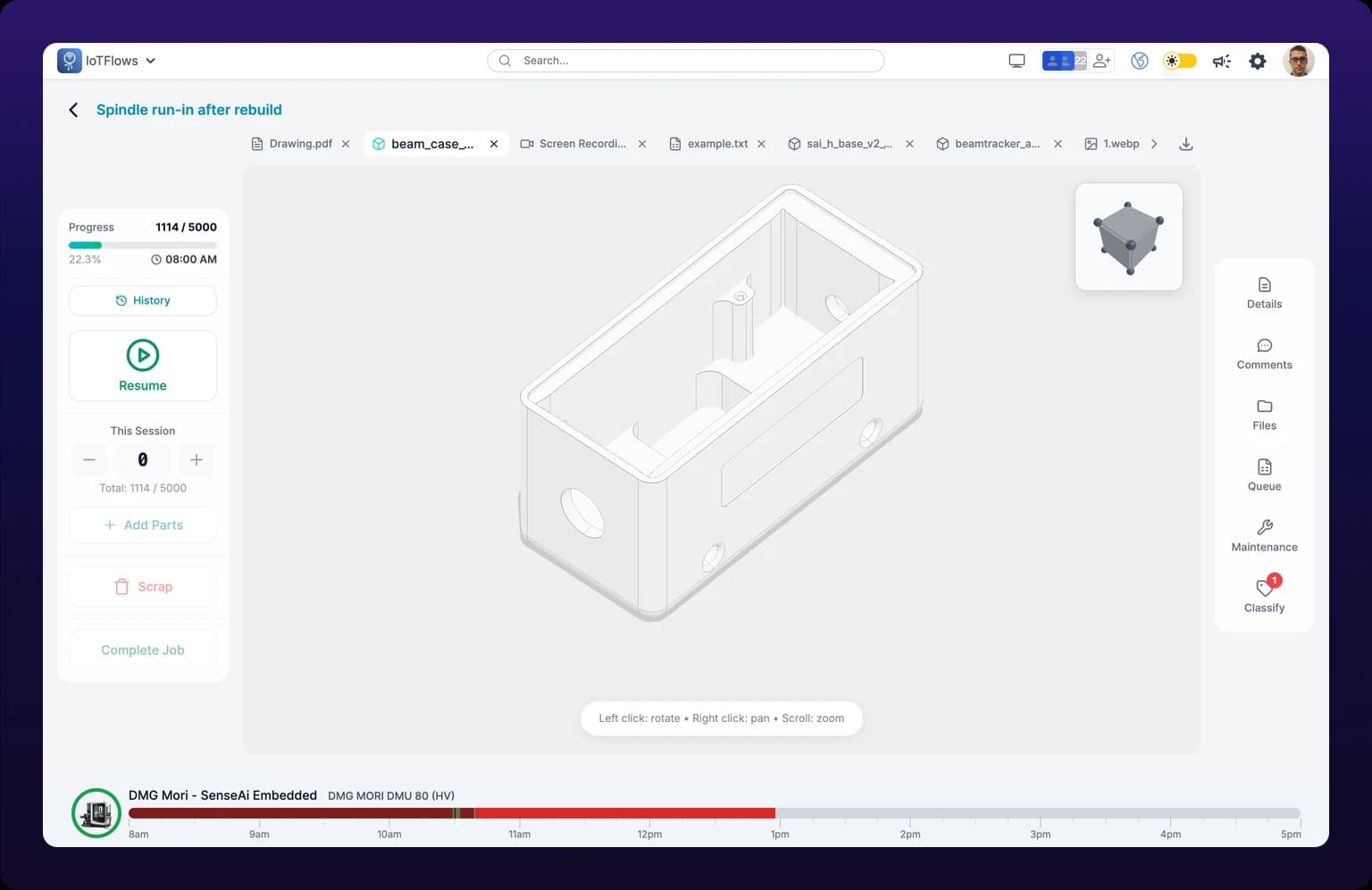 The job runner on a resumed task, with an STP file open in the viewer and its file tabs running across the top.
If the task carries a PDF or an image of its own, the runner opens it in the viewer for you. It picks the first PDF, or the first image when there is no PDF. A file that reaches the task through its part does not open itself, however many there are, so a task whose only drawing lives on the part opens on No File Selected. See Files, including 3D models.
Start the job
Press Start, the large button below History. The task moves to In Progress and the platform opens a session against it.
 The Start button in the job runner's left rail. Starting the job opens a work session, and logging parts before that fails with No active session.

Three things stay disabled until a session is open: the part counter, Scrap and Complete Job. A task you have not started cannot be finished in one press.
Start and Resume are the same action. Pressing Start on a fresh task raises the toast Job resumed, because the runner sends the same status change either way. The wording is misleading and the task did start.
Starting does not assign the task to you. It flips the status chip, and the change reaches the Work Queue and the board within seconds. See Pick up a job.
Log good parts
The part counter sits under This Session. The minus and plus buttons move the session's count by one, and Add Parts opens a keypad for larger numbers.
Every press writes to the server immediately and toasts Parts updated. There is no save button and no undo beyond pressing minus.
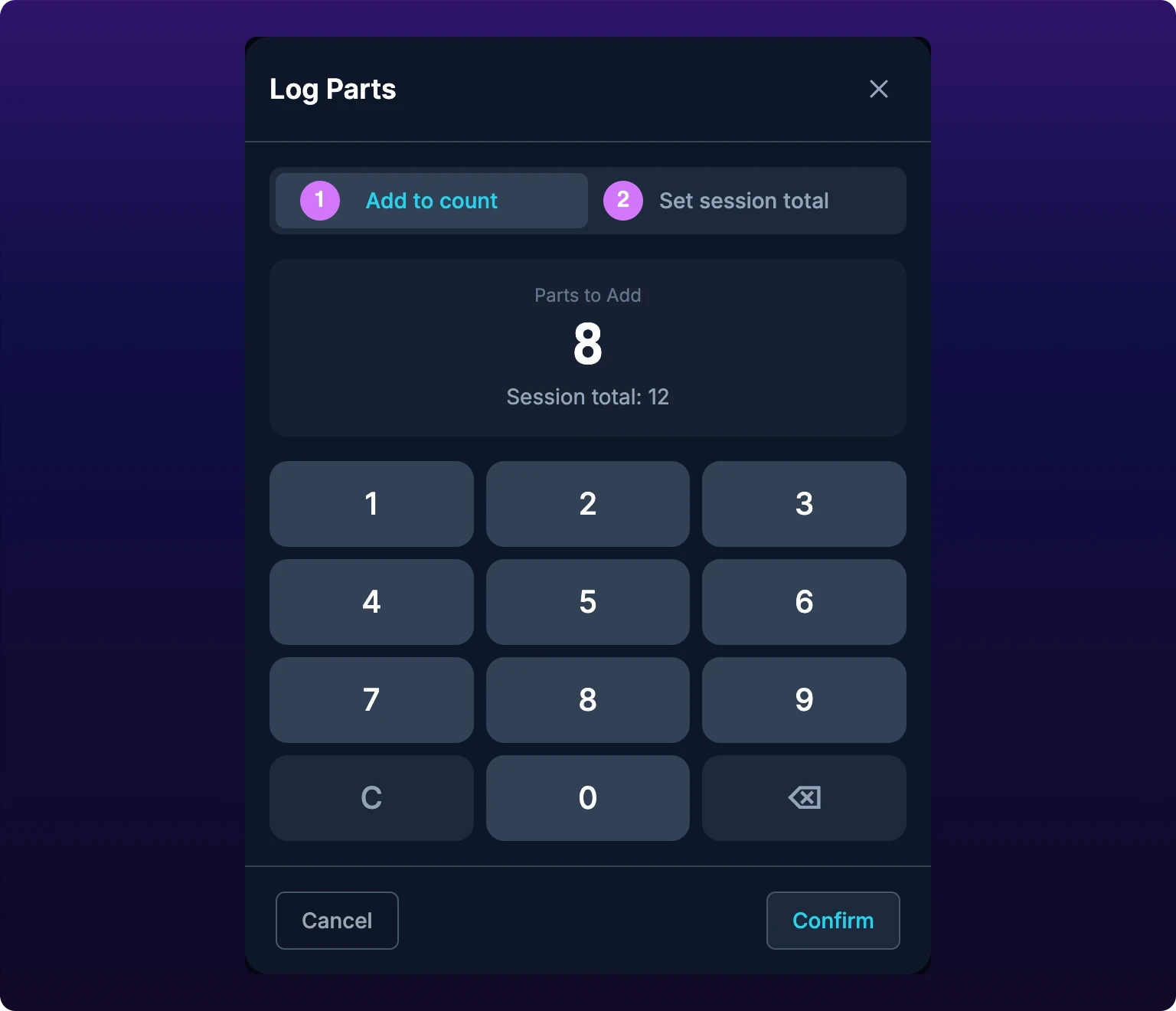
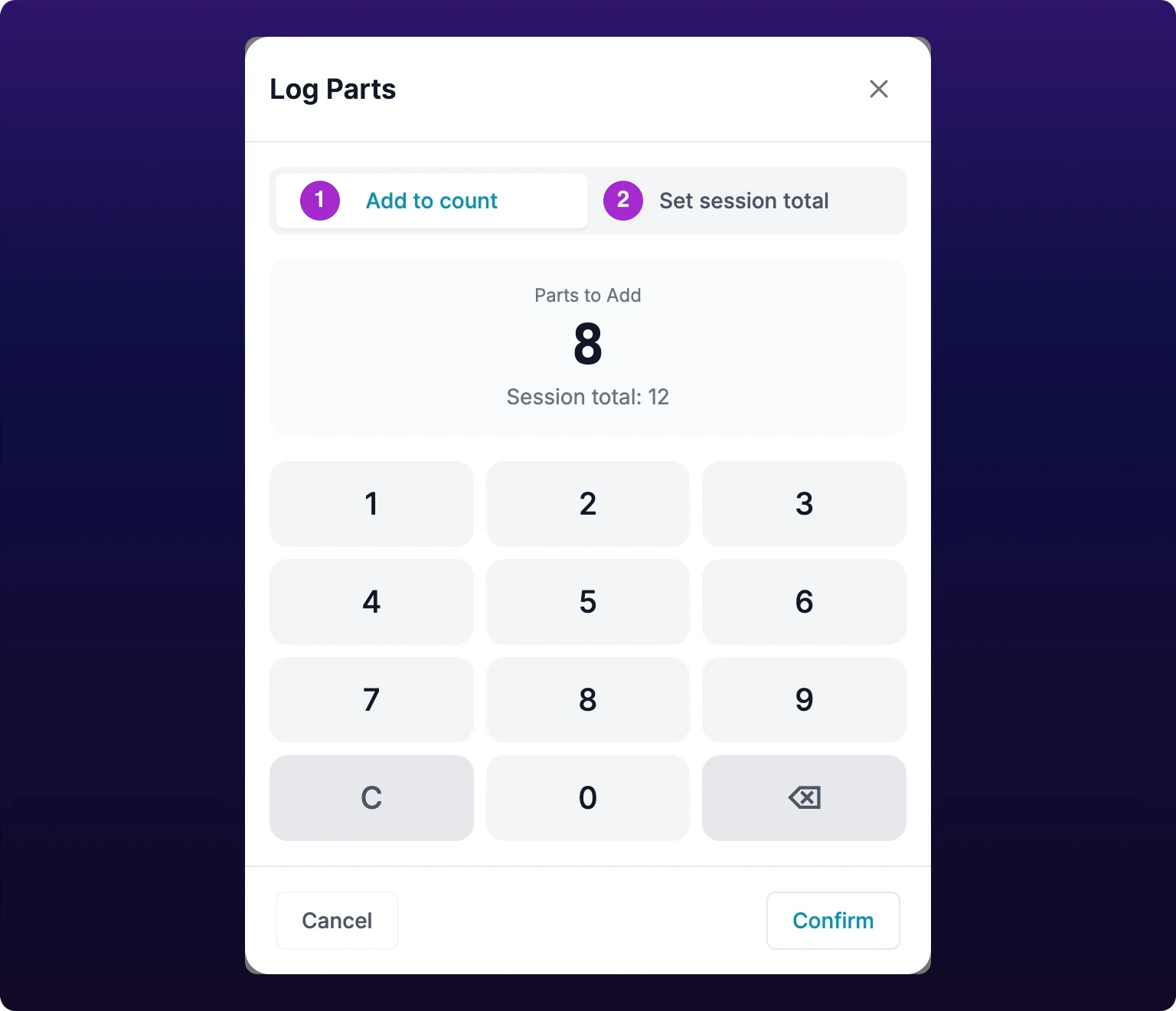 The Log Parts dialog. Add to count adds the number you type to the session's count; Set session total replaces it.
Log parts
| Mode | Meaning | Use when |
|---|---|---|
| Add to count | Adds the number you type to the session's count. The dialog previews the result, so typing 8 into a session that already holds 4 reads Session total: 12 | You are logging the parts you just made. This is the default and the right answer almost every time |
| Set session total | Replaces the session's count with the number you type | You are correcting a count you already logged, and you know the true total for this session |
| + and − | Add or remove one part | You are counting at the machine, one part at a time |
Use add when you are logging the parts you just made, and set when you are correcting the running total. Operators reach for set out of habit and overwrite a shift's count with the last hour's.
Two details make that mistake survivable. Set session total replaces the count for the current session only, not for the whole task, so an earlier shift's sessions keep their numbers. And a session you have overwritten can be repaired in History, see Session history.
The minus button is disabled at zero, so a session count cannot go negative. If the write fails the runner toasts Failed to update parts and reloads the task, and the number on screen snaps back to what the server holds.
Scrap is logged the same way, from the Scrap button beside the counter. Every scrap entry needs a reason, see Log scrap and manage scrap reasons.
Two part counts, one screen
The Progress bar at the top of the rail counts the parts you logged by hand, summed across every session.
The Quantity line in the Details panel shows what the machine's sensor counted, or the override a planner typed in the Scheduler table.
The two numbers are collected differently and will not match. The saw job in the screenshots on this page reads 24 / 40 in the rail and 12 / 40 pcs in the panel at the same moment, with nothing wrong: the operator logged 24 by hand and the sensor counted 12. See Troubleshoot inaccurate part counts.
Pause and resume
Press Pause to stop for a break, a shift change or a breakdown. The Pause Session dialog opens on the session's count so you can correct it before the session closes.
- Check Parts Made This Session. It is prefilled with what you logged, and the stepper or the field changes it.
- Add scrap rows if the session produced scrap that is not logged yet. Each row needs a quantity and a reason.
- Write a Session Notes line. The placeholder asks for the reason for pausing.
- Press Pause Session.
The task moves to On Hold, the platform closes the session, and the runner toasts Job paused.
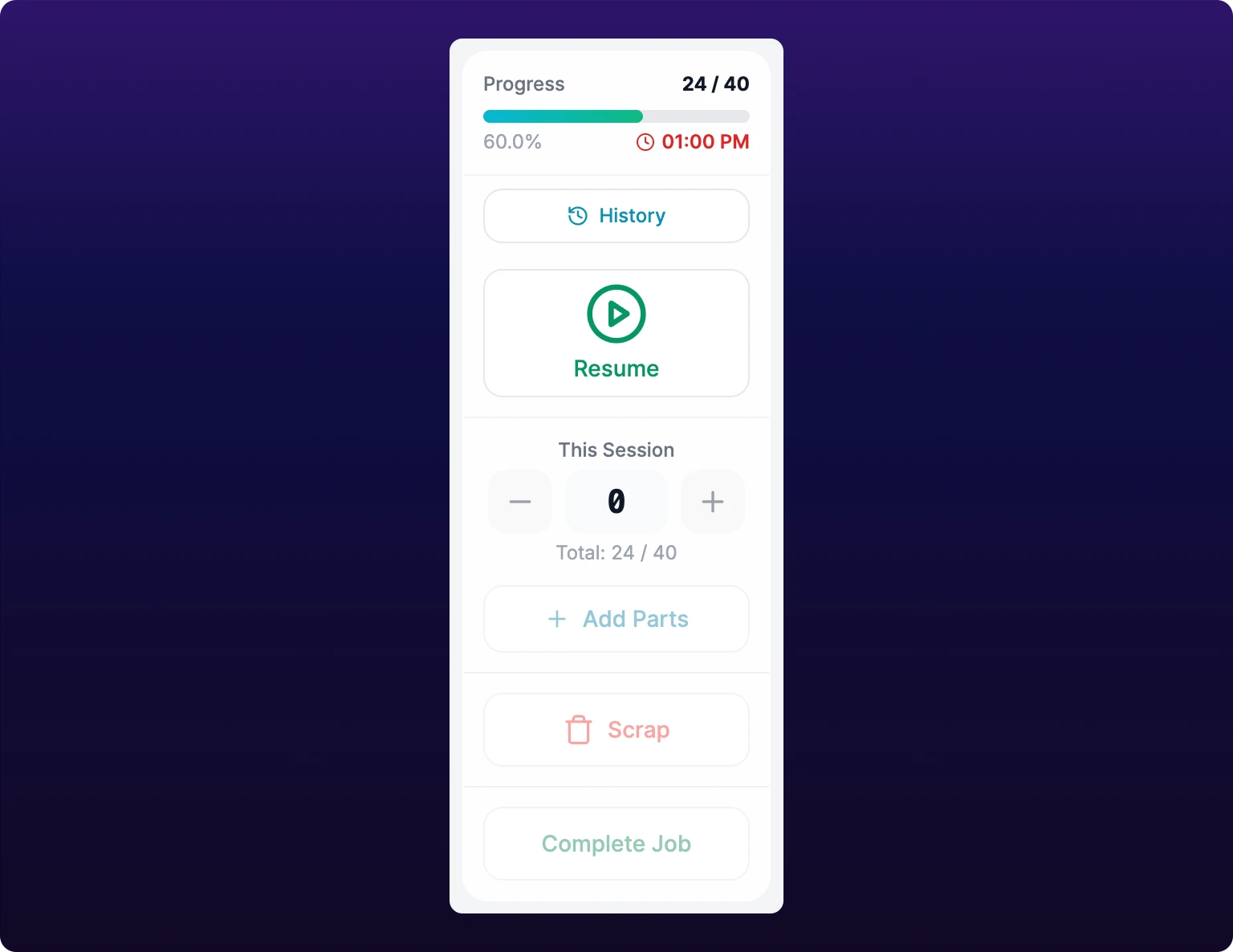 The job runner's left rail on a paused job, where Start has become Resume. Pausing closes the session and resuming opens a new one.
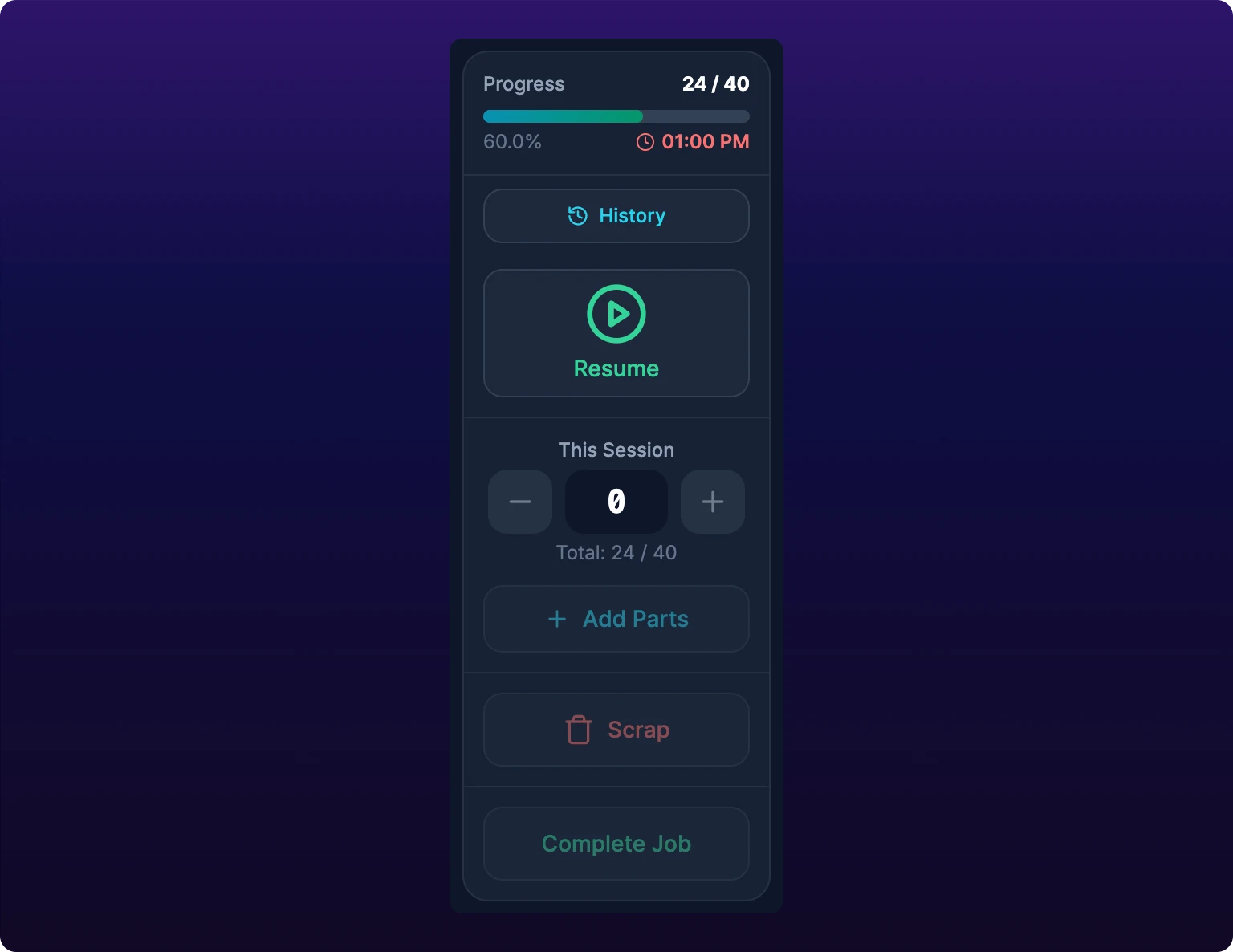
Press Resume to carry on. The task returns to In Progress, the platform opens a new session, and the counter starts again at zero. The total above it keeps every session's parts.
A task run across three shifts therefore holds three sessions, which is exactly what History shows. That is the record the shift reports and the cost report read.
A paused job cannot be completed. Scrap and Complete Job are both disabled while the task is on hold, because there is no session to write to. Press Resume, then Complete Job.
Complete the job
Press Complete Job. The dialog is the pause dialog with one section added.
- Confirm Parts Made This Session. This is the last chance to correct the number before the session closes.
- Check the scrap rows, and add any that are missing.
- Read the inventory summary, described below.
- Write a closing note if the next person needs one.
- Press Complete Job.
The task moves to Completed, the session closes, and the runner toasts Job completed.
Parts Consumed and Added to Inventory appear above the notes when the task touches stock. They are a read-only statement of what closing the job does: the material it deducts, the parts it adds, and the tools it hands back to the crib. To change either list, close the dialog and edit the task's parts, see Required and created parts.
The section is hidden when you pause, because a pause moves no stock.
A scrap row with a quantity and no reason blocks the save. The dialog stops with Please select a reason for all scrap entries and outlines the row in red.
Reopen a completed job
On a task that reads Completed or Approved, the large button becomes Reopen Job.
Press it, write a Reason for reopening, and press Reopen. The task returns to In Progress and the runner toasts Job reopened.
Reopen when the parts came back from inspection, or when the job was closed on the wrong count. Do not reopen to add a forgotten session: New Session in History does that without disturbing the status.
Job actions
| Action | Ends the session | Reversible | Available on |
|---|---|---|---|
| Start | No, it opens one | Yes, pause or complete | Web and mobile |
| Pause | Yes | Yes, Resume | Web and mobile |
| Resume | No, it opens a new one | Yes, Pause | Web and mobile |
| Complete Job | Yes | Yes, Reopen Job | Web and mobile |
| Reopen Job | No | Yes, complete it again | Web and mobile |
Every action is on both platforms, none is role-gated, and none has a keyboard shortcut. The labels differ: the mobile buttons read Start Work Order, Resume Work Order and Reopen Work Order, see On mobile.
Session history
History, at the top of the left rail, opens the Job History dialog. It works at any status, including on a task nobody has started.
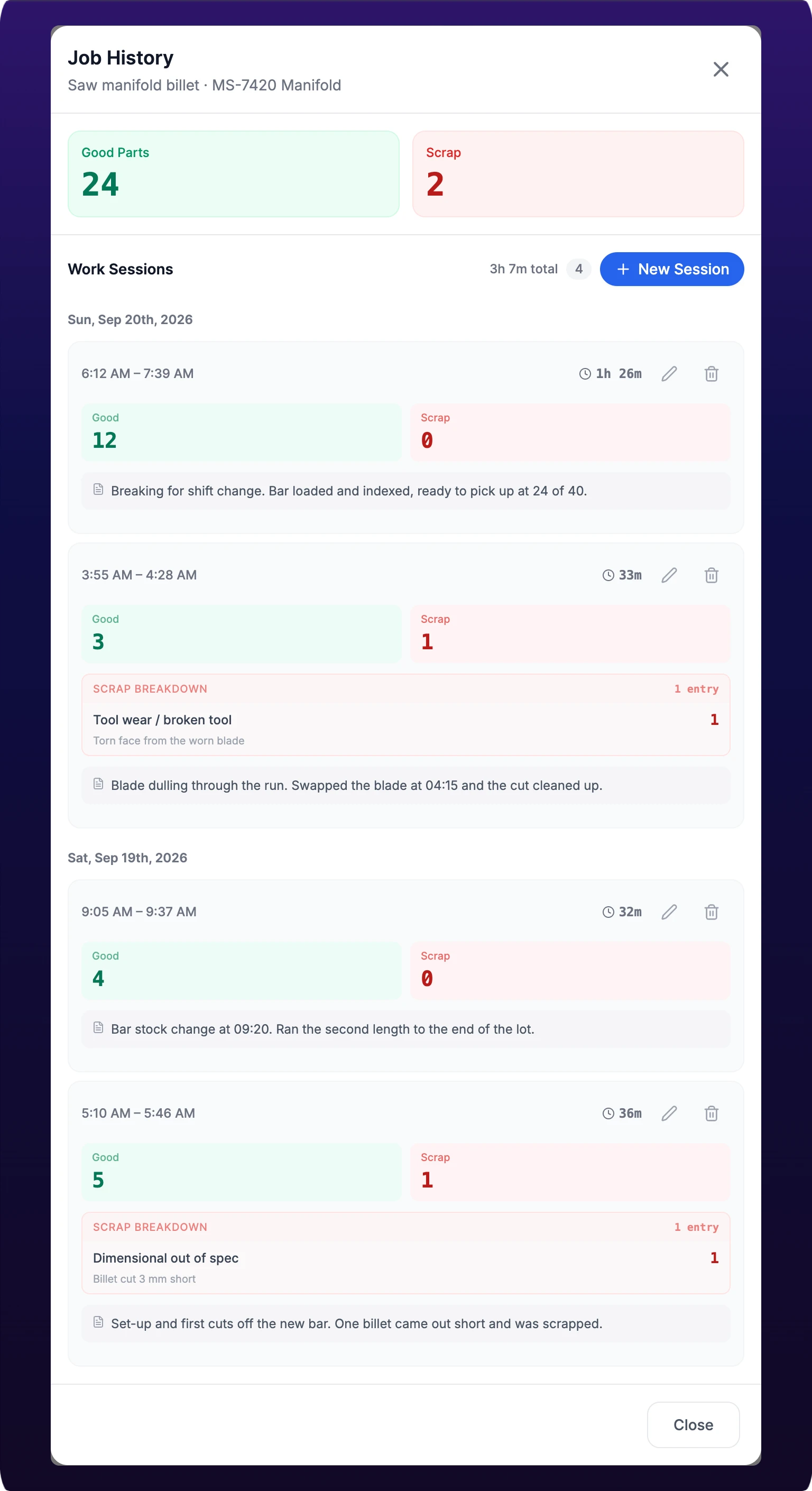 The Job History dialog: good parts and scrap totaled across every session, then one card per session with its own edit and delete controls.
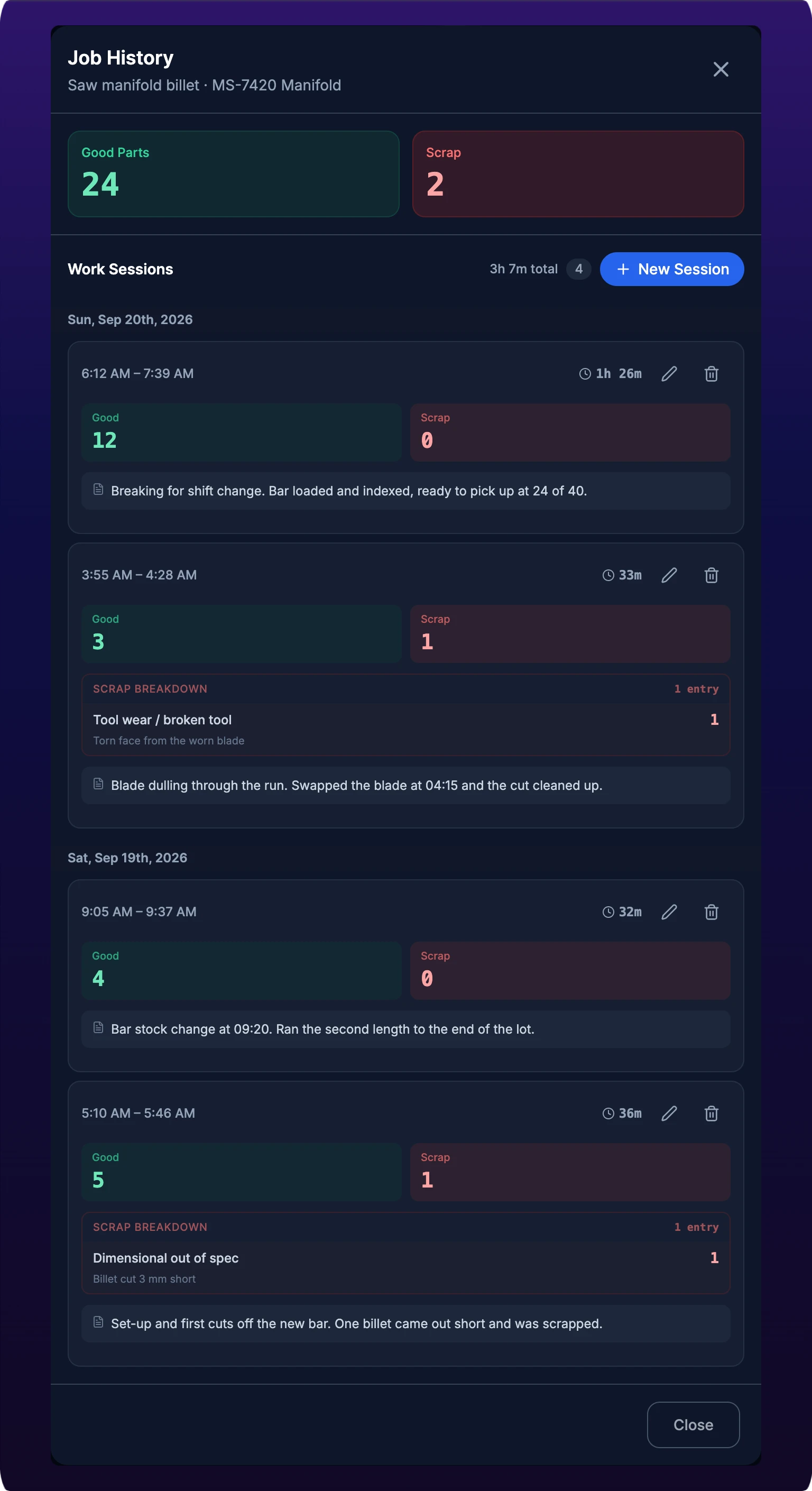
The two tiles at the top are the task's totals, summed across sessions. Below them, sessions are grouped by date and ordered newest first.
Each card carries its time range, its duration, its good and scrap counts, the scrap broken down by reason with each entry's own note, and the session note. It does not name who logged the session or who last edited it, so put anything the next shift needs into the note itself. A session still running reads In Progress where its end time would be.
New Session opens the session editor with a Start, an End, a Good Parts stepper, scrap rows and a note. On a task with no sessions yet, the editor prefills the quantity ordered and the scheduled window, which is the case where you are closing out yesterday's job this morning.
The pencil on a card opens the same editor on that session. The trash asks Delete Session and warns that it cannot be undone, then toasts Session deleted.
Deleting a session deletes its parts
A session carries the good parts and the scrap logged against it. Removing the session removes both from the task's totals, and from every report that reads them.
Edit the session instead when the times are wrong but the counts are right.
The editor refuses a window it cannot store, and says which rule you broke: Session cannot start in the future, Session cannot end in the future, Start time must be before end time, Start and end time cannot be the same, or Overlaps with another session, naming the job it collides with and the times.
That overlap check reaches across jobs. It compares against every other production task on the same machine, so it catches a backfilled session that claims the press was running two jobs at once.
The job detail panels
The rail down the right edge opens one panel at a time over the viewer. Details, Comments, Files, Queue and Maintenance are panels; Classify opens a modal.
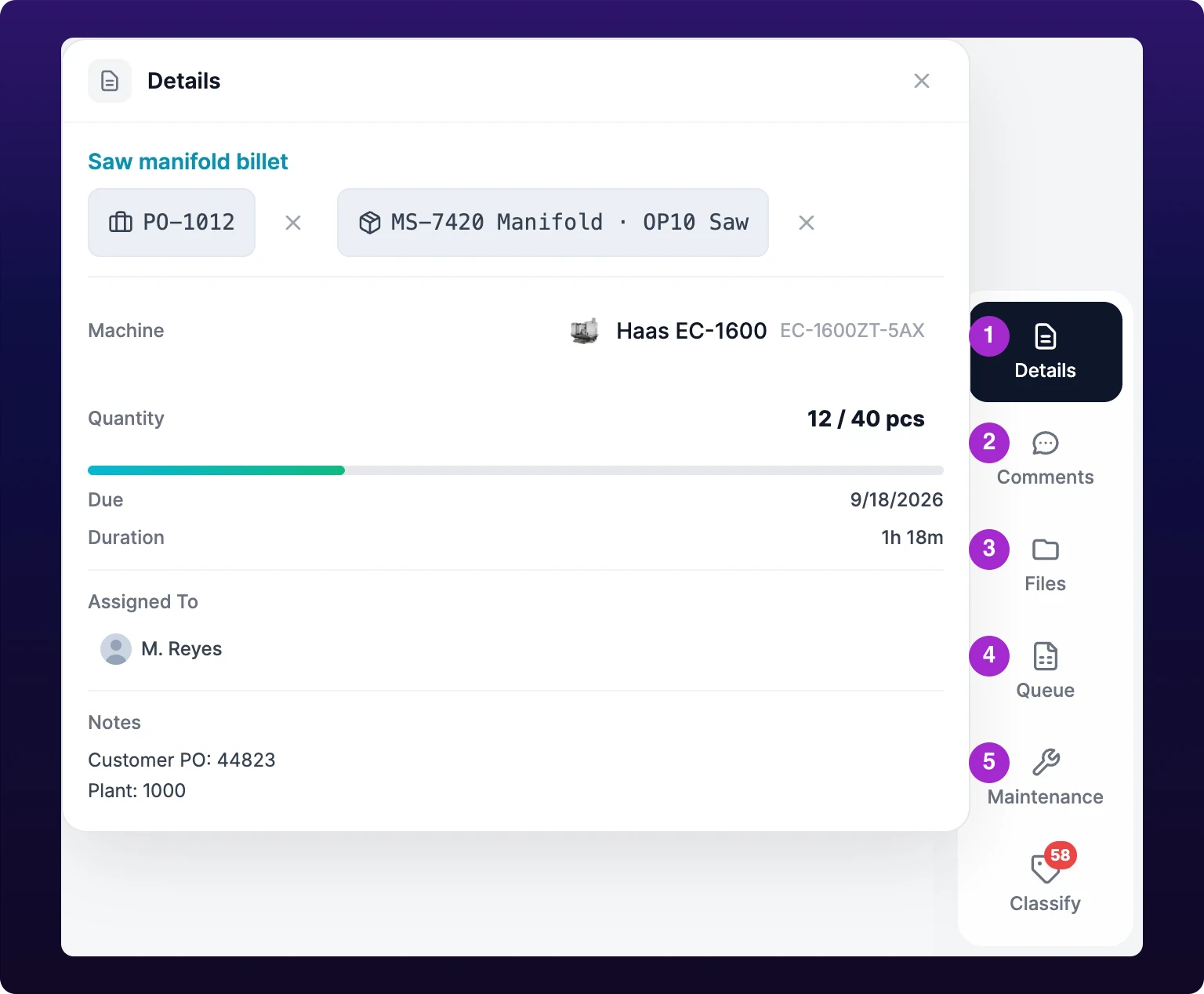 The job runner's right-hand rail with the Details panel open. The red badge on Classify counts stops on this machine that nobody has given a reason.
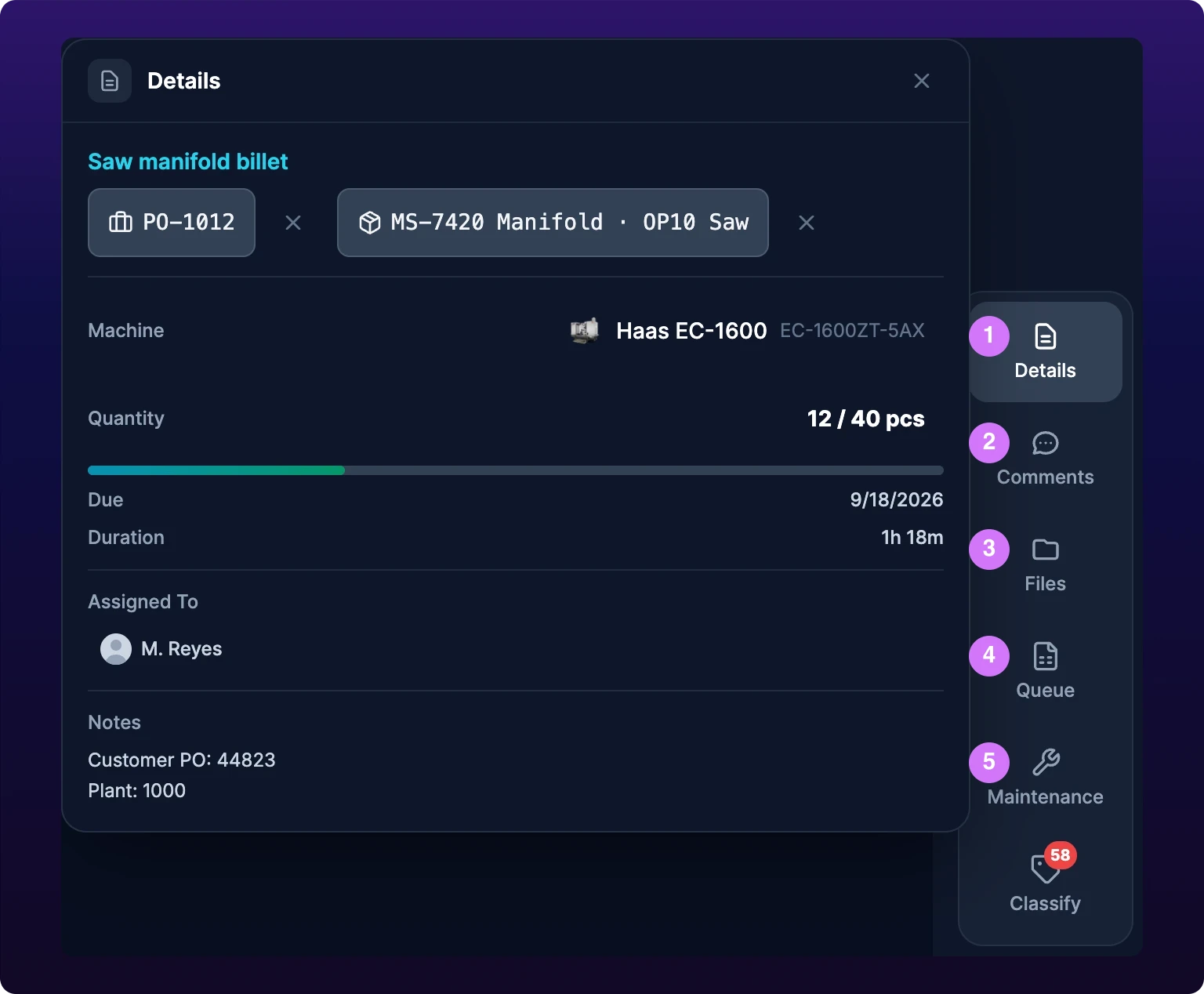
Details is an editor, not a summary. Four fields change the task from here, and each one saves as soon as you set it.
| Field | How to change it | Notes |
|---|---|---|
| Parent job | Press the job chip and pick a job | The cross beside the chip clears it |
| Part and operation | Press the operation chip and pick an operation | Changing it changes what the task counts |
| Machine | Press the machine row, then pick a machine | Toasts Machine updated |
| Quantity | Click the number, type, press Enter | Escape cancels |
The rest of the panel is read-only: the part number, the due date, the duration, the assignees and the task's notes. Assignees cannot be changed here, see On mobile.
Queue lists the tasks waiting behind this one and jumps to any of them. It holds only work assigned to you or to one of your teams, even though the page loads the whole queue, so an operator with no assignments reads No items in queue while the floor has plenty of work.
Classify opens the machine's activity list filtered to Unclassified, and the red badge counts the stops on that machine nobody has given a reason. Clearing it from here is the same action as clearing it from the machine page, see Classify a downtime.
The machine bar along the bottom draws the current shift for the machine the task runs on. Gray stretches are time the sensor reported nothing, not downtime. Clicking the bar opens the same machine modal as the Machine row above.
Comments
Comments is a chat room attached to the task, not a notes field. Messages persist on the work order, and everyone who opens the task sees the whole thread.
Use it for the things the next shift needs and the session note is too small for: a fixture that needs shimming, a tool that is running long, a photograph of a bad edge.
A task created before its chat room existed reads No chat available for this job. Log what you need in the session note instead.
Files, including 3D models
Files lists everything the task can open, in two sections. Work Order Files are attached to this task. Part Files come from the part, so they appear on every task for every operation on that part.
Clicking a file opens it as a tab in the center viewer. Tabs stay open until you close them, so a drawing and a setup sheet can sit side by side.
File types the viewer renders
| File | Opens as | Controls |
|---|---|---|
.pdf | An embedded document | Your browser's own PDF controls |
.jpg .jpeg .png .gif .bmp .webp .svg | An image | Zoom from 50% to 300%, and a reset |
.step .stp .iges .igs .stl | A 3D model you can rotate | The viewer's own camera controls |
.mp4 .webm .ogg .mov | A video player | Play, scrub, volume |
.mp3 .wav | An audio player | Play, scrub, volume |
.txt .json .xml .csv .md | Plain text | None |
| Anything else | Preview not available for this file type | Download File |
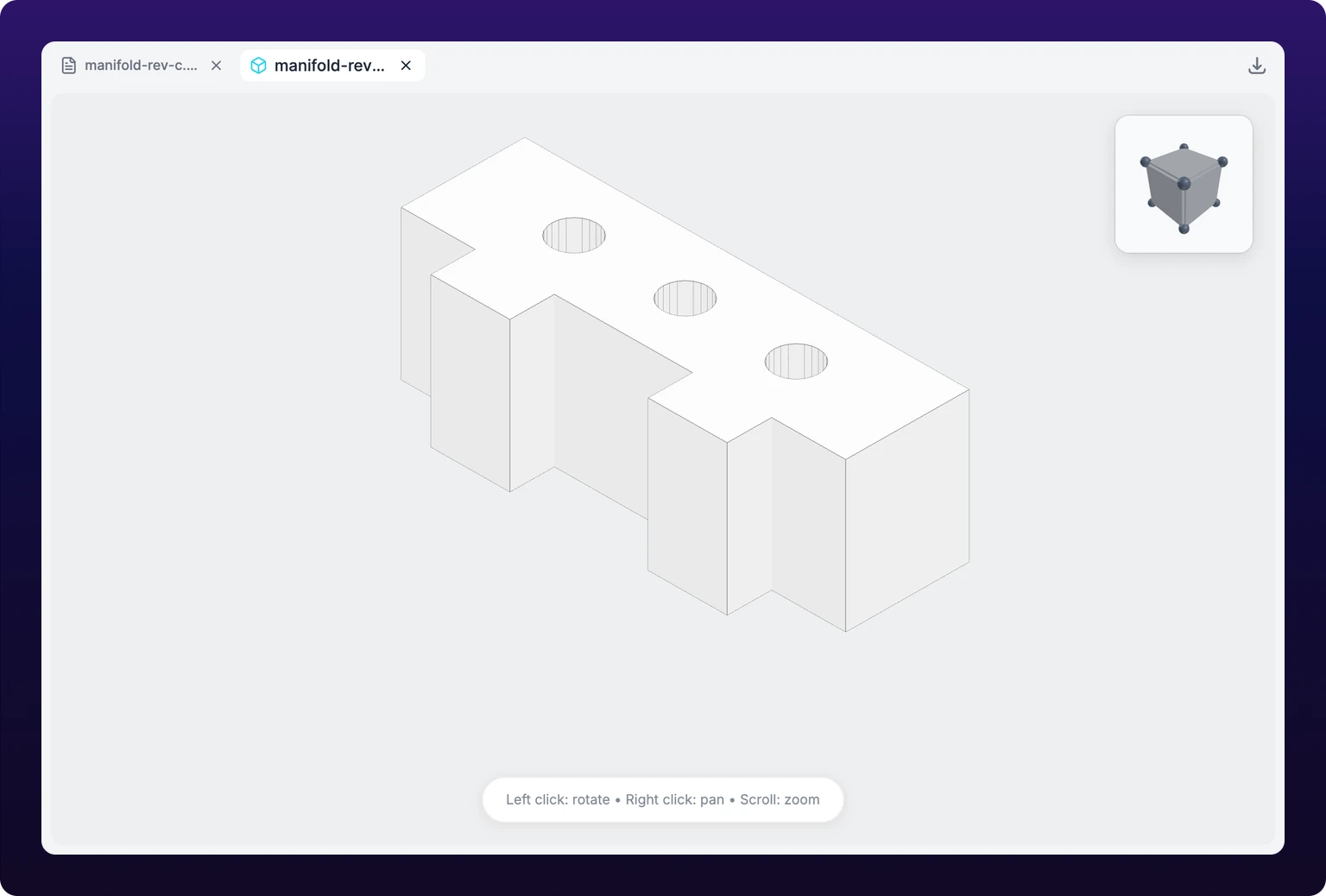 A STEP file open in the job runner's center viewer, which renders 3D models alongside PDFs, images and video.
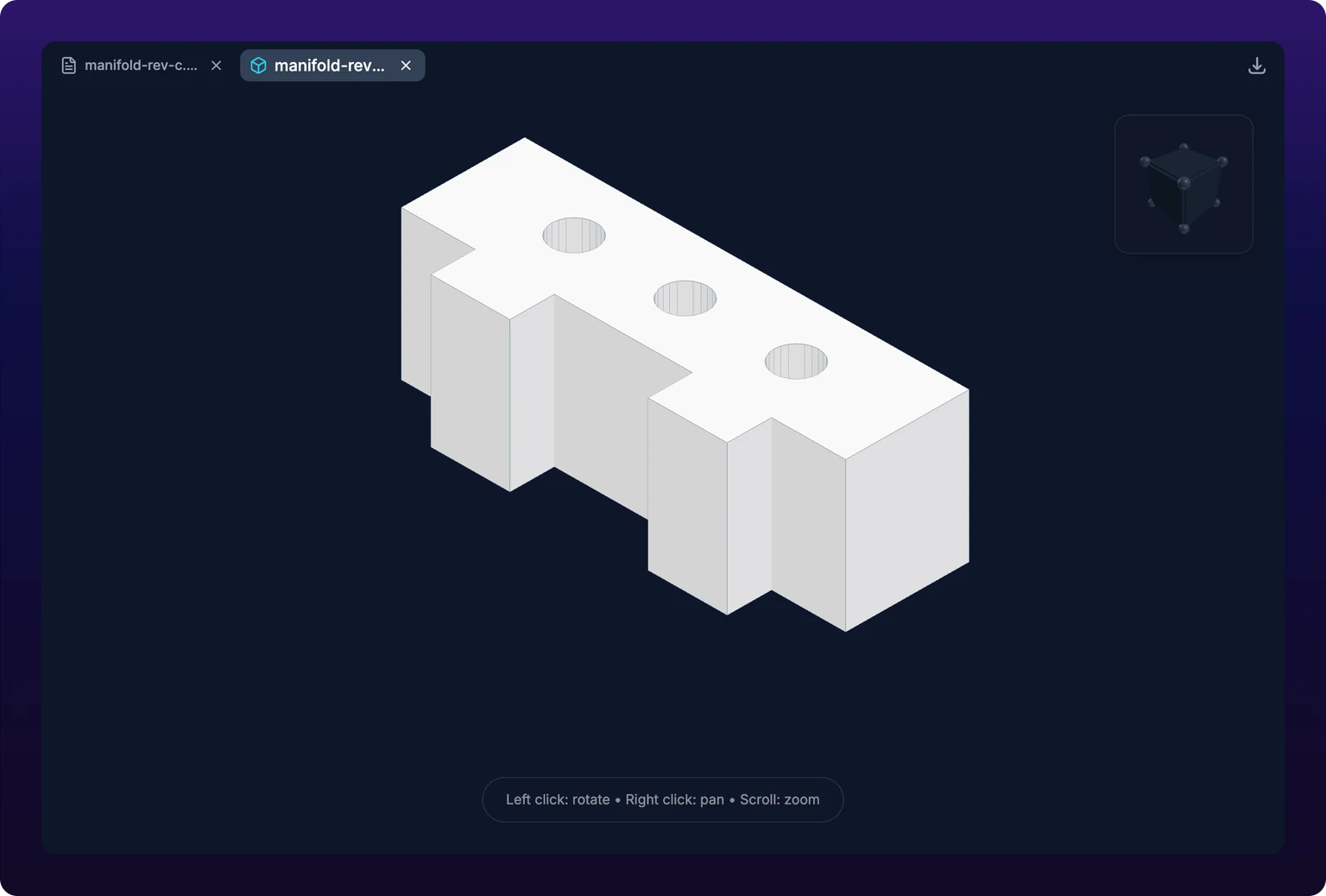
The download icon at the right of the tab strip saves the file you are looking at. A file attached to the task while you have the runner open opens itself in a new tab.
Attach the drawing to the part, not to the task. A drawing on the part reaches every task on every operation for that part, and a drawing on one task reaches that task alone. See Add pictures and files.
The one thing you give up is the automatic open. The runner only auto-opens a file the task carries, see Open the job, so an operator working from a part drawing has to press Files and click it. Attach it to the part anyway and take the extra click: a drawing that lives on one task is invisible on the next operation.
Raise a maintenance request
Maintenance opens a maintenance request form inside the runner, with this task's machine already filled in. Give it a title, a description, a priority and a due date, attach photographs, and press create. It toasts Maintenance request created.
The request is a maintenance work order and lands in Maintain. Nothing about the production task changes: it stays In Progress, and its session keeps running while you fill the form in.
Use this panel for the fault that just stopped you, and Maintain for everything else. From here the machine is filled in and you are already standing at it, which is what makes the request worth writing. Planned work, work on another machine and recurring work belong in Submit a maintenance request.
Setting a recurrence without a due date stops with Set a due date first. A failed create reads Failed to create request, and nothing was saved.
On mobile
The runner switches to the mobile layout inside the iOS and Android apps, and in any browser window narrower than 640 px. The runner adds one rule the rest of the Work Queue does not: at 1024 px or wider it uses the web layout anyway, so an iPad in the app gets the desktop runner in landscape.
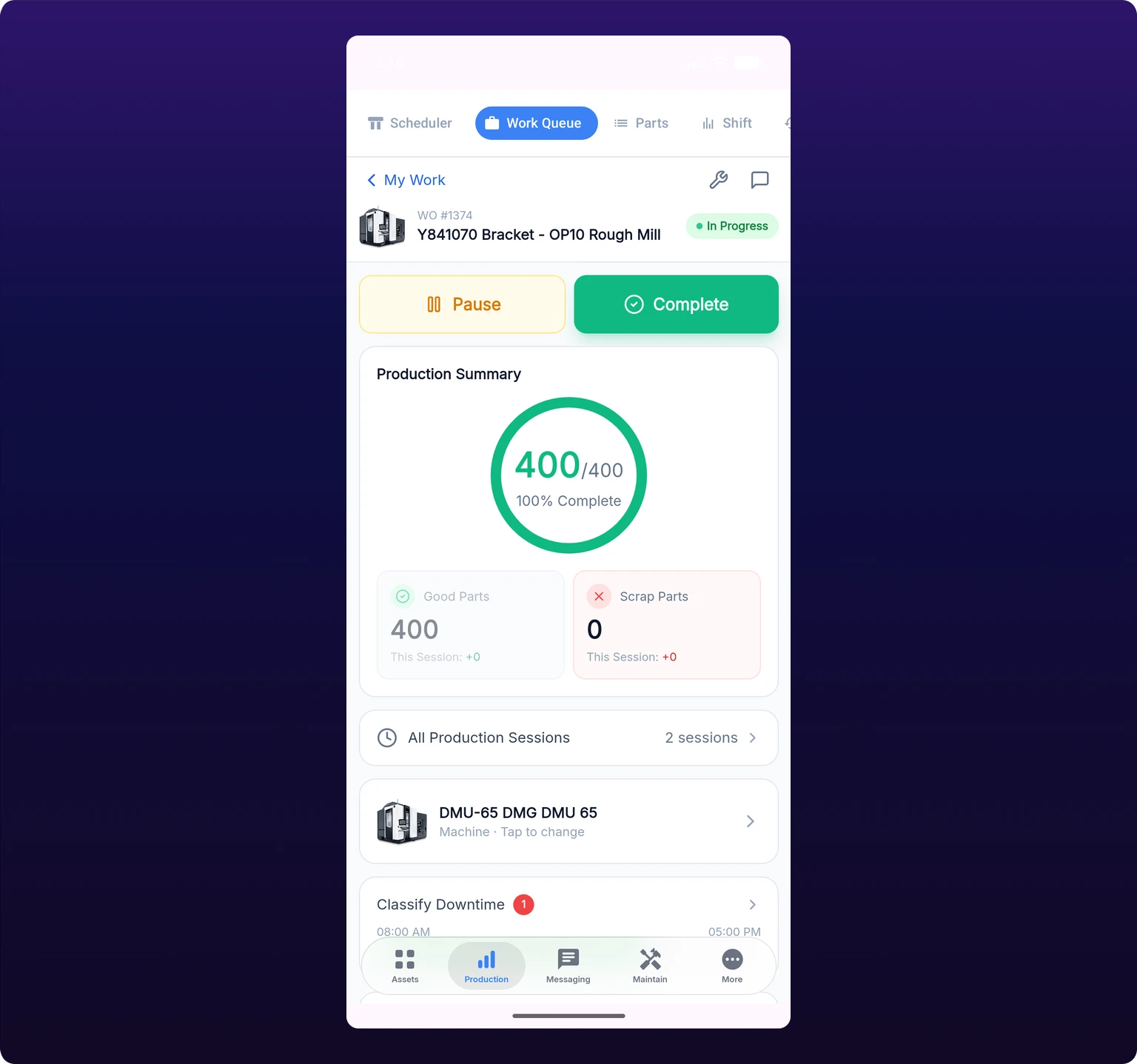 The job page in the mobile app with the job running. Pause and Complete sit side by side above the production summary; completion is a button, not a slide.
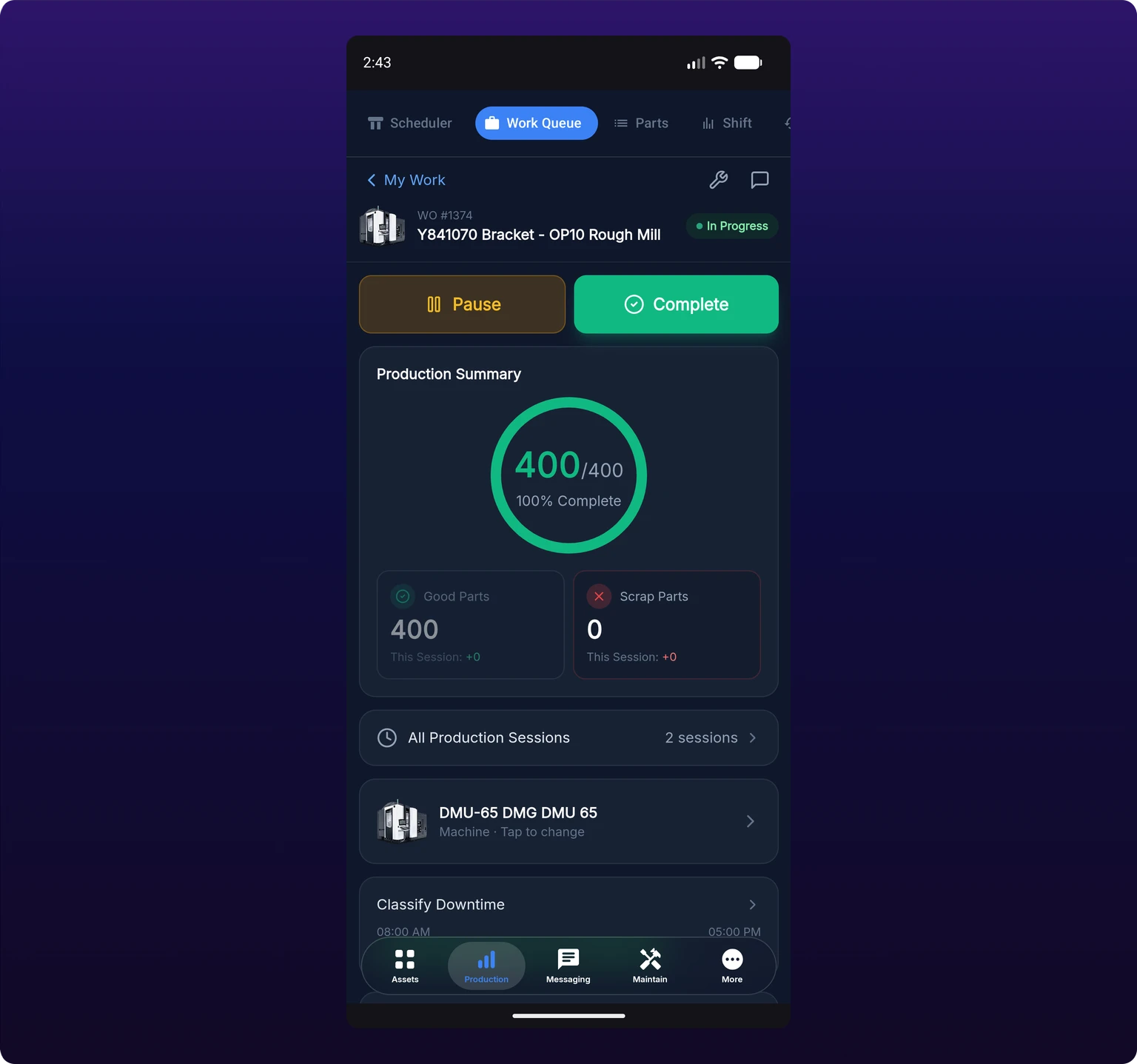
The mobile page carries the same job and the same sessions, arranged as a scrolling list.
- The primary action sits at the top: Start Work Order, Resume Work Order, Pause beside Complete, or Reopen Work Order. Completing a job is a button press, not a slide.
- Production Summary draws the total as a ring. The Good Parts tile opens the keypad, and the Scrap Parts tile opens a scrap sheet that will not save until you pick a reason code.
- The keypad's mode toggle reads Add to count and Absolute, and the button under it reads Add Parts or Set Count. Absolute is the same thing as Set session total on the web.
- The This Session stepper vibrates on each press and ignores a second press inside 200 ms, so a gloved double tap counts once.
- All Production Sessions opens the same Job History dialog.
- People lists the requester and the assignees, with + Add beside them. This is the only place in the Work Queue where you can put your own name on a task.
- Attachments adds files from Photos, Camera, Video or File. Photographs are converted to WebP and capped at 1600 px before upload. Part files are listed but cannot be removed here.
- Classify Downtime carries the shift bar and the unclassified count, and the wrench in the header opens the maintenance form.
The mobile viewer does not render 3D models. A .step or .iges file opens in the plain file view, which cannot draw it. Open that task on a desktop runner when you need the model.
When something fails
| Message | What happened | What to do |
|---|---|---|
| No active session | You logged parts or scrap on a task that is not running | Press Start or Resume first |
| Failed to update parts | The count did not save | The runner reloads the task, so read the counter before pressing again |
| Failed to record scrap | The scrap entry did not save | Retry from Scrap. Nothing was written |
| Please select a reason for all scrap entries | A scrap row has a quantity and no reason | Pick a reason, or set that row's quantity to zero |
| Failed to update work order | The status change did not save | The chip may already show the new status. Reload the page to see the truth |
| Failed to update machine | The machine change did not save | The task is still on the old machine |
| Failed to create session, Failed to update session, Failed to save session | The session editor could not write | Nothing was saved. Check the times against the rules in Session history |
| Failed to delete session | The session is still there | Retry. Its parts are still counted |
| Failed to create request | The maintenance request was not created | Retry from the Maintenance panel |
If a part count looks wrong rather than a request failing, start at Troubleshoot inaccurate part counts.
See also
From the blog
The Create Workorder form adds one task to the production queue: one operation, on one machine, for a quantity of a part. Only the title is required, and every other field is a chip above it. Picking a machine auto-fills the operation, the time estimate and the parts that operation reserves. The form always assigns the new task to you and has no due date control, so work created here lands in My Work and starts out unscheduled on the board. Create from the Scheduler instead when you are planning work for somebody else.
Scrap is recorded against the work session that made it, from the Scrap button in the job runner's action rail, and every entry needs a reason code drawn from one organization-wide list. The Pause Session dialog, the Complete Job dialog and the Job History session editor hold that session's scrap as editable rows and refuse to save a row that has a quantity and no reason. Reason codes are created, renamed and deleted inside the Log Scrap dialog itself, and deleting one makes every entry already logged against it print its raw identifier. Scrap never comes out of the good count.