

Create parts and operations
The parts your machines run, and the operations that make them.
Every production number in IoTFlows traces back to this page. A count, a shift goal, a pace, a scheduled job and a material transaction all belong to an operation, and an operation belongs to a part. Nothing counts until both exist.
Before you start
- Sign in as an Organization Owner or Administrator. See Roles and permissions.
- A machine already reporting to IoTFlows, if you want to see the counts land. See Quickstart: see your first machine's data.
This page is the field-by-field reference for the Parts List. If you have never set one up, run Quickstart: count your first parts first and come back here for the fields it skipped.
The parts model
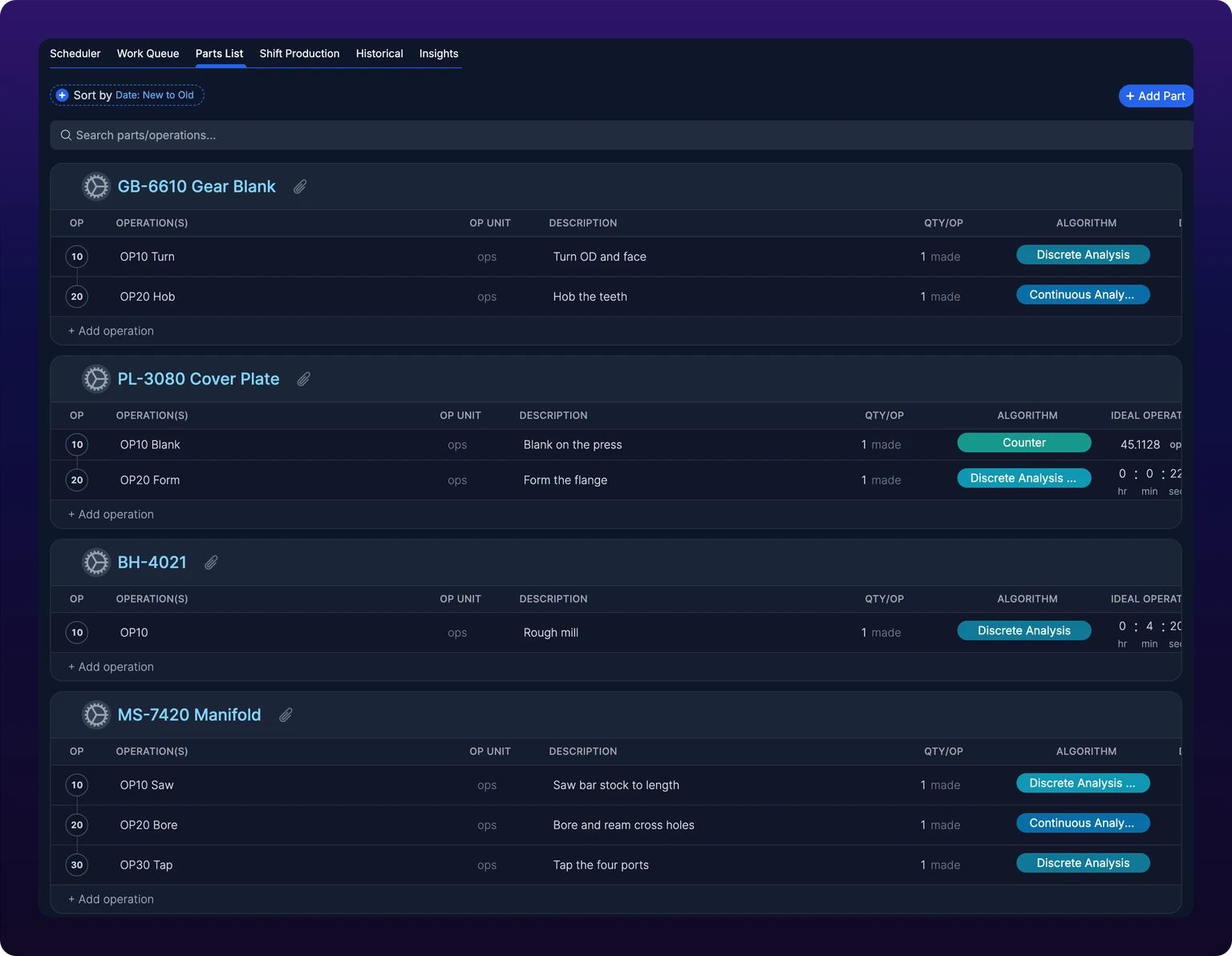
A part is a thing your plant makes, named the way your traveler and your purchase orders name it. A part counts nothing by itself. It is a folder with a picture and some drawings in it.
An operation is one thing a machine does to that part, for example a roughing pass, a press stroke or a deburr. The operation is where the work happens. It carries the detection algorithm, the rule that turns the sensor's signal into cycles, the ideal cycle time, how long one good cycle takes, and the units the count is reported in.
Three relationships hold everywhere in the product:
- A part holds as many operations as you like. An operation belongs to exactly one part.
- An operation runs on one or more machines. You assign it from the machine, not from here. See Detect operations automatically.
- A scheduled task is one operation on one machine. That is why parts and operations are a hard prerequisite for the scheduler. See Plan jobs in the Production Scheduler.
Create one operation per thing the machine does differently, not one per line on the router. If two router steps run at the same rate on the same machine, one operation counts both correctly and halves your setup. Split them only when the cycle time, the algorithm or the machine differs.
You do not need a part to know whether a machine is running. Machine state, uptime, downtime and utilization come from the sensor alone and appear on the Assets page with no part on file. See Monitor your fleet on the Assets page.
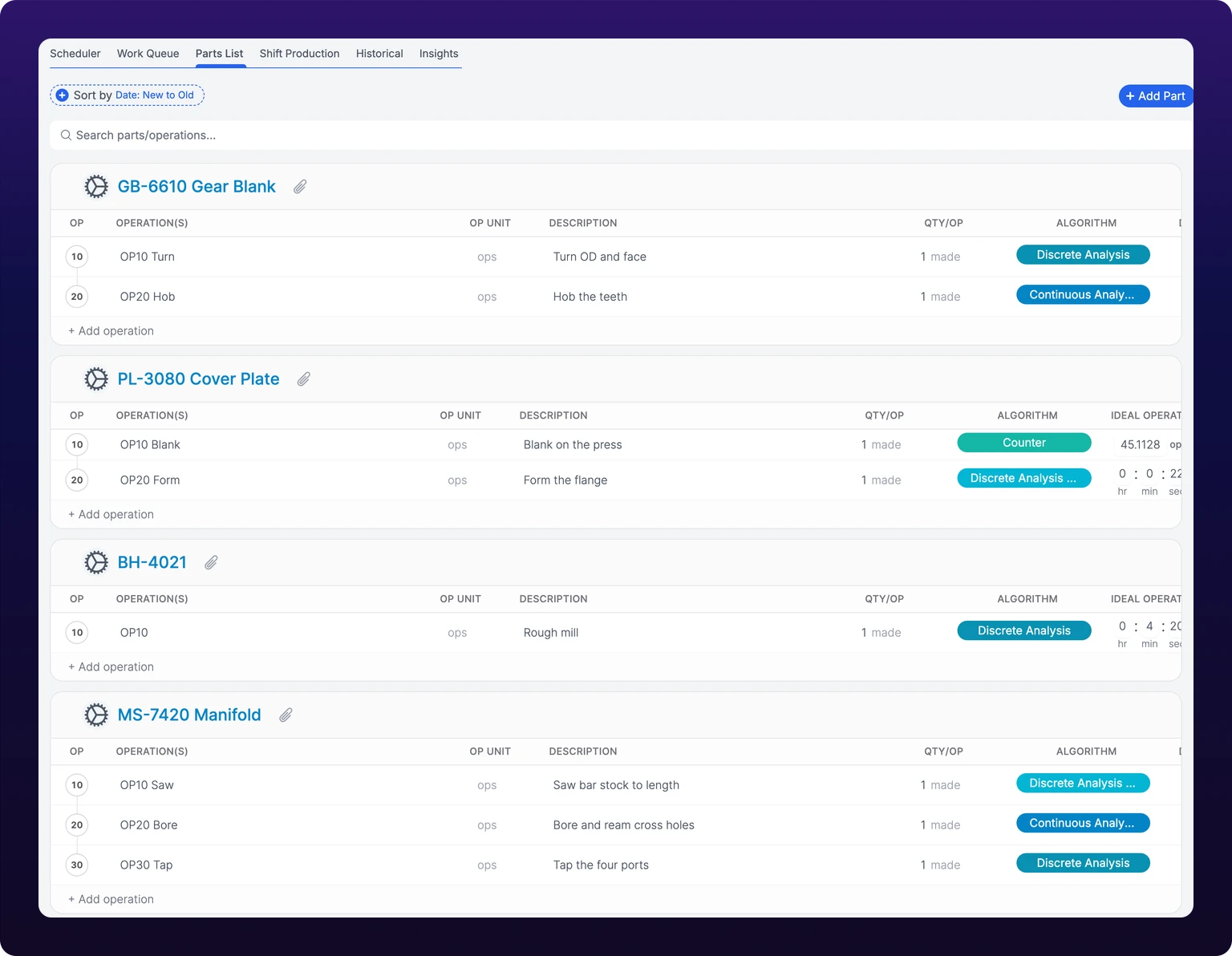 The parts list. Each part carries the operations that make it.
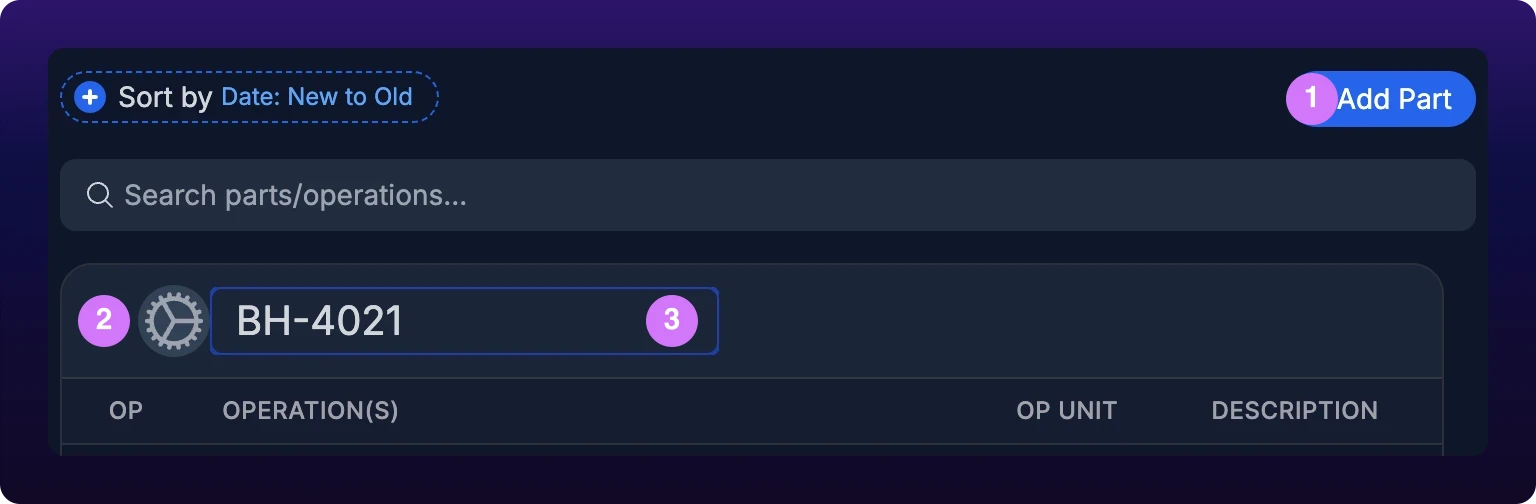
Create a part
- Open Production, then the Parts List tab, at
/production?select=parts_list. - Click Add Part. A part called
New Partappears at the top of the list and the dashboard confirms with Part has been added. There is no dialog. - Click the part's name, type the number your plant already uses, for example
BH-4021, and press Enter.
Clearing the name and clicking away puts the old name back rather than saving an empty one.
On a phone, Add Part opens a sheet with a single Part Name field, and submitting it empty returns Please enter a part name. The desktop button never asks, so it cannot produce that message.
Part fields
| Field | Required | Accepts | Used by |
|---|---|---|---|
| Part name | Yes | Free text, edited in place on the part header | The Parts List, Shift Production, Historical, the scheduler and every job that runs one of its operations |
| Part picture | No | One image, cropped and zoomed in the dashboard. JPEG, PNG, WebP and HEIC all upload | The thumbnail beside the part on Shift Production, on scheduler cards and in the Work Queue |
| Files | No | Any number of files of any type, up to the browser's upload limit | The work order, so the operator running the job can open them |
A production part has no number field, no description and no unit of its own. The part name is the number, which is why it is worth typing the plant's real one: a part called Bracket v2 matches no paperwork anybody on the floor is holding.
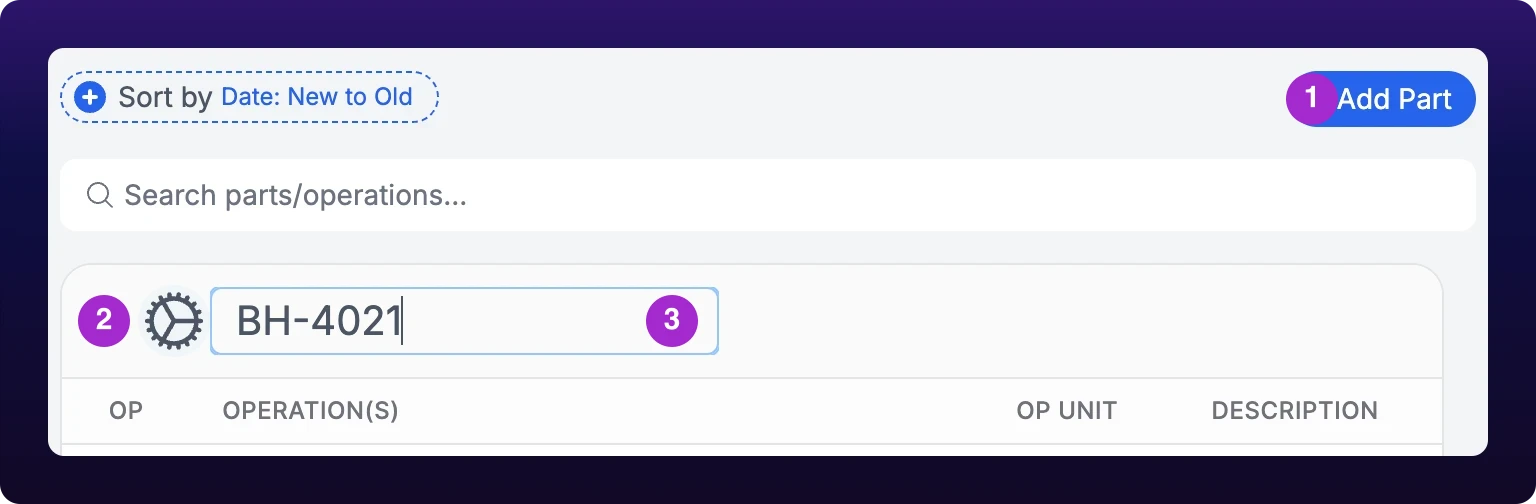 Creating a part. The name is the only thing a part needs.
Add pictures and files
The picture is the circle at the left of the part header. Click it, choose an image, drag and zoom it inside the crop frame, and confirm. It replaces whatever was there.
Files sit behind the paperclip beside the part name, which carries a badge with the number attached.
- Click the paperclip. Files opens, headed with the part name.
- Click Click or drag files to upload, or drop files anywhere in the panel. Several at once is fine, and each one shows its own progress row.
- Hover a file for Download and Delete. Delete asks once, in the row itself, with Cancel and Delete.
- With two or more files attached, the download arrow in the panel header takes all of them at once.
Click a file to preview it in place rather than downloading it. PDF, plain text, JSON, XML, CSV and Markdown, images, audio and video, and .step and .stp CAD models through the built-in viewer all preview. Anything else downloads.
Attach the drawing here rather than emailing it. Part files ride along to the work order, so the operator opens the print from the job they are running instead of hunting for it. That is the whole reason the field exists.
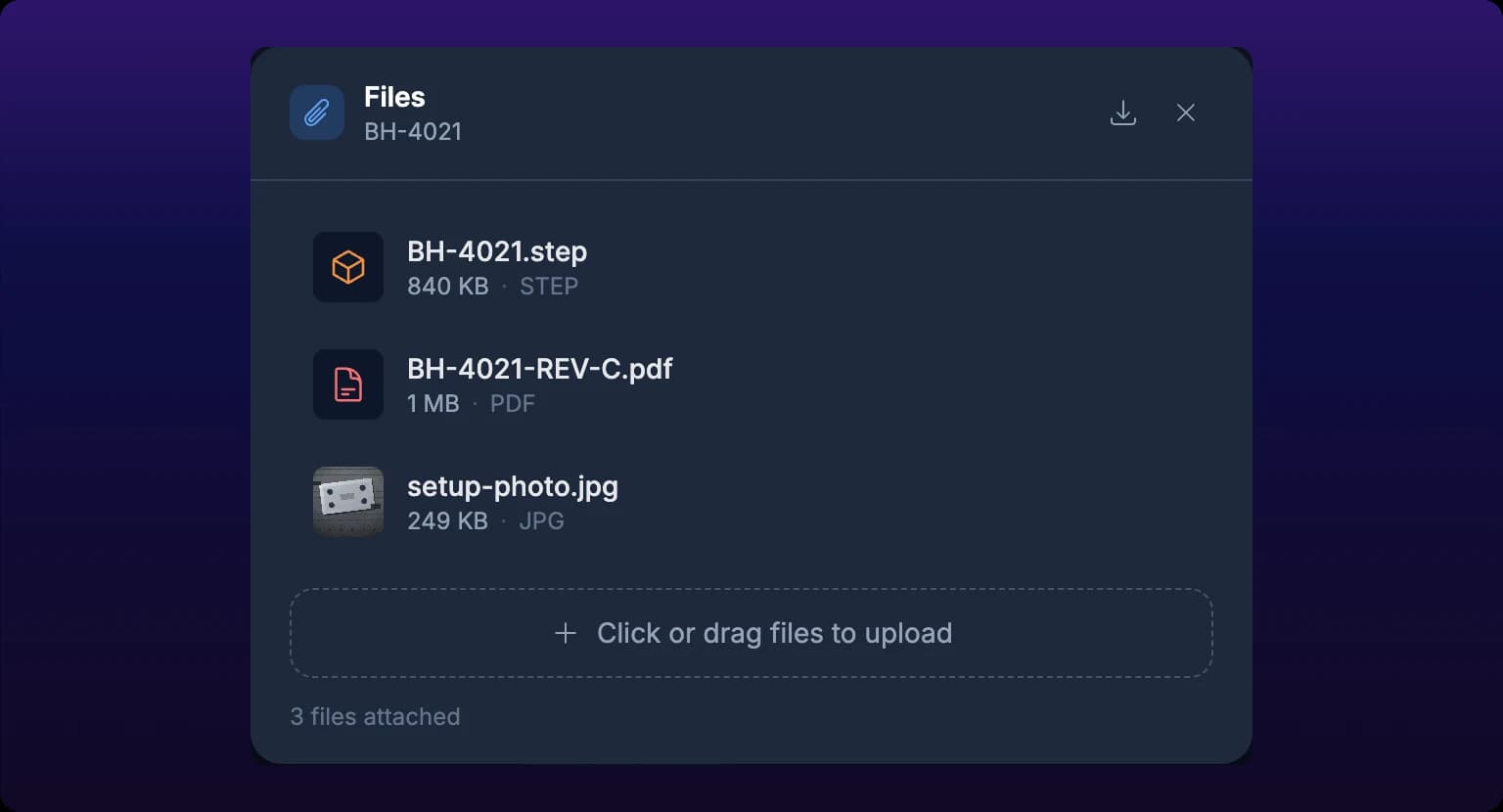
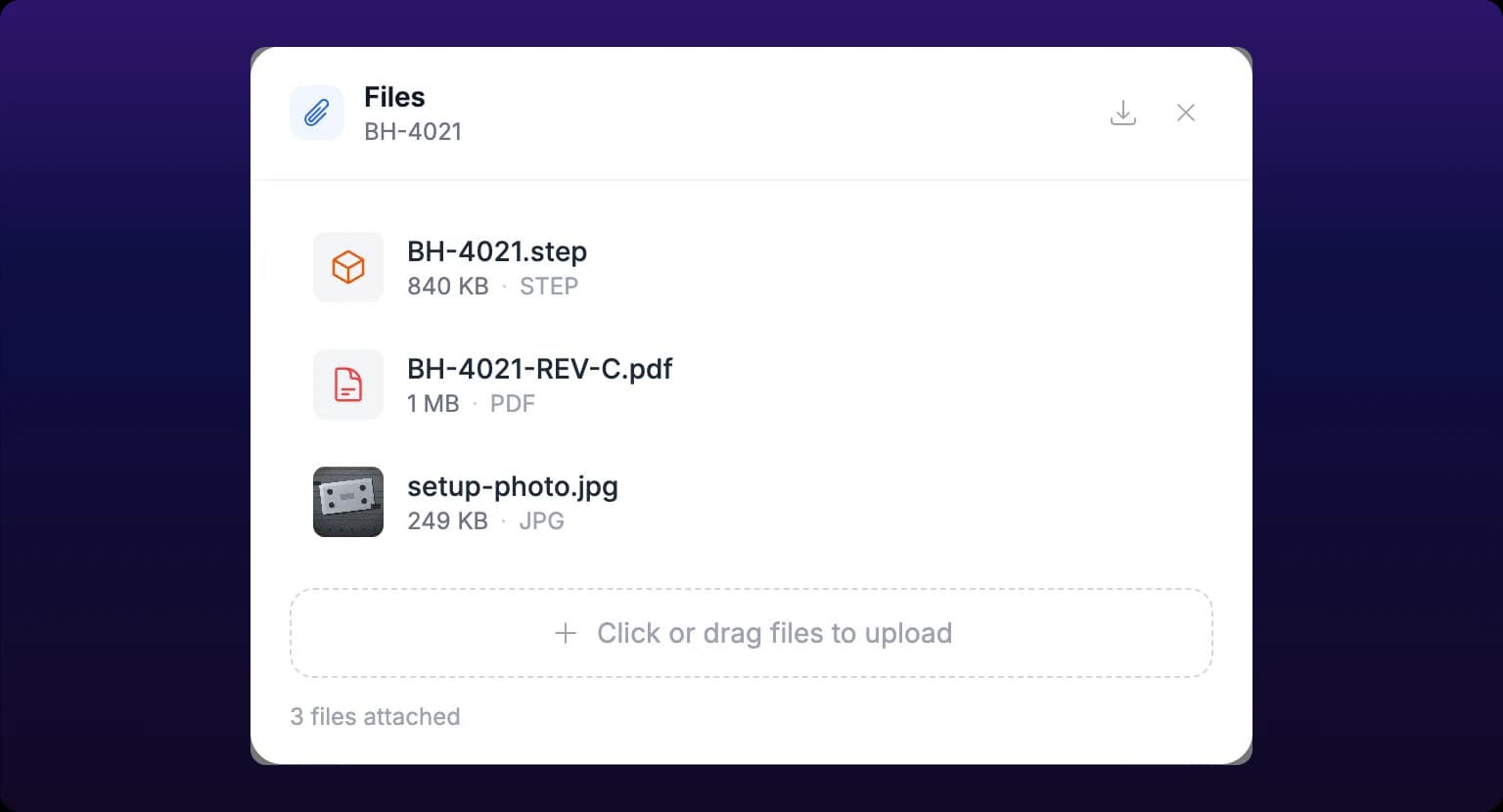 Pictures and files on a part. The operator sees these from the job.
Add an operation
- Click + Add operation at the foot of the part's table.
- Type the operation name, for example
OP10, and press Enter. The dashboard confirms with Operation has been added. - Fill in the rest of the row cell by cell.
Every cell on the row saves when you leave it, by pressing Enter or Tab or by clicking elsewhere. There is no Save button and no draft state, so a half-filled operation is already live.
A new operation arrives with a name and nothing else. Until it has an algorithm it counts nothing, and it does not appear in the assignment list on the machine.
Operation fields
| Field | Required | Accepts | Effect on counting |
|---|---|---|---|
| OP | No | Up to four digits, nothing else | None. It orders the routing. See Operation sequence |
| Operation(s) | Yes | Free text, set when you create the row and editable after | None |
| OP UNIT | No | Free text up to 12 characters. Defaults to ops | None. It labels the count wherever the operation is shown |
| Description | No | Free text, for example Rough mill | None |
| QTY/OP | No | A number, fractions allowed, with its own unit label beside it. The label defaults to made | Multiplies every detected cycle. See Unit and quantity per cycle |
| Algorithm | Yes, to count anything | One of the four the server offers | Decides what counts as one cycle. See Choose a production tracking algorithm |
| Downtime Filter | No | 0 to 200%. The column appears only when the part has at least one Continuous Analysis operation, and the field is editable only on that operation's row | Converts stops shorter than that share of the cycle time into running time. See Set cycle times and downtime filters |
| Ideal Operation Cycle Time | Yes, for goals and pace | Hours, minutes, seconds and hundredths, plus a tolerance percentage on the two Discrete algorithms | Continuous Analysis divides running time by it to produce the count. The other three read it for goals only. See Set cycle times and downtime filters |
| Requires and Creates | No | Inventory items | None. They move stock when the work order closes. See Link required and created parts to an operation |
Changing the algorithm on an operation that other machines already run can come back with a Confirm Algorithm Change dialog listing those machines. Confirming removes the operation from them. See Switch to a different algorithm.
 An operation's fields. Quantity per cycle is the field behind most doubled counts.

Operation sequence
The sequence is the step number the operation holds in the routing, shown as a circle in the OP column and joined to its neighbors by a hairline.
- Click the circle. On an operation with no number yet, hover the row and click the dashed
+. - Type the step number, for example
20. Digits only, four at most. - Press Enter. The rows resort themselves and the marker rings once so you can follow the one that moved. Escape cancels.
Operations without a number sit at the end of the list, in whatever order the server sent them.
Why did OP100 land above OP20? Step numbers sort as text, not as numbers, so 100 comes before 20 the same way Ba comes before Bx. Pad the numbers to a fixed width and the problem disappears: number the routing 010, 020, 100 rather than 10, 20, 100.
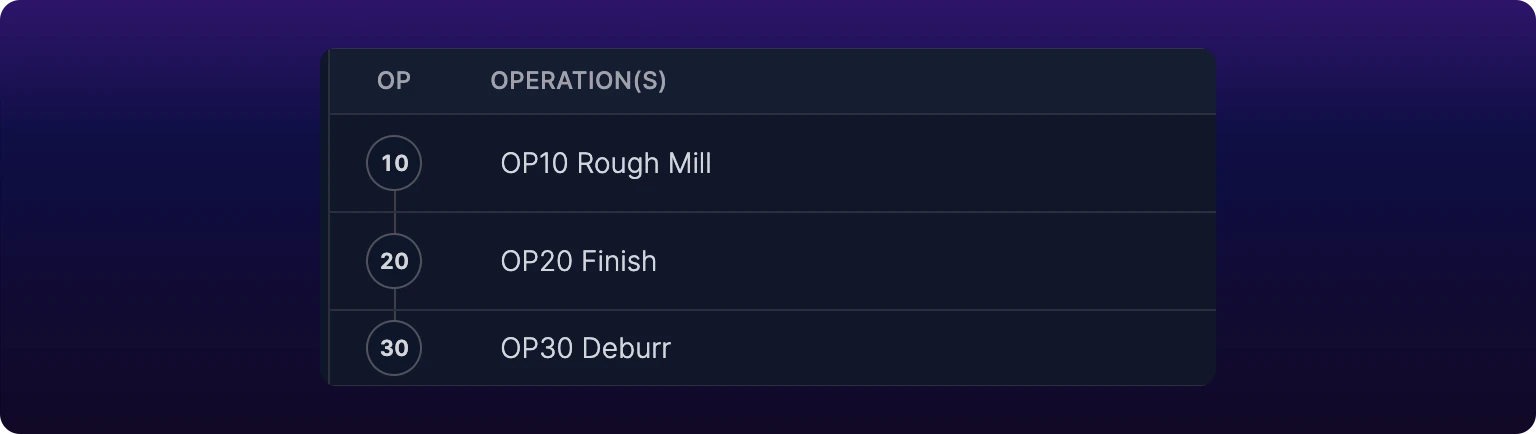
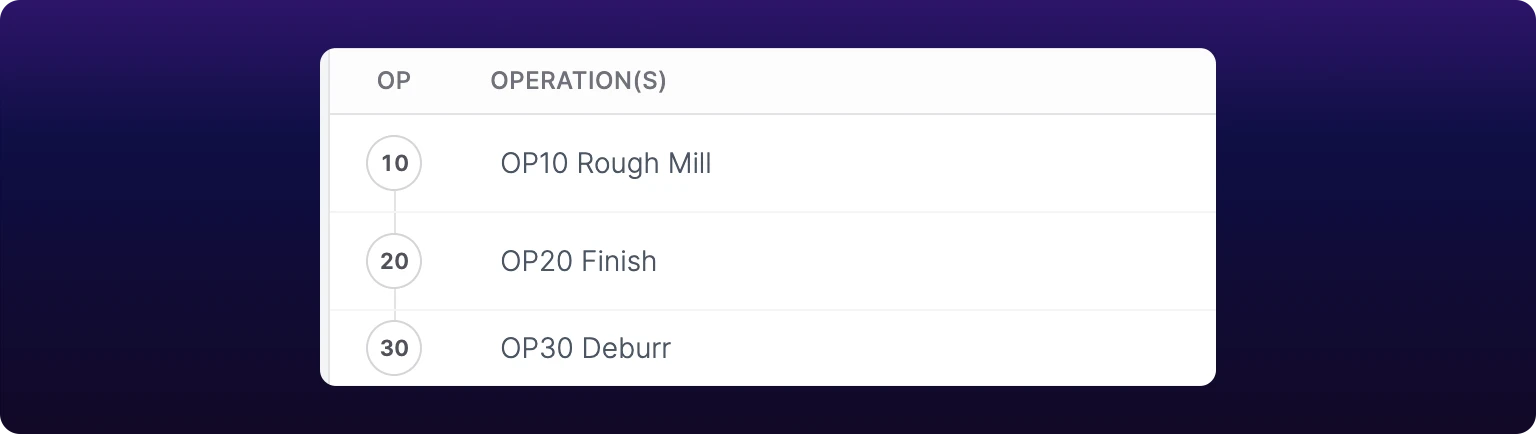 Operation sequence. Create one operation per thing the machine does differently.
Unit and quantity per cycle
Quantity per cycle is how many parts one detected cycle of this operation produces. It is the QTY/OP cell, and it multiplies the count the algorithm arrives at.
| What the machine does | QTY/OP | Result |
|---|---|---|
| One cycle makes one part | 1 | The count is the cycle count. This is the usual case |
| A four-cavity mold shoots four parts | 4 | 100 cycles count as 400 parts |
| Two cycles are needed to finish one part | 0.5 | 100 cycles count as 50 parts |
Check this cell first when a count comes out doubled or halved. It is the only field on the row that scales the answer, so a mold changed from two cavities to four shows up here as a count that is exactly half of reality.
The operation carries two unit labels, both free text and both capped at 12 characters:
- OP UNIT names what the operation counts, and defaults to
ops. Set it tocycles,passesorstrokeswhen that reads better on a gauge. - The label beside QTY/OP names what one cycle yields, and defaults to
made. Set it tocut,shotorlbs.
These are labels, not conversions. Changing ops to lbs changes what the gauge on Track production against shift goals says, not what it counts. Use QTY/OP for the arithmetic.
Edit or delete
Everything on this page is edited in place. Click a cell, change it, and leave the cell.
Parts carry their actions in the ... menu at the far left of the header, which appears on hover:
- Archive this part asks
Are you sure you want to archive part BH-4021?and confirms with Part has been archived. - Delete this part asks
Are you sure you want to permanently delete part BH-4021?and confirms with Part has been removed.
Operations carry an archive icon and a trash icon at the right of the row, also on hover, with the same two confirmations and the toasts Operation has been archived and Operation has been deleted.
Archive rather than delete once an operation has produced anything. Deleting an operation removes its historical association: the production it counted stays in your data, but no longer carries the operation's name, so the run disappears from anything that groups by operation.
Archived parts leave the Parts List. There is no view of archived parts and no restore control in the dashboard, so treat archiving as a one-way move and contact IoTFlows if you need one back. See Contact support and report bugs.
Search and sort the parts list
The search box above the list matches part names and operation names together, so typing GB-66 finds the part and typing DEBURR finds the part that has that operation.
Typing writes the text into the address bar as ?q=, which means a filtered list is a link. Send /production?select=parts_list&q=BH-4021 to someone and they open the same view. No match returns No matches found for BH-4021.
Sort by, at the top left, offers four orders:
| Sort option | Order |
|---|---|
| Date: New to Old | Most recently created part first. The default |
| Date: Old to New | Oldest part first |
| Name (A to Z) | Part name ascending |
| Name (Z to A) | Part name descending |
On a phone the same four are in the toolbar's view menu, labeled Newest, Oldest, Name A-Z and Name Z-A.
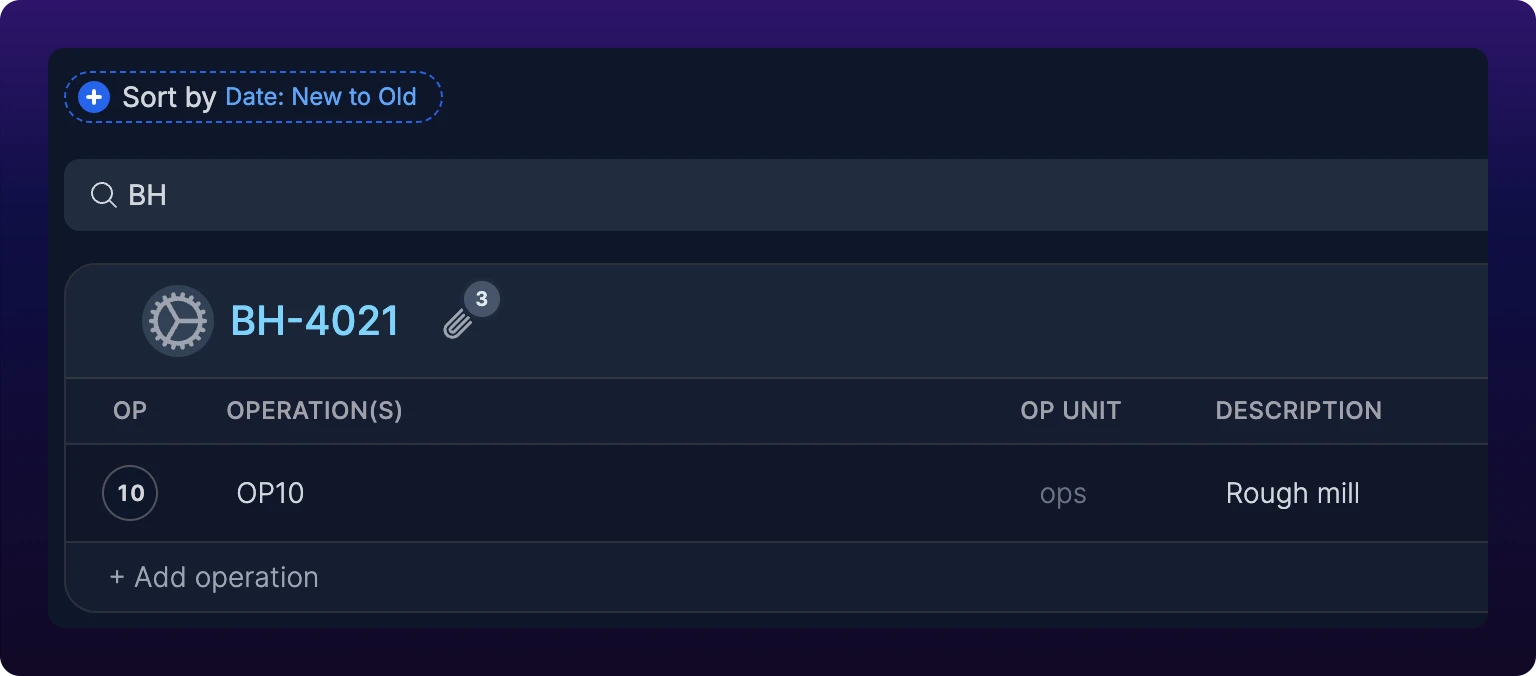
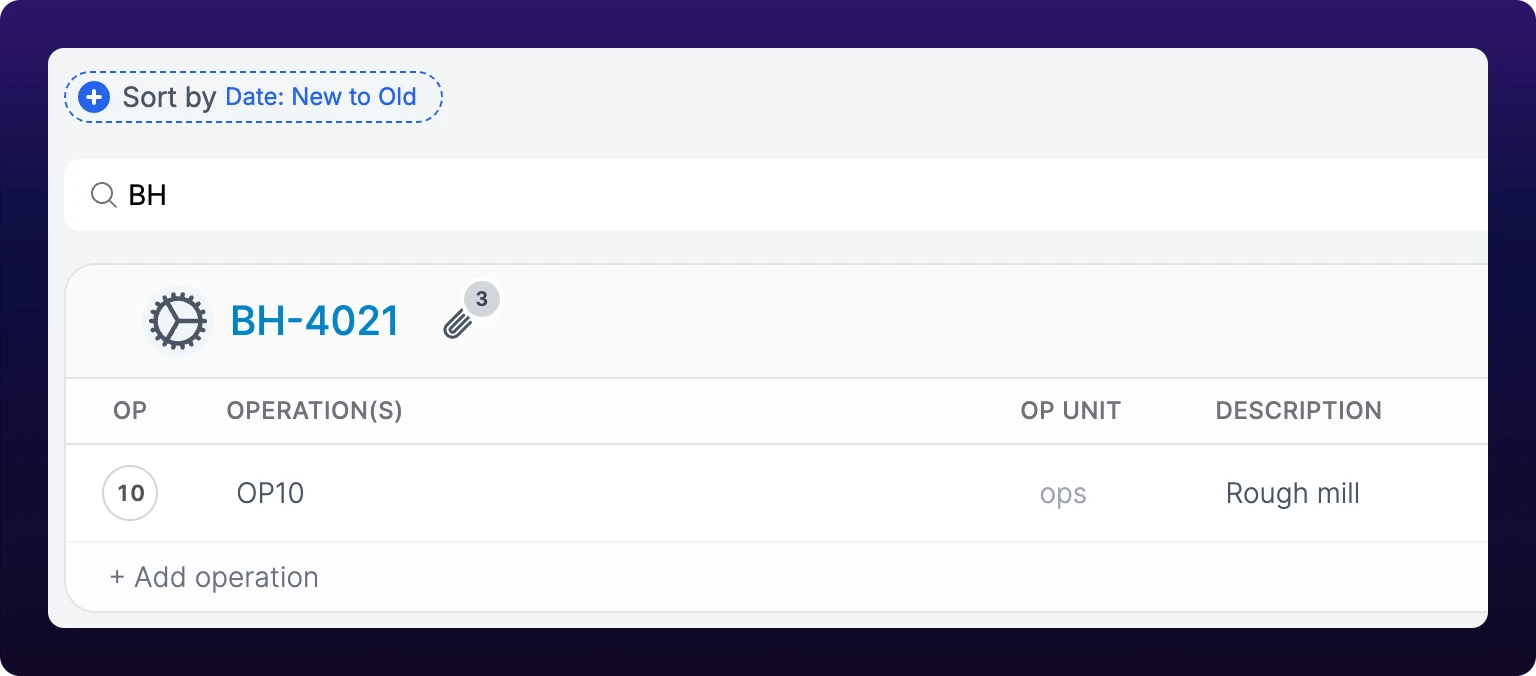 Searching the parts list.
See also
From the blog
- Counting parts and cycle times on CNC mills and lathesCount CNC parts and time each cycle from outside the control: what one cycle is, one operation per job, parts per cycle, and a hand count that proves it.
- When to replace a spreadsheet production scheduleAn Excel schedule fails once one change has effects nobody sees. Learn the five signs, what each replacement checks, and how to move your open jobs across.
- How to monitor a packaging line and count every unitCount output after the last reject, take the ideal rate from the slowest machine, and find which filler, capper or labeler stopped first. With a worked shift.
Take one machine from no production data to a part count you trust. Create a part on the Parts List at /production?select=parts_list, add an operation to it, set the operation's detection algorithm and ideal cycle time, then assign the operation to the machine from the asset's Auto-Detect button. Validate by running ten parts by hand and comparing them with the count on Shift Production. Every field saves as you leave it, and no part of this setup needs new hardware.
The detection algorithm on an operation is the rule that turns a sensor's signal into part counts. BeamTracker takes Counter and nothing else. A SenseAi machine takes Continuous Analysis when the trace never returns to the stopped level, Discrete Analysis when each part is one burst with idle time around it, and Discrete w/o Merge when every impact is a part. Compare all four, validate against a hand count over ten parts, and switch without losing the operations already assigned to a machine.