

Edit, hide, archive, or delete a machine
Clean up the asset list without losing data you still need.
Every field you set when you added a machine stays editable. Four further actions take a machine off the board: Hide, Archive, Delete, and Delete Data.
They differ in what they remove and in whether you can undo them. Only Delete and Delete Data destroy anything, and both ask you to confirm before they run.
Before you start
- Sign in as an Organization Owner or Organization Administrator. Other roles see these controls disabled rather than hidden. See Roles reference.
- Open the Assets page at
/<your-org-id>/assets. See Monitor your fleet on the Assets page.
Two controls reach everything on this page:
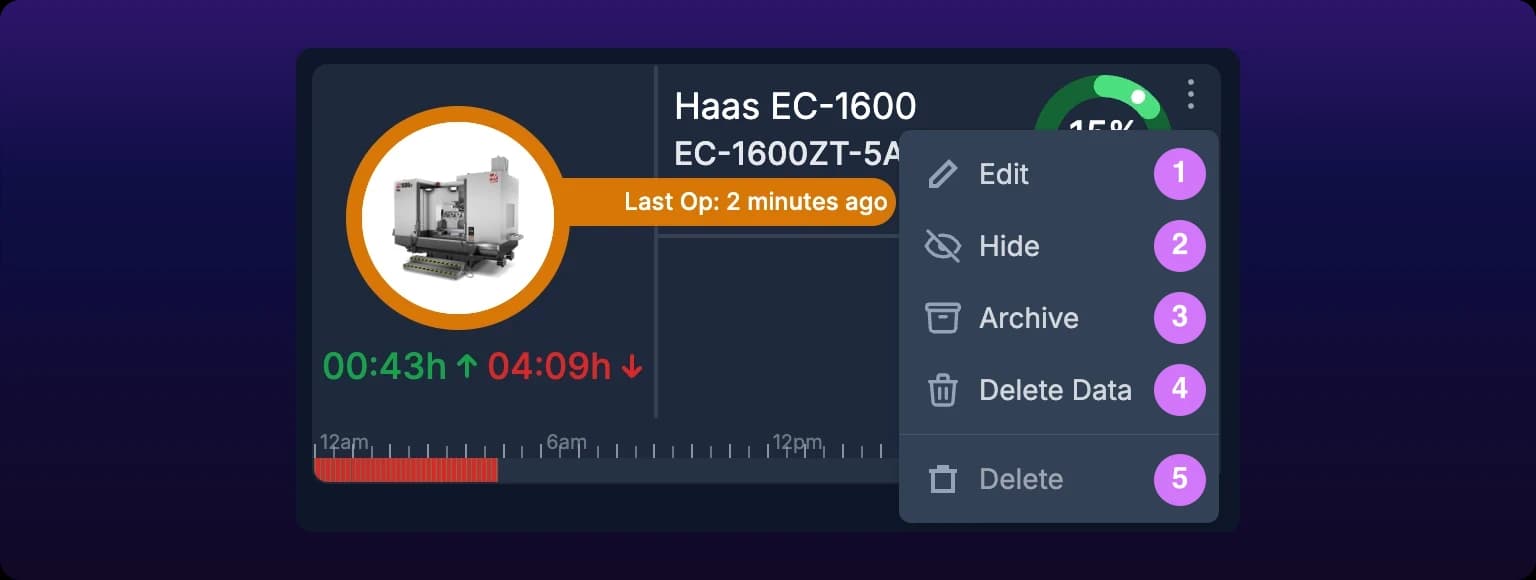
- The ⋮ menu on any machine card, list row, or machine page. It carries Edit, Hide, Archive, Delete Data, and Delete.
- Edit Assets, at the top of the Assets page. It opens one scrolling list of every machine, split into an Assets tab and an Archived Assets tab, with the same actions as icons on each row.
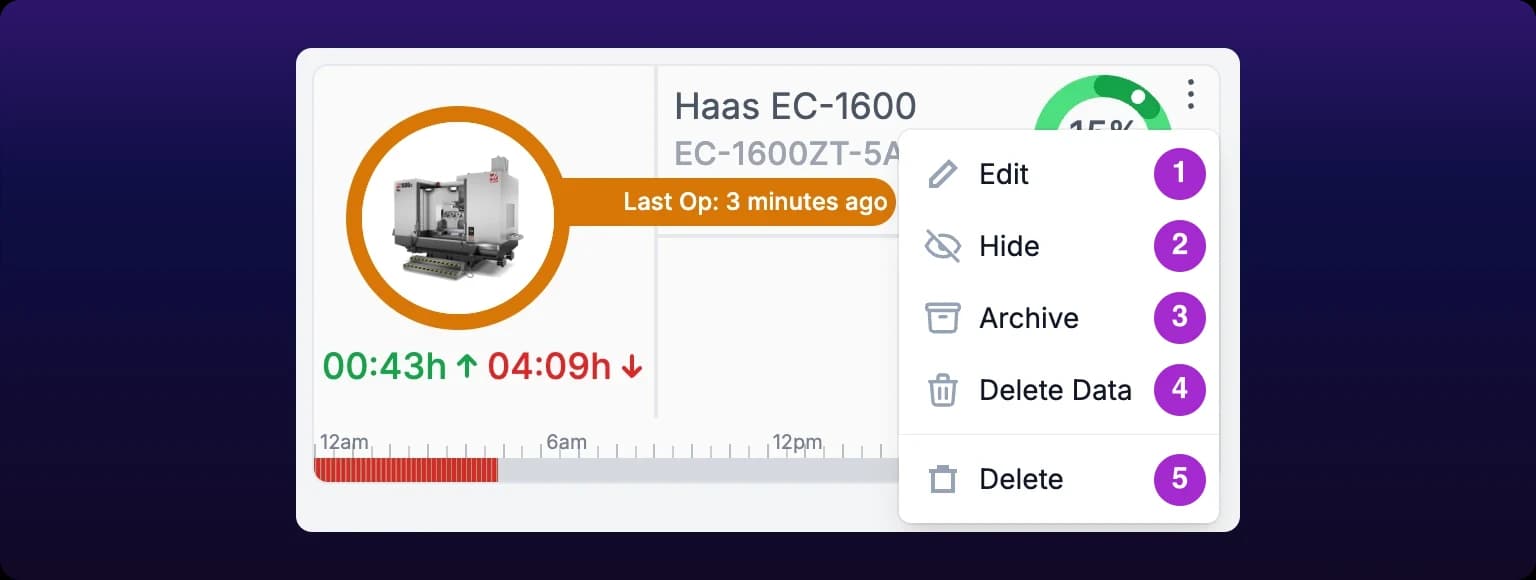 The ⋮ menu on a machine card lists Edit, Hide, Archive, Delete Data and Delete. Every action on this page starts here or in the Edit Assets list.
Edit a machine
- Select ⋮ on the machine, then select Edit.
- Change any of Custom Machine Image, Machine Identifier, Machine Name, Select Department, Tags, and Cascading Group.
- Select Edit Asset.
IoTFlows confirms with "Asset has been edited" and the card redraws with the new values.
The catalog model is the one thing you cannot change here. It supplies the photo, the model line, and the manufacturer logo, so correcting it means creating the machine again. Every other field is editable, as listed in Add asset fields.
Renaming is safe at any time: reports, exports, and work orders read the current name. Cascading Group and Step place the machine in a line, which is its own task, see Group machines into cascades.
Hide a machine
To hide a machine is to take it off the Assets page while it keeps recording.
- Select ⋮ on the machine.
- Select Hide. IoTFlows confirms with "Asset is now hidden" and the card leaves the page.
Hiding filters the machine out of the Assets page and nothing else. Its sensor keeps reporting, its uptime and downtime keep accruing, and it stays in reports, work orders, and the scheduler.
The card is gone, so the ⋮ menu is gone with it. Bring the machine back from Edit Assets: the Assets tab lists every machine including hidden ones, each hidden row carries a Hidden badge, and the eye icon on the row puts it back on the board.
Archive a machine
To archive a machine is to retire it from the working asset list while keeping everything it recorded.
- Select ⋮ on the machine, then select Archive.
- Read the confirmation, for example "Are you sure you want to archive Haas VF-2 (trx-as800)?"
- Select Archive.
IoTFlows confirms with "Asset has been archived". The machine leaves the Assets page and appears only under Archived Assets in Edit Assets. Everything it recorded stays: activity, classified downtime, operations, and part counts.
Archive is the right move for a machine that has left the plant, and the only move for one that has run production, because Delete is blocked there.
Restore an archived machine
- On the Assets page, select Edit Assets.
- Select the Archived Assets tab.
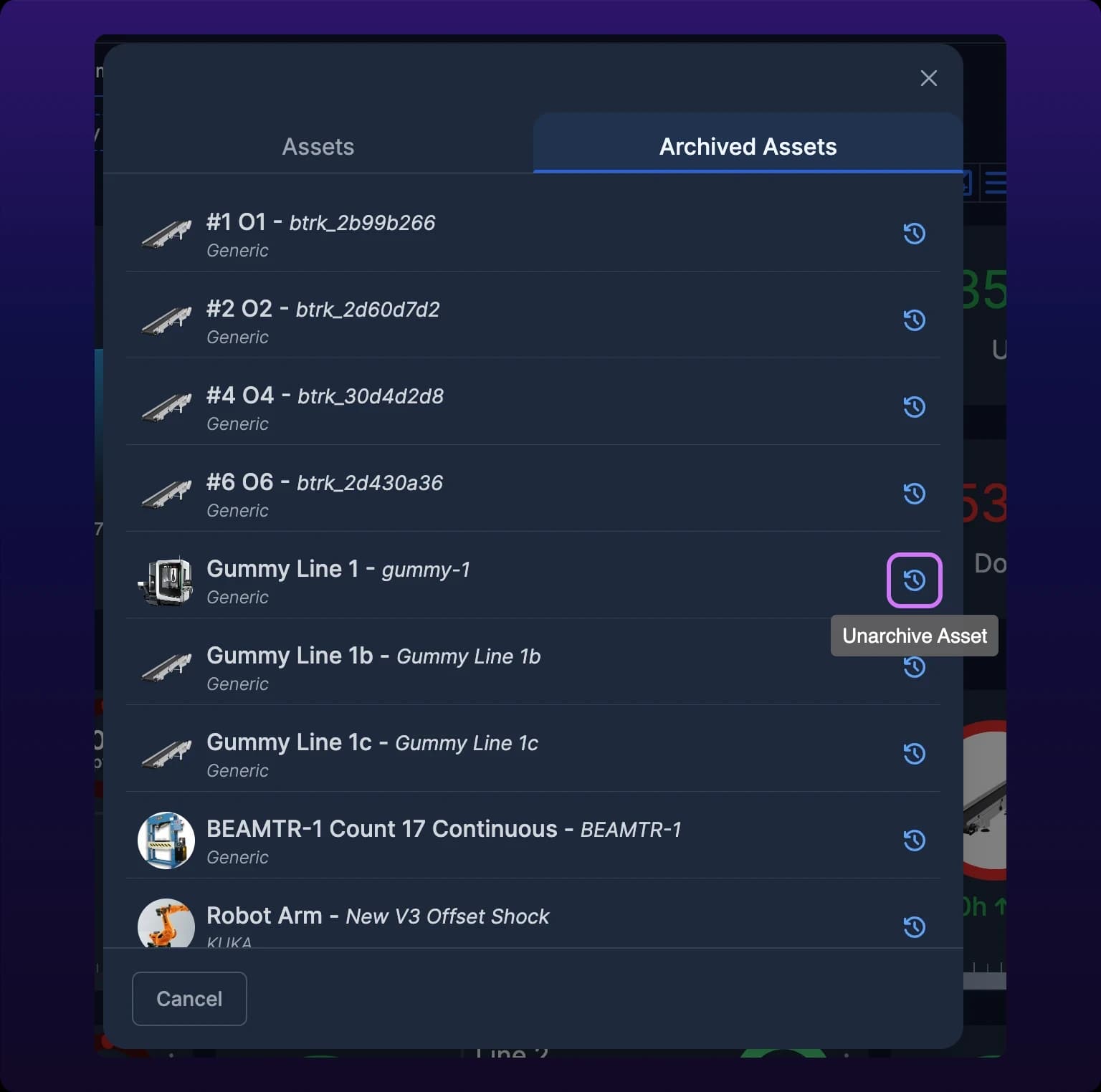
- Find the machine and select the circular arrow at the right of its row, labeled Unarchive Asset.
- Select Unarchive in the confirmation that replaces the row.
IoTFlows confirms with "Asset unarchived" and the machine returns to the Assets page with its history intact. Nothing expires: a machine archived last year restores the same way.
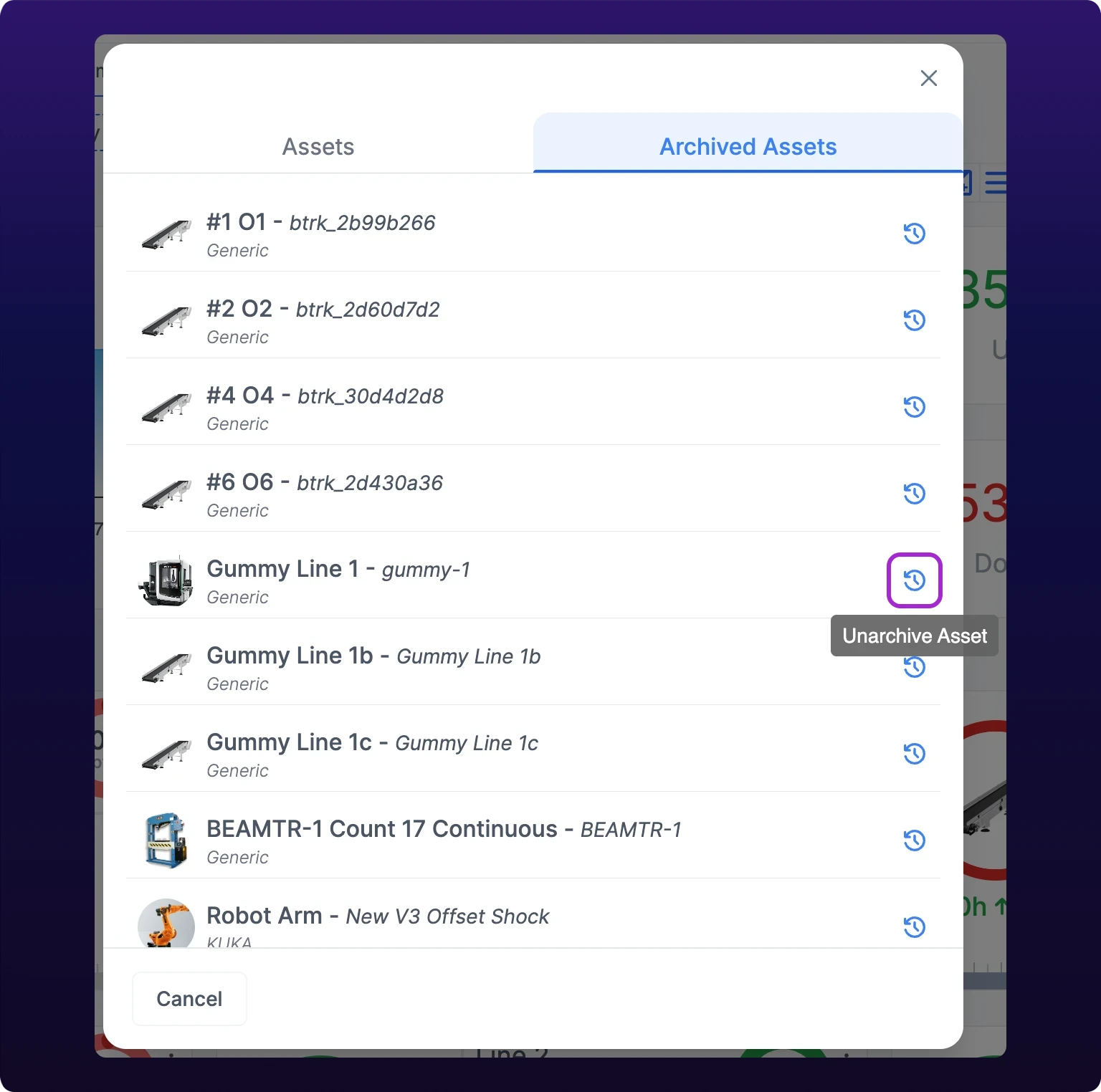 The Archived Assets tab of Edit Assets. The circular arrow at the right of a row, labeled Unarchive Asset, returns that machine to the Assets page.
Delete a machine
Deleting removes the asset record itself, the one you created in Add a machine. There is no trash to restore from and no undo.
- On the Assets page, select Edit Assets.
- On the Assets tab, find the machine and select the trash icon on its row.
- Select Delete in the confirmation that replaces the row.
IoTFlows confirms with "Asset has been removed".
Delete is blocked for any machine that has operation data. The trash icon renders gray and carries the reason: "This asset can't be deleted because it has been used in production and has operation data attached to it. If you are no longer using this asset, you can archive it instead."
There is no override and no force. Archive the machine instead, which is the intended path for anything that has ever run.
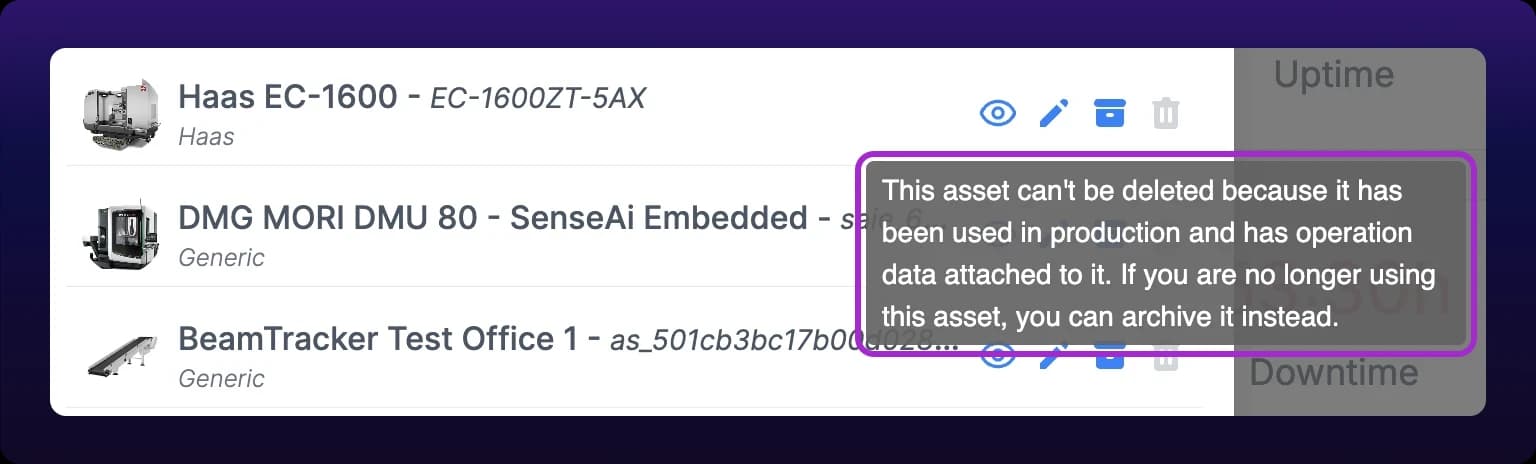 Delete is grayed out for a machine that has operation data, and the tooltip on it points to archiving instead.
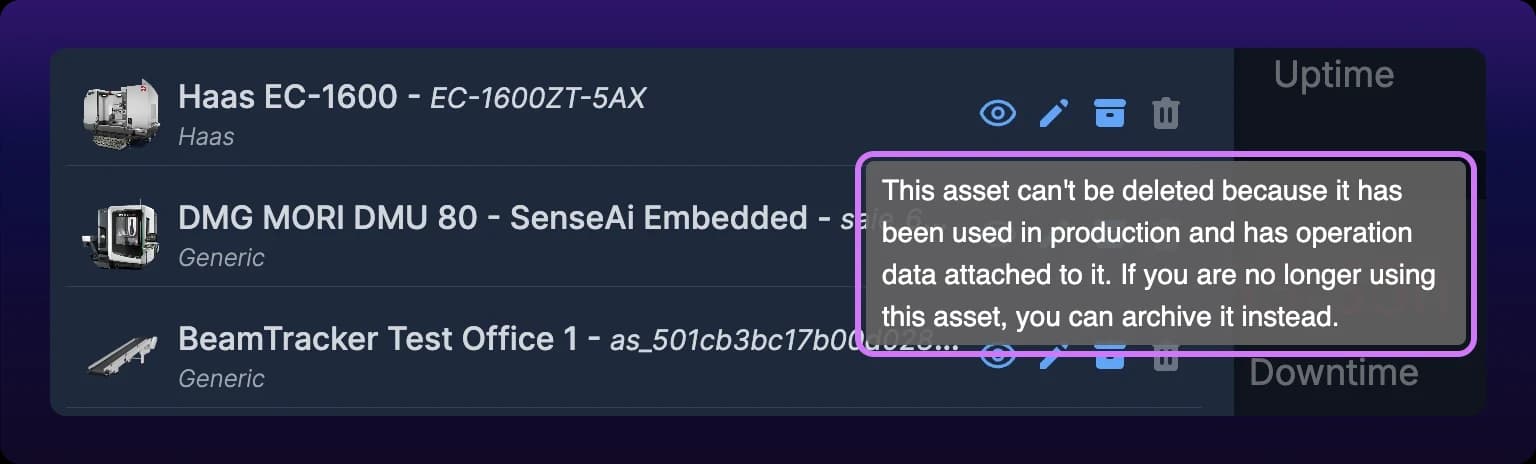
Delete grayed out on a machine you just created? The Delete entry in the ⋮ menu reads as blocked on a card, a list row, and a machine page even when the machine has never reported. Delete from the Edit Assets list instead, which enables the trash icon for any machine with no recorded activity.
Delete the last N hours of data
This deletes the machine's recorded history for a window ending now and leaves the machine itself in place. Use it after a calibration session writes hours of false running time onto a machine that was standing still.
- Select ⋮ on the machine, then select Delete Data.
- Set the hours field in the sentence Permanently delete the last N hours of data. It opens at 2 and accepts up to 240, which is 10 days.
- Select Continue.
- Type
DELETEin the confirmation field. - Select Delete Data.
IoTFlows confirms with "Last 8 hours of data has been deleted" for an 8-hour window.
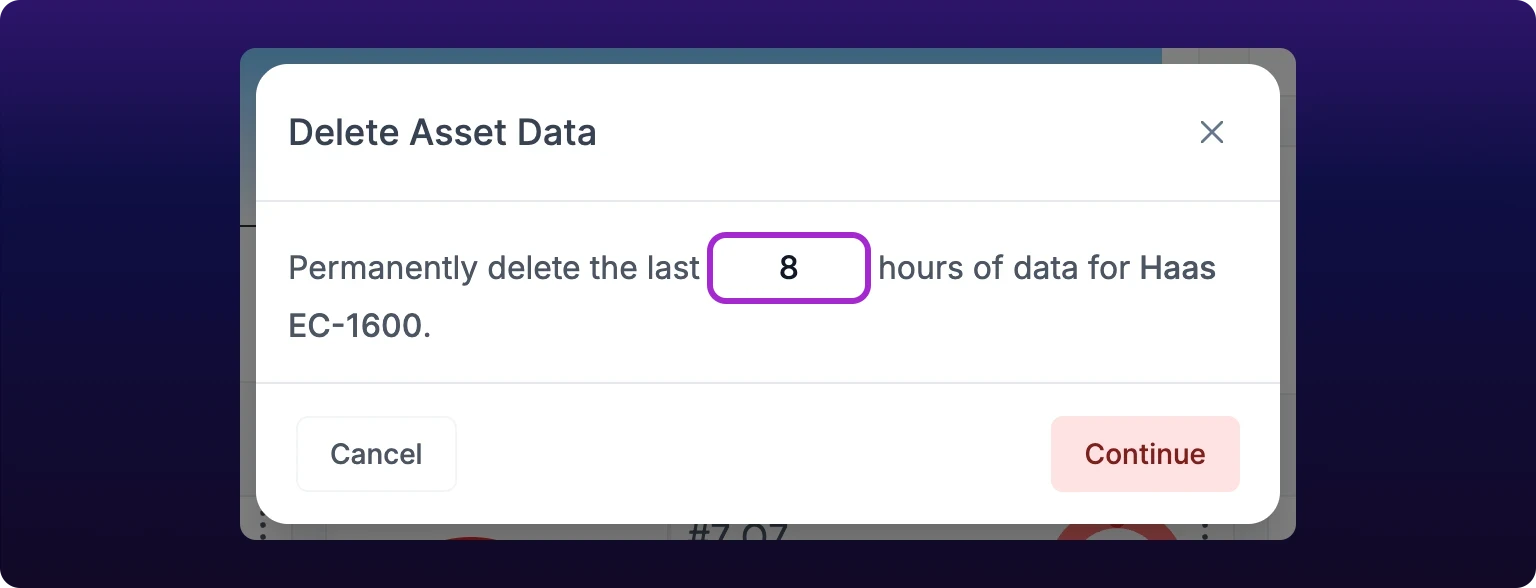 The Delete Asset Data dialog. The hours field sets how far back the delete reaches, counting back from now, and the delete is irreversible.
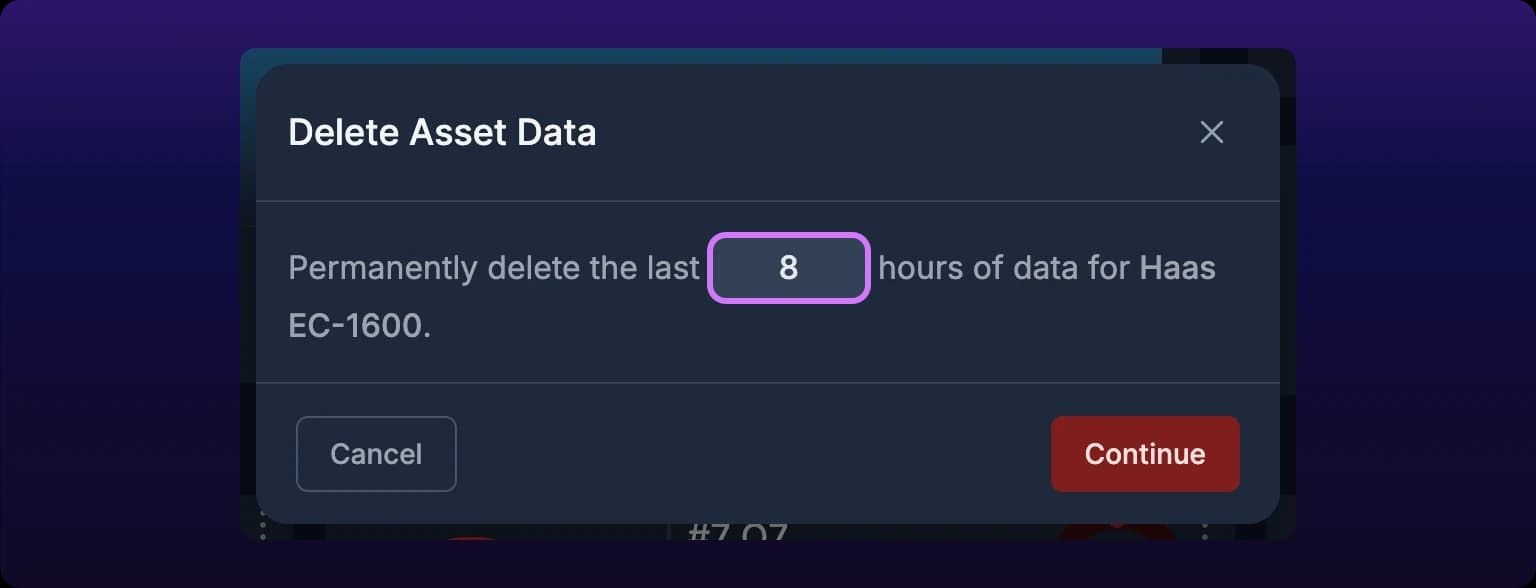
No undo, and the numbers move. The dialog says so in red before it takes your confirmation. Deleting recorded history changes uptime, downtime, and every count for that window, on the board and in every report that covers it. See Uptime.
The window always ends at the current moment, so there is no way to delete a stretch that ended yesterday and keep what came after it. Run it while the bad data is still the most recent data.
You do not need this to fix one wrong stop or one misread operation. A single activity can be corrected or removed from the machine's activity list, see Delete an activity.
Choosing between hide, archive and delete
| Action | Removes from | Keeps data | Reversible | Blocked when |
|---|---|---|---|---|
| Hide | The Assets page | Yes, all of it | Yes, from Edit Assets | Never |
| Archive | The Assets page, into Archived Assets | Yes, all of it | Yes, from Archived Assets | Never |
| Delete | Everywhere, permanently | No | No | The machine has operation data |
| Delete Data | Nothing, the machine stays | Everything outside the chosen window | No | Never |
Choose Hide when a machine is temporarily out of service and you want it out of the fleet view. Choose Archive when it has left the plant but its history still matters to your reports. Delete only a machine created by mistake, and if it has ever run an operation, the product will not let you.
Hide and archive are both reversible. Delete and Delete Data are the two to slow down for.
See also
Create a machine as an asset in IoTFlows: pick its catalog model, set the name and identifier your plant uses, assign a department, and add tags.
A cascading group ties machines that one part passes through in sequence into a single line on the Assets page. Step 1 is the reference: every step after it reports first pass yield, parts lost and a rate difference against Step 1's count. You create and name groups from the Cascading Group field in a machine's Edit dialog, give each machine a step number, and switch the whole line onto a new part and a per-machine operation in one action. A cascade reads in full only in list view, and changes the Assets page rather than any report.