

Email a report and schedule it to repeat
Get the report you are looking at to the people who need it, once or every week.
Three reports carry the same two actions in their Actions menu. Share emails the current view to members of your organization straight away, and Schedule saves that view and emails it on the cadence you pick.
Both send the report exactly as your toolbar has it, so build the report first and send it second.
Prerequisites. A report you can already build, see Analyze downtime with Pareto and trend charts or Build a utilization report.
Share a report by email now
- Build the report: set the date range, machines, shifts and switches you want the reader to see.
- Open Actions at the right of the filter bar.
- Click Share.
- Click the recipients field, then pick members from the list. Search members… filters it, and Select all and Clear work on the whole organization.
- Add a message, or leave it empty.
- Click Send.
A toast confirms the send: Report shared with 3 recipients.
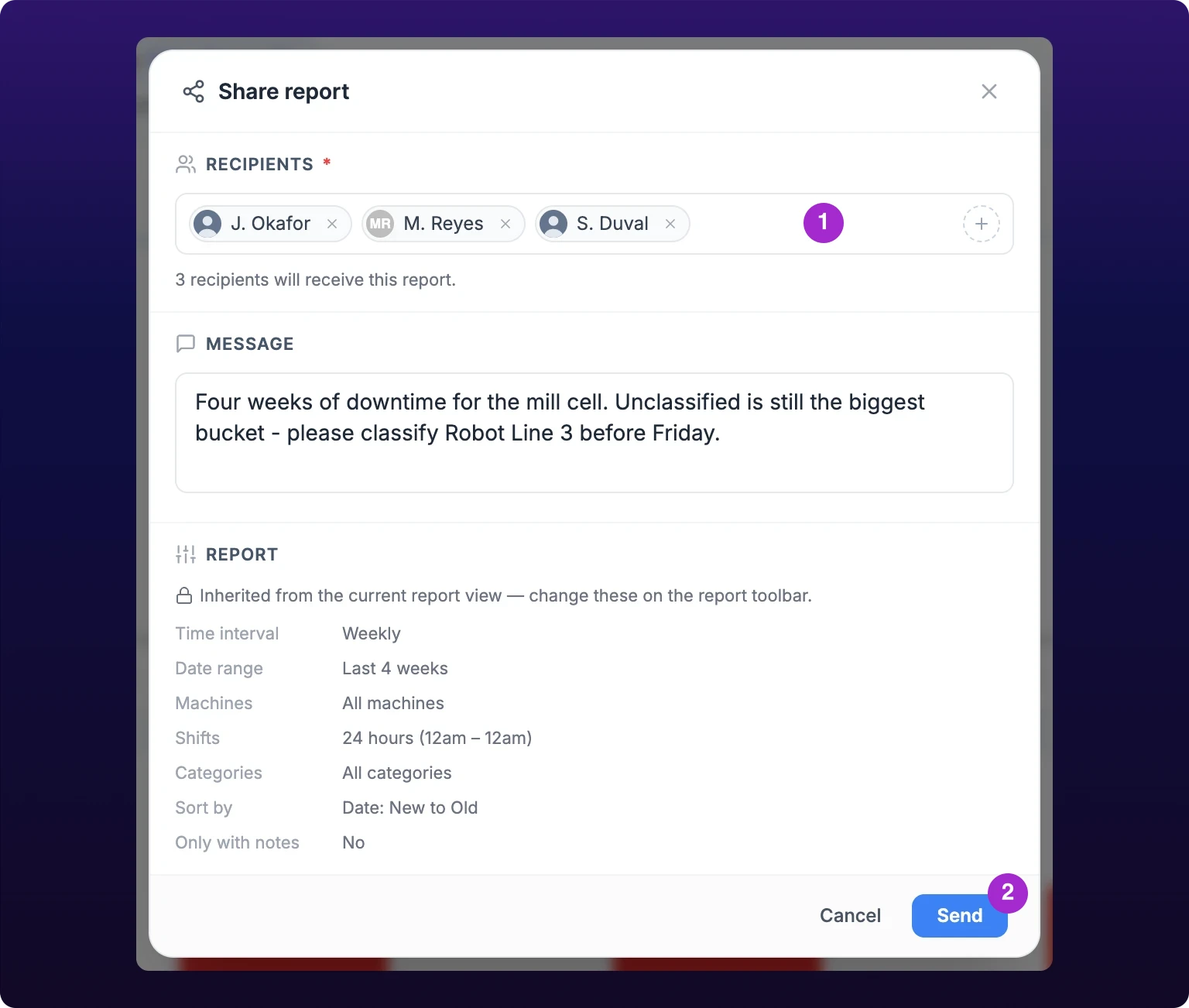 Sharing a report by email to organization members.
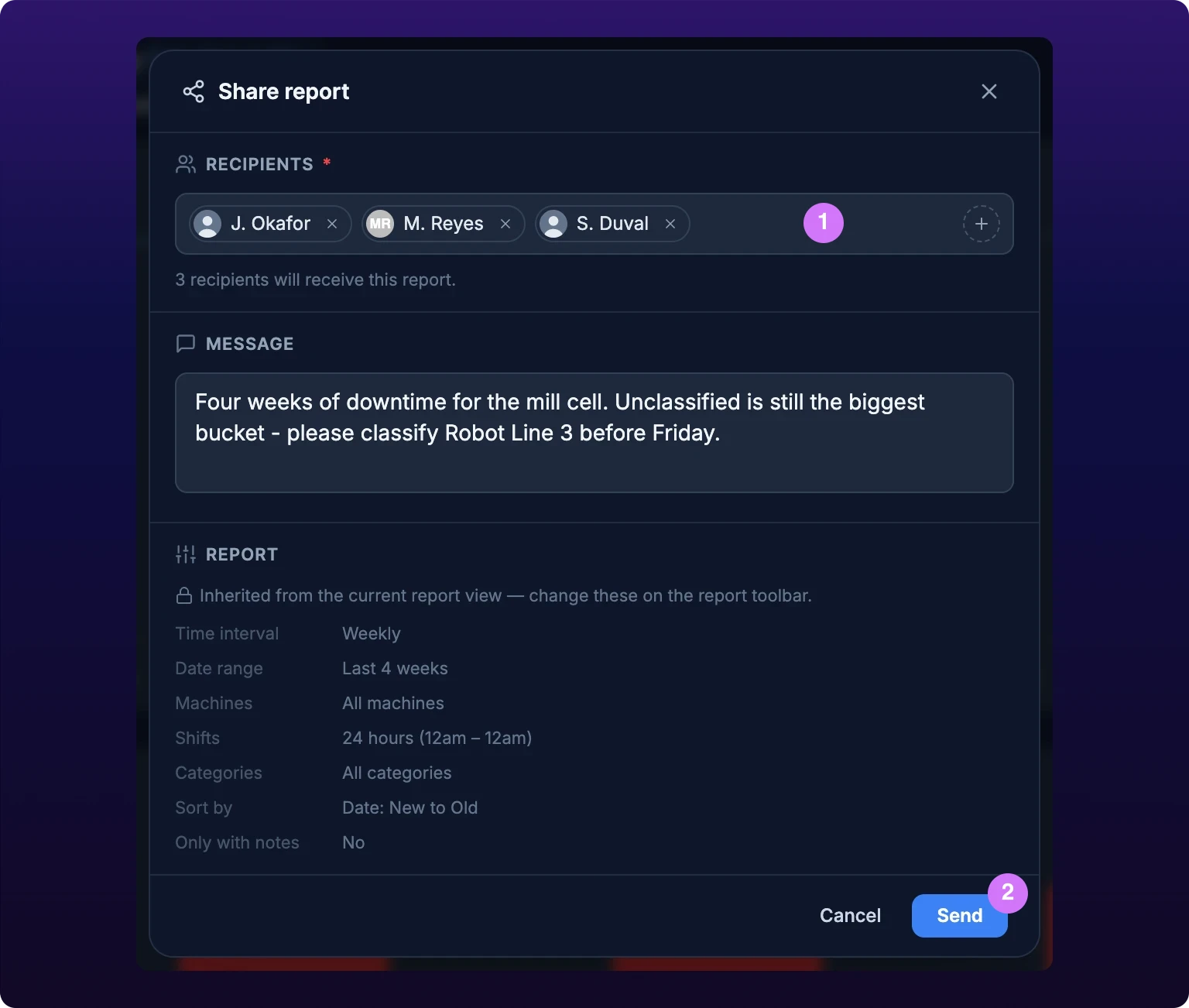
The Report block at the bottom of the dialog is read-only. It lists the time interval, date range, machines, shifts and any switch that is on, copied from the toolbar. Read it before you send: it is the report the recipient gets, not the one you meant to build.
On the Advanced Report and the Downtimes report the block carries a Shift islands row, reading either On — an overnight shift counts on the day it began or Off — an overnight shift splits at midnight. It is shown in both states, so a night-shift report and the same report with the toggle on never read alike, see Shift islands. Historical production has no such row, because that report has no toggle.
Schedule a recurring report
An automation is a saved copy of a report view that IoTFlows emails on a cadence to a fixed list of recipients.
- Set the toolbar's date button to a rolling preset, such as Last 7 days or Last 4 weeks.
- Open Actions, then click Schedule.
- Click the + button, or fill in the form if this is your organization's first automation for this report.
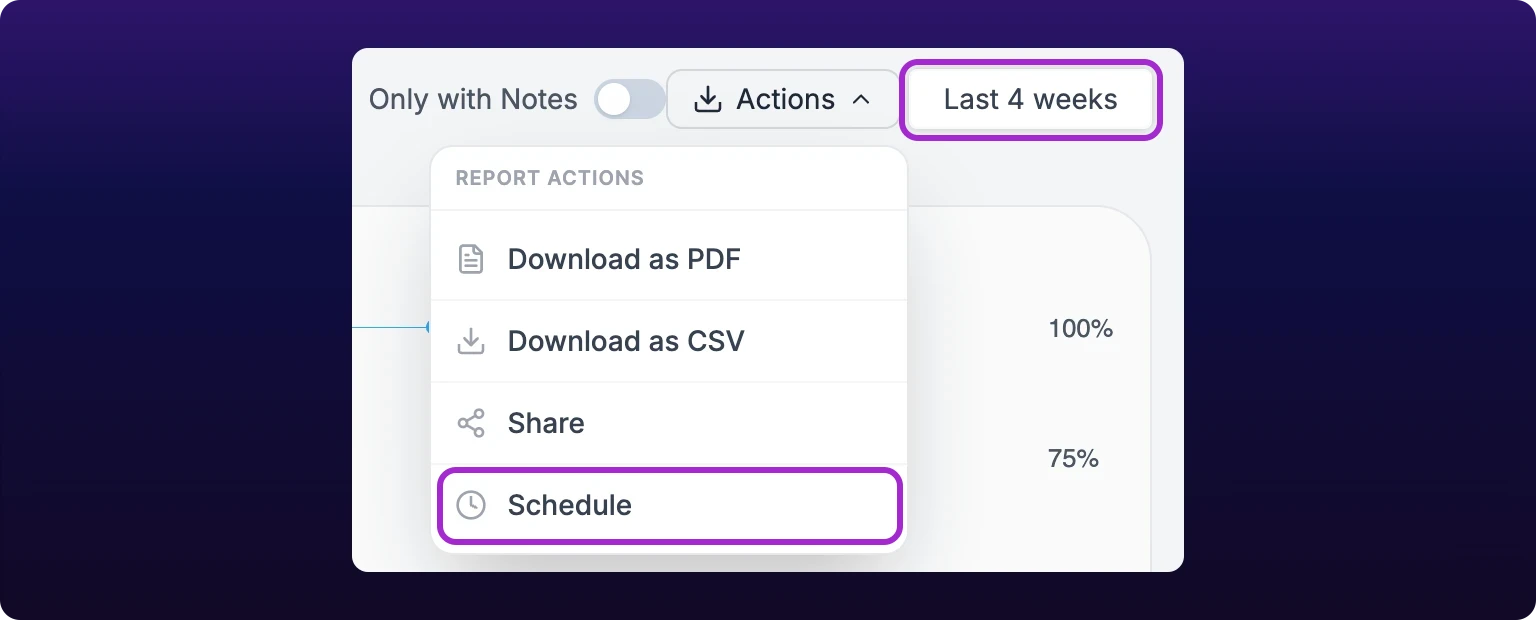 Scheduling a report to repeat. The toolbar must be on a rolling preset, not a fixed window.
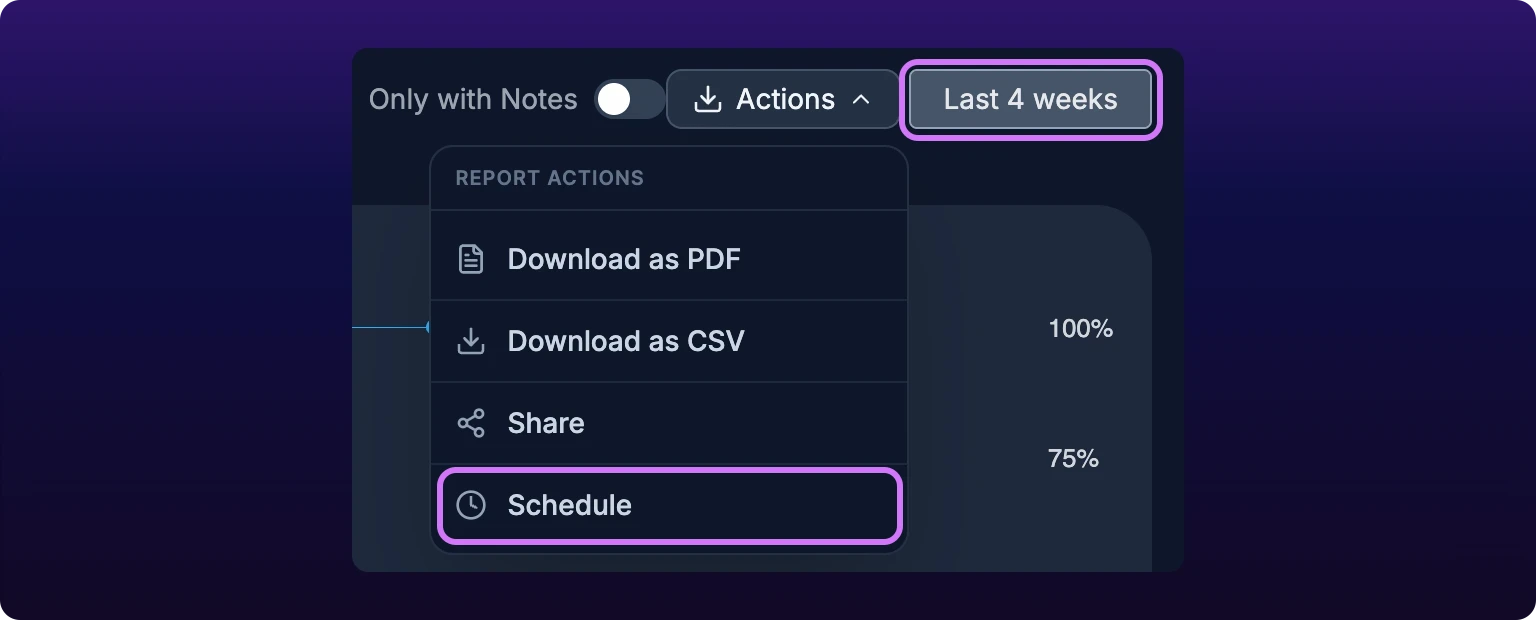
The date range is the one rule the form enforces. A schedule needs a rolling period: a window counted back from the send date rather than fixed to two dates. Pick Last 4 weeks, and every email covers the four completed weeks before it was sent.
Does the date button show two dates? Then the report is on a fixed window and new automations are disabled. The dialog opens on its list with an amber banner, Pick a date range preset to schedule emails, and the + button is grayed out. Open the date button, click a Last N preset, click Apply, and try again. The button reads the preset name, Last 8 weeks, when the window is rolling, and a date span, 8/18/2026 - 9/14/2026, when it is not.
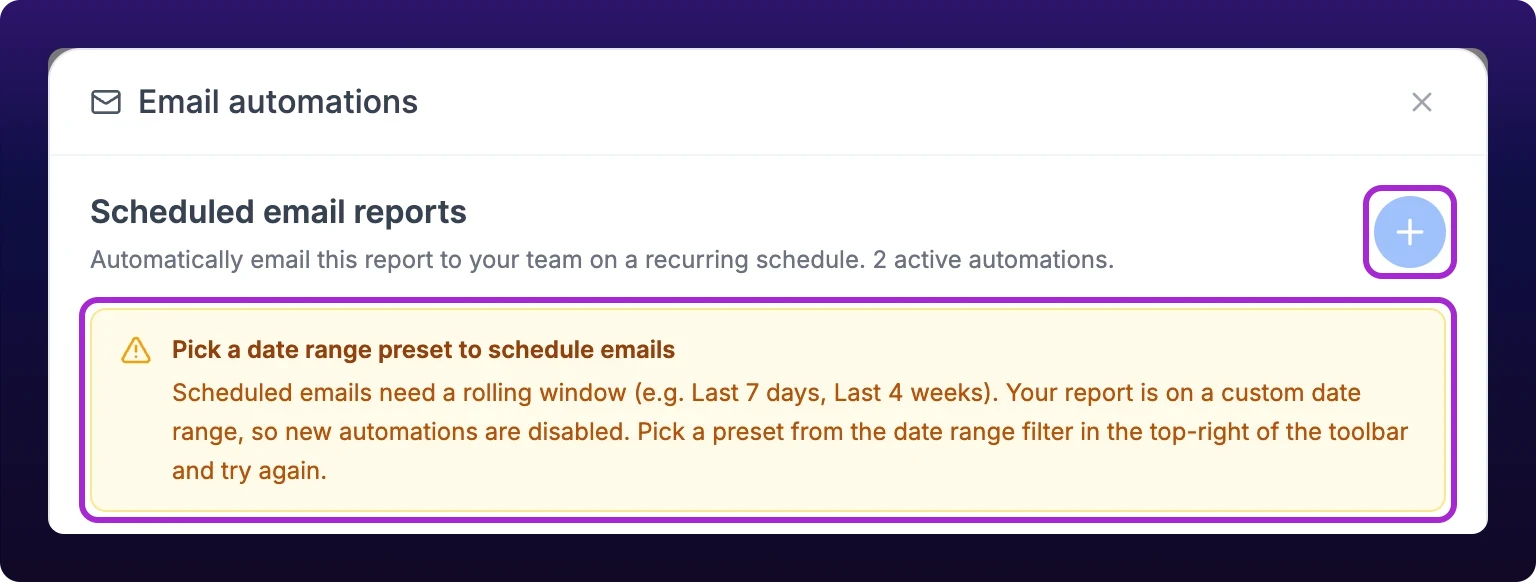 With a fixed date range selected, scheduling is refused. A schedule needs a rolling period.
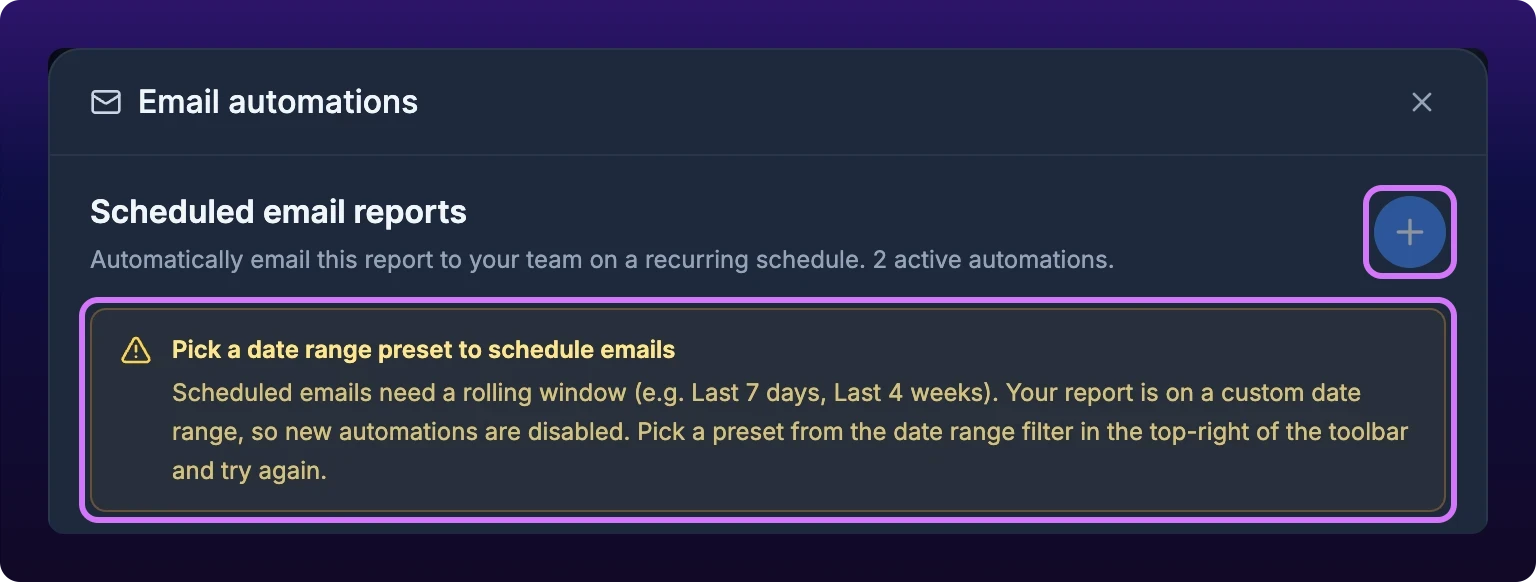
Last week (Mon - Sun) is the exception among the presets. It names one finished calendar week rather than a count back, so it writes fixed dates and blocks scheduling like a custom range does. For a Monday recap of the week before, use Last 7 days.
Name and cadence
Name is required and appears only in the automations list. Name it for the audience and the rhythm, for example Monday maintenance recap, so the list stays readable once there are six of them.
Cadence is how often the email goes out: Daily, Weekly, Monthly, Quarterly or Yearly. Weekly adds a Day of week picker, Monday by default. No other cadence exposes one, and none lets you set the hour.
Cadence is independent of the report's own time interval. A report bucketed into daily bars can be emailed weekly, which is the usual shape: daily detail, one email a week.
Under the picker, a preview line reads Next email Mon, Sep 21 covers Sep 8, 2026 – Sep 14, 2026. Check it before you save. It is the cheapest way to catch a cadence that does not line up with the window.
Fill in the recipients below, then click Create automation. The dialog returns to the list with the new automation on it, and a toast reads Automation created.
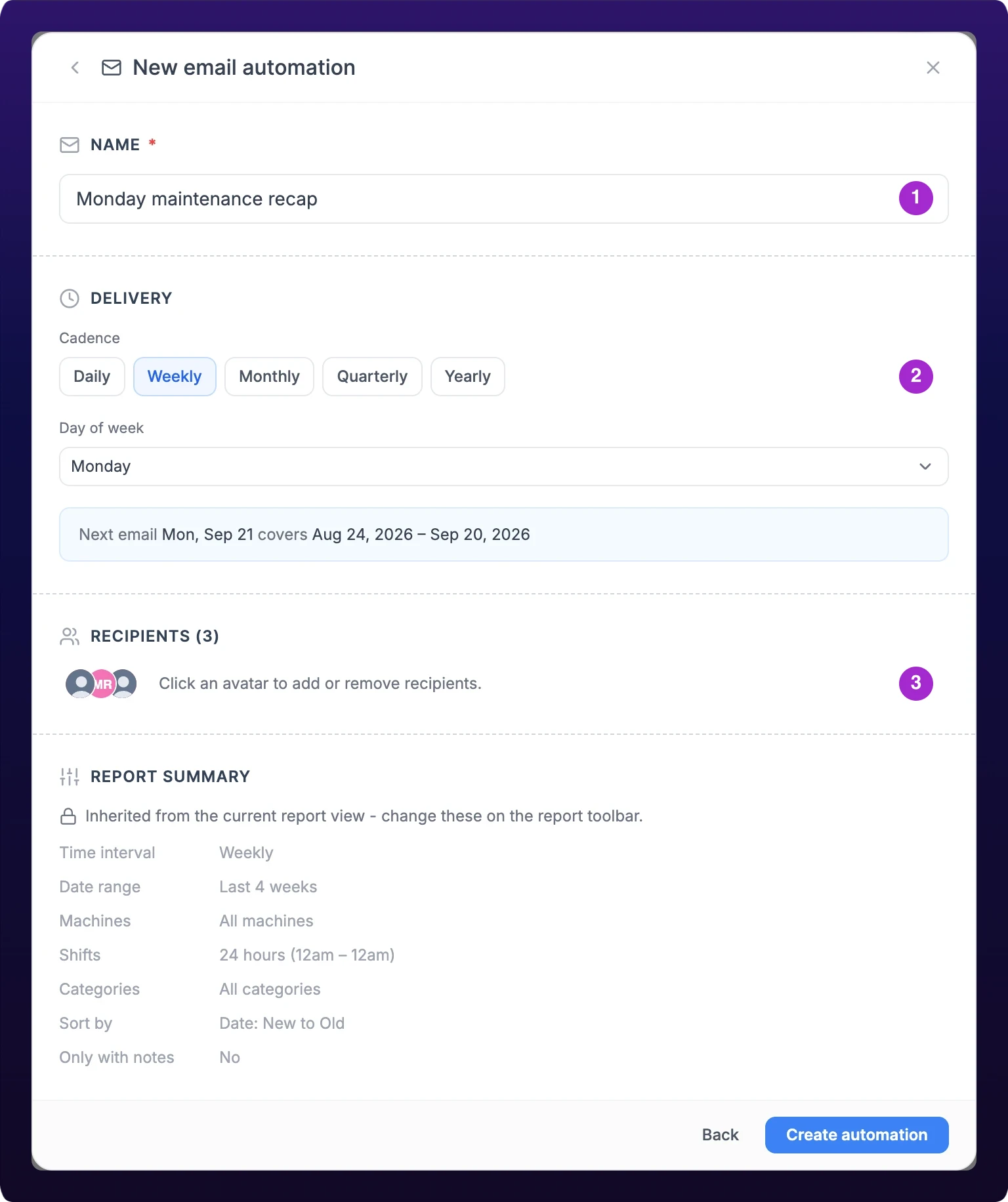 The automation fields: name, cadence and recipients.
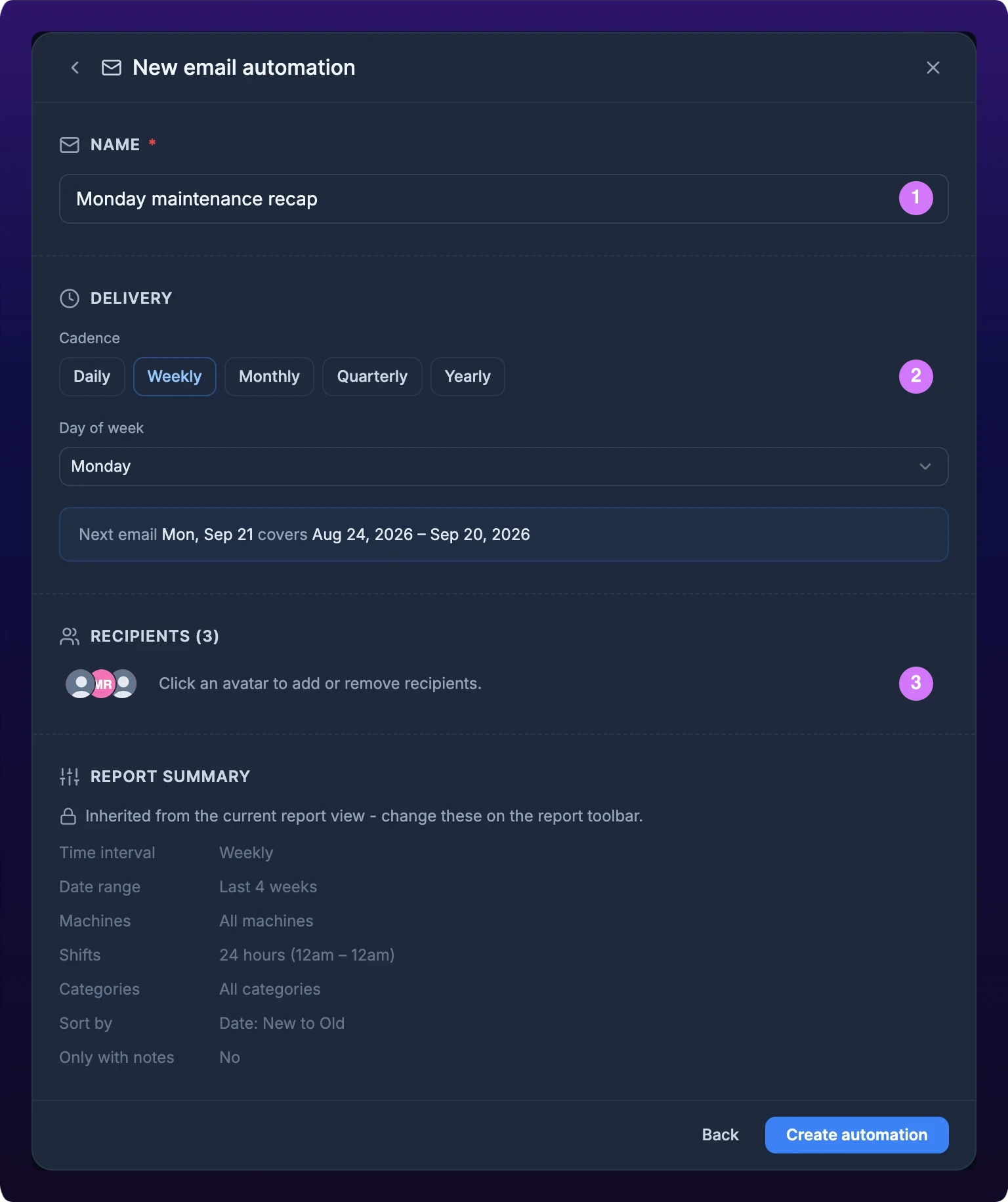
Automation fields
| Field | Required | Values | Notes |
|---|---|---|---|
| Name | Yes | Free text | Shown in the automations list and nowhere else |
| Cadence | Yes | Daily, Weekly, Monthly, Quarterly, Yearly | How often the email is sent. Independent of the report's time interval |
| Day of week | Weekly only | Monday to Sunday, Monday by default | Hidden for every other cadence |
| Recipients | Yes, at least one | Members of your organization | No free-text email addresses |
| Enabled | No | On or off | Set from the switch on the list row, not in the form. Off pauses the emails and keeps the automation |
| Report Summary | — | Read-only | Time interval, date range, machines, shifts, categories, sort, grouping and switches, copied from the toolbar when you create the automation. On the two reports that have it, a Shift islands row shows on or off. Editing an existing automation reads every row back from the saved report, not from your current toolbar |
| Time of day | — | Not configurable | You choose the cadence and, for a weekly report, the day. There is no field for the hour |
Recipients
Recipients come from your organization's member list. Click the avatar to open the picker, search by name, and click a member to add or remove them. Select all adds everyone, and Clear empties the list.
At least one recipient is required either way. An automation with an empty list cannot be saved, and Send stays disabled until a share has someone to go to.
Neither dialog takes an outside address. To reach a customer, an auditor or a corporate office with no seat, either invite them to the organization first, or download the PDF and send it yourself, see Available exports.
Schedule a report to a plant manager who has an account and will not open it, rather than asking them to check the dashboard every Monday. You do not need a schedule when the audience is one conversation: share once instead. A weekly email that nobody asked for gets filtered into a folder, and the one that mattered goes unread with it.
Review scheduled reports
Open Actions › Schedule again. The dialog opens on Email automations, everything already scheduled for this report.
Each row carries the name, a cadence badge, the date window it sends, the delivery day for a weekly one, and avatars for its recipients. The switch on the right pauses and resumes it, confirmed by a toast that names it: Monday maintenance recap paused. A paused automation keeps its settings and sends nothing.
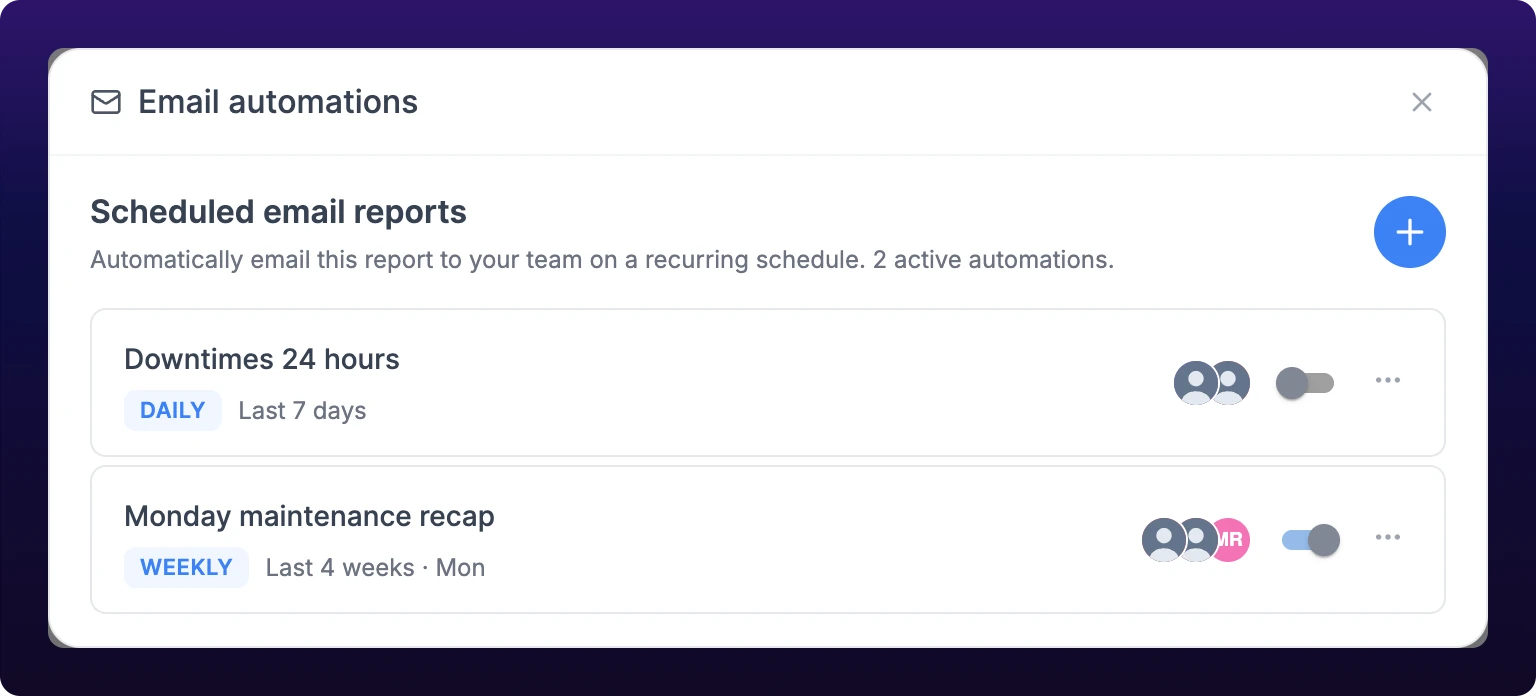 Existing report automations, with edit and delete.
Each report keeps its own list. The Downtimes report shows only downtime automations, and the Advanced Report and the historical production report each show only theirs, so a report that looks unscheduled may be scheduled from another page.
Available on
| Report | Share now | Schedule |
|---|---|---|
Downtimes, at /assets?select=downtimes | Yes | Yes |
Advanced Report, at /assets?select=advanced_report | Yes | Yes |
Historical production, at /production?select=historical_report | Yes | Yes |
| Every other page, including the Assets page and Operator Performance | No | No, export instead |
Edit or delete an automation
Open the ⋯ menu on a row.
Edit reopens the form on that automation. Change the name, the cadence, the delivery day or the recipients, then click Save changes for a toast reading Automation updated.
You cannot change what the report contains. The Report Summary now reads These are the report parameters saved with this automation, and stays read-only. To send a different date range, different machines or different switches, build that report on the toolbar, create a new automation, then delete this one.
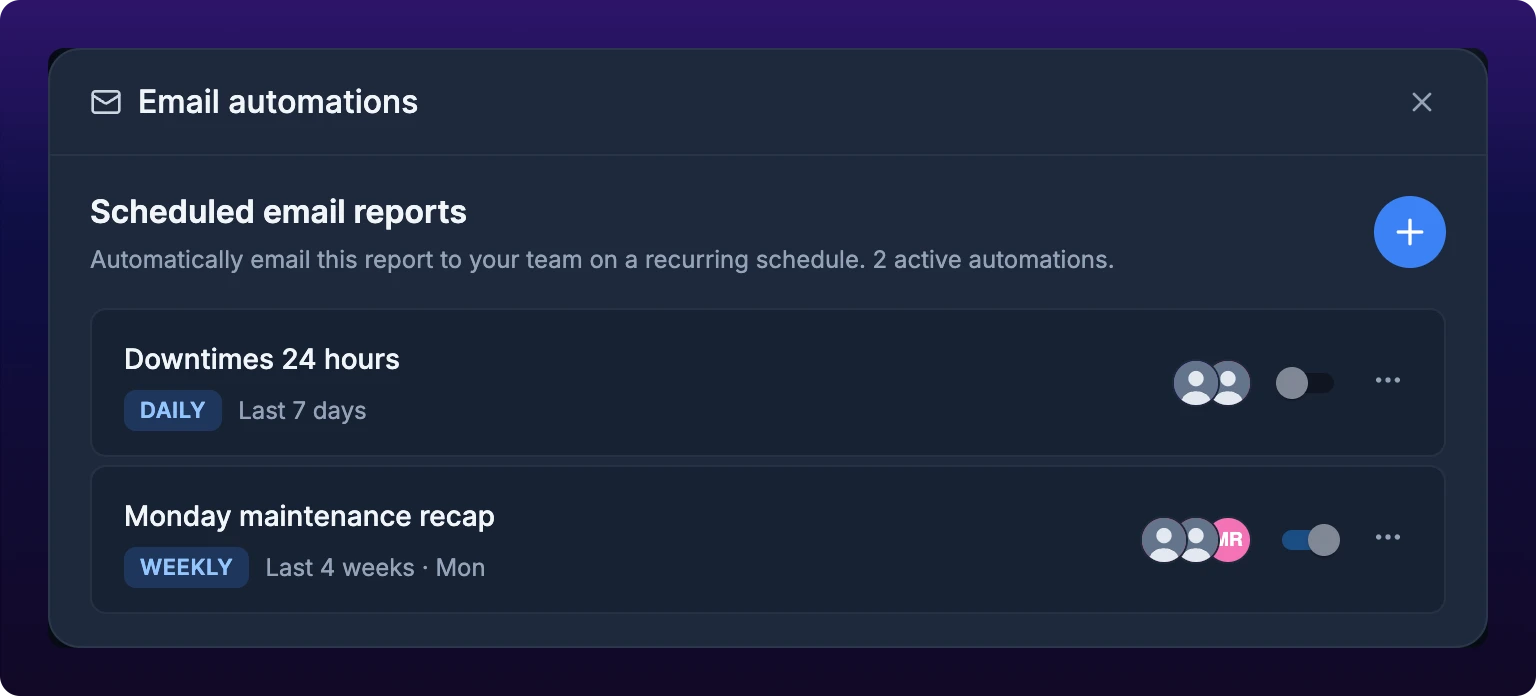
The same is true of light and dark mode. An automation renders in whichever theme the dashboard was set to when you clicked Create automation, and switching your account's theme afterward does not change automations already saved. To send a report in the other mode, switch the dashboard's theme, build the report again, create a new automation, then delete this one.
Delete asks to confirm, then removes the automation. The dialog says the action cannot be undone, and it is right: nothing restores a deleted schedule. Emails already sent are unaffected.
What recipients receive
Every recipient is a member of your organization, so the report goes to the address on their IoTFlows account. Nothing is posted to a public link.
A share carries your message, if you wrote one, and the report as your toolbar had it when you clicked Send. A scheduled email carries the report saved with the automation, over the window that ends when it is sent.
Both carry a link back to the report on the dashboard with the filters already applied. The recipient signs in and lands on the view you built rather than a picture of it, so they can move the date range or open a machine from there.
Errors
| Message | Means | Do this |
|---|---|---|
| Pick a date range preset from the toolbar to schedule emails. | The report is on a fixed window, so no automation can be created | Pick a Last N preset on the date button and click Apply |
| Could not share report | Nothing was sent, and no recipient was emailed | Retry. If it repeats, see Get support |
| Could not save automation | The schedule was not created | Check the name and at least one recipient, then retry |
| Could not update automation | The edit, or the pause switch, did not save. The switch flips back to where it was | Retry. Until it saves, the automation is still sending on its old settings |
| Could not delete automation | The automation is still live and still sending | Retry, or pause it with the switch as a stopgap |
Where the server sends its own explanation, the toast shows that instead of the message above.
See also
From the blog
The Operator Performance report at /assets?select=operator_performance pairs each operator with the machine they worked and totals the machine's uptime percentage, uptime hours and downtime hours for their clocked sessions. Sessions come from sign-ins on a paired operator station, so the report's real job is finding sessions that were never closed. Filter by machine, operator and a window of up to 31 days, read each card as stacked hours per session or as a status strip, add or correct clock entries by hand, and export the whole report as CSV. Owner or Administrator, web only.
Create a machine as an asset in IoTFlows: pick its catalog model, set the name and identifier your plant uses, assign a department, and add tags.