

Set up a dedicated operator station
Pair a shared tablet or PC to one machine so it boots straight into it.
An operator station is a browser that IoTFlows has tied to one machine. Whoever signs in on it lands on that machine's page, with no way to browse to the rest of the fleet. It is the platform's kiosk mode: a device that stays at the machine and shows only it.
You need an Owner or Administrator role to set one up, see Roles reference. Do the setup on the device that will become the station, signed in.
How an operator station differs
An operator station is not Operator View, which is a display preference any user can turn on and off. A station is a pairing between a browser and a machine.
| Operator View | Operator station | |
|---|---|---|
| Set from | The profile menu, on any machine page | Assigned Asset in Organization Settings |
| Who can turn it on | Any signed-in user | Owner or Administrator |
| Who can leave it | Any signed-in user | Owner or Administrator |
| Where it lands after sign-in | The Assets page, as usual | The paired machine, every time |
| Header | The standard header | A reduced header with no product navigation |
| Clocks the operator in | No | Yes, on every sign-in and sign-out |
Choose an operator station when the device is shared and stays at the machine. Because the pairing lives in that browser's local storage, signing in as a different person does not change which machine the station shows, and clearing site data unpairs it. Choose Operator View when a person works from their own account and moves between machines. A supervisor's laptop needs neither.
Assign this device to a machine
The assignment is stored in the browser's local storage, not on your account. It is per device and per browser: a tablet paired in Safari is not paired in Chrome.
- On the device that will become the station, sign in as an Owner or Administrator.
- Click the gear icon at the top right of the header. It opens Organization Settings at
/settings/organization. - Scroll to Assign to Local Device.
- Next to Assigned Asset, click Assign Asset.
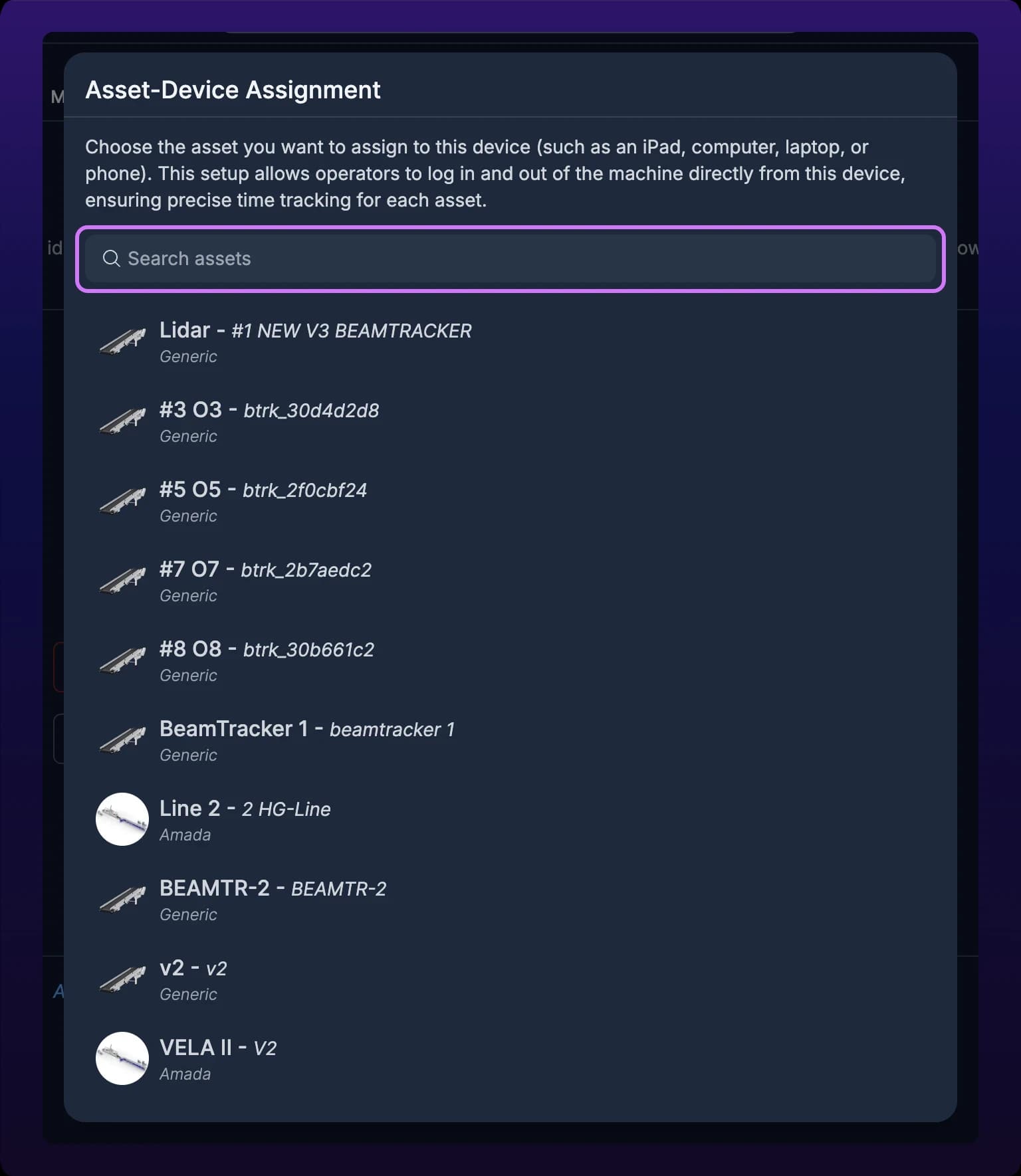
- In the Asset-Device Assignment dialog, search for the machine, for example
Haas VF-2, and click it.
 The gear icon at the top right of the header opens Organization Settings.

The machine's name and identifier appear next to Assigned Asset. Nothing else changes until the next sign-in or reload.
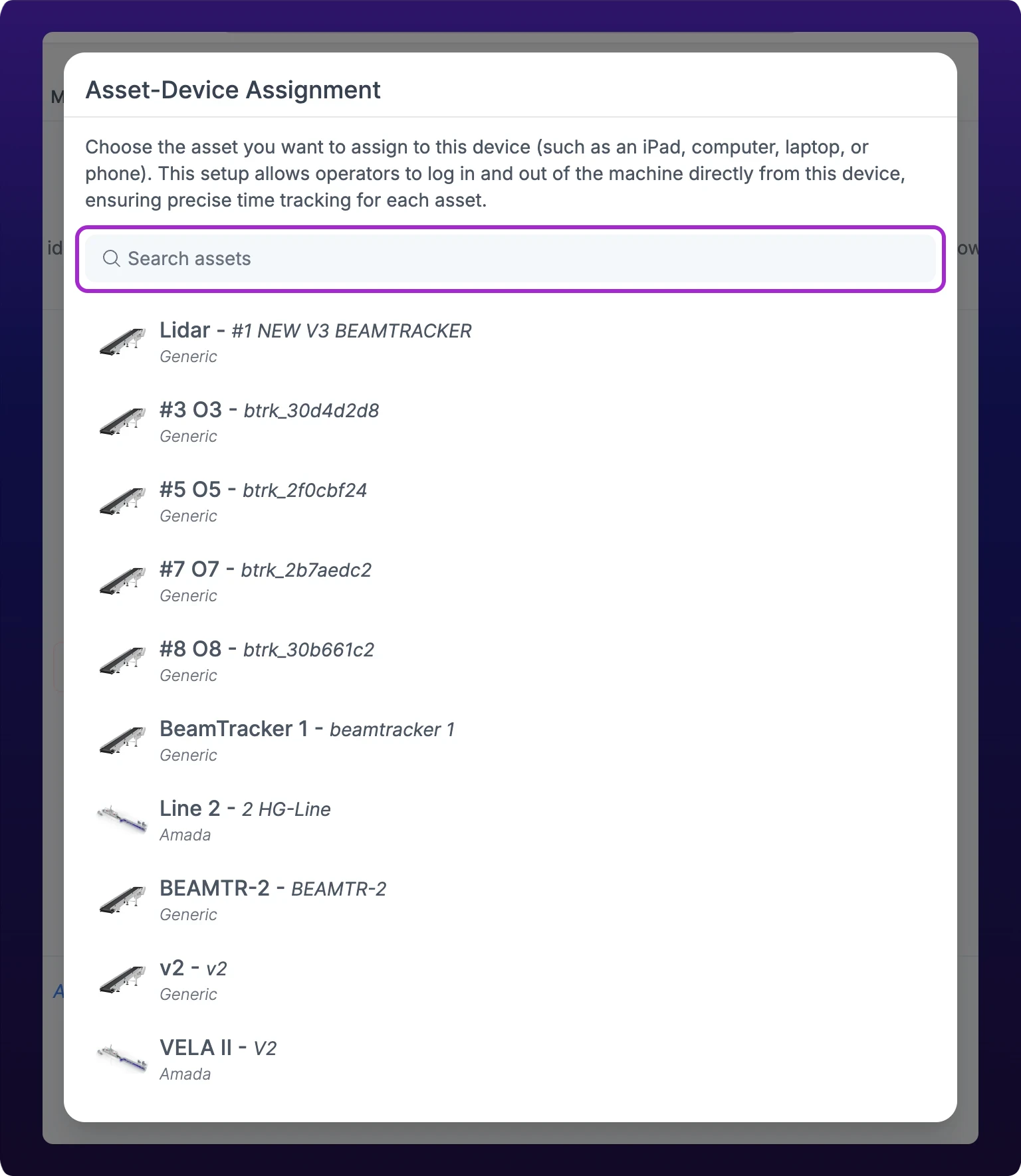 Assigning this device to a machine. The pairing is stored in this browser, not on your account.
Confirm the station boots correctly
- Sign out from the profile menu.
- Sign in again, as the operator's account if it has one.
The browser lands on /assets/operator-asset/:id, where :id is the machine you assigned, instead of on the Assets page. Every later sign-in and reload does the same. If it lands on the Assets page, see Errors.
Each sign-in on a station also clocks the operator in on that machine, and each sign-out clocks them out. That is where the work sessions on the machine's page come from, see Operator performance.
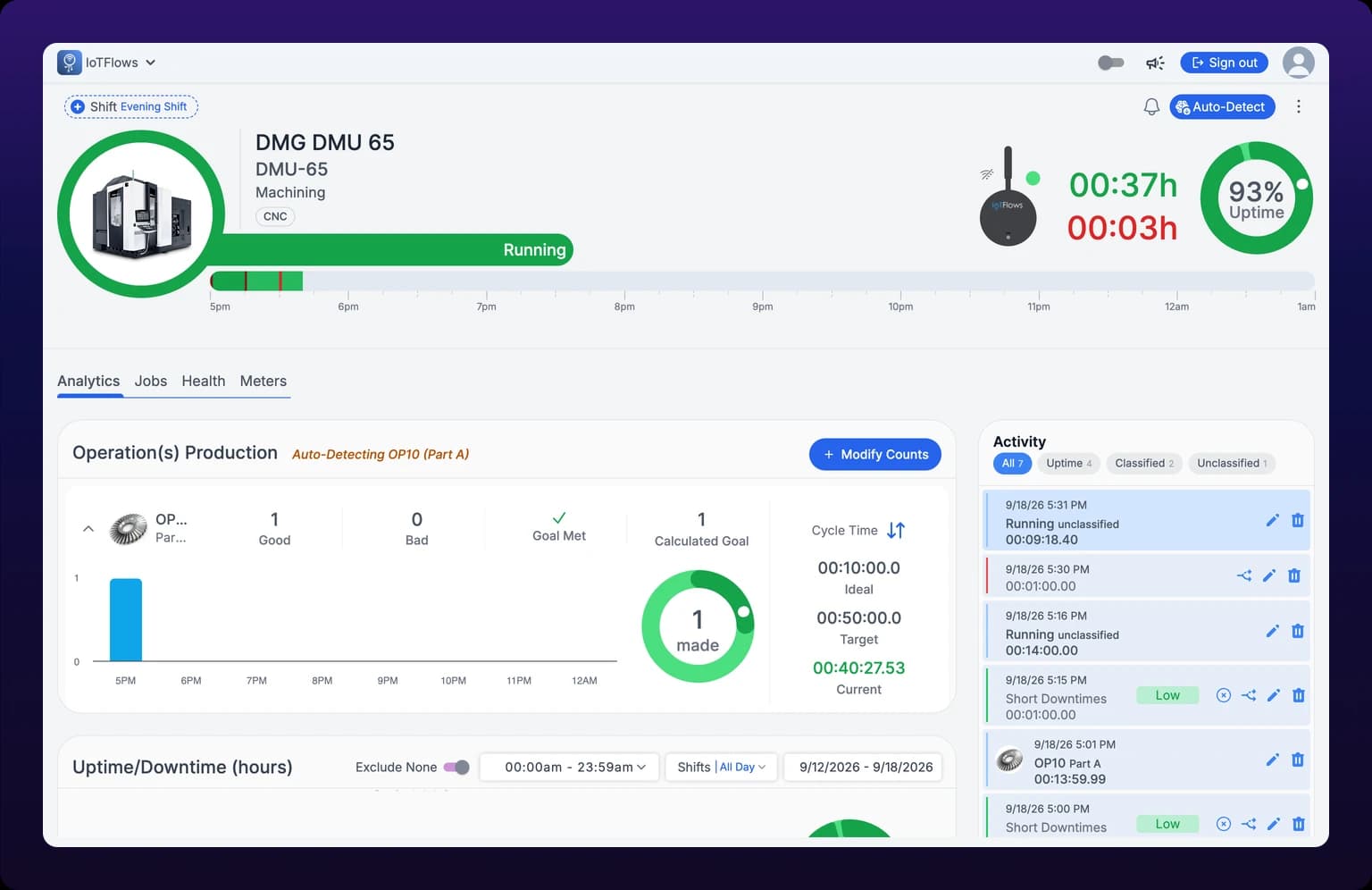 A paired station boots straight to its machine.
What the operator sees
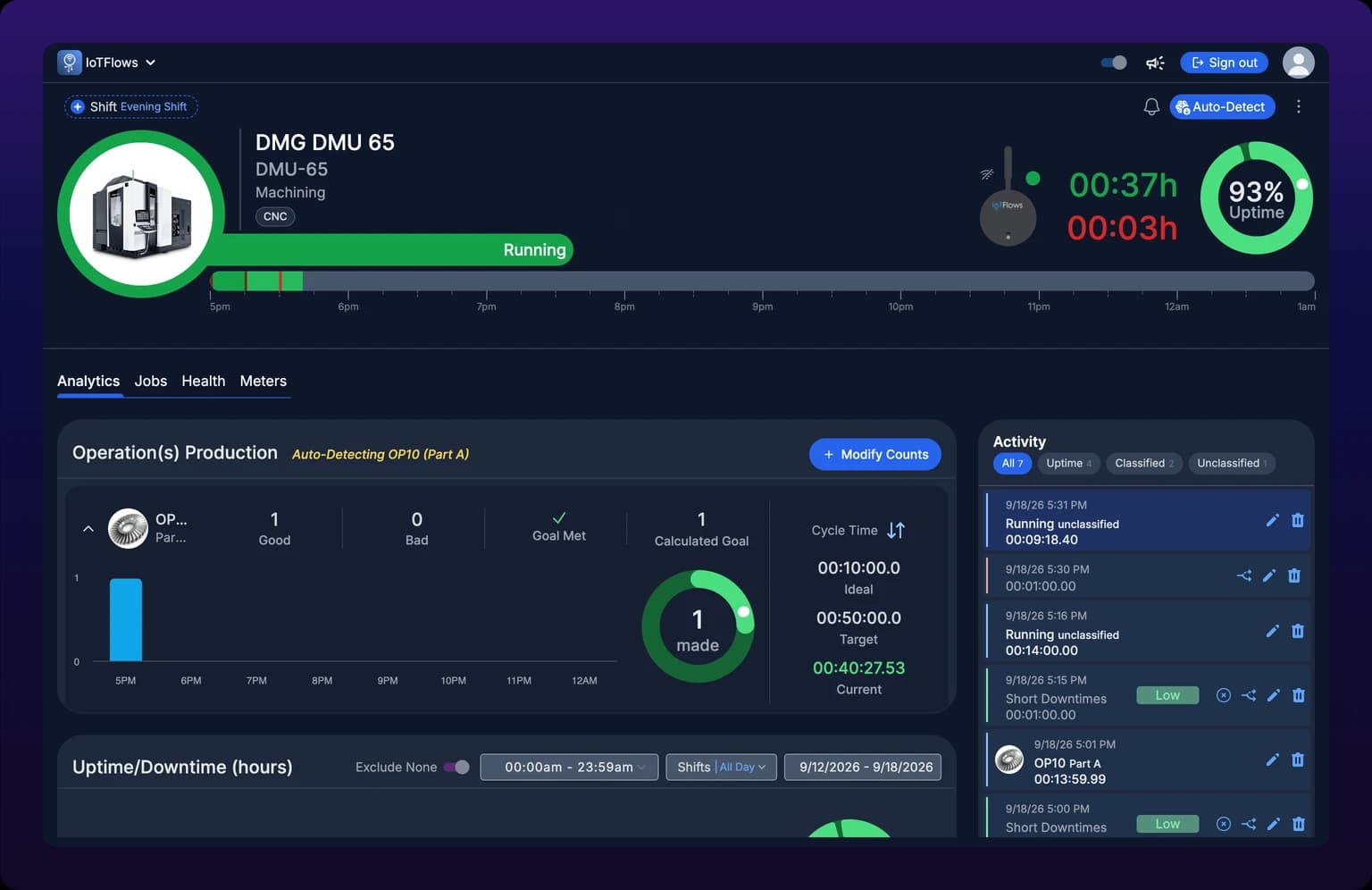
The station shows the machine page with everything that leads away from it removed: no sidebar, no breadcrumbs, and no Assets back link. The operator can classify stops, correct counts, run jobs and leave notes as on the standard page, see Classify a downtime event.
The header is reduced to the organization name, the dark mode switch, the feedback button, a Sign out button and the avatar. The avatar menu holds Sign out, and Exit Operator View for an Owner or Administrator. There is no product navigation, by design.
 The station header. There is no product navigation, by design.

Unassign the device
Unassigning is the same setting in reverse. It needs an Owner or Administrator, because only they can leave the station to reach settings.
- On the station, click the avatar and click Exit Operator View. The browser goes to the Assets page with the standard header.
- Click the gear icon at the top right of the header, then scroll to Assign to Local Device.
- Next to the machine's name, click the × labeled Clear asset from local device.
The section returns to the Assign Asset button. From the next sign-in the device behaves like any other browser.
Exit Operator View alone does not unpair. It releases the browser until the next sign-in or reload, which boots back to the machine. Use it to reach settings, then unassign.
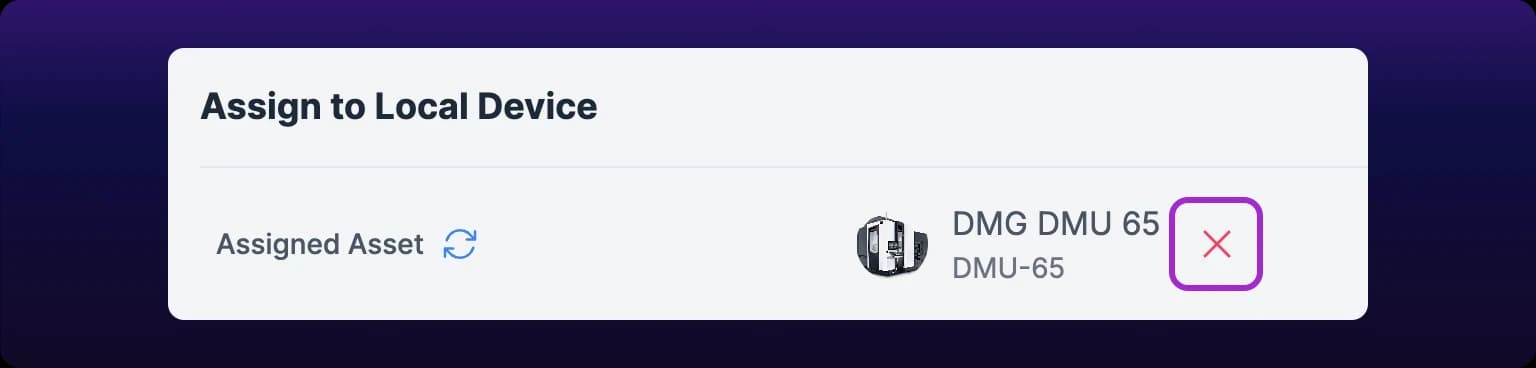 Unassigning. The device leaves station mode and behaves like any other browser.
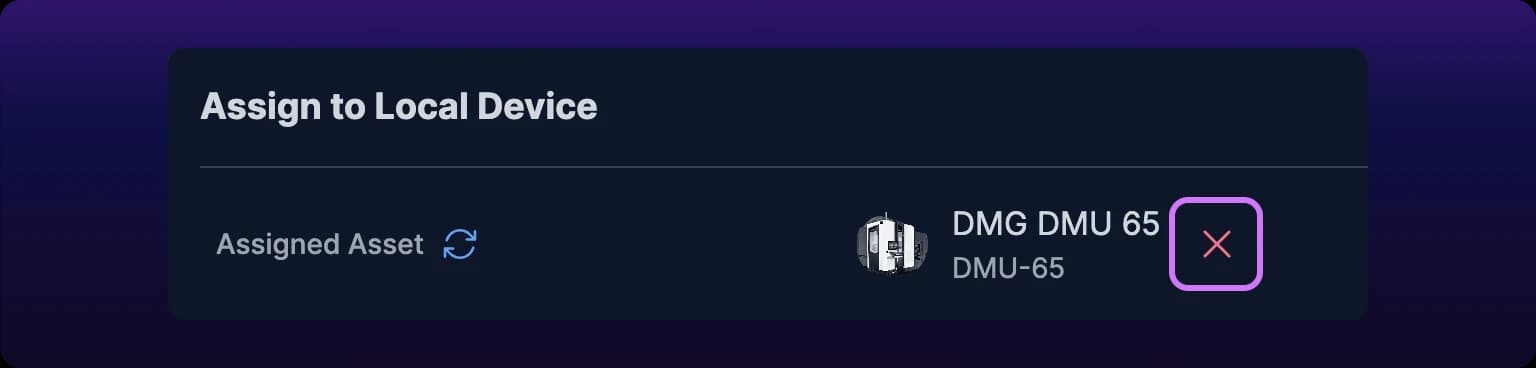
Moving a station to a different machine
You do not need to unassign first. Exit Operator View, click the gear icon, click the change icon next to Assigned Asset and pick the new machine. The next sign-in boots to it, and clock-ins from then on go against it.
Moving the physical device does nothing on its own. A tablet carried from the Haas VF-2 to the Okuma beside it still boots to the Haas until someone changes the assignment.
Errors
| Symptom | Means |
|---|---|
| The station boots to the Assets page instead of the machine | Site data was cleared, or this is a different browser or profile. Assign again |
| The operator cannot leave the machine page | That is the role gate working. Only an Owner or Administrator sees Exit Operator View |
| Assigned Asset is missing from Organization Settings | You are signed in as an operator. Sign in as an Owner or Administrator |
See also
From the blog
Turn on Operator View from the profile menu so every machine page at /assets/selected-asset/:id renders as a full-screen operator page: a header with live status and the Uptime gauge, then a four-tab strip of Part Count, All Downtime, Jobs and Notes. Log parts, bulk classify stops, run a job and leave notes without leaving the machine. The toggle is per browser, and anyone can turn it off.
The Downtimes report ranks your downtime reasons by the time they cost, using a Pareto chart, a by-interval trend and a by-machine breakdown over a paginated table of individual stops. Filter by department or machine, shift, category, severity, and only-with-notes, sort by date or duration, pick a rolling date preset, and export the result as CSV or PDF. Shift islands, in the Shifts popover, reports a shift that crosses midnight entirely on the day it began.