

Choose a machine health baseline profile
Pick the standard your machine's health scores are measured against.
A baseline profile is the reference IoTFlows scores a machine's vibration against. It is set per machine on the Health tab, and every machine starts on Dynamic Baseline. Changing it recalculates that machine's health scores and diagnostics, so it is a setting you get right once rather than one you tune.
Prerequisites. A SenseAi or SenseAi Embedded asset on firmware 5 or later, see Monitor machine health and vibration. Owner or Administrator, see Roles and permissions.
What a baseline profile does
The profile decides what counts as normal for this machine. Every number on the Health tab is a comparison against it: the health score, the seven Operations Metrics gauges, and the diagnostics behind them.
The choice matters most where a machine's normal is unusual. A reciprocating compressor runs with strong harmonics all the time, so a profile that expects a smooth motor keeps scoring a healthy compressor as faulty.
The profile belongs to the asset, not to your account, so everyone in the organization sees the same scores. IoTFlows does not publish the thresholds behind each profile.
Not the same baseline as calibration. The running and stopped baselines you capture in Calibrate SenseAi and SenseAi Embedded decide whether the machine reads as running or down. A baseline profile decides how its health is scored. Neither one changes the other.
The available profiles
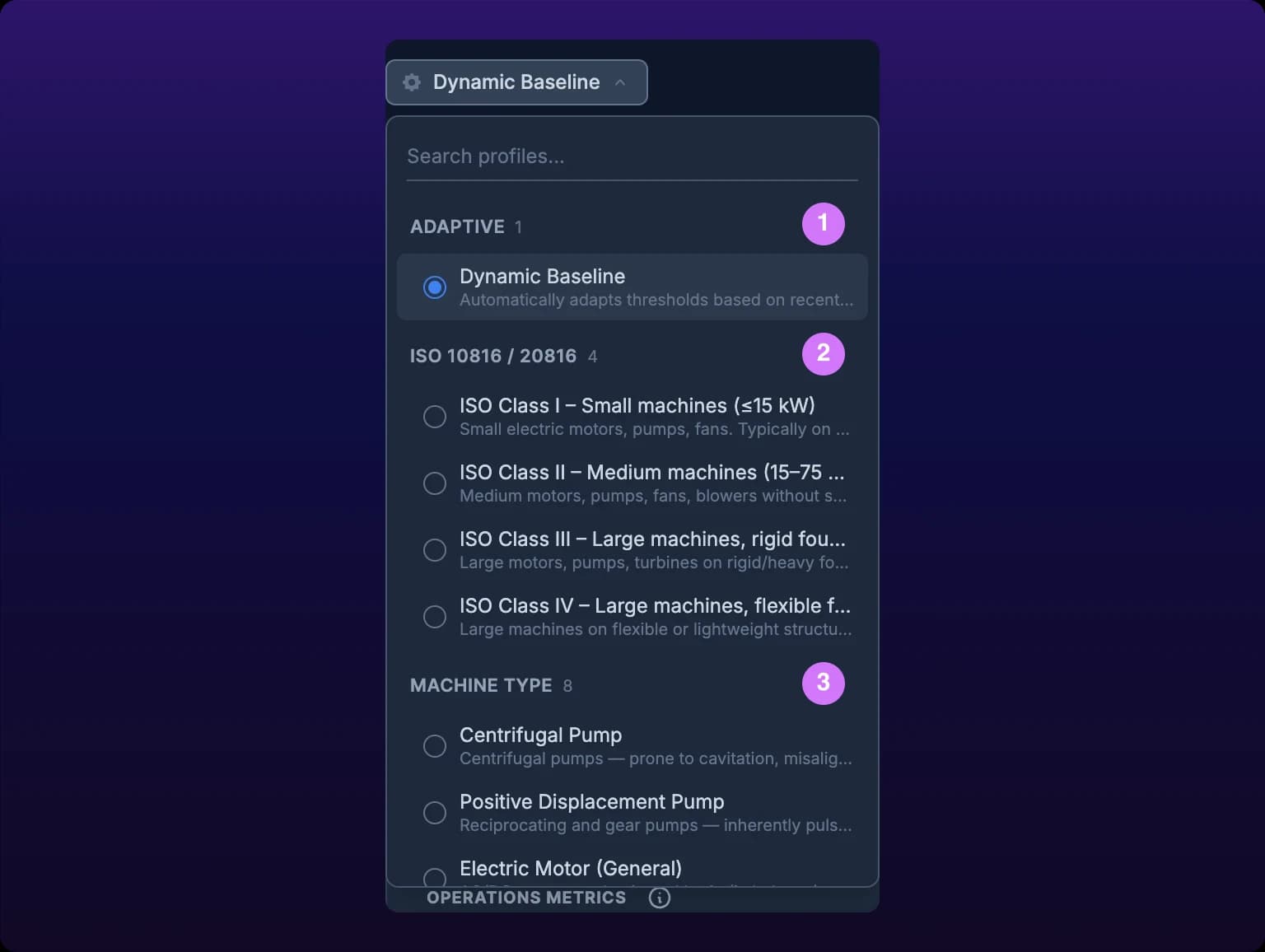
The profile dropdown sits at the top left of the Health tab, opposite the time range buttons, and its label is the machine's current profile. It lists 13 profiles in three groups, with the number of options beside each group name: Adaptive (1), ISO 10816 / 20816 (4) and Machine Type (8).
ISO 10816, republished as ISO 20816, is the international standard for judging machine vibration severity. It sorts machines into classes by power and by how rigid the foundation is, which is what the four ISO options name.
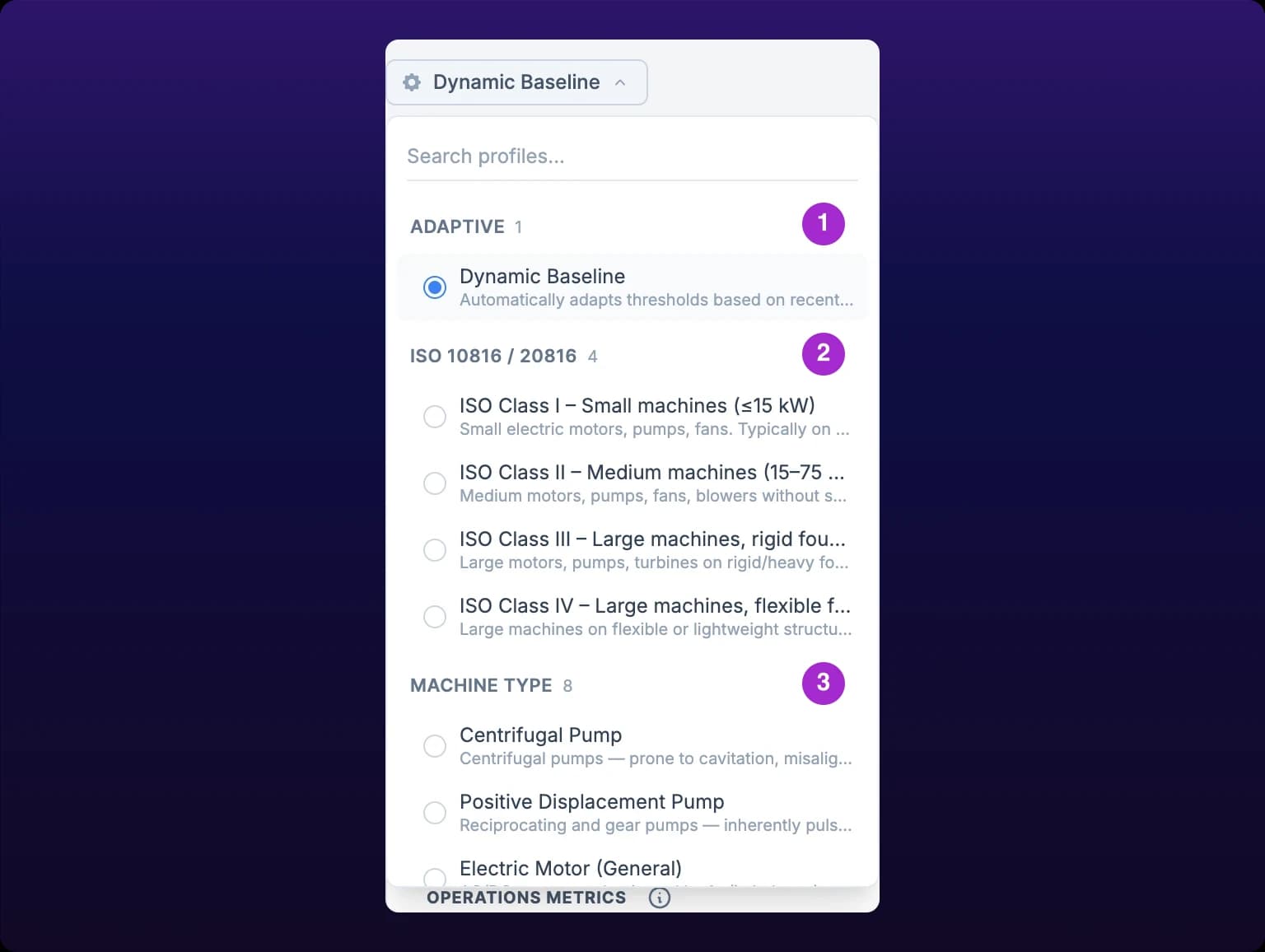 The 13 baseline profiles in their three groups.
Type in Search profiles... to filter the list. The search matches both the profile name and its description, and a group disappears when none of its options match. A search that matches nothing shows No profiles match your search.
 Searching the profile list.

Baseline profiles
Expected signature is what the profile treats as ordinary for that machine. 1X and 2X are multiples of running speed, see Harmonics and RPM.
| Profile | Group | Fits | Expected signature | Notes |
|---|---|---|---|---|
| Dynamic Baseline | Adaptive | Any machine, and the only fit for a custom or one-off one | Whatever the machine's own recent readings show | The default, and the right one unless you can name the machine's class |
| ISO Class I – Small machines (≤15 kW) | ISO 10816 / 20816 | Small electric motors, pumps and fans | Up to 15 kW, typically on rigid mounts | Pick an ISO class by power and foundation, not by what the machine makes |
| ISO Class II – Medium machines (15–75 kW) | ISO 10816 / 20816 | Medium motors, pumps, fans and blowers | 15 to 75 kW with no special foundation | The class most shop-floor machines fall into |
| ISO Class III – Large machines, rigid foundation (>75 kW) | ISO 10816 / 20816 | Large motors, pumps and turbines | Over 75 kW on a rigid or heavy foundation | The foundation matters as much as the power |
| ISO Class IV – Large machines, flexible foundation | ISO 10816 / 20816 | Large machines on flexible or lightweight structures, such as turbogenerators | A structure that moves with the machine | The standard allows more vibration here than on a rigid foundation |
| Centrifugal Pump | Machine Type | Centrifugal pumps | Cavitation, misalignment and vane-pass harmonics | Read it alongside the Cavitation Risk gauge |
| Positive Displacement Pump | Machine Type | Reciprocating and gear pumps | Pulsating by design, so higher harmonics are expected | — |
| Electric Motor (General) | Machine Type | AC and DC motors | Dominated by 1X, imbalance, and 2X, misalignment | Use it when the motor is what you are watching, not the machine it drives |
| Fan / Blower | Machine Type | Centrifugal and axial fans | Blade-pass harmonics, sensitive to imbalance | — |
| Reciprocating Compressor | Machine Type | Reciprocating compressors | High harmonic content is normal and valve impacts are expected | The clearest case for a machine-type profile: a general profile keeps flagging what belongs here |
| Screw Compressor | Machine Type | Rotary screw compressors | Meshing frequencies, moderate high-frequency energy | — |
| Gearbox | Machine Type | Gear drives | Gear mesh frequencies dominate, and sidebands indicate wear | — |
| Turbine (Steam / Gas) | Machine Type | Steam and gas turbines | High speed and tight tolerances, sensitive to imbalance and rub | — |
Which one to pick.
- Choose Dynamic Baseline when the machine is unusual, custom, or you do not know its class. It learns from recent data and is the right default.
- Choose an ISO class when the machine matches one cleanly and you need scores you can hold against an external standard.
- Choose a machine-type profile when the fault signature matters. A reciprocating compressor's harmonics are normal, and a general profile keeps flagging them.
You do not need to change this on most machines. Dynamic Baseline scores a machine against itself, which is what you want when the question is "has this machine changed". Change the profile when the machine clearly belongs to one of the other 12, or when a machine keeps scoring low with nothing wrong on the floor.
Change the profile
- Open the machine's page at
/assets/selected-asset/:idand click Health. - Click the profile button at the top left.
- Type in Search profiles... to narrow the list, or scroll to the group you want.
- Click the profile. The dropdown closes and the Change baseline profile dialog opens.
- Check the dialog. It names the new profile with its description, and shows the current profile and the new one side by side.
- Click Apply changes, or Cancel to keep the profile you have.
A toast confirms the change by name, for example Baseline profile updated to Gearbox. Nothing is written until you confirm: picking a profile in the dropdown only opens the dialog.
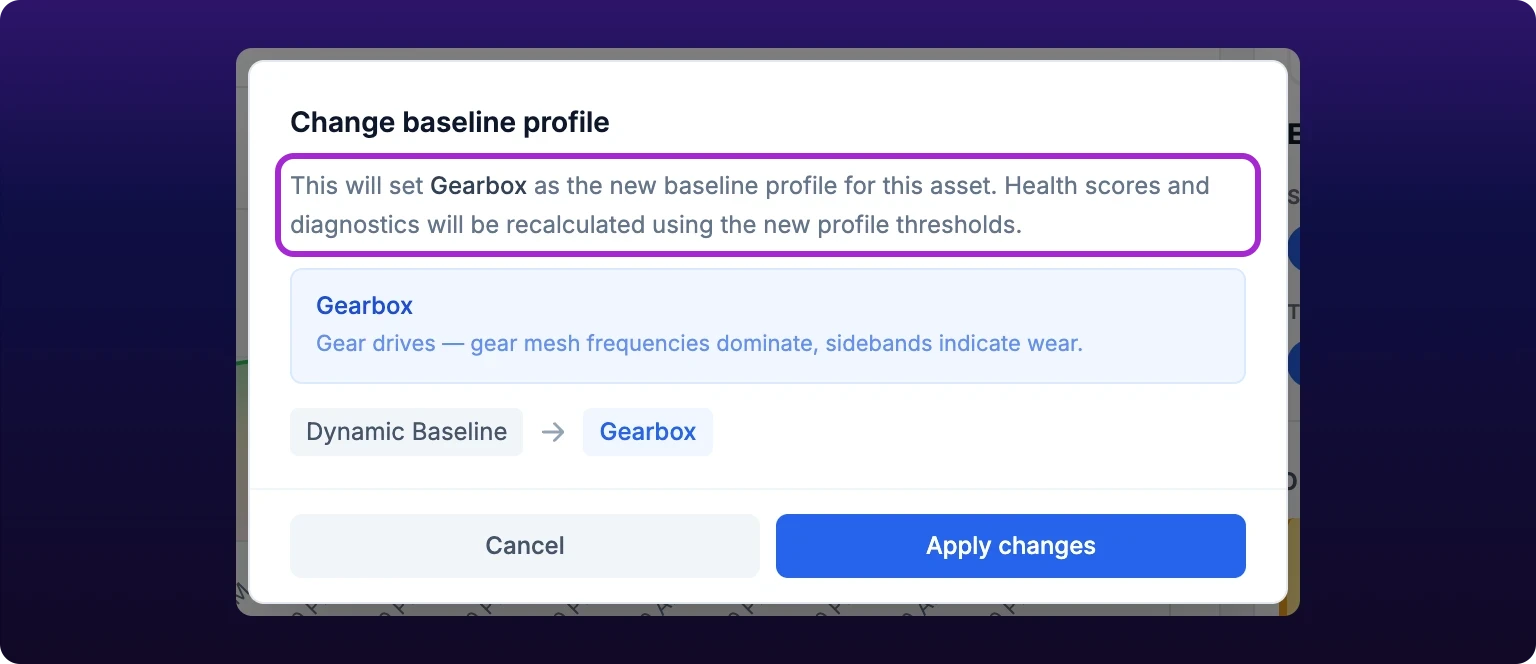 Changing the profile recalculates every health score and diagnostic against the new thresholds.
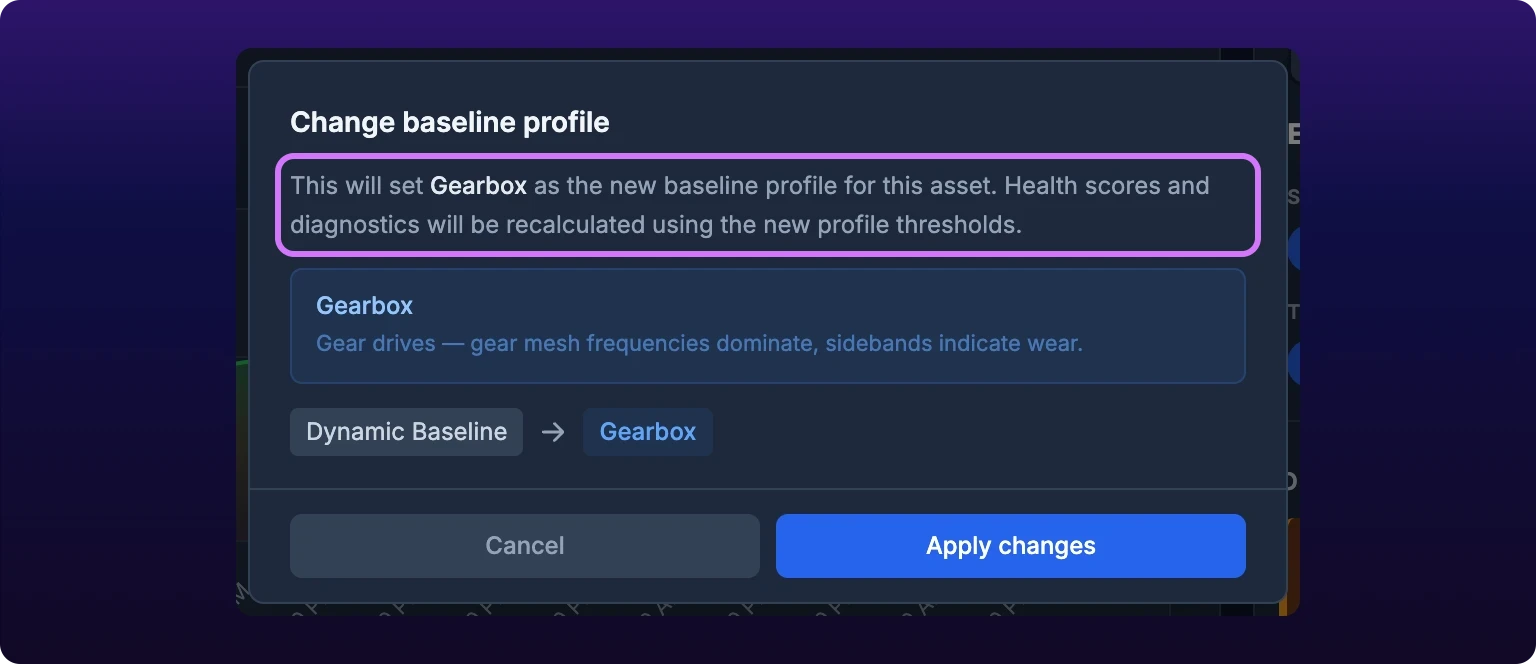
What happens next
The Health tab reloads on the new profile. Health scores and diagnostics are recalculated against its thresholds, which is what the confirm dialog warns about.
Expect the numbers to move, sometimes by a lot. A compressor that scored low on Dynamic Baseline can score well on Reciprocating Compressor, because the harmonics the first profile counted against it are ordinary for the second. That is recalculation, not a repair and not a fault.
So compare scores within one profile, not across a change. If you also run health rules on this machine, check them after the move: they fire on the recalculated scores, see Asset event rules.
Errors
| Symptom | Cause | Do this |
|---|---|---|
| Failed to update baseline profile | The change did not save, and the machine keeps the profile it had | Open the dropdown again and repeat the change. If it repeats, see Get support |
| No profile dropdown on the machine's page | The asset carries a BeamTracker, or the device is on firmware below 5 | Neither has a health baseline, see Monitor machine health and vibration |
| Every score jumps right after a change | Recalculation on the new thresholds | Nothing. Read the trend from the change forward |
| Gauges read No Data after a change | The sensor has not collected enough samples yet | Wait, then check the device is reporting in View your devices |
See also
Read the Health tab on a SenseAi asset: the health score and its trend, the seven operations metrics including bearing health, the X, Y and Z axes, the FFT spectrum with its harmonic markers and RPM, the spectrogram and 3D view, the 14 metric trend charts and what each one rises with, the timestamp inspector that lines every chart up on one moment, the legacy view for firmware below 5, and how to tell degradation from a noisy baseline.
Read the Event Alerts list on a machine's Health tab: what an event is and how it differs from the rule that fired it, the severity and type filter pills, how rows are grouped by age and sorted, dismissing one event or a whole time group, and the two ways an event becomes a work order.